Microservices Engine (MSE) Ingress gateways are compatible with NGINX Ingress gateways. Compared with the performance of open source self-managed Ingress gateways, the performance of MSE Ingress gateways is doubled. MSE Ingress gateways are certified as industry-leading Ingress gateways by the China Academy of Information and Communications Technology (CAICT) based on security maturity. MSE Ingress gateways offer low cost, security protection, high integration, and high availability. This topic describes how to use MSE Ingress gateways to access services in Container Service for Kubernetes (ACK) clusters and Container Compute Service (ACS) clusters.
For security purposes, MSE Ingress gateways cannot expose services in the kube-system namespace.
Prerequisites
MSE Ingress Controller is installed in an ACK managed cluster, an ACK Serverless cluster, or an ACS cluster.
You are granted permissions to MSE Ingress Controller in your cluster. If your cluster is an ACK managed cluster or ACK Serverless cluster, click the link to grant permissions. If your cluster is an ACS cluster, click the link to grant permissions.
A cluster of version V1.18 or later is created. For more information about how to create a cluster, see Create an ACK managed cluster, Create an ACK Serverless cluster, or Create an ACS cluster.
NoteIf the version of your cluster is earlier than 1.18, upgrade the cluster. For more information about upgrade operations, see Manually upgrade ACK clusters.
Step 1: Install MSE Ingress Controller
ACK managed clusters or ACK Serverless clusters
Log on to the ACK console. In the navigation pane on the left, choose Clusters.
On the Clusters page, click the name of the target cluster. In the navigation pane on the left, click Add-ons.
ACS
Log on to the ACS console. In the left navigation pane, click Clusters.
On the Clusters page, click the name of the target cluster. In the left navigation pane, click Add-ons.
On the Add-ons page, enter
msein the search box, and click Install in the MSE Ingress Controller resource card.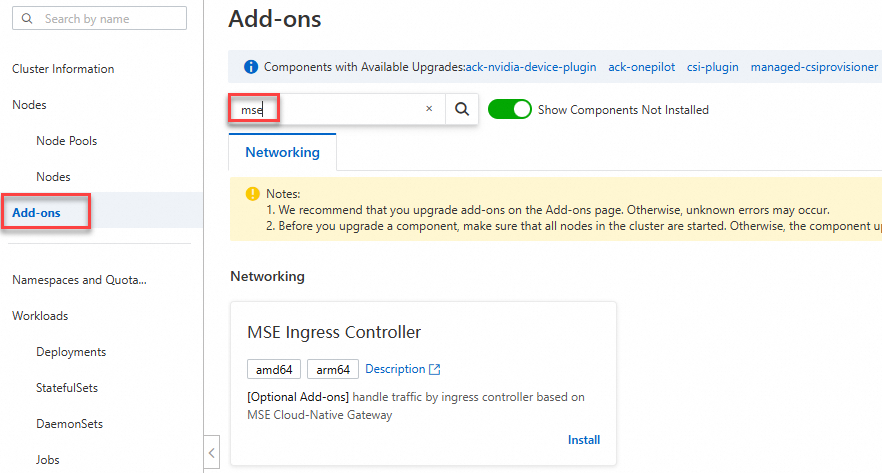
In the Install MSE Ingress Controller dialog box, configure the parameters and click OK.
ACK managed clusters or ACK Serverless clusters
You can create an MSE cloud-native gateway instance or select an existing one.
Create:
A pay-as-you-go Professional Edition MSE cloud-native gateway instance is automatically created with two 2-core 4 GB nodes. You can change these default specifications after the instance is created.

Select Existing: Select a pay-as-you-go Professional Edition gateway instance from the list. The instance must be in the same virtual private cloud (VPC) as the container cluster and not associated with other clusters.
ACS
You can create an MSE cloud-native gateway instance or select an existing one.
Create:
A pay-as-you-go Professional Edition MSE cloud-native gateway instance is automatically created with two 2-core 4 GB nodes. A Network Load Balancer (NLB) instance is also created based on the specified network type.

Select Existing:
Select a pay-as-you-go Professional Edition gateway instance from the list. The instance must be in the same virtual private cloud (VPC) as the container cluster and not associated with other clusters.
If the error message "Failed to pass the precheck." appears when you install MSE Ingress Controller, grant permissions to MSE Ingress Controller. If your cluster is an ACK managed cluster or ACK Serverless cluster, click the link to grant permissions. If your cluster is an ACS cluster, click the link to grant permissions.
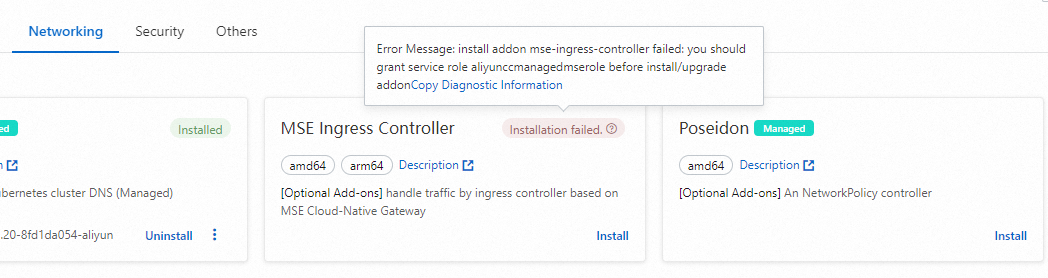
After MSE Ingress Controller is installed, the system automatically creates an MseIngressConfig resource named
mse-ingress-premium-{clusterid}and a gateway instance namedmse-ingress-premium-{clusterid}.You can go to the ACK console, and click the name of the cluster. In the left-side navigation pane, choose Workloads > Custom Resources. On the Resource Objects tab of the Custom Resources page, enter
msein the search box in the API Group section. Click YAML Edit in the Actions column of the MseIngressConfig to query the status of theMseIngressConfig.If the status changes to Listening after 3 to 5 minutes, the cloud-native gateway is created and is in the Running state. The gateway automatically listens to the Ingress resources whose IngressClass is mse in the cluster.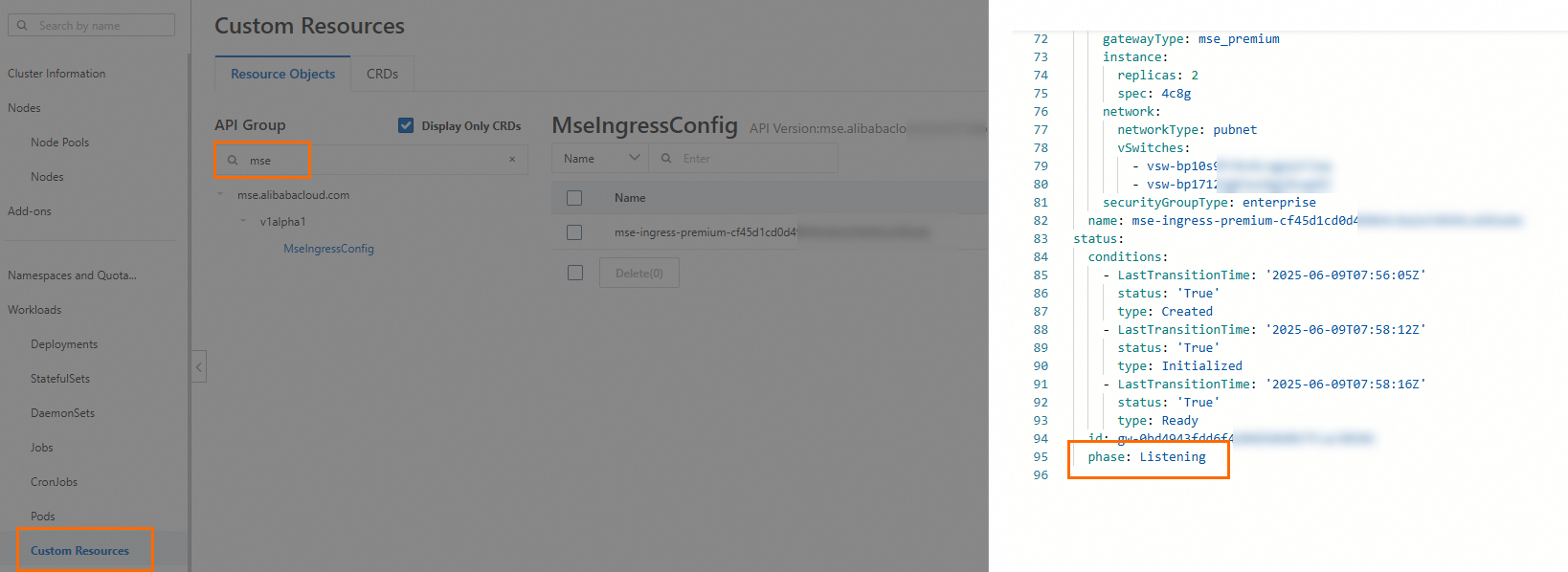
In normal cases, the gateway status in MseIngressConfig changes in the following order: Pending > Running > Listening. Status description:
Pending: The cloud-native gateway is being created. You must wait about 3 minutes.
Running: The cloud-native gateway is created and is running.
Listening: The cloud-native gateway is running and listens to Ingress resources in the cluster.
Failed: The cloud-native gateway is in the invalid state. You can view Message in the Status field to identify the cause.
ImportantWhen you create a cluster, an MseIngressConfig resource is automatically created during the installation of MSE Ingress Controller. The lifecycle of the MseIngressConfig resource is associated with the lifecycle of the MSE cloud-native gateway. If you delete an MseIngressConfig resource, the associated MSE cloud-native gateway instance is also deleted. Do not delete MseIngressConfig resources unless otherwise specified.
If the IngressClass resource named mse already exists in the cluster before you install MSE Ingress Controller, an MSE cloud-native gateway and the associated MseIngressConfig resource are not automatically created during the installation of MSE Ingress Controller.
Log on to the MSE console. Check that a cloud-native gateway named
mse-ingress-premium-{clusterid}is created in the region.
Step 2: Deploy a backend service
ACK managed clusters or ACK Serverless clusters
Log on to the ACK console. In the navigation pane on the left, choose Clusters.
On the Clusters page, click the name of the target cluster. In the navigation pane on the left, choose .
ACS
Log on to the ACS console. In the left navigation pane, click Clusters.
On the Clusters page, click the name of the target cluster. In the left navigation pane, choose Workloads > Deployments.
On the Deployments page, click Create from YAML. In the Template field, enter the following code in the YAML format to create a deployment named
httpbinand a service namedhttpbin.apiVersion: apps/v1 kind: Deployment metadata: name: httpbin namespace: default spec: replicas: 1 selector: matchLabels: app: httpbin template: metadata: labels: app: httpbin version: v1 spec: containers: - image: registry.cn-hangzhou.aliyuncs.com/mse-ingress/go-httpbin args: - "--version=v1" imagePullPolicy: Always name: httpbin --- apiVersion: v1 kind: Service metadata: name: httpbin namespace: default spec: ports: - port: 8080 protocol: TCP selector: app: httpbinVerify that the deployment and service are deployed.
In the left-side navigation pane, choose . If a Deployment named
httpbinis created and the number ofpodsis changed to1/1, the Deployment is deployed.
In the left-side navigation pane, choose . If a service named
httpbinis created, the service is deployed.
Step 3: Configure an MSE Ingress gateway
ACK managed clusters or ACK Serverless clusters
Log on to the ACK console. In the navigation pane on the left, choose Clusters.
On the Clusters page, click the name of the target cluster. In the navigation pane on the left, choose .
ACS
Log on to the ACS console. In the left navigation pane, click Clusters.
On the Clusters page, click the name of the target cluster. In the left navigation pane, choose Network > Ingresses.
On the Ingresses page, click Create Ingress.
In the Create Ingress dialog box, select MSE Ingress for Gateway Type, configure the associated backend services and annotations, and then click OK.
Set Ingress Class to mse. To configure a route, select Prefix (Prefix-based Match) from the Rule drop-down list, enter
/in the Path field, and then selecthttpbinfrom the Service drop-down list.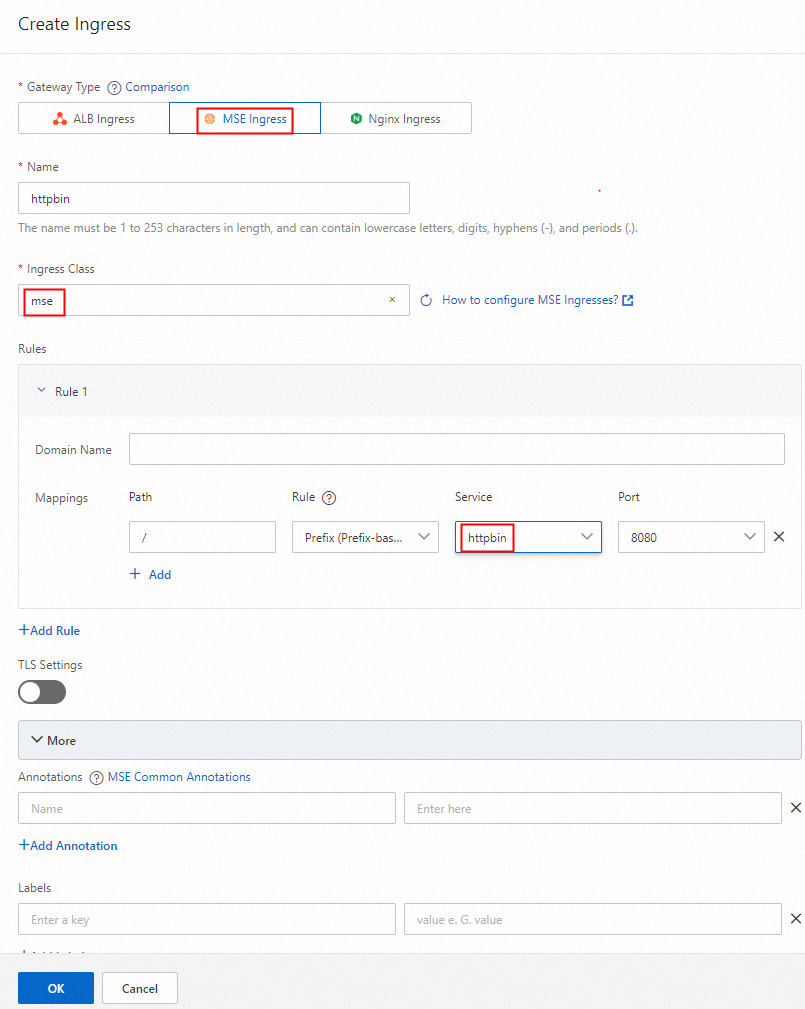
Log on to the MSE console. Check that a route is configured for the cloud-native gateway and the route name contains httpbin.

Step 4: Access the service
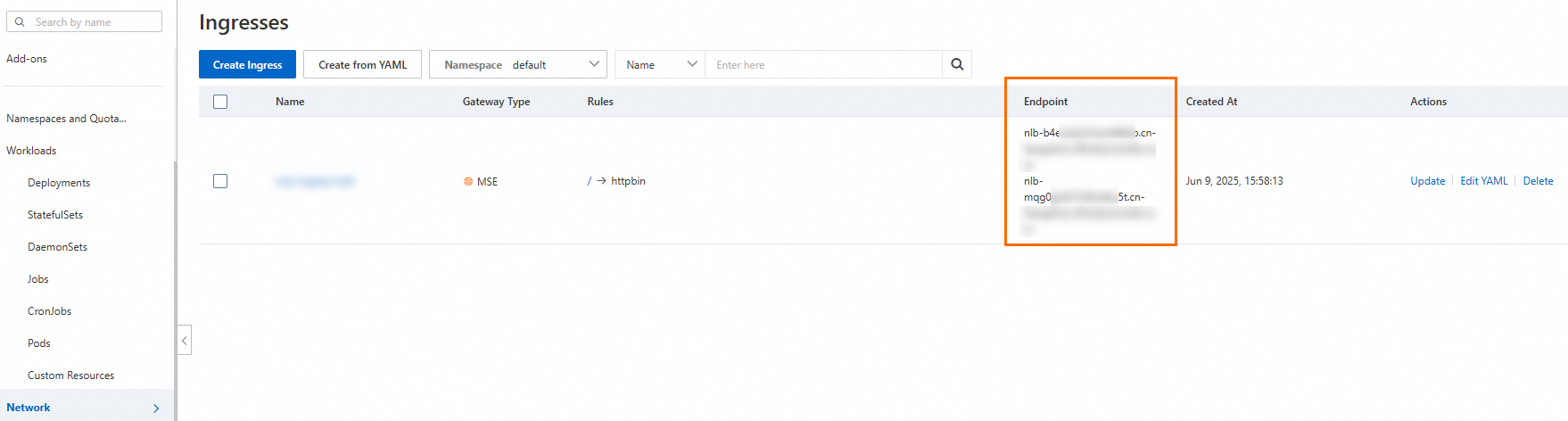
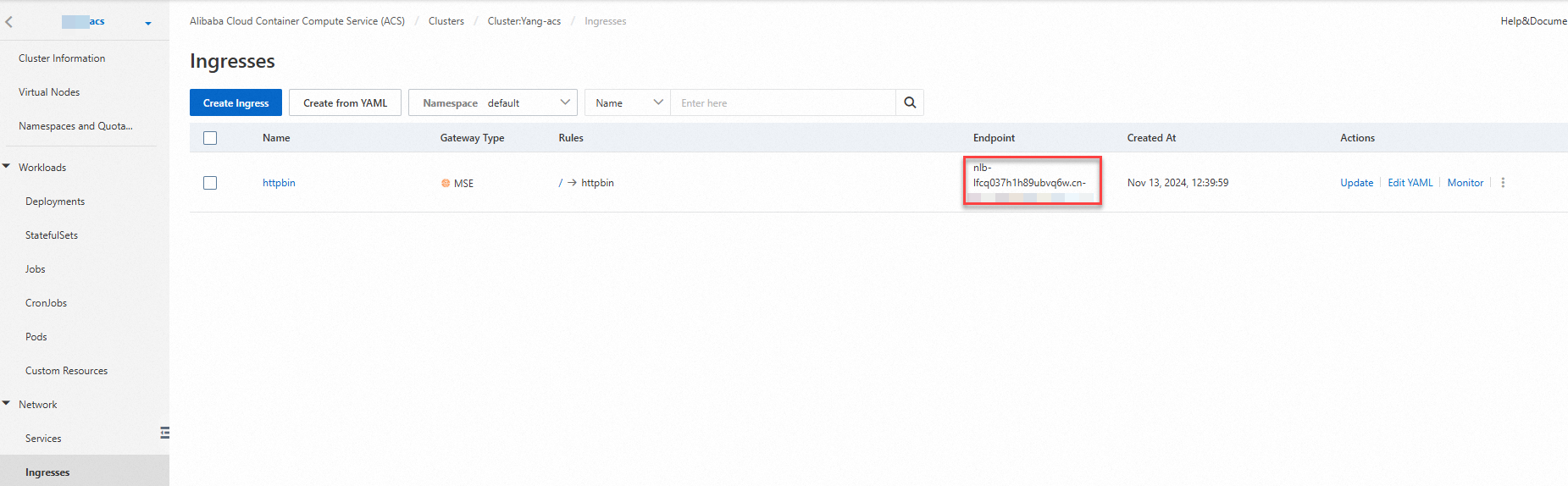
Obtain the NLB domain name from the Ingress endpoint, or obtain the public IP address from the gateway.
Method 1: On the Ingresses page, view the Ingress endpoint.
ACK managed clusters or ACK Serverless clusters
Log on to the ACK console. In the navigation pane on the left, choose Clusters.
On the Clusters page, click the name of the target cluster. In the navigation pane on the left, choose .
On the Ingresses page, view the Ingress endpoint.
ACS
Log on to the ACS console. In the left navigation pane, click Clusters.
On the Clusters page, click the name of the target cluster. In the left navigation pane, choose Network > Ingresses.
On the Ingresses page, view the Ingress endpoint.
Method 2: In the MSE console, view the public IP address of the gateway.
Log on to the MSE console. In the left-side navigation pane, choose Cloud-native Gateway > Gateways, and click the name of the target gateway. On the Overview page of your MSE cloud-native gateway, view the public IP address on the Endpoint tab.

Access the
NLB domain name/versionorgateway public IP address/versionto test the service, using a browser or a command-line tool. For example, enter thenlb-b4ewsj2******.cn-hangzhou.nlb.aliyuncsslb.com/versionin the browser.
References
For more information about MSE Ingress gateways and how MSE Ingress gateways work, see Manage MSE Ingress gateways.