Script job
This document explains how to create a script job by writing a Shell, Python, or PHP script.
How it works
The following diagram illustrates how a script job works.
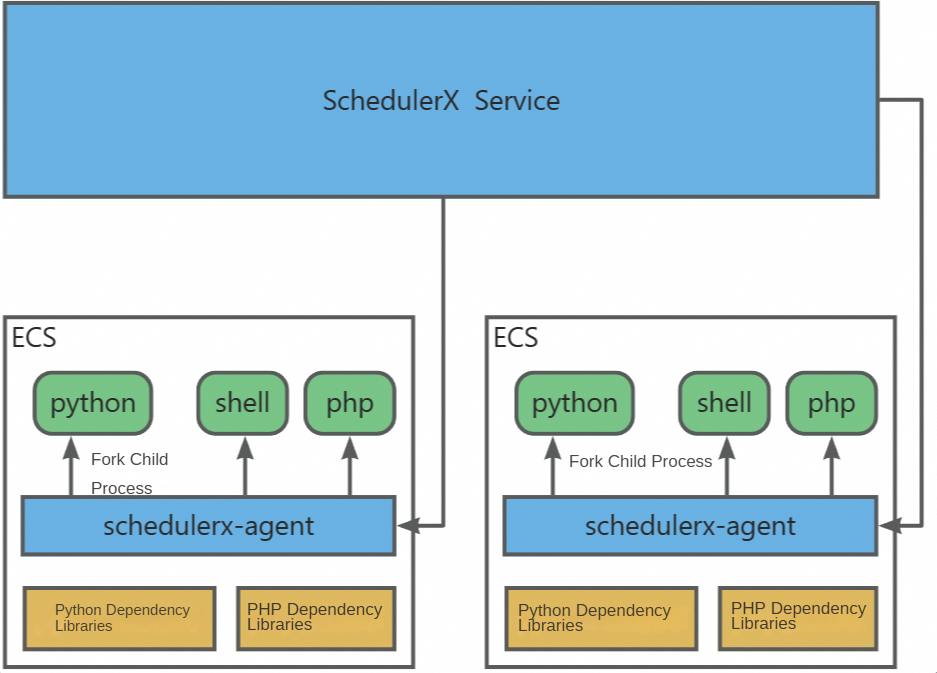
-
To use the script job feature, you must first deploy the
SchedulerX agenton the target machine. The agent communicates with the server to receive script execution commands and return execution results. -
You must install all required script dependencies on the target machine, such as Python libraries and dependent files.
-
Each time a script is executed, the
SchedulerX agentforksa child process to run the script. This child process does not consume the memory of theSchedulerX agentbut uses the memory of the target machine. Memory consumption depends on the script's content. Running a large number of script jobs simultaneously might exhaust the machine's memory. For scenarios involving scripts that require significant resources, we recommend using a Kubernetes job to run the script in a pod.
Prerequisites
-
You must deploy the SchedulerX agent to run scripts.
Create a script job
Log on to the MSE SchedulerX console. In the left-side navigation pane, go to the Task Management page and create a job. For Task Type, select Script Task.
Step 1: Select script language
Select a Scripting Language. Supported languages are Shell, Python, and PHP.
Step 2: Execute command
The commands for different script languages are as follows:
-
Shell script: The default is
/bin/sh. -
Python script: The default is
python. You can change it topython2orpython3. -
PHP script: The default is
php.
Step 3: File format
Systems like UNIX and Windows use different line break characters.
-
If you need to run the script on a
Windowssystem, selectwindows. -
If you need to run the script on a
Linux/Unix/Macsystem, selectunix.
If the script source is on a Windows system but must run on a Linux system, set File Format to unix.
Step 4: Execution mode
Prerequisite: You must deploy the schedulerxAgent in advance to run scripts. For more information, see Agent Access (Script or HTTP Tasks).
Execution Mode:
-
Stand-alone operation: If multiple agents are deployed, one agent is randomly selected to run the script for each execution.
-
Broadcast run: If multiple agents are deployed, all agents run the script simultaneously. This mode is typically used for batch operations.
-
Shard run: For more information, see Python jobs in Shard run mode.
Write a script
After you create a script job, SchedulerX generates a default template based on the selected script language. You can modify the script content by clicking Edit Script on the Task management page.
In the job list, the Task type/Execution mode column displays the current execution mode (such as Stand-alone operation or Shard run) and provides the Edit Script option.
Script version history
The script version history feature is available for Professional Edition applications. On the Edit Script page, turn on the Version History toggle to open the version comparison view.
-
The left pane displays the current version, and the right pane displays a historical version.
-
Click the drop-down list to view historical version information, including the version description and creation time.
-
After modifying the script, click OK. You will be prompted to enter a new Version Name.
System built-in parameters
Scripts support the following system built-in parameters. To use these parameters, the agent version must be 1.12.5 or later.
|
Parameter |
Description |
Example |
Supported version |
|---|---|---|---|
|
|
The custom parameters specified for the job. |
hello |
1.12.5 |
|
|
The shard ID. This parameter is available only for jobs in Broadcast run or Shard run mode. |
0 |
1.12.5 |
|
|
The shard parameters. This parameter is available only for jobs in Shard run mode. |
hangzhou |
1.12.5 |
|
|
The total number of shards. This parameter is available only for jobs in Broadcast run or Shard run mode. |
2 |
1.12.5 |
|
|
The number of times the job has been retried. |
0 |
1.12.5 |
|
|
The trigger type:
|
1 |
1.12.5 |
|
|
The scheduling timestamp, in milliseconds. |
1743150114875 |
1.12.5 |
|
|
The data timestamp, in milliseconds. |
1743150114875 |
1.12.5 |
|
|
Retrieves the output from an upstream job during workflow orchestration. |
|
1.13.5 |
Examples
Broadcast run
-
Connect two
SchedulerX agentinstances.In the Connected instances dialog box, confirm that both instances have a status of Healthy, the version is
1.12.5, and the connection type is pod. -
Create a script job with Scripting Language set to Shell and Execution Mode set to Broadcast run. Use the following script content:
#!/bin/bash echo "Shard ID: #{schedulerx.shardingId}" echo "Total number of shards: #{schedulerx.shardingNum}" echo "hello world" exit 0 -
In the Actions column for the target job, click Run once.
-
In the Execution List list in the left navigation bar, click Log in the Actions column of the target task instance to view the execution content for each machine.
-
The log for
172.16.13.125shows that it received Shard ID 1, and the total number of shards is 2.time : 2025-04-22 17:05:26 ---------------------------------------------------------------------- ip : 172.16.13.125:34487 executionId : 10496431_74039165530_1 level : INFO log : Total number of shards: 2 time : 2025-04-22 17:05:26 ---------------------------------------------------------------------- ip : 172.16.13.125:34487 executionId : 10496431_74039165530_1 level : INFO log : hello world time : 2025-04-22 17:05:26 ---------------------------------------------------------------------- ip : 172.16.13.125:34487 executionId : 10496431_74039165530_1 level : INFO log : Shard ID: 1 time : 2025-04-22 17:05:26 ---------------------------------------------------------------------- -
The log for
172.16.13.120shows that it received Shard ID 0, and the total number of shards is 2.The log also outputs the
hello worldmessage. All log entries for this execution have the same executionId of10496431_74039165530_0and a level ofINFO.
-
Shard run
-
Create a script job with Scripting Language set to Shell and Execution Mode set to Shard run. Configure the other parameters as follows:
Set Execute Command to
/bin/sh, File format to unix, Executor to Agent, and Priority to Medium. For Shard parameters, enter0=hangzhou,1=shanghai,2=beijing,3=shenzhen. This configuration divides the job into four shards named after cities: hangzhou, shanghai, beijing, and shenzhen. -
After the job is created, click Edit Script for the job and enter the following script content:
#!/bin/bash echo "Shard ID: #{schedulerx.shardingId}" echo "Shard parameters: #{schedulerx.shardingParameters}" echo "hello world" exit 0 -
In the Actions column for the target job, click Run once.
-
In the left navigation bar, in the Execution List list, click Log in the Actions column of the target task instance to view the shard parameters for each machine.
-
The machine at
172.16.13.120ran twice, processing the shards with the parametershangzhouandbeijing. -
The machine at
172.16.13.125ran twice, processing the shards with the parametersshenzhenandshanghai.
-
Related documentation
For details on system built-in parameters, see System built-in parameters for script jobs.