MSE Cloud-native Gateway is a managed traffic ingress that provides powerful traffic governance capabilities. It supports various service discovery methods, including Container Service for Kubernetes (ACK), MSE Nacos, MSE Zookeeper, Enterprise Distributed Application Service (EDAS) registries, Serverless App Engine (SAE) registries, fixed addresses, and DNS names. The gateway provides a unified model for service versions and canary releases. This topic describes how to implement different service release strategies using two service discovery mechanisms: Container Service for Kubernetes (ACK) and a Nacos registry.
Prerequisites
-
You are familiar with blue-green deployment, A/B testing, and canary release mechanisms. For more information, see Service release strategies.
Service discovery: ACK
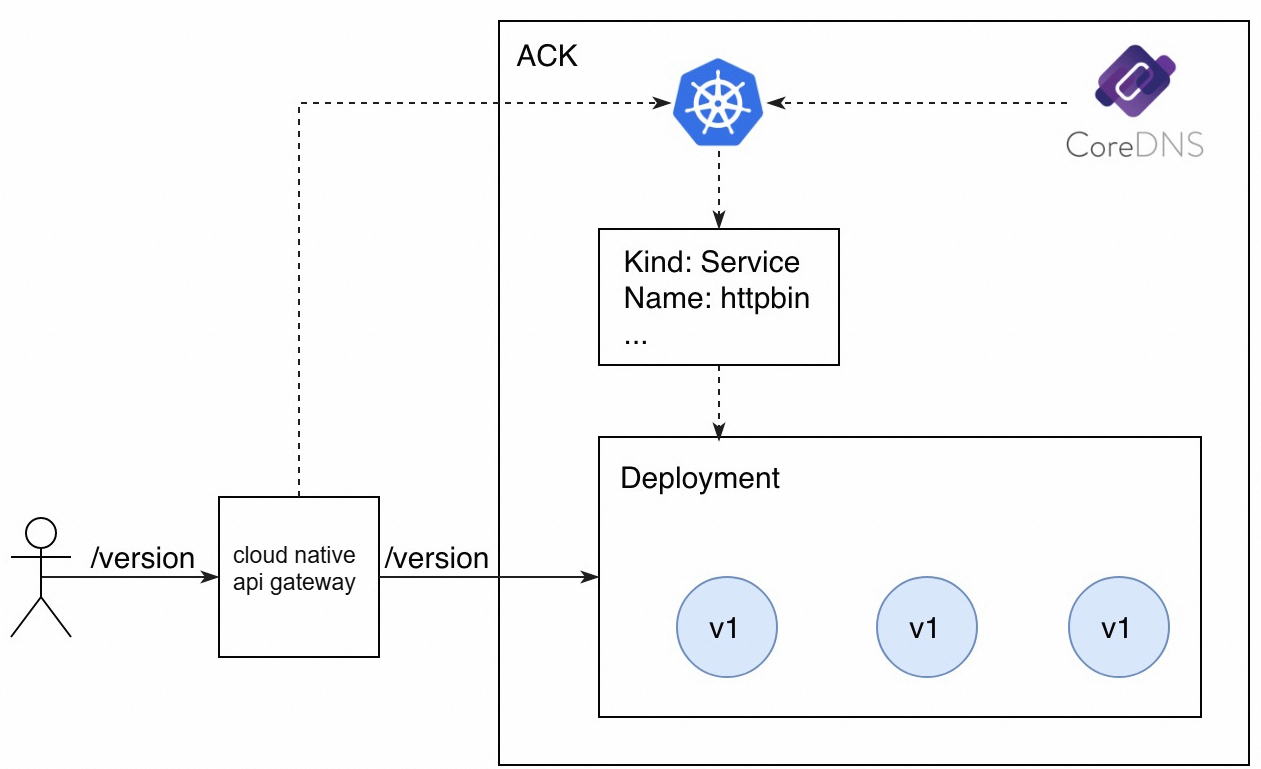
This example uses the native service discovery method of ACK, which registers backend services with CoreDNS through a declarative Service API resource. The sample backend service provides an endpoint at /version to query the current service version, which is v1. The MSE Cloud-native Gateway integrates deeply with ACK to dynamically retrieve service information from an ACK cluster. This allows you to easily expose the backend service to external users through the gateway.
Deploy the application
-
Log on to the Container Service for Kubernetes (ACK) console. Use the following YAML to deploy the application. The initial version of the application is
v1.For more information about how to deploy an application, see Create a stateless workload (Deployment).
apiVersion: v1 kind: Service metadata: name: httpbin spec: ports: - port: 8080 protocol: TCP selector: app: httpbin --- apiVersion: apps/v1 kind: Deployment metadata: name: httpbin-v1 spec: replicas: 3 selector: matchLabels: app: httpbin version: v1 template: metadata: labels: app: httpbin version: v1 spec: containers: - image: specialyang/spring-cloud-httpbin-k8s:v1 imagePullPolicy: Always name: spring-cloud-httpbin-k8s ports: - containerPort: 8080 -
Log on to the MSE Gateway Management console. On the Gateway page, in the left-side navigation pane, select Routes > Source. Click Add Source and add a service source from Container Service.
For more information about how to add a service source to a cloud-native gateway, see Create a service source.
In the Source list, you can see the created source record with source type Container Service and Ingress listening status Enabled.
-
In the navigation pane on the left, choose Routes > Service. Import the httpbin service that you want to expose through the cloud-native gateway.
For more information about how to add a service to a cloud-native gateway, see Create a service.
-
In the policy settings of the httpbin service, add a service version named
v1.For more information about how to add a service version to a cloud-native gateway, see Manage service versions.
NoteYou must select the corresponding label to filter the nodes for the
v1version. Since only thev1version is deployed, it accounts for all instances. -
In Route Management, create a routing rule for the service to expose it to external users. The route for the exposed API of the httpbin service is
/version, and requests are forwarded to thev1version of the httpbin service.For more information about how to configure a route for a cloud-native gateway, see Create a route.
-
Run the following command to send test requests:
for i in {1..10}; do curl "${GATEWAY_EXTERNAL_IP}/version"; echo ""; doneThe following response is returned:
version: v1
version: v1
version: v1
version: v1
version: v1
version: v1
version: v1
version: v1
version: v1
version: v1
Blue-green deployment
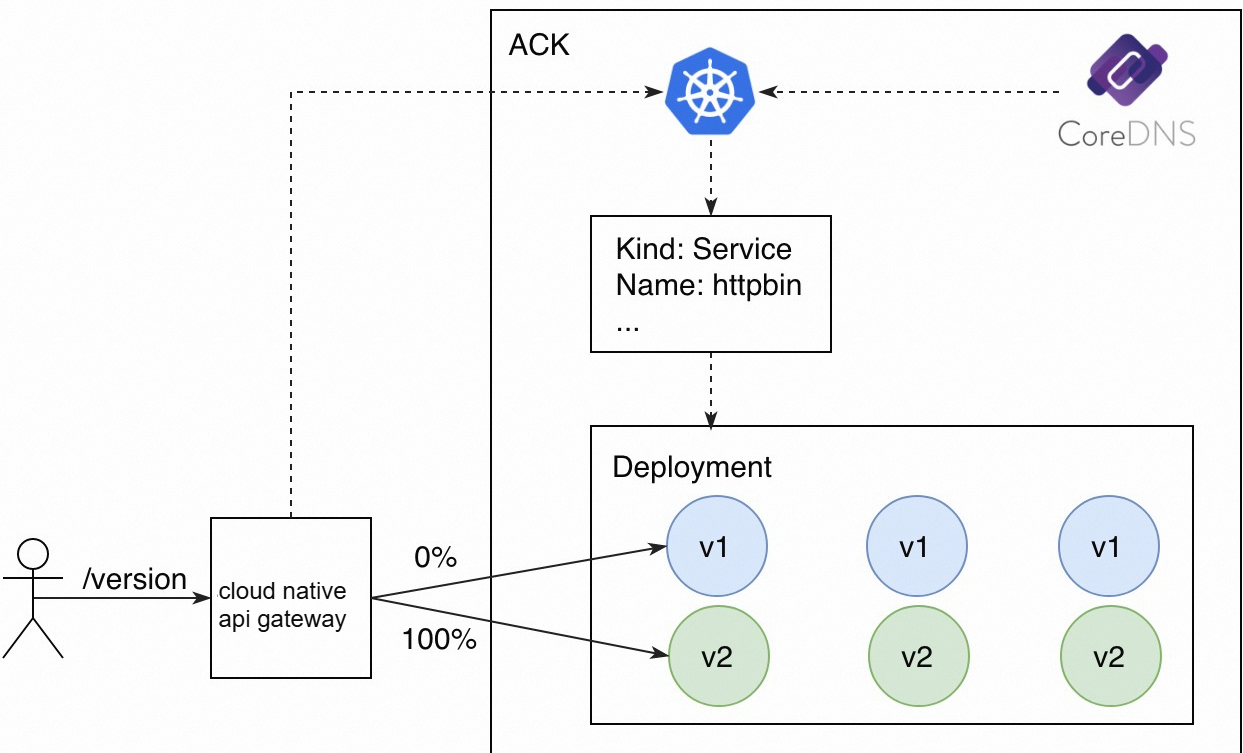
A blue-green deployment requires provisioning a new version with the same resource specifications as the current version. After deploying the new version, switch all traffic to it.
-
Use the declarative API of ACK to deploy a new version,
v2, of the httpbin service. Set replicas to 3.apiVersion: apps/v1 kind: Deployment metadata: name: httpbin-v2 spec: replicas: 3 selector: matchLabels: app: httpbin version: v2 template: metadata: labels: app: httpbin version: v2 spec: containers: - image: specialyang/spring-cloud-httpbin-k8s:v2 imagePullPolicy: Always name: spring-cloud-httpbin-k8s ports: - containerPort: 8080 -
In the policy settings of the httpbin service, add a service version named
v2.For more information about how to add a service version to a cloud-native gateway, see Manage service versions.
NoteYou must select the corresponding label to filter the nodes for the
v2version. The cluster now has an equal number of v1 and v2 nodes, so each version accounts for 50% of the total. -
To switch all traffic from
v1tov2for the blue-green deployment, modify the destination service in the previously created routing rule.For more information about how to modify a routing rule for a cloud-native gateway, see Manage routes.
In the route management list, confirm that route testtt has route condition Prefix Match | /version, target service type is Tag-based Routing, target service is httpbin (v2 100%), and status is Published.
-
Run the following command to send test requests:
for i in {1..10}; do curl "${GATEWAY_EXTERNAL_IP}/version"; echo ""; doneThe following response is returned:
version: v2
version: v2
version: v2
version: v2
version: v2
version: v2
version: v2
version: v2
version: v2
version: v2
As you can see, all traffic to the /version API is now routed to the v2 version.
A/B testing
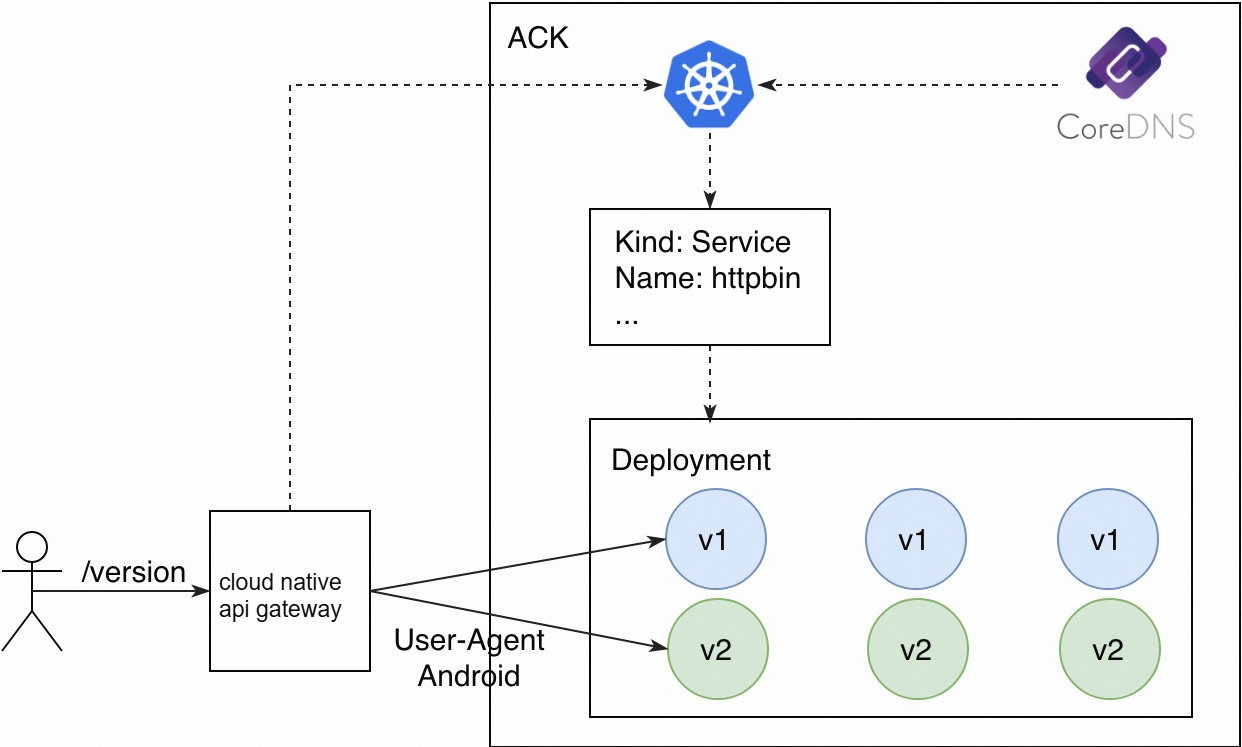
A/B testing routes traffic to a new version based on the metadata of user requests, enabling dynamic routing based on request content. In this example, requests with a User-Agent header containing Android are routed to the new version, while all other requests are routed to the old version.
-
Use the same
v1andv2deployments of the httpbin service from the previous steps. Then, create two routing rules.-
Route requests with the path
/versionto service versionv1. -
Route requests with the path
/versionand aUser-Agentheader containingAndroidto service versionv2.
NoteYou must add a request header matching condition to the routing rule for
version-v2. -
-
Run the following command to send a test request where the
User-Agentheader does not containAndroid:curl ${GATEWAY_EXTERNAL_IP}/versionThe following response is returned:
version: v1 -
Run the following command to send a test request where the
User-Agentheader containsAndroid:curl -H "User-Agent: Mozilla/5.0 (Linux; Android 4.0.3)" ${GATEWAY_EXTERNAL_IP}/versionThe following response is returned:
version: v2
As you can see, traffic is split based on the operating system of the request source.
Canary release
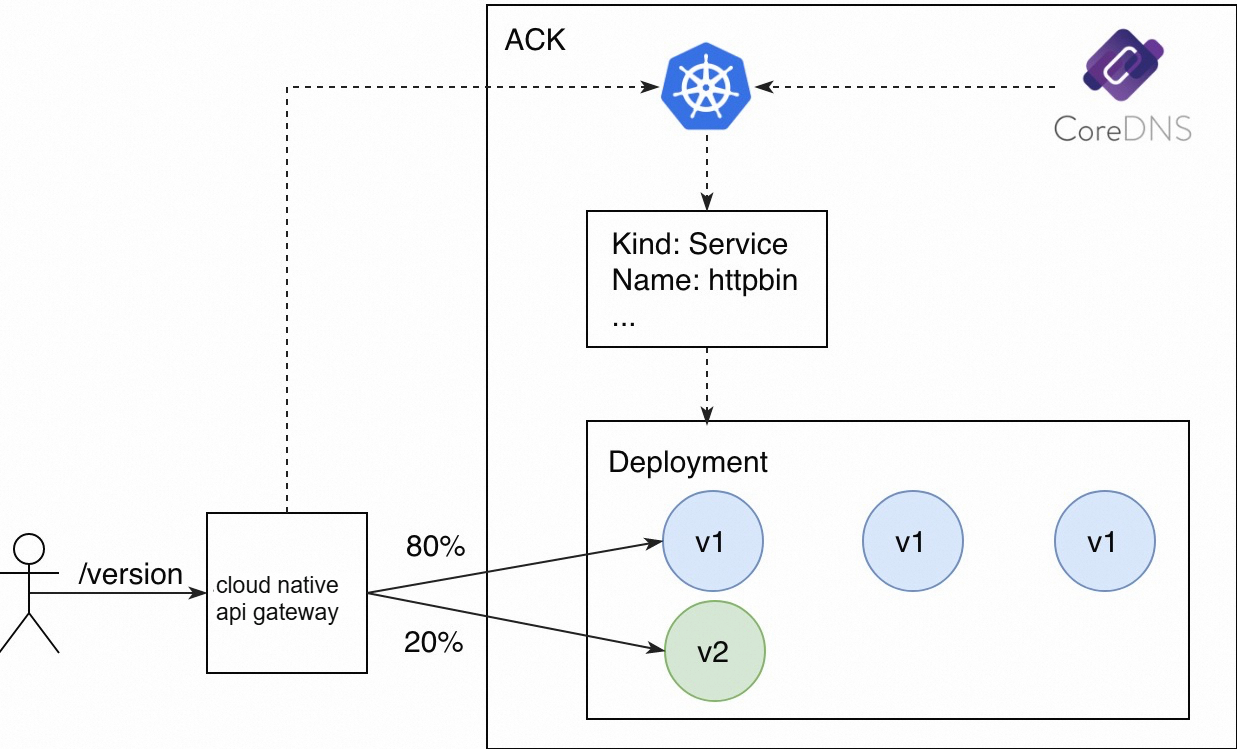
A canary release allows you to route a small subset of traffic to a new version. After verifying the new version, you can gradually increase the traffic until you complete the cutover. During this process, you can scale out the new version and scale in the old version to optimize resource utilization.
-
In a canary release strategy, the initial number of replicas for the new version does not need to match the old version. You only need enough resources to handle the canary traffic. Set the replicas for the new version to 1. You can view the percentage of nodes for each version in the service version settings.
-
Create a routing rule that distributes traffic between the old and new versions based on weights.
Configure two destination services for httpbin v1 and v2, and set their traffic weights. For example, select Tag-based Routing as the destination service type, set the weight for
v1to 80% and the weight forv2to 20%. -
Run the following command to send test requests:
for i in {1..10}; do curl "${GATEWAY_EXTERNAL_IP}/version"; echo ""; doneThe following response is returned:
version: v1
version: v1
version: v1
version: v1
version: v1
version: v2
version: v1
version: v2
version: v1
version: v1
The result shows that 2 out of 10 requests are routed to the new v2 version, which matches the expected 20% traffic weight.
In a real-world scenario, after you verify the new version, you can gradually increase its traffic weight. During this process, remember to scale out the new version and, if necessary, scale in the old version.
Service discovery: Nacos registry
In this example, the backend service provides an endpoint at /version to query the current service version, which is v1. The MSE Cloud-native Gateway is deeply integrated with the MSE Nacos registry and can dynamically retrieve service information from an MSE Nacos instance in real time. This allows you to easily expose the backend service to external users through the gateway.
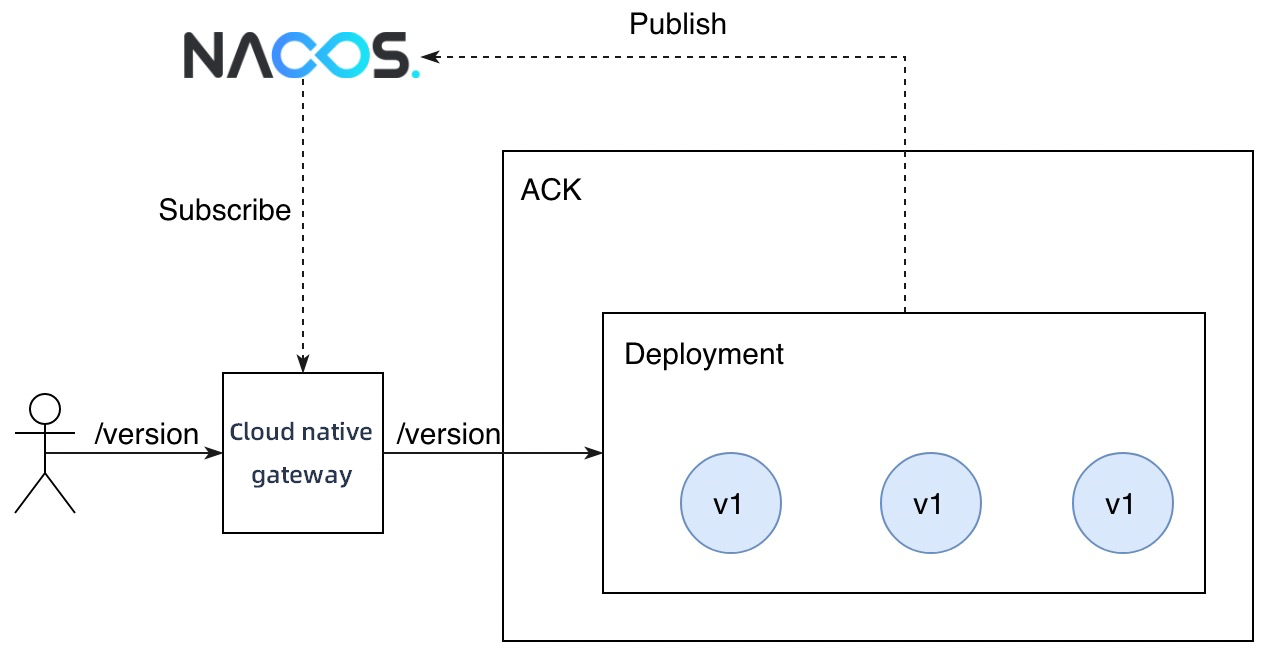
Deploy the application
-
Log on to the Container Service for Kubernetes (ACK) console. Use the following YAML to deploy the application. The initial version of the application is
v1.For more information about how to deploy an application, see Create a stateless workload (Deployment).
Note-
In the YAML file, replace the
${NACOS_SERVER_ADDRESS}variable with the address of your MSE Nacos instance. If the gateway is in the same VPC as your Nacos instance, use the internal endpoint. Otherwise, you must use the public endpoint. -
With Kubernetes service discovery, pod labels serve as node metadata. With a Nacos registry, the information sent during service registration determines node metadata. In the Spring Cloud framework, you can use the
spring.cloud.nacos.discovery.metadata.xxxenvironment variable to non-intrusively add metadata to nodes. In this example, theversionkey is used as a label to distinguish nodes of different versions. Therefore, you must add the environment variablespring.cloud.nacos.discovery.metadata.version=v1to the application container.
apiVersion: apps/v1 kind: Deployment metadata: name: httpbin-v1 spec: replicas: 3 selector: matchLabels: app: httpbin template: metadata: labels: app: httpbin spec: containers: - image: specialyang/spring-cloud-httpbin-nacos:v1 imagePullPolicy: Always name: spring-cloud-httpbin-nacos ports: - containerPort: 8080 env: - name: spring.cloud.nacos.discovery.server-addr value: ${NACOS_SERVER_ADDRESS} - name: spring.cloud.nacos.discovery.metadata.version value: v1 -
-
Log on to the MSE Gateway Management console. In the left navigation bar of the Gateway page, select Routes > Source, and add the service source of the target MSE Nacos registry.
For more information about how to add a service source to a cloud-native gateway, see Create a service source.
-
In the navigation pane on the left, choose Routes > Service, import the httpbin service that you want to expose through the cloud-native gateway, and select the MSE Nacos registry as the service source.
For more information about how to add a service to a cloud-native gateway, see Create a service.
-
In the policy settings of the httpbin service, add a service version named
v1.NoteYou must select the corresponding label to filter the nodes for the
v1version. Since only thev1version is deployed, it accounts for all instances. -
In Route Management, create a routing rule for the service to expose it to external users. The route for the exposed API of the httpbin service is
/version, and requests are forwarded to thev1version of the httpbin service.For more information about how to configure a route for a cloud-native gateway, see Create a route.
-
Run the following command to send test requests:
for i in {1..10}; do curl "${GATEWAY_EXTERNAL_IP}/version"; echo ""; doneThe following response is returned:
version: v1
version: v1
version: v1
version: v1
version: v1
version: v1
version: v1
version: v1
version: v1
version: v1
Blue-green deployment
A blue-green deployment requires provisioning a new version with the same resource specifications as the current version. After deploying the new version, switch all traffic to it.
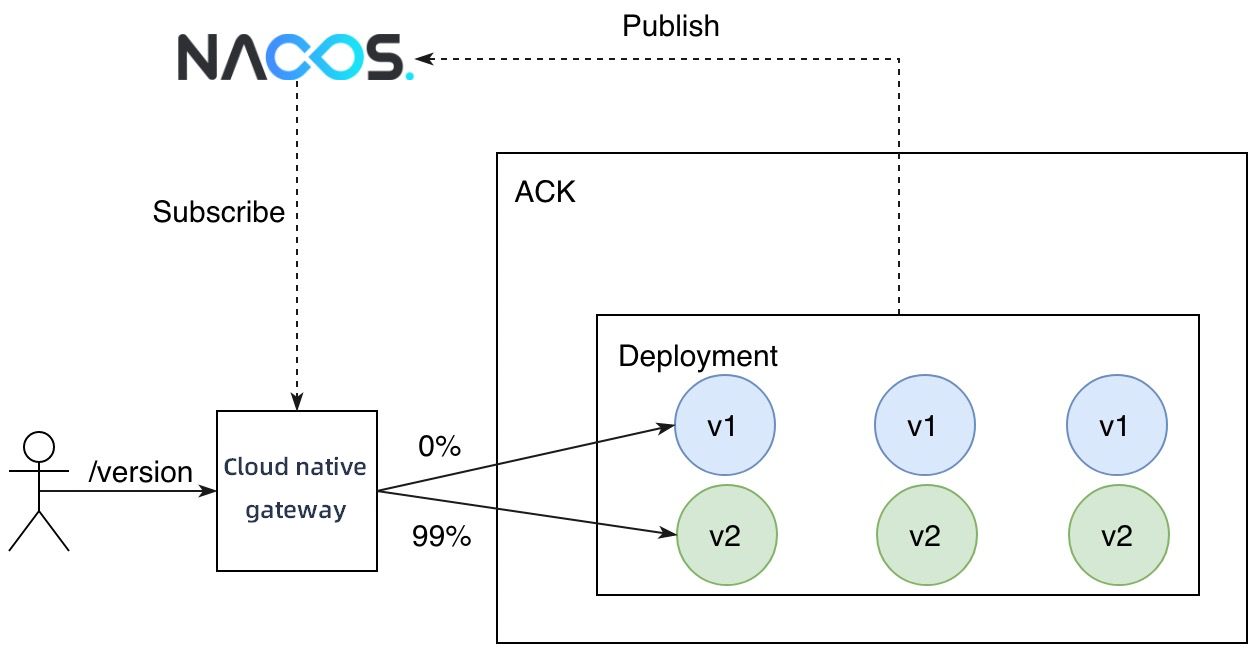
-
Deploy the new version,
v2, of the httpbin service.NoteAdd the
spring.cloud.nacos.discovery.metadata.version=v2environment variable to the application container. When the application starts, it registers with the specified Nacos instance and includes this custom metadata. The MSE Cloud-native Gateway uses this metadata to distinguish nodes of different versions.apiVersion: apps/v1 kind: Deployment metadata: name: httpbin-v2 spec: replicas: 3 selector: matchLabels: app: httpbin template: metadata: labels: app: httpbin spec: containers: - image: specialyang/spring-cloud-httpbin-nacos:v2 imagePullPolicy: Always name: spring-cloud-httpbin-nacos ports: - containerPort: 8080 env: - name: spring.cloud.nacos.discovery.server-addr value: ${NACOS_SERVER_ADDRESS} - name: spring.cloud.nacos.discovery.metadata.version value: v2 -
In the policy settings of the httpbin service, add a service version named
v2.For more information about how to add a service version to a cloud-native gateway, see Manage service versions.
NoteYou must select the corresponding label to filter the nodes for the
v2version. The cluster now has an equal number of v1 and v2 nodes, so each version accounts for 50% of the total. -
To switch all traffic from
v1tov2, modify the destination service in the previously created routing rule.For more information about how to modify a routing rule for a cloud-native gateway, see Manage routes.
-
Run the following command to send test requests:
for i in {1..10}; do curl "${GATEWAY_EXTERNAL_IP}/version"; echo ""; doneThe following response is returned:
version: v2
version: v2
version: v2
version: v2
version: v2
version: v2
version: v2
version: v2
version: v2
version: v2
As you can see, all traffic to the /version API is now routed to the v2 version.
A/B testing
A/B testing routes traffic to a new version based on the metadata of user requests, enabling dynamic routing based on request content. In this example, requests with a User-Agent header containing Android are routed to the new version, while all other requests are routed to the old version.
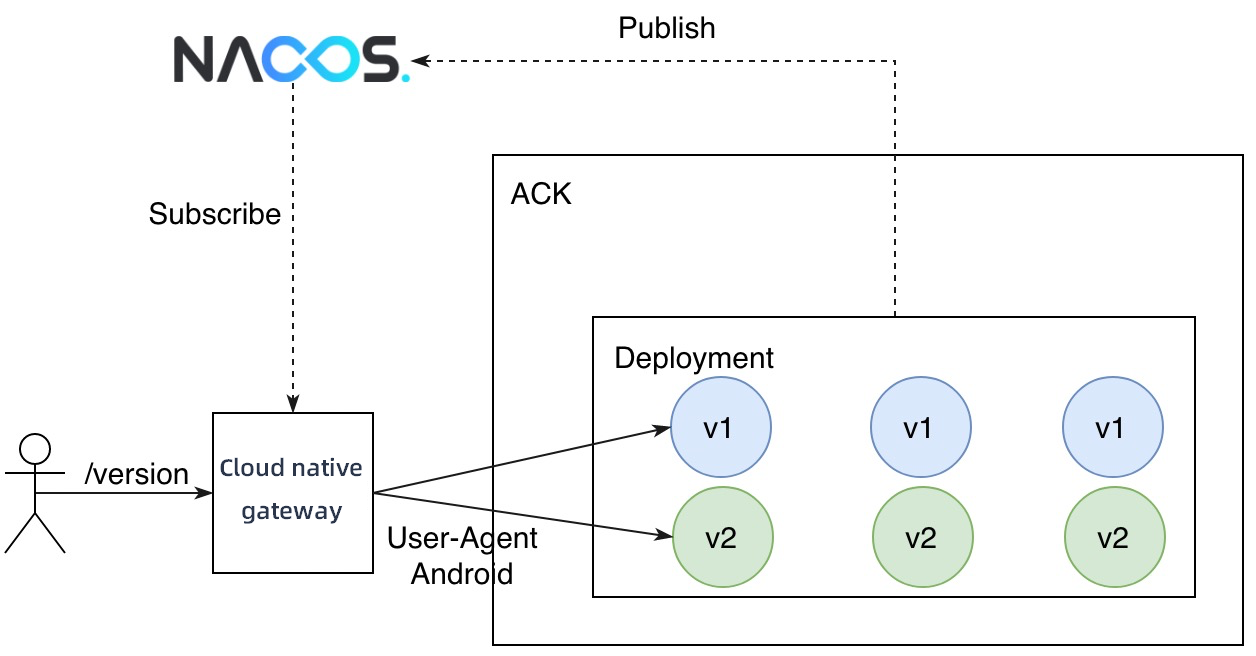
-
Use the same
v1andv2deployments of the httpbin service from the previous steps. Then, create two routing rules.-
Route requests with the path
/versionto service versionv1. -
Route requests with the path
/versionand aUser-Agentheader containingAndroidto service versionv2.
NoteYou must add a request header matching condition to the routing rule for
version-v2. -
-
Run the following command to send a test request where the
User-Agentheader does not containAndroid:curl ${GATEWAY_EXTERNAL_IP}/versionThe following response is returned:
version: v1 -
Run the following command to send a test request where the
User-Agentheader containsAndroid:curl -H "User-Agent: Mozilla/5.0 (Linux; Android 4.0.3)" ${GATEWAY_EXTERNAL_IP}/versionThe following response is returned:
version: v2
As you can see, traffic is split based on the operating system of the request source.
Canary release
A canary release allows you to route a small subset of traffic to a new version. After verifying the new version, you can gradually increase the traffic until you complete the cutover. During this process, you can scale out the new version and scale in the old version to optimize resource utilization.
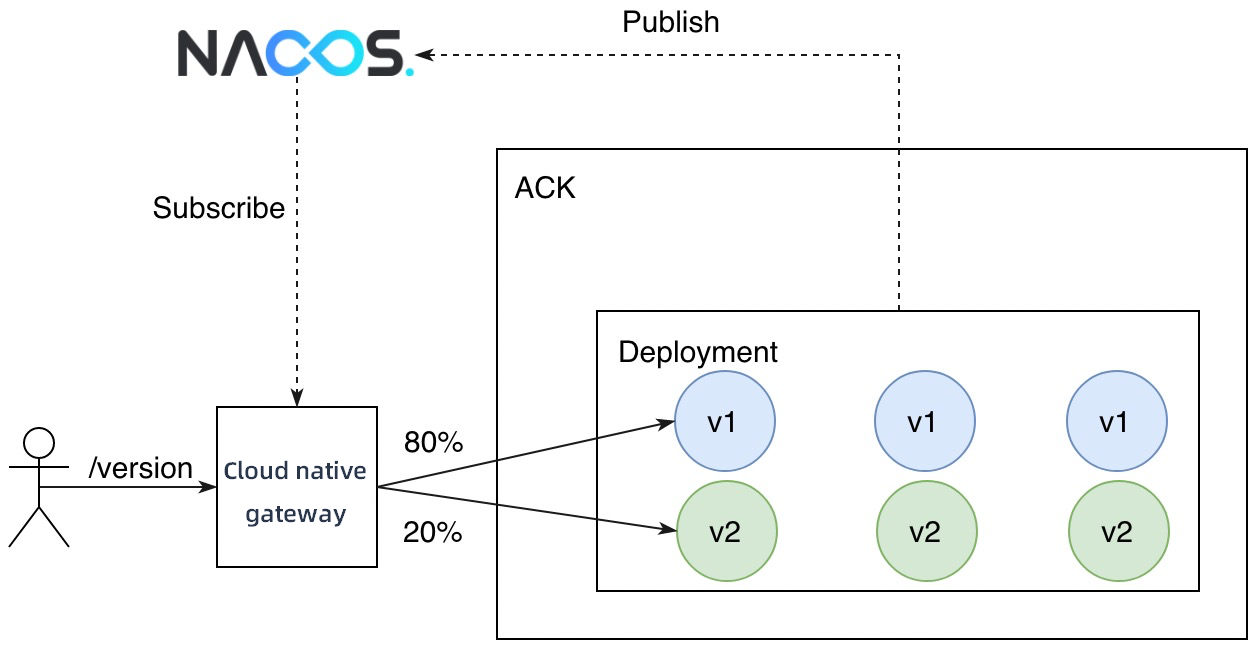
-
In a canary release strategy, the initial number of replicas for the new version does not need to match the old version. You only need enough resources to handle the canary traffic. Set the replicas for the new version to 1. You can view the percentage of nodes for each version in the service version settings.
-
Create a routing rule that distributes traffic between the old and new versions based on weights.
Configure two destination services for httpbin v1 and v2, and set their traffic weights. For example, select Tag-based Routing as the destination service type, set the weight for
v1to 80% and the weight forv2to 20%. -
Run the following command to send test requests:
for i in {1..10}; do curl "${GATEWAY_EXTERNAL_IP}/version"; echo ""; doneThe following response is returned:
version: v1
version: v1
version: v1
version: v1
version: v1
version: v2
version: v1
version: v2
version: v1
version: v1
The result shows that 2 out of 10 requests are routed to the new v2 version, which matches the expected 20% traffic weight.
In a real-world scenario, after you verify the new version, you can gradually increase its traffic weight. During this process, remember to scale out the new version and, if necessary, scale in the old version.