Edit images with text prompts using the Wan model: outpainting, watermark removal, style transfer, instruction-based editing, inpainting, and restoration.
ImportantThis document applies only to the China (Beijing) region. You must use an API key from the China (Beijing) region to use the model.
Model overview
Performance showcase
Original image |
Change her hair to red |
Add a pair of sunglasses to the girl |
Convert to French picture book style |


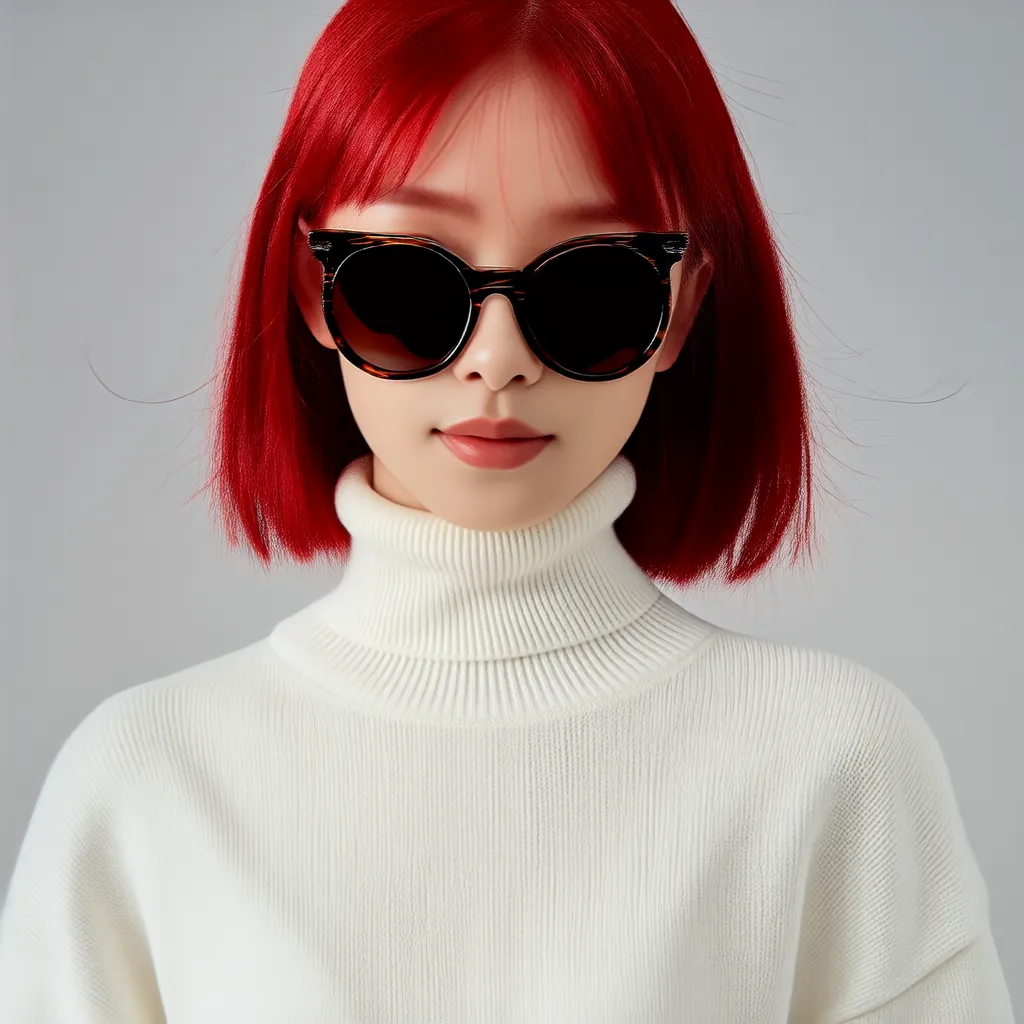

PricingSee Key features.
Beijing region
ImportantThe Beijing region does not offer a free quota. All calls are billable. Confirm before you proceed.
Model | Unit price | Rate limit (shared by Alibaba Cloud account and RAM users) | |
|---|---|---|---|
RPS limit for task submission | Number of concurrent tasks | ||
wanx2.1-imageedit | $0.020070/image | 2 | 2 |
Getting started
Prerequisites
Obtain an API key and set it as an environment variable. If you use the DashScope SDK to make calls, you also need to install the SDK.
Sample code
Call the image editing API to perform local inpainting.
The SDK encapsulates async processing, so the interface behaves synchronously -- a single request waits for the result. The curl example shows two separate async operations: submit task and query result.
Python
Supports three input methods: public URL, Base64 encoding, or local file path.
Request example
import base64
import os
from http import HTTPStatus
from dashscope import ImageSynthesis
import dashscope
import mimetypes

"""
Environment requirements:
    dashscope python SDK >= 1.23.8
Install/Upgrade SDK:
    pip install -U dashscope
"""

dashscope.base_http_api_url = "https://{WorkspaceId}.cn-beijing.maas.aliyuncs.com/api/v1"

# If the environment variable is not configured, replace the following line with: api_key="sk-xxx"
api_key = os.getenv("DASHSCOPE_API_KEY")

# --- Helper function: for Base64 encoding ---
# Format is data:{MIME_type};base64,{base64_data}
def encode_file(file_path):
    mime_type, _ = mimetypes.guess_type(file_path)
    if not mime_type or not mime_type.startswith("image/"):
        raise ValueError("Unsupported or unrecognized image format")
    with open(file_path, "rb") as image_file:
        encoded_string = base64.b64encode(image_file.read()).decode('utf-8')
    return f"data:{mime_type};base64,{encoded_string}"

"""
Image input methods:
Choose one of the following three methods.

1. Use a public URL - suitable for publicly accessible images.
2. Use a local file - suitable for local development and testing.
3. Use Base64 encoding - suitable for private images or scenarios requiring encrypted transmission.
"""

# [Method 1] Use a public image URL
mask_image_url = "http://wanx.alicdn.com/material/20250318/description_edit_with_mask_3_mask.png"
base_image_url = "http://wanx.alicdn.com/material/20250318/description_edit_with_mask_3.jpeg"

# [Method 2] Use a local file (supports absolute and relative paths)
# Format requirement: file:// + file path
# Example (absolute path):
# mask_image_url = "file://" + "/path/to/your/mask_image.png"     # Linux/macOS
# base_image_url = "file://" + "C:/path/to/your/base_image.jpeg"  # Windows
# Example (relative path):
# mask_image_url = "file://" + "./mask_image.png"                 # Based on the actual path
# base_image_url = "file://" + "./base_image.jpeg"                # Based on the actual path

# [Method 3] Use a Base64-encoded image
# mask_image_url = encode_file("./mask_image.png")               # Based on the actual path
# base_image_url = encode_file("./base_image.jpeg")              # Based on the actual path

def sample_sync_call_imageedit():
    print('please wait...')
    rsp = ImageSynthesis.call(api_key=api_key,
                              model="wanx2.1-imageedit",
                              function="description_edit_with_mask",
                              prompt="A ceramic rabbit holding a ceramic flower",
                              mask_image_url=mask_image_url,
                              base_image_url=base_image_url,
                              n=1)
    assert rsp.status_code == HTTPStatus.OK

    print('response: %s' % rsp)
    if rsp.status_code == HTTPStatus.OK:
        for result in rsp.output.results:
            print("---------------------------")
            print(result.url)
    else:
        print('sync_call Failed, status_code: %s, code: %s, message: %s' %
              (rsp.status_code, rsp.code, rsp.message))

if __name__ == '__main__':
    sample_sync_call_imageedit()
Response example
The URL is valid for 24 hours. Download the image promptly.
{
    "status_code": 200,
    "request_id": "dc41682c-4e4a-9010-bc6f-xxxxxx",
    "code": null,
    "message": "",
    "output": {
        "task_id": "6e319d88-a07a-420c-9493-xxxxxx",
        "task_status": "SUCCEEDED",
        "results": [
            {
                "url": "https://dashscope-result-wlcb-acdr-1.oss-cn-wulanchabu-acdr-1.aliyuncs.com/xxx.png?xxxxxx"
            }
        ],
        "submit_time": "2025-05-26 14:58:27.320",
        "scheduled_time": "2025-05-26 14:58:27.339",
        "end_time": "2025-05-26 14:58:39.170",
        "task_metrics": {
            "TOTAL": 1,
            "SUCCEEDED": 1,
            "FAILED": 0
        }
    },
    "usage": {
        "image_count": 1
    }
}
Java
Supports three input methods: public URL, Base64 encoding, or local file path.
Request example
// Copyright (c) Alibaba, Inc. and its affiliates.

import com.alibaba.dashscope.aigc.imagesynthesis.ImageSynthesis;
import com.alibaba.dashscope.aigc.imagesynthesis.ImageSynthesisParam;
import com.alibaba.dashscope.aigc.imagesynthesis.ImageSynthesisResult;
import com.alibaba.dashscope.exception.ApiException;
import com.alibaba.dashscope.exception.NoApiKeyException;
import com.alibaba.dashscope.utils.Constants;
import com.alibaba.dashscope.utils.JsonUtils;

import java.io.IOException;
import java.nio.file.Files;
import java.nio.file.Path;
import java.nio.file.Paths;
import java.util.Base64;
import java.util.HashMap;
import java.util.Map;

/**
 * Environment requirements
 *      dashscope java SDK >=2.20.9
 * Update Maven dependency:
 *      https://mvnrepository.com/artifact/com.alibaba/dashscope-sdk-java
 */

public class ImageEditSync {
    static {Constants.baseHttpApiUrl="https://{WorkspaceId}.cn-beijing.maas.aliyuncs.com/api/v1";}

    // If the environment variable is not configured, replace the following line with: apiKey="sk-xxx"
    static String apiKey = System.getenv("DASHSCOPE_API_KEY");

    /**
     * Image input methods: Choose one of the following three.
     *
     * 1. Use a public URL - suitable for publicly accessible images.
     * 2. Use a local file - suitable for local development and testing.
     * 3. Use Base64 encoding - suitable for private images or scenarios requiring encrypted transmission.
     */

    //[Method 1] Public URL
    static String maskImageUrl = "http://wanx.alicdn.com/material/20250318/description_edit_with_mask_3_mask.png";
    static String baseImageUrl = "http://wanx.alicdn.com/material/20250318/description_edit_with_mask_3.jpeg";

    //[Method 2] Local file path (file://+absolute path or file:///+absolute path)
    // static String maskImageUrl = "file://" + "/your/path/to/mask_image.png";    // Linux/macOS
    // static String baseImageUrl = "file:///" + "C:/your/path/to/base_image.png";  // Windows

    //[Method 3] Base64 encoding
    // static String maskImageUrl = encodeFile("/your/path/to/mask_image.png");
    // static String baseImageUrl = encodeFile("/your/path/to/base_image.png");

    public static void syncCall() {
        // Set the parameters parameter
        Map<String, Object> parameters = new HashMap<>();
        parameters.put("prompt_extend", true);

        ImageSynthesisParam param =
                ImageSynthesisParam.builder()
                        .apiKey(apiKey)
                        .model("wanx2.1-imageedit")
                        .function(ImageSynthesis.ImageEditFunction.DESCRIPTION_EDIT_WITH_MASK)
                        .prompt("A ceramic rabbit holding a ceramic flower")
                        .maskImageUrl(maskImageUrl)
                        .baseImageUrl(baseImageUrl)
                        .n(1)
                        .size("1024*1024")
                        .parameters(parameters)
                        .build();

        ImageSynthesis imageSynthesis = new ImageSynthesis();
        ImageSynthesisResult result = null;
        try {
            System.out.println("---sync call, please wait a moment----");
            result = imageSynthesis.call(param);
        } catch (ApiException | NoApiKeyException e){
            throw new RuntimeException(e.getMessage());
        }
        System.out.println(JsonUtils.toJson(result));
    }

    /**
     * Encodes a file into a Base64 string
     * @param filePath The file path
     * @return A Base64 string in the format data:{MIME_type};base64,{base64_data}
     */
    public static String encodeFile(String filePath) {
        Path path = Paths.get(filePath);
        if (!Files.exists(path)) {
            throw new IllegalArgumentException("File does not exist: " + filePath);
        }
        // Detect the MIME type
        String mimeType = null;
        try {
            mimeType = Files.probeContentType(path);
        } catch (IOException e) {
            throw new IllegalArgumentException("Cannot detect file type: " + filePath);
        }
        if (mimeType == null || !mimeType.startsWith("image/")) {
            throw new IllegalArgumentException("Unsupported or unrecognized image format");
        }
        // Read the file content and encode it
        byte[] fileBytes = null;
        try{
            fileBytes = Files.readAllBytes(path);
        } catch (IOException e) {
            throw new IllegalArgumentException("Cannot read file content: " + filePath);
        }

        String encodedString = Base64.getEncoder().encodeToString(fileBytes);
        return "data:" + mimeType + ";base64," + encodedString;
    }

    public static void main(String[] args) {
        syncCall();
    }
}
Response example
The URL is valid for 24 hours. Download the image promptly.
{
    "request_id": "bf6c6361-f0fc-949c-9d60-xxxxxx",
    "output": {
        "task_id": "958db858-153b-4c81-b243-xxxxxx",
        "task_status": "SUCCEEDED",
        "results": [
            {
                "url": "https://dashscope-result-wlcb-acdr-1.oss-cn-wulanchabu-acdr-1.aliyuncs.com/xxx.png?xxxxxx"
            }
        ],
        "task_metrics": {
            "TOTAL": 1,
            "SUCCEEDED": 1,
            "FAILED": 0
        }
    },
    "usage": {
        "image_count": 1
    }
}
curl
Covers the complete workflow: create task, poll status, retrieve and save result.
Note
- Set the
X-DashScope-Asyncheader toenablefor async calls. - Task IDs expire after 24 hours and status changes to
UNKNOWN.
Step 1: Create a task
Returns task_id.
curl --location 'https://{WorkspaceId}.cn-beijing.maas.aliyuncs.com/api/v1/services/aigc/image2image/image-synthesis' \
--header 'X-DashScope-Async: enable' \
--header "Authorization: Bearer $DASHSCOPE_API_KEY" \
--header 'Content-Type: application/json' \
--data '{
  "model": "wanx2.1-imageedit",
  "input": {
    "function": "description_edit_with_mask",
    "prompt": "A ceramic rabbit holding a ceramic flower.",
    "base_image_url": "http://wanx.alicdn.com/material/20250318/description_edit_with_mask_3.jpeg",
    "mask_image_url": "http://wanx.alicdn.com/material/20250318/description_edit_with_mask_3_mask.png"
  },
  "parameters": {
    "n": 1
  }
}'
{
    "output": {
        "task_status": "PENDING",
        "task_id": "0385dc79-5ff8-4d82-bcb6-xxxxxx"
    },
    "request_id": "4909100c-7b5a-9f92-bfe5-xxxxxx"
}
Step 2: Query the result by task ID
Poll task status with task_id until task_status is SUCCEEDED or FAILED.
Replace 86ecf553-d340-4e21-xxxxxxxxx with your actual task_id.
curl -X GET https://{WorkspaceId}.cn-beijing.maas.aliyuncs.com/api/v1/tasks/86ecf553-d340-4e21-xxxxxxxxx \
--header "Authorization: Bearer $DASHSCOPE_API_KEY"
Image URLs expire after 24 hours -- download promptly.
{
    "request_id": "eeef0935-02e9-9742-bb55-xxxxxx",
    "output": {
        "task_id": "a425c46f-dc0a-400f-879e-xxxxxx",
        "task_status": "SUCCEEDED",
        "submit_time": "2025-02-21 17:56:31.786",
        "scheduled_time": "2025-02-21 17:56:31.821",
        "end_time": "2025-02-21 17:56:42.530",
        "results": [
            {
                "url": "https://dashscope-result-sh.oss-cn-shanghai.aliyuncs.com/aaa.png"
            }
        ],
        "task_metrics": {
            "TOTAL": 1,
            "SUCCEEDED": 1,
            "FAILED": 0
        }
    },
    "usage": {
        "image_count": 1
    }
}
Key features
Use the function parameter to specify editing features. All features follow the same calling method from Getting started.
Each section below shows the feature-specific input and parameters JSON for curl.
A complete curl request must include top-level fields such as model, input, and parameters, as described in the General image editing API reference.
Global stylization
Applies an artistic style to the entire image — ideal for picture books, social media backgrounds, or concept art.
-
Set
functiontostylization_all. -
Supported styles:
- French picture book style
- Gold foil art style
-
parameters.strength(0.0–1.0, default: 0.5) controls modification intensity. Lower values preserve more of the original. -
Prompt format: "Convert to [style]" (e.g., "Convert to French picture book style").
Input image | Output image | |
|---|---|---|
Prompt: Convert to French picture book style | Prompt: Convert to gold foil art style | |
|
|
|
|
|
|


Control the image modification degree with strength
The parameters.strength parameter (0.0–1.0, default: 0.5) controls modification intensity: values near 0 preserve the original, values near 1 modify more.
Input prompt: Convert to French picture book style.
Input image | Output image | ||
|---|---|---|---|
strength=0.0 (minimum value) | strength=0.5 (default value) | strength=1.0 (maximum value) | |
|
|
|
|


Local stylization
Applies a style to a specific area — ideal for character customization or ad product highlights.
-
Set
functiontostylization_local. -
Supported styles and parameter values:
- Ice sculpture: ice
- Cloud: cloud
- Chinese festive lantern: chinese festive lantern
- Plank: wooden
- Blue and white porcelain: blue and white porcelain
- Fluffy: fluffy
- Yarn: weaving
- Balloon: balloon
-
Prompt format: "Change [object] to [style]" (e.g., "Change the house to wooden style").
Input image | Output image | |||
|---|---|---|---|---|
|
Ice Sculpture |
Cloud |
Chinese festive lantern |
Wooden |
Blue and white porcelain |
Fluffy |
|
Balloon | |


 Weaving
Instruction-based editing
Adds or modifies content via text instructions, without specifying areas — ideal for simple edits like adding accessories or changing hair color.
- Set
functiontodescription_edit. parameters.strength(0.0–1.0, default: 0.5) controls modification intensity. Lower values preserve more of the original.- Prompt: Include action verbs like "add" or "modify". For deletions, use Local inpainting instead.
Capabilities | Input image | Output image |
|---|---|---|
Add an element |
|
Add a pair of sunglasses to the kitten. |
Modify an element |
|
Change her hair to red. |


Control the image modification degree with strength
The parameters.strength parameter (0.0–1.0, default: 0.5) controls modification intensity: values near 0 preserve the original, values near 1 modify more.
Input prompt: Change her clothes to a colorful printed beach shirt.
Input image | Output image | ||
|---|---|---|---|
strength=0.0 (minimum value) | strength=0.5 (default value) | strength=1.0 (maximum value) | |
|
|
|
|


Local inpainting
Edits a masked area: add, modify, or delete content with precise control over clothing, objects, or unwanted elements.
-
Set
functiontodescription_edit_with_mask. -
Mask requirements: Provide
mask_image_urlwhere white = edit area, black = retain area. -
Prompt: Include actions ("add", "modify") and describe post-deletion content for deletions.
- Add/Modify: Describe the action or final result.
- Delete: Leave
promptempty for small objects. For large objects, describe the desired background after deletion -- not the deletion action itself.
| Capabilities | Input image | Input mask image(White is the area to be edited) | Output image |
|---|---|---|---|
| Add an element |  |  |  Add a hat to the puppy.
|
| Modify an element |  |  |  A ceramic rabbit holding a ceramic flower.
|
| Delete an element |  |  |  A transparent glass vase on the table.
|
Text and watermark removal
Note
Legal risk warningUsing this feature to process copyrighted images (such as removing another brand's watermark) may constitute copyright infringement. Ensure that you have the legal right to use the processed image and assume all related legal responsibilities.
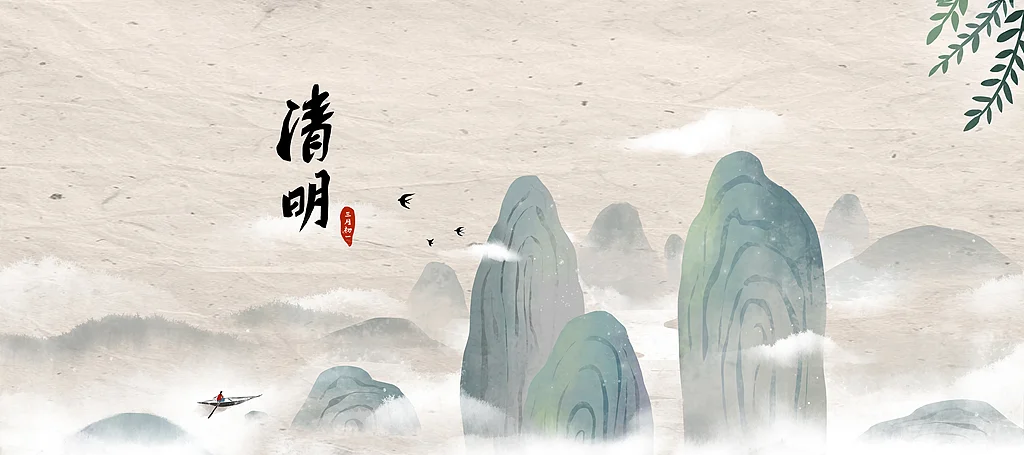
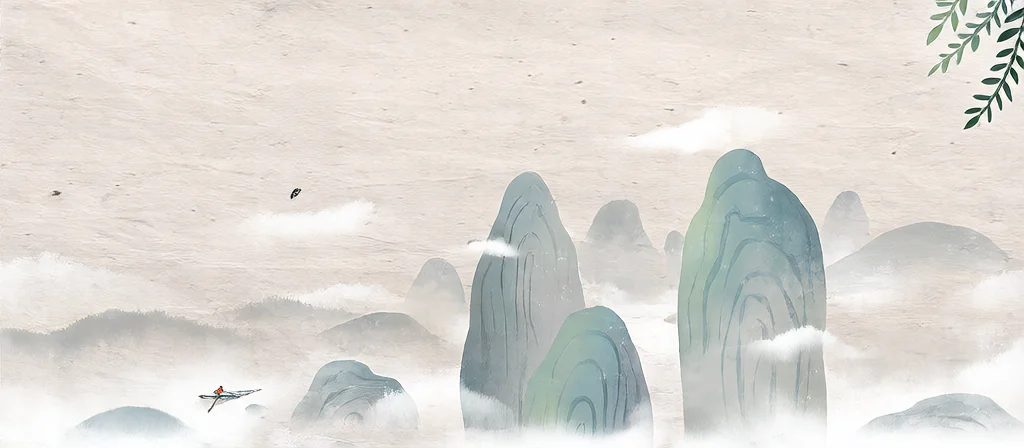
Removes Chinese/English text or watermarks from images — useful for material processing or ad cleanup.
- Set
functiontoremove_watermark. - Prompt: Use general instructions ("Remove the text") or specify type ("Remove English text").
Input image | Output image (Remove the text in the image) |
|---|---|
|
|
|
|


Outpainting
Expands the image proportionally in all directions with intelligent fill — ideal for adjusting composition or converting aspect ratios.
- Set
functiontoexpand. - Related parameters:
top_scale,bottom_scale,left_scale, andright_scalecontrol expansion ratios per direction (e.g., 1.5 = 1.5× size). - Prompt tip: Describe the complete scene you expect to see after expansion.
Input image | Output image |
|---|---|
|
|


Image super resolution
Enhances clarity and upscales low-resolution or blurry images — ideal for restoring old photos or preparing HD prints.
- Set
functiontosuper_resolution. parameters.upscale_factor(1–4, default: 1) controls upscaling. Value 1 improves clarity only, without enlarging.- Prompt tip: Use "Image super resolution" or describe the image content.
Input image (blurry image) | Output image (clear image) |
|---|---|
|
|


Image colorization
Colorizes black-and-white or grayscale images — useful for historical photos or line art.
- Set
functiontocolorization. - Prompt: Leave empty for automatic colorization, or specify key element colors (e.g., "blue background, yellow leaves").
Input image | Output image |
|---|---|
|
|


Line art to image
Generates images from line art and text prompts, including doodle-based drawing — useful for architectural concepts and illustrations.
-
Set
functiontodoodle. -
Related parameter:
parameters.is_sketch— controls how the model processes input.false(default): Model extracts line art from RGB input, then generates image (RGB → line art → image).true: Model generates directly from RGB input like doodles (RGB → image).
-
Prompt: Describe expected content -- more detail yields better results.
Request example 1: Line art to image
{
  "input": {
    "function": "doodle",
    "prompt": "A living room in a minimalist Nordic style.",
    "base_image_url": "http://wanx.alicdn.com/material/20250318/doodle_1.png"
  },
  "parameters": {
    "is_sketch": false
  }
}
Capabilities | Input image | Output image |
|---|---|---|
Line art to image (is_sketch=false) |
|
A living room in a minimalist Nordic style. |
Doodle-based drawing (is_sketch=true) |
|
A tree, in a two-dimensional anime style. |


Generate image based on a reference cartoon character
Note
Legal risk warningUsing this feature to process copyrighted cartoon characters may constitute copyright infringement. You must have the legal right to use the referenced character or use your own original character. You must also assume all related legal responsibilities.
- Set
functiontocontrol_cartoon_feature. - Prompt format: "The cartoon character [action/environment details]..."
Input image | Output image |
|---|---|
|
|


Going live
Best practices
- Asynchronous polling: Use graduated polling intervals (e.g., every 3s for 30s, then increase) to avoid rate limits.
- Parameter tuning: Test key parameters like
strengthin small-scale trials before production to find optimal values. - Image storage: Result URLs expire after 24 hours. Download and transfer to persistent storage (e.g., OSS) promptly.
Risk prevention
- Error handling: Check
task_statusin query results. IfFAILED, recordcodeandmessagefor troubleshooting. Transient errors (e.g., timeouts) may succeed on retry. - Content moderation: All input and output is reviewed for compliance. Non-compliant content returns
DataInspectionFailed.
API reference
Input and response parameters are documented in the General image editing API reference.
Billing and rate limiting
-
Free quotas and pricing: Wan image editing 2.1.
-
For model rate limiting, see Wanxiang.
-
Billing details:
- Billed per successfully generated image. Charges apply only when
task_statusisSUCCEEDED. - Failed calls do not incur charges or consume Free quota for new users.
- Billed per successfully generated image. Charges apply only when
Error codes
If the model call fails and returns an error message, see Error codes for resolution.
FAQ
Q: Why did my task fail (FAILED)?Common causes:
- Content moderation failure: Input or output triggered security policy.
- Parameter error: Invalid request parameters (e.g., incorrect
functionname or inaccessible URL). - Internal model error: unexpected processing issue. Check the
codeanderrorfields in the query response.