A knowledge base supplements an LLM with private data and up-to-date information. Using retrieval-augmented generation (RAG), the LLM improves answer accuracy by first retrieving relevant content from the knowledge base before generating a response.
The knowledge base feature is available only in the China (Beijing) region, not in other regions such as Singapore and Germany (Frankfurt).
-
Console access restrictions: Only users who created Alibaba Cloud Model Studio applications in the Singapore region before April 21, 2025 can access the Application Development tab.
This tab contains the following features: Applications (agent application and workflow application), Components (prompt engineering and plug-in), and Data (knowledge base and application data). These are all preview features. Use them with caution in production environments.
-
API call restrictions: Only users who created Alibaba Cloud Model Studio applications in the Singapore region before April 21, 2025 can call the application data, knowledge base, and prompt engineering APIs.
|
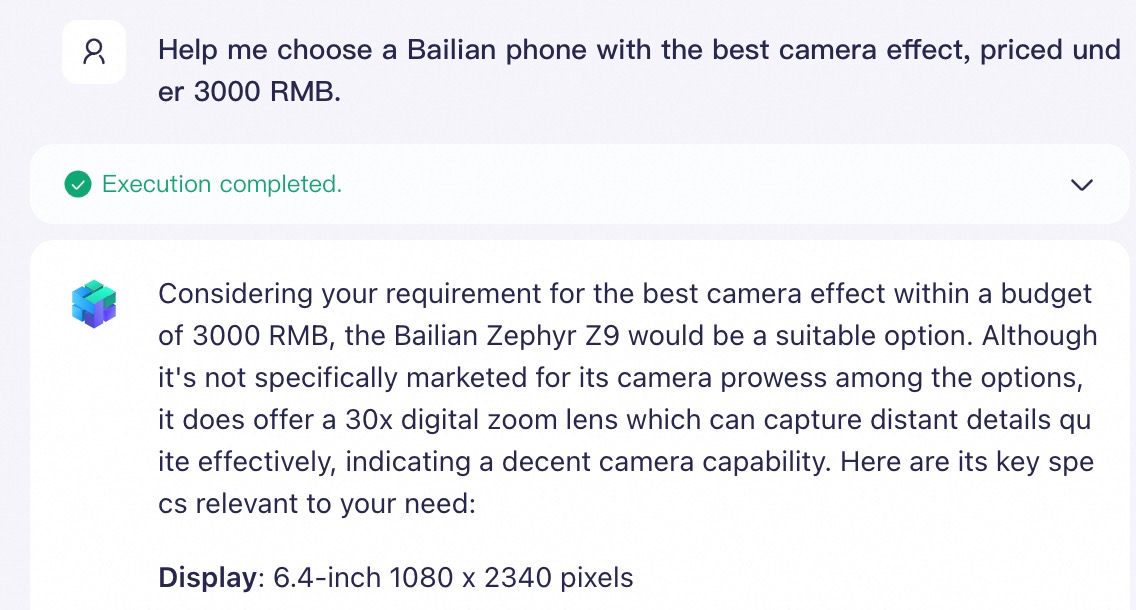
Application without a dedicated knowledge base Without a dedicated knowledge base, an LLM cannot answer domain-specific questions accurately. For example, when a user sends "Please help me pick the best camera phone from Alibaba Cloud Model Studio, within a budget of 3,000 yuan" in the chat interface, the AI assistant cannot provide accurate product recommendations due to the lack of a relevant knowledge base. |
Application with a dedicated knowledge base With a dedicated knowledge base, an LLM can answer domain-specific questions accurately.
|
Supported models
The following models can be used with a knowledge base. Configure Qwen to use a knowledge base
-
Qwen-Max/Plus/Turbo
-
QwenVL-Max/Plus
-
Qwen open-source version (e.g., Qwen2.5)
For an up-to-date list of available models, see the Application Management page when creating an application.
Quick start
This quickstart shows how to build a no-code LLM Q&A application to answer domain-specific questions, using "Alibaba Cloud Model Studio phones" as an example.
1. Build a knowledge base
-
Go to the Knowledge Base page and click Create Knowledge Base. Enter a Name and Description, leave the other settings at their default values, and click Next Step.
-
Select the Default Category and upload the Alibaba Cloud Model Studio Phone Series Product Introduction.docx file. Click Next Step, and then click Complete.
2. Integrate with business applications
After you create a knowledge base, you can associate it with an Alibaba Cloud Model Studio application or an external application within the same workspace to process retrieval requests.
Agent application
-
Go to the App Center page, find your agent application, click Configure on its card, and select a model for the application.
-
Click the + icon next to Document Knowledge Base to add the knowledge base that you just created. You can keep the default values for the similarity threshold and weight.
-
In the input box on the right, enter a question. The LLM then uses the knowledge base to generate an answer.
For example: "Help me choose the Alibaba Cloud Model Studio phone with the best camera for under 3,000 CNY."
Workflow application
-
Go to the App Center page, find your workflow application, and click Configure on its card. Drag a Knowledge Base node onto the canvas and connect it after the Start node.
-
Configure the Knowledge Base node:
-
Input: From the Value drop-down list to the right of the
contentvariable, select . The drop-down list has a tree structure; you may need to expand the "Built-in Variable" group to select the query variable. -
Select Knowledge Base: You can select a knowledge base for the node in one of two ways.
-
Select a fixed knowledge base: Select the knowledge base that you created in the previous step from the drop-down menu. Use this method when the same knowledge base is required for every call.
-
Dynamic Selection: Configure the
CodeListvariable to dynamically specify a knowledge base based on the output of an upstream node. This is suitable for scenarios where you need to retrieve different knowledge bases based on different inputs.
-
-
Set TopK (Optional): This setting determines the number of chunks returned to downstream nodes, which are typically LLM nodes.
Increasing this value usually improves the accuracy of the LLM's answers but also increases the LLM's input token consumption.
-
-
Drag an LLM node onto the canvas and connect it after the Knowledge Base node and before the End node.
-
Configure the LLM node:
-
From the Model configuration list, select a model for the node.
-
In the Prompt, enter a prompt that instructs the LLM to use the knowledge base. Enter "/" to insert the
resultvariable (which represents the results returned from the knowledge base retrieval).For example, enter the prompt title
# Knowledge Base, and the body asPlease remember the following materials {Knowledge Base 1/result}, they may be helpful for answering questions.
-
-
Configure the End node: Enter
/and select to output the result from the LLM. -
Click Test in the upper-right corner of the page. In the input box on the right, enter a question. The LLM will use the knowledge base to generate an answer.
For example: "Help me choose the Alibaba Cloud Model Studio phone with the best camera for under 3,000 CNY."
External application
In addition to building applications within Alibaba Cloud Model Studio, you can use the Model Studio SDK to retrieve data from a knowledge base for external AI applications.
For detailed integration steps, see the Knowledge Base API Guide.
3. Optimize RAG performance (Optional)
If you receive incomplete or inaccurate results from the Q&A process, see RAG performance optimization.
How-to
On the knowledge base page, you can view and manage all knowledge bases in the current workspace.
Knowledge base ID: The ID of each knowledge base, used for API calls.
Create a knowledge base
After you click Create Knowledge Base, create the knowledge base in three steps: provide basic information and select a knowledge base type, configure a data source, and set index parameters.
-
On the knowledge base page, click Create Knowledge Base.
-
Basic information
Select a Knowledge Base Type based on your use case. A single knowledge base supports only one type. If you select the document search type, you must also select a use case: Basic document Q&A, Rich-text Reply.
-
Basic document Q&A: Ideal for semantic search on plain-text documents.
-
Rich-text Reply: Ideal for use cases that require responses containing both text and images.
The knowledge base type cannot be changed after the knowledge base is created.
-
Document search
-
Use cases:
-
Ideal for retrieving information from unstructured data, such as internal corporate documents and product manuals. Unstructured data is information that is not organized in a predefined data model or schema and can include text, tables, and images.
-
If your files contain images that you want the application to include in its responses, select document search.
-
-
Data source: You can upload local files or import them from Object Storage Service (OSS).
-
-
Data query
-
Use cases:
-
Ideal for building Q&A systems based on structured data (data organized according to a predefined table schema), such as assistants for querying FAQs, product data, or personnel information.
-
If your data consists of complete FAQ question-and-answer pairs, select Data Query. For example, if an Excel file contains two columns,
QuestionandAnswer, a Data Query knowledge base can use theQuestioncolumn for retrieval and theAnswercolumn as context for the LLM's response.This column-specific processing is unavailable in the document search knowledge base type.
-
You can import multiple Excel files, but their table schemas must be identical.
-
-
Data source integration: You can upload local XLS or XLSX files.
-
-
Image Q&A
-
Use cases:
-
Ideal for building multimodal retrieval applications that support search-by-image and search-by-image-plus-text, such as product discovery assistants or visual Q&A assistants.
-
-
Data source integration: You can upload local XLS or XLSX files.
XLS and XLSX files must contain publicly accessible image URLs to build image indexes. For details, see the creation instructions below.
-
You can select a use case based on your requirements, such as Basic document Q&A, Rich-text Reply.
-
During peak hours, knowledge base creation can take several hours, depending on the data volume.
Update a knowledge base
Changes to a knowledge base are synchronized in real time with all referencing applications.
Document search
-
Automatic update (recommended)
You can set up automatic updates by integrating OSS, FC, and the Model Studio knowledge base APIs. Follow these steps:
-
Create a bucket: Go to the OSS console and create an OSS bucket to store your source files.
-
Create a knowledge base: Create an unstructured knowledge base to store your private content.
-
Create a user-defined function: Go to the FC console and create a function to handle file change events, such as file creation and deletion. For more information, see Create a function. The function calls the relevant APIs from the Knowledge Base API Guide to synchronize your knowledge base with file changes in OSS.
-
Create an OSS trigger: In FC, associate an OSS trigger with the user-defined function that you created in the previous step. When a file change event occurs, such as a new file being uploaded to OSS, the trigger runs the function in FC.
-
-
Manual update
On the Knowledge Base page, find the knowledge base that you want to update and click View Details on its card.
-
To add new files: Click Upload Data and select existing files from the data connector.
-
To delete a file: Find the file that you want to remove and click Delete to its right.
-
To modify file content: In-place updates and overwrite uploads are not supported. You must first delete the old version of the file from the knowledge base, and then import the new version.
Note: Failing to delete the old version may cause outdated content to appear in responses.
-
Data query and image Q&A
Note: The details page for an image Q&A knowledge base does not have a direct Upload Data button. Click the View Data Source link to open the data connector details page and update the data.
-
Automatic update
Not supported.
-
Manual update
If the data source for your knowledge base is a data table in Application Data, you must update it manually in two steps.
-
Step 1: Update the data table
Go to the Application Data tab. In the left pane, select the target data table and click Upload Data.
-
To insert new data: Select Incremental Upload as the import type. You must upload an Excel file that contains only the header row and the new data rows.
The file header must match the current table schema. You can click Download Template to get a template file with the standard header, and then add your new data to it.
-
To delete data: Select Upload and Overwrite as the import type. You must upload an Excel file that contains the header row and only the data records you want to keep.
To get the full dataset, click the
 icon to download the data in XLSX format.
 -
To modify data: Select Upload and Overwrite as the import type. You must upload an Excel file that contains the header row and the full, modified dataset.
-
-
Step 2: Synchronize the changes with the knowledge base
Return to the Knowledge Base list, find the target knowledge base, and click View Details on its card. Click the
 icon in the upper-left corner of the data table and confirm the prompt to synchronize the data table's latest content with the knowledge base.
You must repeat these steps for each manual update.
-
Audio and video search
-
Automatic update
Not supported.
-
Manual update
On the Knowledge Base page, find the knowledge base that you want to update and click View Details on its card.
-
To add new files: Click Upload Data and select existing files from Application Data.
-
To delete a file: Find the file that you want to remove and click Delete to its right.
This action removes the file only from the knowledge base. It does not delete the source file in Application Data.
-
To modify file content: In-place updates and overwrite uploads are not supported. You must first delete the old version of the file from the knowledge base, and then import the new version.
Note: Failing to delete the old version may cause outdated content to appear in responses.
-
Edit knowledge base
After creating a knowledge base, you can only modify its knowledge base name, knowledge base description, and similarity threshold. To change any other settings, you must delete and recreate the knowledge base. This operation is available only in the console and does not have a corresponding API.
Procedure: On the Knowledge Base page, find the target knowledge base, click the  icon on its card, and then click Edit. Note: You can modify a knowledge base's configuration only once per calendar day. Subsequent attempts will be silently rejected.
Delete a knowledge base
This action is irreversible.
Before deleting a knowledge base, we recommend disassociating it from all published Model Studio applications.
You can still delete a knowledge base associated with unpublished applications.
-
For each published application associated with the knowledge base:
-
On the App Center page, find the application associated with the knowledge base and click Configure.
-
In the list of knowledge bases, remove the knowledge base. Click Publish in the upper-right corner of the page and republish the application as prompted.
-
-
On the Knowledge Base page, find the target knowledge base, click the
icon on its card, and then click Delete.
Change configuration
The Enterprise Edition uses RCUs to ensure high retrieval performance at high QPS and supports greater storage capacity. The Standard Edition is suitable for development, testing, or low-concurrency scenarios.
You can switch between the Standard Edition and the Enterprise Edition, and modify the RCU count for the Enterprise Edition.
You can change the configuration of a knowledge base only once per calendar day.
RCU: A Retrieval Compute Unit (RCU) is a measure of retrieval concurrency for a knowledge base. 1 RCU supports up to approximately 50 QPS for online retrieval. A higher RCU count supports greater concurrency.
-
Note:
-
If an Enterprise Edition knowledge base uses platform storage, you must reduce its used storage space to below 80 GB before you can downgrade it to the Standard Edition.
You can free up storage space by deleting files or data from the knowledge base.
-
-
Procedure:
-
On the Knowledge Base page, find the knowledge base to reconfigure. Click the
icon on its card, and then click Edit. -
In the dialog box, select an action based on the current edition:
-
Standard Edition: Select Upgrade.
-
Enterprise Edition: Select Downgrade or Change RCU Count.
-
-
Follow the on-screen instructions to complete the process. The new configuration takes effect immediately after you click OK.
-
Hit testing
Use hit testing to verify that your knowledge base provides accurate context for your AI application. This process involves simulating user queries, evaluating retrieval results, and fine-tuning the similarity threshold.
The reranking model in hit testing supports three modes: Q&A mode (default), designed for queries that do not perfectly match document content; similarity mode, ideal for queries that are highly similar to document content; and custom advanced mode. The ranking scores for the same query can vary significantly depending on the selected mode. For example, the same text segment might score 47% in Q&A mode but up to 69% in similarity mode.
With hit testing, you can:
-
Verify that the knowledge base provides effective context to your AI application
-
Fine-tune the similarity threshold to balance recall rate and accuracy
-
Identify content gaps or quality issues in your knowledge base
Use cases
-
Scenario 1: Querying product pricing
Test input: "How much does your Model Studio phone cost?" Expected result: Retrieve relevant text segments that contain price information. -
Scenario 2: Troubleshooting a technical issue
Test input: "What should I do if my device can't connect to Wi-Fi?" Expected result: Retrieve relevant text segments about troubleshooting Wi-Fi connection issues. -
Scenario 3: Retrieval with visual understanding
A visual understanding knowledge base supports three query modes: text-only, image-only, and image+text. Mode 1 (text-only): Enter "Object Storage Service" to retrieve relevant segments from documents and images. Mode 2 (image-only): Upload a product screenshot. The system uses visual understanding to match semantically similar segments. Mode 3 (image+text): Upload an image and enter descriptive text. This combined query can improve retrieval relevance. -
Scenario 4: Express Q&A
An Express Q&A knowledge base supports text-only queries (image input is not supported) and is ideal for fast retrieval from structured documents:
Test input: "What is the price of the Qwen Pro 8?"
Expected result: Quickly retrieve relevant FAQ segments that include price information.
Procedure
-
On the knowledge base page, click Hit Test on the target knowledge base's card.
-
In the test interface, enter a question—ideally a common one from your users—and review the retrieval results.
-
Retrieval results: This section displays the current test's retrieval results, sorted by similarity in descending order. Click any text segment to view its content.
-
 Icon: For an image Q&A knowledge base, the system first converts the input image into a vector and retrieves relevant segments. It then sends these segments along with the question to an LLM to generate an answer. For document search, data query knowledge bases, the system does not use the uploaded image for retrieval. However, a document search knowledge base configured for "visual understanding" does use the image for retrieval, supporting text-only, image-only, and image+text query modes. This combined query can improve retrieval relevance.
-
-
Verify that the relevant text segments are retrieved. If not, adjust the similarity threshold and repeat the previous step.
-
Click View Recall History to compare the retrieval performance across different threshold settings.

Quotas and limits
-
For information about supported data sources, capacity, and other limits for a knowledge base, see Knowledge base quotas and limits.
-
The following limits apply when you associate knowledge bases with a Model Studio application:
-
Document search: Up to 5
-
Data query: Up to 5
-
Image Q&A: Up to 1
The total limit across multiple knowledge base types is 11.
-
Billing
Using the knowledge base feature is free, but you may be charged for calling an Alibaba Cloud Model Studio application that uses it.
|
Step |
Billing |
|
|
|
Free of charge. |
|
|
|
When you call an Alibaba Cloud Model Studio application, text chunks retrieved from the knowledge base increase the input token count for the LLM, increasing model inference fees. For more information, see Billable Items and Pricing. Note: You are not charged if you only use the Retrieve API for retrieval and do not use an Alibaba Cloud Model Studio application to generate a response. |
|
|
|
Free of charge. |
|
API reference
-
See the API directory (Knowledge Base) for a complete list of knowledge base APIs and their parameters.
-
See the Knowledge Base API guide for detailed usage and code examples.
FAQ
Building a knowledge base
Handling images and multimodal content
-
Document search
-
When you create a knowledge base, set the Knowledge Base Type to document search and the With Illustrations to With Illustrations.
When you select With Illustrations, the knowledge base extracts summaries from the illustrations in the file. The large language model then decides whether to insert an image based on the summary's relevance to the user's question.
ImportantDo not select electronic document parsing when you upload documents. This parsing method does not recognize images, which prevents the With Illustrations feature from working correctly.
-
When you create or edit an agent application, select the Qwen-Plus or Qwen-Plus-Latest model (testing shows these models provide the best performance). Click the + button to the right of Document Knowledge Base and add the knowledge base you created in the previous step.
NoteThe recall length must be shorter than the document length. If it is longer, the system returns the entire document and bypasses the With Illustrations logic.
Note: The "With Illustrations" and "Show Answer Source" features cannot be enabled simultaneously.
-
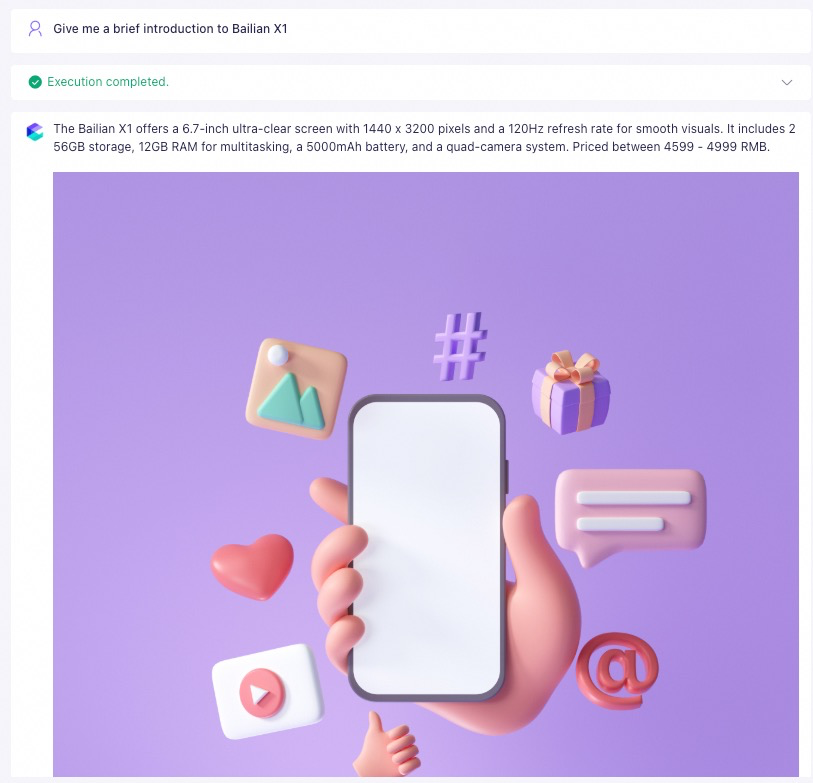
Actual Q&A result:
-
Upload the image to a publicly accessible location and obtain its full URL. We recommend using OSS. For instructions, see Upload an image to OSS and use its file URL.
-
Insert the full URL into the file. Relative paths are not supported. Do not embed image files directly in the document (for example, by copying and pasting or by inserting a local image from a menu). You must reference images using their publicly accessible URLs.
If an image fails to display, ensure the URL in the chunk is complete. Remove any extra spaces or special characters that might cause parsing errors. You can edit the chunk directly to make these corrections.
Example of correctly referencing an image in a file
Sample prompt template
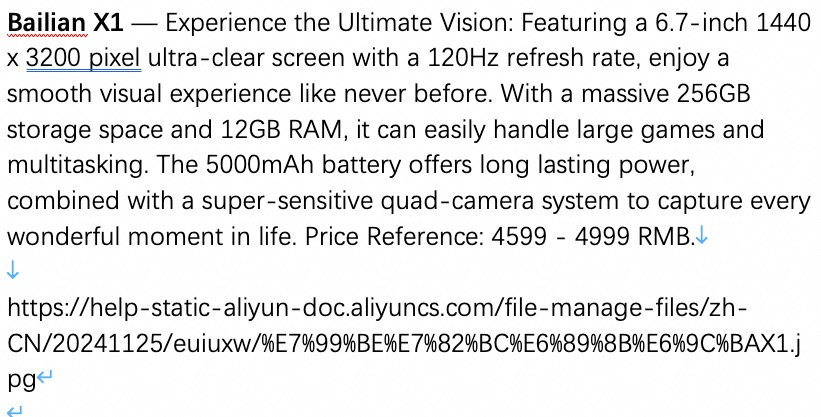
Actual Q&A result
# Knowledge Base
Please remember the following materials. They may be helpful for answering questions.
${documents}

# Requirements
If there are image links, display them in full using markdown format.
Example of incorrectly referencing an image in a file
Sample prompt template
Actual Q&A result

# Knowledge Base
Please remember the following materials. They may be helpful for answering questions.
${documents}

# Requirements
If there are images, please display them.
In the chat test interface, after entering a prompt, the AI response returns only plain text content without any images.
Explanation: When you embed an image directly in a file, the Model Studio application does not display the image in its response.
Image Q&A
-
Upload the image to a publicly accessible location and obtain its full URL. We recommend using OSS. For instructions, see Upload an image to OSS and use its file URL.
-
On the Table tab, create a new data table and add a field of type image_url to store the full image URL.
Note-
The image_url field does not support relative paths.
-
A single image_url field cannot store multiple image URLs. To associate a record with multiple images, create a separate
image_urlfield for each one, such asimage_1andimage_2. -
Each image referenced by an image_url field must be 3 MB or smaller. If an image exceeds this limit, knowledge base creation will fail.
-
You cannot add or modify fields of type image_url after a data table is created. Therefore, you must include all required image fields during the initial table schema design.
The field Type supports string, double, long, datetime, and image_url. After configuration, you can upload xlsx or xls format files (no larger than 20 MB) in the Import Data area.
-
-
When you create a knowledge base, set the Knowledge Base Type to Image Q&A.
-
When you create or edit an agent application, click the + button to the right of Image (Image Q&A knowledge base), add the knowledge base that you created, and then change the prompt template to:
# Knowledge Base Please remember the following materials. They may be helpful for answering questions. ${documents} # Requirements If there are images, please display them. -
Ask a question in the input box on the right side of the page.
For example: "Briefly introduce the Bailian X1 phone."
Example of correctly referencing an image
Sample prompt template
User prompt and Model Studio application response
On the Alibaba Cloud Model Studio knowledge base data preview page, the Model Studio Phone data shows Import Successful. The structured data table contains three columns: Model (string), Description (string), and Image (image_url). In the sample data row, the model is Model Studio X1, the description field contains screen (6.7-inch 1440x3200 pixels 120Hz), storage (256GB+12GB RAM), battery (5000mAh), camera (Ultra-sensing quad camera), and reference price 4,599–4,999 yuan, with the image column being the corresponding image resource URL.
# Knowledge Base
Please remember the following materials. They may be helpful for answering questions.
${documents}

# Requirements
If there are images, please display them.
-