Covers the end-to-end process of importing a LoRA model from Alibaba Cloud OSS into Alibaba Cloud Model Studio, including first-time OSS authorization, model file preparation, import form fields, imported model management, and troubleshooting.
Model import overview
This guide walks through importing a locally trained LoRA model from Alibaba Cloud Object Storage Service (OSS) into Alibaba Cloud Model Studio, covering first-time OSS authorization, model file preparation, import form fields, model viewing/management and deletion, and troubleshooting common issues such as import failures and expired models. Once imported successfully, the model is ready for deployment. For deployment, scaling, and offline operations, see Deployment and O&M. For deploying and calling models via API, see Deploy models with the API. This guide, together with the deployment overview and API guide, forms a complete concept-to-call chain.
The base model field on the import page is dynamically populated by a Model Studio API that returns the list of currently importable base models, which may change with version updates. Refer to the options available in the console. The currently supported base models are listed below:
Currently supported base models (click to expand)
This list is dynamically returned by the backend API and may change with version updates. Refer to the actual options available in the console.
Model family | Model name |
|---|---|
Qwen3 | Qwen3-32B |
Qwen3 | Qwen3-14B |
Qwen3 | Qwen3-8B |
Qwen3 | Qwen3-4B-Instruct-2507 |
Qwen3-VL | Qwen3-VL-8B-Instruct |
Qwen2.5 | Qwen2.5-72B-Instruct |
Qwen2.5 | Qwen2.5-32B-Instruct |
Qwen2.5 | Qwen2.5-14B-Instruct |
Qwen2.5 | Qwen2.5-7B-Instruct |
Qwen2.5-VL | Qwen2.5-VL-72B-Instruct |
Qwen2.5-VL | Qwen2.5-VL-7B-Instruct |
The available training method options depend on the selected base model; after choosing a base model, the training method field auto-renders its options and selects the first one by default. This version supports importing LoRA models; full-parameter fine-tuned models cannot be imported.
The import source is "Import from OSS", selected by default; importing from other channels is not supported.
After a successful import, the model enters the Created state and can be deployed from the My Models list. Models imported from OSS do not support incremental training; to iterate, retrain and import again. After import, the model record is stored using the free storage space provided by Model Studio.
Authorize OSS before first import
Before importing a model from OSS for the first time, you must complete the OSS service-linked role authorization and add an access tag to the target bucket. Authorization is done in one click from the import page. Once authorized, the system automatically creates the service-linked role AliyunServiceRoleForSFMDataHubOSSImport (service name datahub.sfm.aliyuncs.com, permission policy AliyunServiceRolePolicyForSFMDataHubOSSImport), which usually takes effect within seconds. For details on the service-linked role, see OSS service-linked role. For the concepts and differences between the Alibaba Cloud account and RAM users, see Alibaba Cloud account and RAM users.
On the Import Model page, after selecting "Import from OSS" under Import source, if you have not authorized, the OSS field area shows "You have not authorized OSS" with a "Go to authorize" link, and the OK button is disabled until authorization is complete. The authorization path differs for Alibaba Cloud accounts and RAM users; choose by account type.
Using an Alibaba Cloud account
- On the Import Model page, after selecting "Import from OSS" under Import source, the page shows "You have not authorized OSS". Click "Go to authorize" on the right side of the prompt.
- In the dialog box that appears, click "Authorize Now". The system automatically creates the service-linked role AliyunServiceRoleForSFMDataHubOSSImport, usually taking effect within seconds; it may be slightly delayed during peak hours.
- Add a tag to the target OSS bucket: go to the Bucket List in the OSS console, find the target bucket, hover over the tag column icon and click "Go to edit" then "Create Tag", add tag name
bailian-datahub-accessand tag valueread, then save. - Return to the Import Model page, reselect the target bucket, and try importing again. Model Studio does not support accessing files in the bucket root directory; you must select an existing subdirectory in the bucket or create a new one.
Using a RAM user
-
On the Import Model page, after selecting "Import from OSS" under Import source, the page shows "You have not authorized OSS". Click "Go to authorize".
-
In the dialog box that appears, click "Authorize Now". The interface shows "Authorization failed: the current user does not have permission to create a service-linked role." The dialog shows Service Name as
datahub.sfm.aliyuncs.com, the service-linked role name asAliyunServiceRoleForSFMDataHubOSSImport, and the required user permission asram:CreateServiceLinkedRole. The Alibaba Cloud account must first grant the RAM user permission to create a service-linked role, then the RAM user completes authorization. -
The Alibaba Cloud account grants the RAM user permission to create a service-linked role:
- The Alibaba Cloud account logs on to the RAM console. In the navigation pane on the left, choose "Permission Management" then "Policies", then click "Create Policy".
- Select "Script Editor", enter the following content in the Effect, Action, Resource, and Condition fields, then click "OK":
{
    "Action": [
        "ram:CreateServiceLinkedRole"
    ],
    "Resource": "*",
    "Effect": "Allow",
    "Condition": {
        "StringEquals": {
            "ram:ServiceName": "datahub.sfm.aliyuncs.com"
        }
    }
}
- Enter a policy name (example: Service-Linked Role) and click "OK".
- In the navigation pane on the left, choose "Identity Management" then "Users". Find the target RAM user and click Add Permissions in the Actions column.
- Select the custom policy you just created and click "Confirm New Authorization". The RAM user now has permission to create a service-linked role.
- Return to the Import Model page and click "Go to authorize". In the dialog box that appears, click "Authorize Now". The system automatically creates the service-linked role, usually within seconds.
- Add the
bailian-datahub-access=readtag to the target OSS bucket (same as step 3 for the Alibaba Cloud account), then return to the Import Model page and reselect the target bucket. Model Studio does not support accessing files in the bucket root directory.
After authorization, you must add a tag to the target OSS bucket: tag name bailian-datahub-access, tag value read. This tag marks buckets accessible by Model Studio; buckets without this tag are not selectable in the drop-down list. You must add the tag in the OSS console and then reselect.
OSS bucket storage classes do not support Archive, Cold Archive, or Deep Cold Archive; for server-side encryption, fully managed OSS is supported, while other server-side encryption methods such as KMS-managed keys (SSE-KMS) are not supported. Private buckets are supported. Model Studio does not support accessing files in the bucket root directory; you must select an existing subdirectory in the bucket or create a new one.
Upgrade from the legacy authorization method
If you previously used the legacy authorization method, the import page shows a prompt under the Bucket field: "We recommend switching to the new bucket authorization method for improved security" with a "Switch now" link. Click it to open a confirmation dialog; confirm to upgrade to the service-linked role authorization method. The upgrade does not affect existing data.
OSS product not activated
If the Alibaba Cloud account has not activated Object Storage Service OSS, the import page shows "You have not activated OSS" with a link to purchase. The Alibaba Cloud account must activate OSS in the OSS console, then return to the import page to authorize again.
Prepare LoRA model files
Before importing, place the LoRA model files in a subdirectory of an OSS bucket (the bucket root directory is not supported) according to the requirements below, and pass the system's automatic validation before submission. The model files must be placed directly under the selected subdirectory; the system detects them automatically.
ImportantThis version supports importing LoRA models; full-parameter fine-tuned models are not supported.
Required files and directory structure
The subdirectory must contain the following files: adapter_model.safetensors (the LoRA adapter weights in SafeTensors format), adapter_config.json (the configuration file containing parameters such as rank and alpha), and config.json (the base model configuration). After you select a directory, the system automatically validates the format and integrity of these files.
Training parameter constraints
-
Rank values: The rank must be one of 8, 16, 32, or 64, and all LoRA layers of the same model must use the same rank value; otherwise the model cannot be imported.
-
Vocabulary must not be modified: Models that added new tokens or modified the original vocabulary during training cannot be imported; the vocabulary must exactly match that of the base model.
-
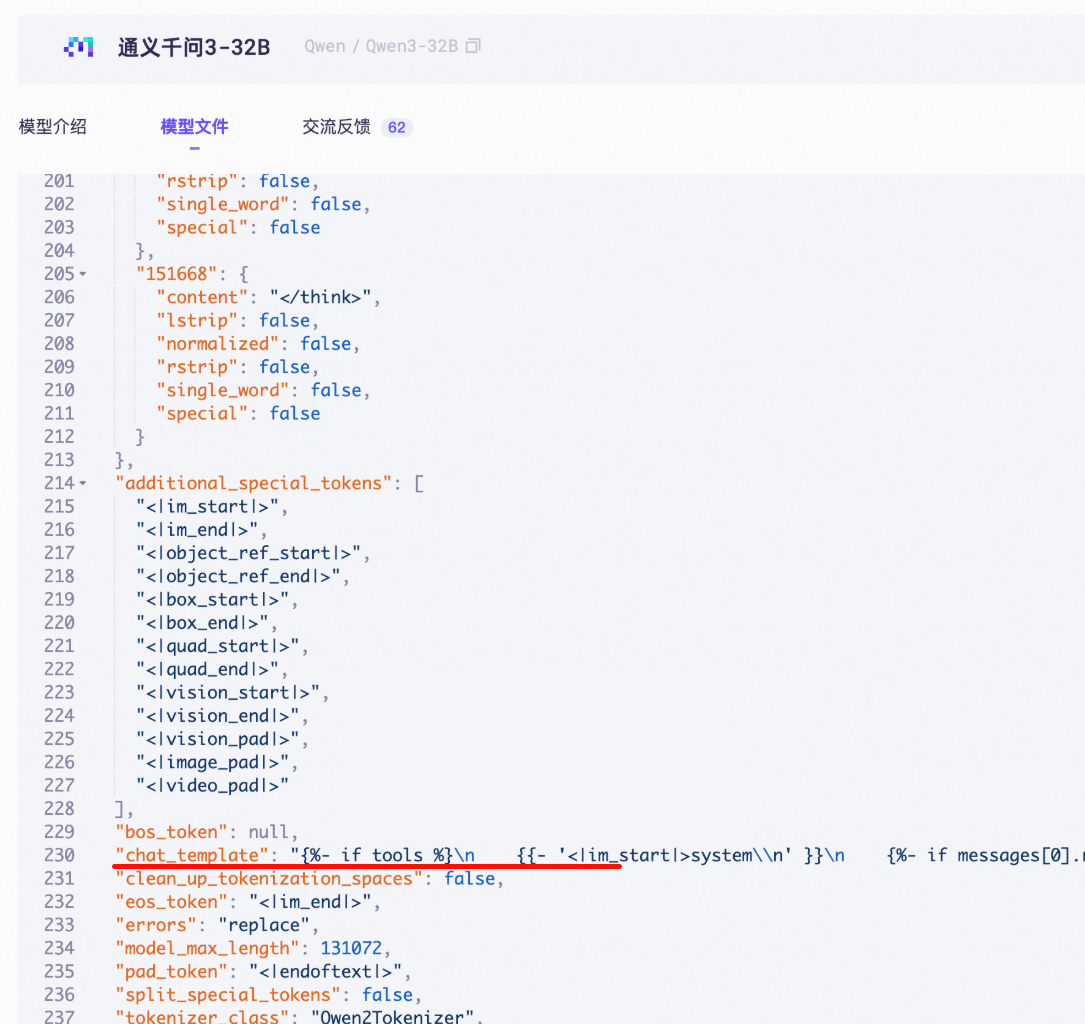
Chat template must not be modified: Models that modified the chat_template during training cannot be imported; the chat_template must match the base model's default configuration. The chat_template is located in the
chat_templatefield of config.json or tokenizer_config.json.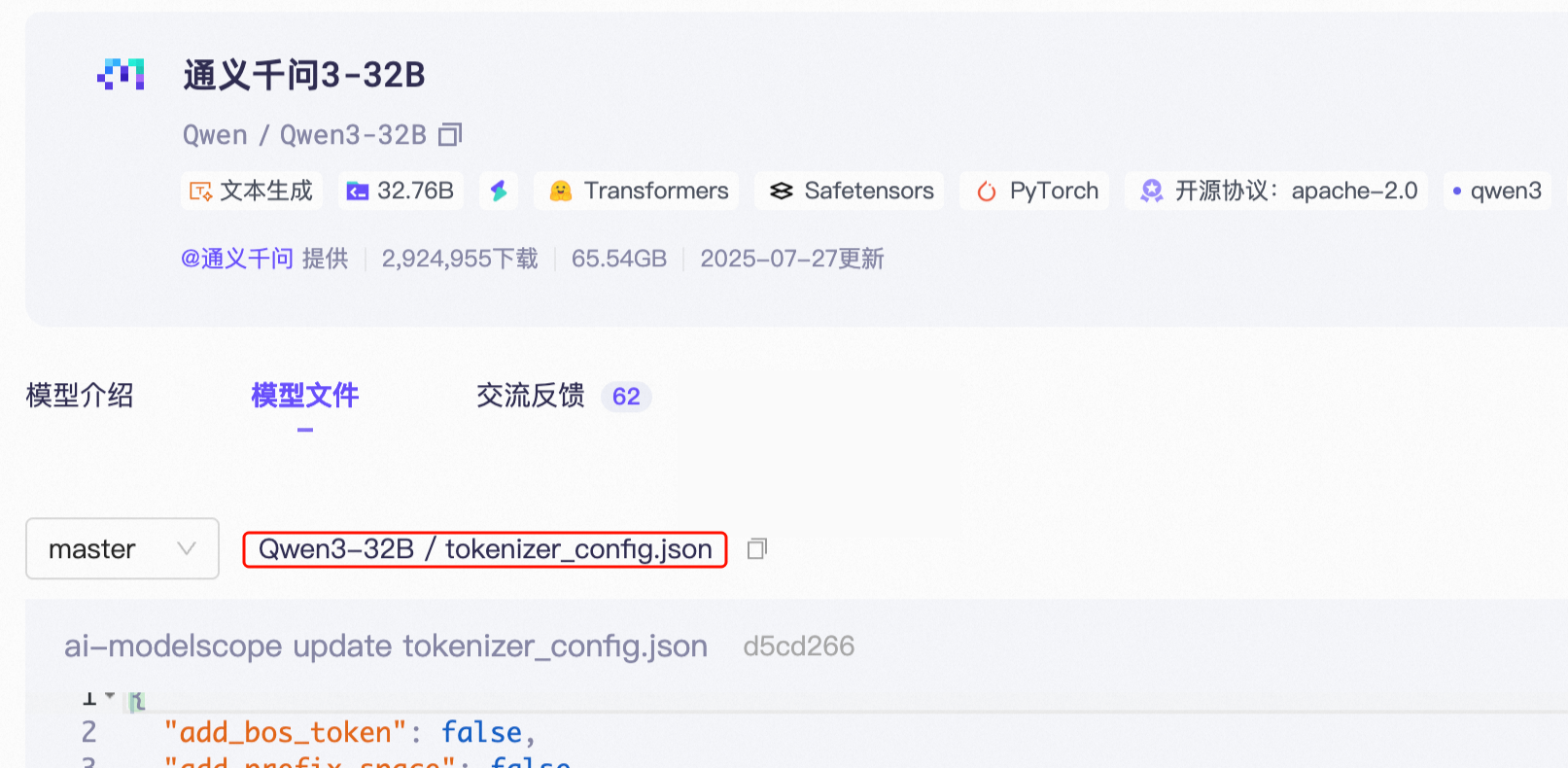
-
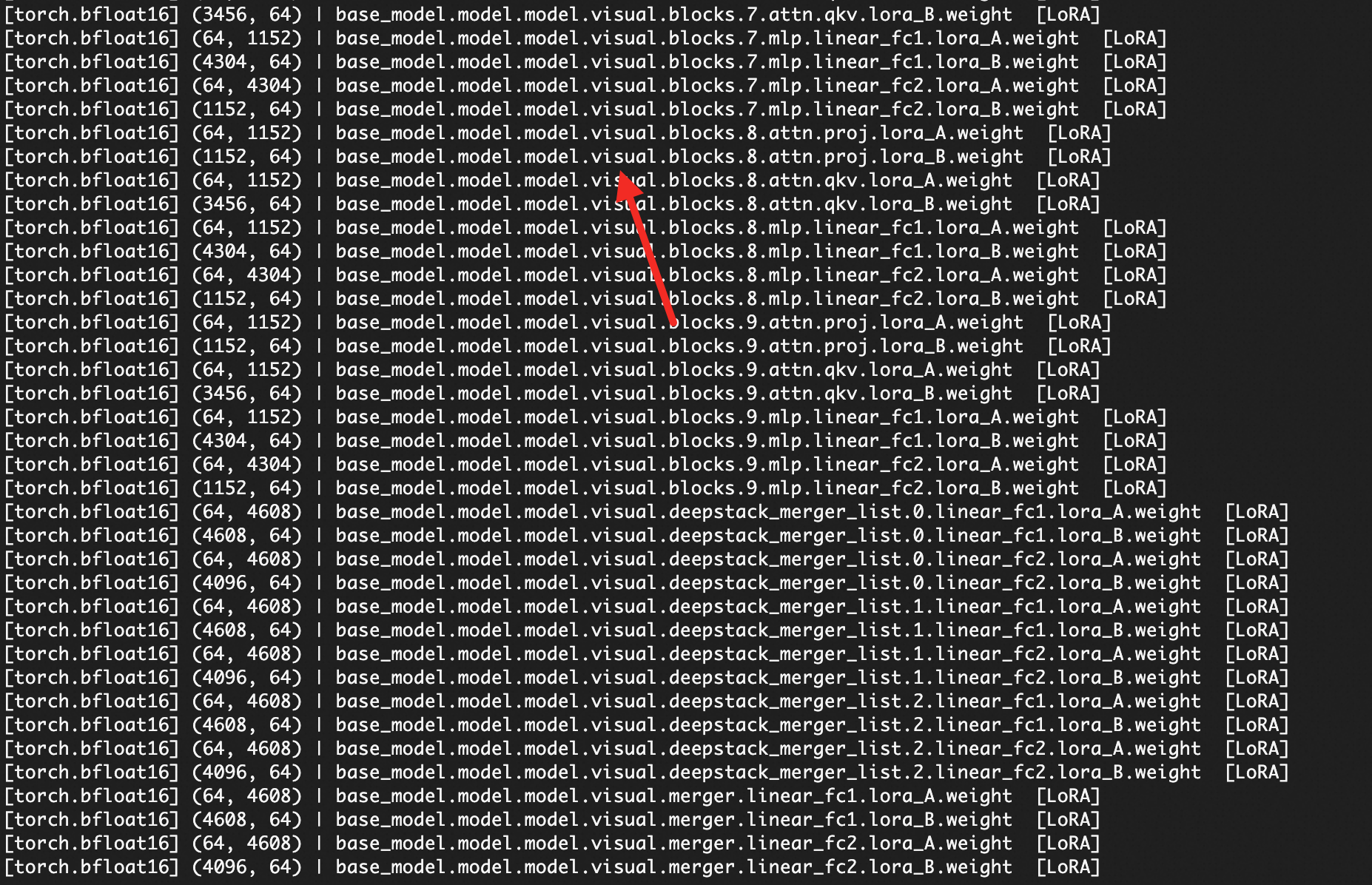
Vision-language models must freeze VIT: Vision-language models must freeze the Vision Transformer part. If the LoRA adapter contains visual-related weight parameters (i.e., VIT is not frozen), the model cannot be imported.
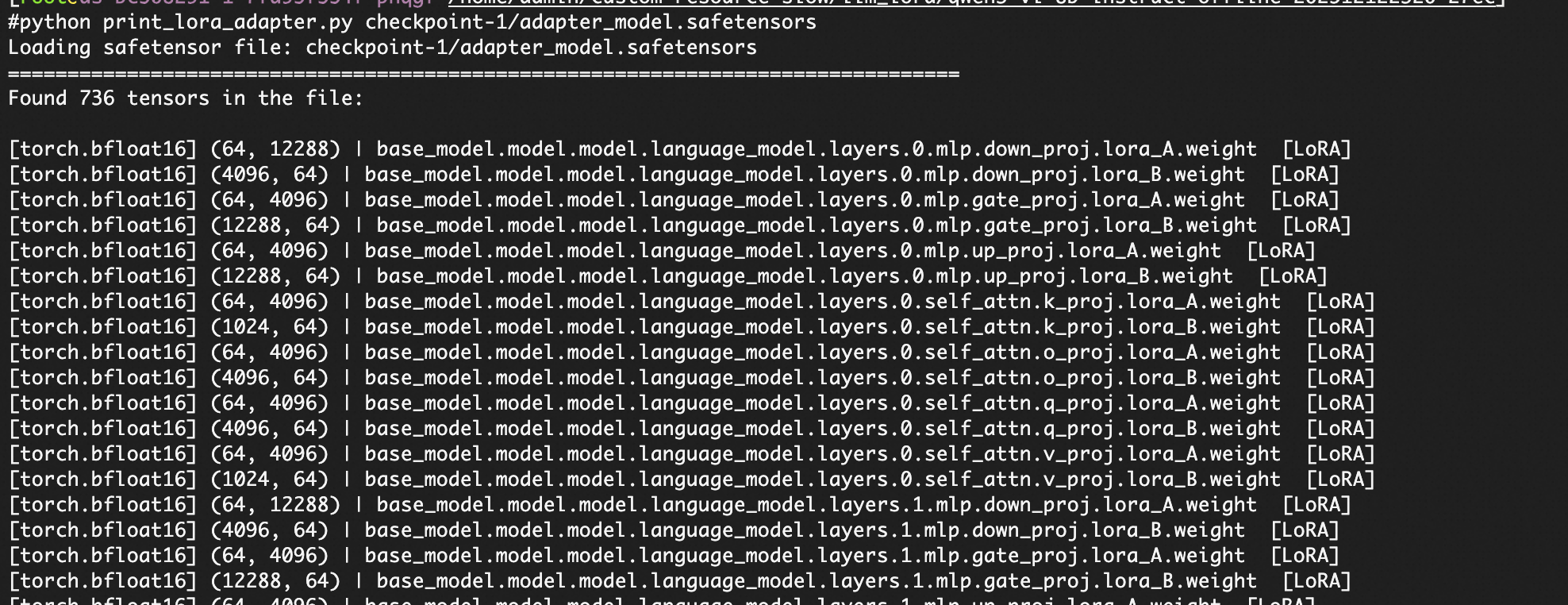
You can run the following script before import to check whether adapter_model.safetensors contains parameter keys starting with visual, to determine whether VIT is frozen.
from safetensors import safe_open
import argparse

def print_safetensor_structure(file_path):
    print(f"Loading safetensor file: {file_path}")
    print("="*80)

    with safe_open(file_path, framework="pt") as f:
        keys = f.keys()
        print(f"Found {len(keys)} tensors in the file:\n")

        for key in sorted(keys):
            tensor = f.get_tensor(key)
            shape = tuple(tensor.shape)
            dtype = str(tensor.dtype)
            device = tensor.device if hasattr(tensor, 'device') else 'cpu'

            lora_tag = " [LoRA]" if "lora_A" in key or "lora_B" in key else ""

            print(f"[{dtype:>14}] {shape} | {key} {lora_tag}")

if __name__ == "__main__":
    parser = argparse.ArgumentParser(description="Print structure of a .safetensors LoRA adapter.")
    parser.add_argument("filepath", type=str, help="Path to the .safetensors file")
    args = parser.parse_args()

    print_safetensor_structure(args.filepath)
Method: If the script output contains parameter keys starting with visual (for example, visual.encoder.layer.0...), the VIT part is not frozen and the model cannot be imported; if only LoRA-related parameter keys such as lora_A and lora_B are present, VIT is frozen and the model can be imported normally.
Pre-submission automatic validation
After selecting a model directory on the Import Model page, the system automatically calls the file validation API to check the format and integrity of the model files in the directory. If validation fails, a red prompt appears under the directory field and blocks submission; correct the files per the prompt before submitting. A common failure cause is missing required files, corresponding to error code AvailableModelFileNotFound.
Import a LoRA model
After completing OSS authorization and preparing the model files, go to the My Models page in the Model Studio console and click the "Import Model" button in the upper-right corner to open the creation page, then complete the import as follows.
- On the My Models page, click the "Import Model" button in the upper-right corner to open the import model creation page.
- Fill in the model information per the table below. The base model must match the base used for LoRA training, the bucket must have the
bailian-datahub-access=readtag, and after selecting the model directory the system automatically validates the files. - After verifying the information, click OK to submit. The system automatically validates the file format and integrity, and begins importing once validation passes; to cancel, click Cancel to return to the list page. After import, view the status under Manage imported models.
The import model form fields are as follows:
Field | Description | Constraint |
|---|---|---|
Model name | Enter a display name for the model. | Required, up to 50 characters |
Base model | Select the base model used for LoRA training; must match the training base. | Required, drop-down selection |
Training method | Options depend on the selected base model; after selecting a base model, options render automatically with the first one selected by default. | Required, drop-down selection |
Import source | Is "Import from OSS"; no other options. | Read-only, selected by default |
Bucket | Select the OSS bucket storing the model files; only buckets with the bailian-datahub-access=read tag are listed. | Required, drop-down selection |
Model directory | Browse and select the subdirectory containing the model checkpoint in the chosen bucket; the bucket root directory is not selectable. | Required, tree selection |
Model encryption | Model Studio automatically enables OSS server-side encryption (SSE-OSS) for the exported model files, using fully managed OSS keys with AES256 as the encryption algorithm. | Read-only, enforced by Model Studio |
If you have not completed OSS authorization, the OK button is disabled; complete Authorize OSS before first import before submitting. After a successful import, the model is ready for deployment; for deployment operations, see Deployment and O&M.
Imported model states include Creating (importing), Created (ready to deploy), Creation Failed (import failed), and Expired (source files changed).
Manage imported models
After submitting the import, you return to the My Models list page, where you can view and manage all imported models. The list shows model name, model ID (with a copy button), base model, source, supported deployment methods, status, creation time, and an actions column. The upper-right corner provides the Import Model entry and a refresh button.
Status and transitions
Model states include Creating, Created, Creation Failed, and Expired. Creating means the import is in progress; Created means the import is complete and the model is ready for deployment; Creation Failed means the import did not succeed; Expired means the OSS source model files changed after the model was successfully created. The list silently auto-refreshes every 3 seconds for models in the Creating state; this is normal behavior, not an API exception.
Next to the Creation Failed status is a "Details" link; hover over it to view the failure error code (such as AvailableModelFileNotFound) and the corresponding oss://bucket/path path, to help locate the failed file.
For the Expired status, hover to view a pop-up showing "The following files have detected updates" and the list of changed source file names, prompting you to re-import.
Actions column availability
- Deploy: Available only in the Created state; clicking it opens the deployment creation page. For deployment operations, see Deployment and O&M. In other states, or when no deployment method is available, the button is disabled.
- Incremental training: Models imported from OSS do not support incremental training; the button is disabled.
- Delete: Models in the Creating state cannot be deleted; quantized models must be deleted from the model compression page.
After clicking Delete in the actions column and confirming, only the model record on the Model Studio side is removed; OSS source files are not affected. For other states, deletion calls the delete API to clean up the record.
ImportantThe delete operation is irreversible: it only removes the model record on the Model Studio side; you must re-import to restore it. It does not delete the source files in OSS.
The search box at the top of the list filters models by name and supports clearing/resetting. The source column renders by import source: OSS imports show oss://bucket/path, training jobs show the source job ID (or "Training job deleted" if deleted), and are labeled with full-parameter, LoRA, or quantization tags. For calling a deployed model via API, see Deploy models with the API.
All operations are performed per single model; batch deletion or batch deployment is not supported.
FAQ
This section summarizes common issues and handling methods during the import process.
What should I do if import fails with AvailableModelFileNotFound?
This error means the model directory file validation did not pass (a format or integrity issue) and cannot be resolved by simply re-uploading the files. Check that the selected directory contains valid adapter_model.safetensors, adapter_config.json, and config.json, confirm that the rank, vocabulary, and chat_template constraints are all met, then reselect the directory and submit.
Why does the model status show 'Expired'?
Expired means that after the model was successfully created, the OSS source model files changed; this is a normal detection behavior, not a fault. Hover over the Expired status to view the list of changed file names. You must re-import the model to restore it to a usable state.
What should I do if I encounter error '10041495'?
This usually occurs because the Alibaba Cloud account has not activated Object Storage Service OSS. The Alibaba Cloud account must go to the OSS console and activate OSS as instructed, then return to the Model Studio Import Model page and try authorizing again.
What should I do if OSS authorization fails for a RAM user?
RAM user authorization fails because the RAM user lacks the permission to create a service-linked role; this is not a true failure. The Alibaba Cloud account must first create a custom permission policy in the RAM console (action ram:CreateServiceLinkedRole, for service datahub.sfm.aliyuncs.com) and grant it to the RAM user, then the RAM user clicks authorize again. For details on the OSS service-linked role, see OSS service-linked role.
What should I do if the target bucket is not selectable in the bucket drop-down list?
This is an authorization requirement, not a fault. Under the new authorization method, buckets without the bailian-datahub-access=read tag are not selectable in the drop-down. Go to the OSS console and add this tag to the target bucket, then return to the import page and reselect.
Is the My Models list auto-refreshing every few seconds a fault?
No. When the list detects models in the Creating state, it silently refreshes every 3 seconds to fetch the latest status, and stops automatically when no models are in the Creating state. This is normal behavior.
Why does the imported model produce different inference results compared to local vLLM or SGLang?
For inference parameter alignment, see API deployment guide.
Does deleting an imported model affect the source files in OSS?
No. Deletion only removes the model record on the Model Studio side; you must re-import to restore it. The OSS source files belong to you; Model Studio only reads them via the bailian-datahub-access=read tag, and deleting the model does not modify any files in OSS.