This topic uses typical use cases to demonstrate how to use the job analysis feature in the MaxCompute console. You can analyze job-level resource usage, understand consumption details, and get recommendations to optimize job runtime.
Background
If a job runs for an extended period without finishing and the cause is difficult to identify in LogView, or if a job's runtime is longer than expected after it completes, you need to analyze whether insufficient resources are the cause.
Data developers and administrators can use the job analysis feature in the MaxCompute console to review historical and running jobs and understand their resource consumption details.
Usage notes
The evaluation methods in these use cases are simplified for illustrative purposes. In a real-world production environment, you should consider multiple factors. Adjust job properties based on your specific needs and monitor the results.
Use case 1: Slow job due to insufficient resources
A company has a subscription for 50 CU of reserved computing resources. More than 1,000 jobs, organized in over ten batches, run on these resources daily.
A data developer notices that a job with the instance ID 20240717020015831xxxxxxxxxxxx is running too long, which impacts downstream workflows. To investigate, the developer navigates to the Workspace > Jobs page in the MaxCompute console, finds the job, and clicks Analyze in the Actions column.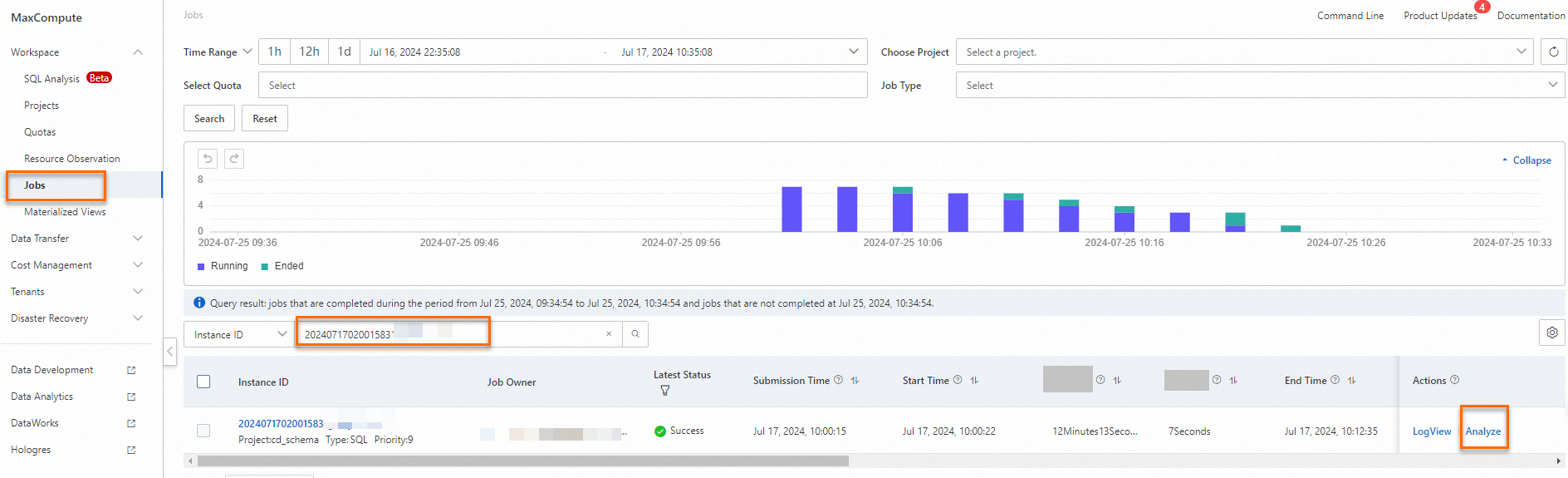
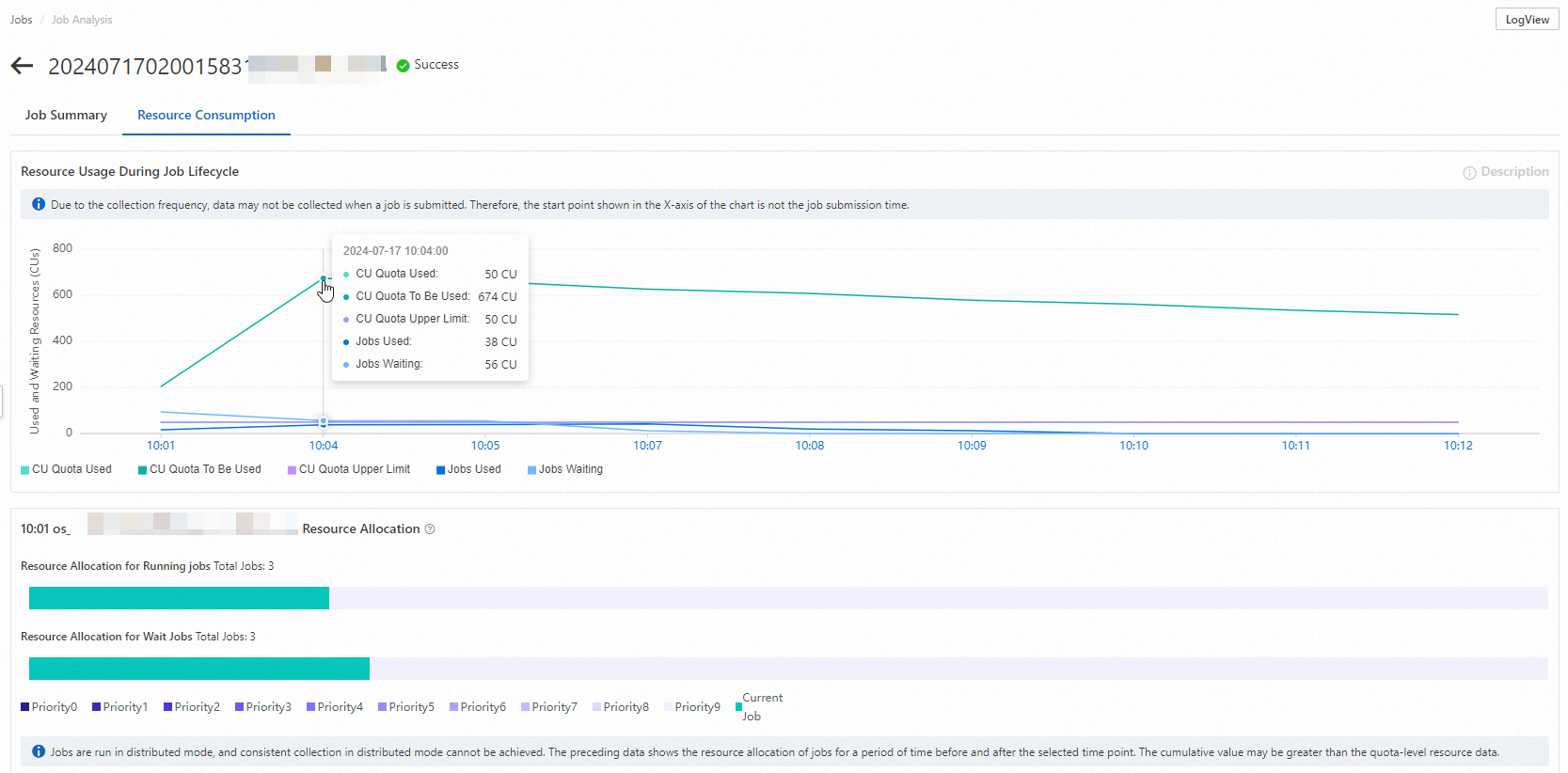
The job-level resource consumption chart shows that all 50 CU of the subscription's reserved computing resources are in use. While this specific job consumes a large portion of the resources, the number of waiting CUs at the quota level is also consistently high. This indicates that the total reserved computing resources are insufficient to handle all incoming job requests promptly. The current job is also starved for resources, which causes it to run slowly.
If you encounter this situation, consider the following solutions:
-
Evaluate whether you can adjust job submission times to avoid resource contention during peak hours.
-
If job submission times cannot be changed, consider scaling up your subscription resources. Navigate to the Cost Optimization page, set your desired job completion time, and review the system's recommended resource configuration.
Use case 2: Resource contention delays job start
A company has a subscription for 50 CU of reserved computing resources. More than 1,000 jobs, organized in over ten batches, run on these resources daily.
A data developer finds that a job with the instance ID 20240717020020365xxxxxxxxxxxx is affecting downstream workflows due to its long runtime. The job's total runtime is 21 minutes and 17 seconds, but more than half of that time was spent waiting. To find the cause of the delay, the developer navigates to the Workspace > Jobs page, finds the job, and clicks Analyze in the Actions column.
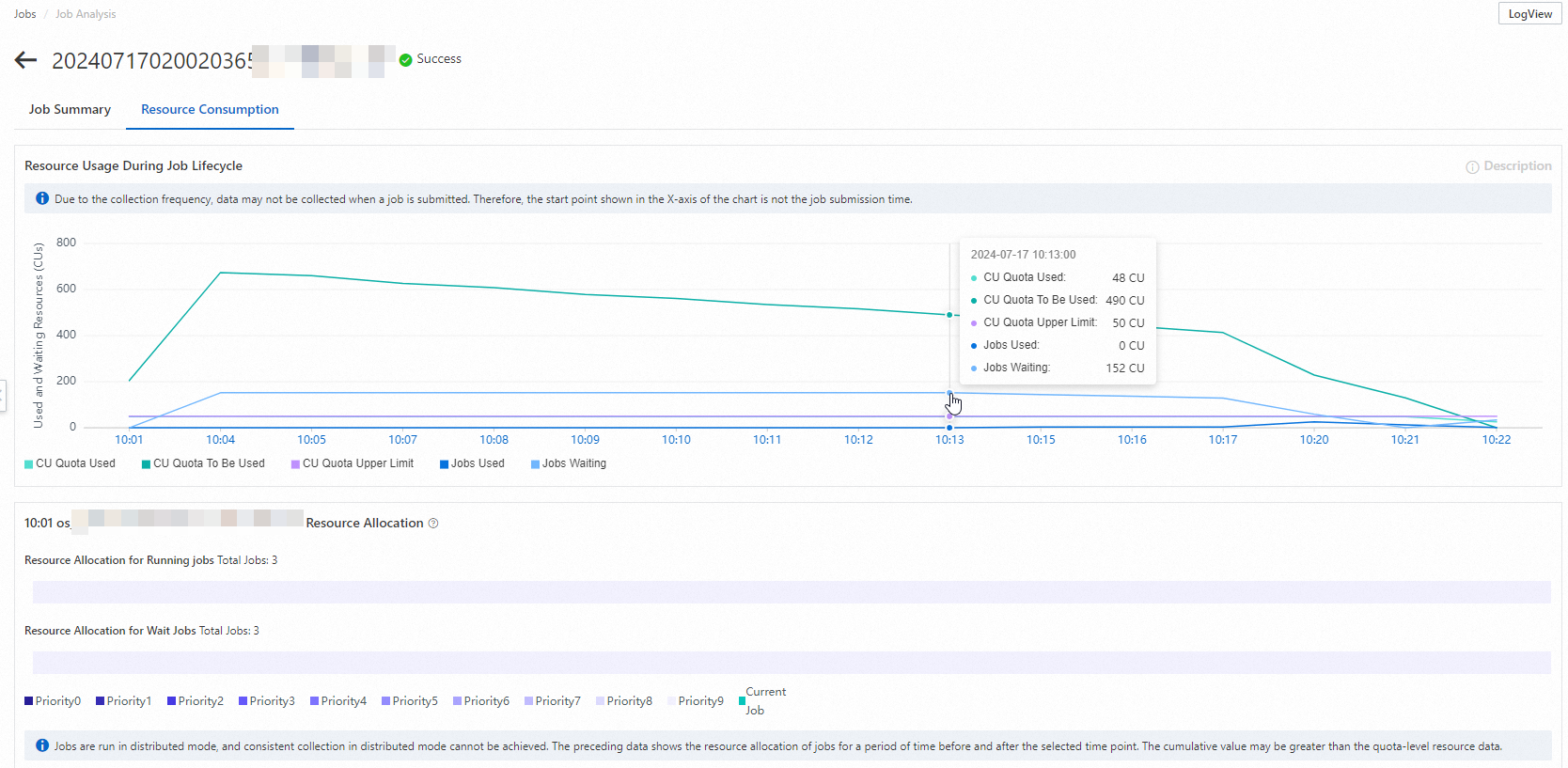
The chart shows that for the first 13 minutes after submission, the job was waiting for resources. During this time, the quota was fully utilized. This indicates that other jobs were occupying all available resources, preventing this job from starting. After 13 minutes, the job began to acquire resources gradually, but its allocation never reached the quota limit.
You can click a time point on the horizontal axis of the resource consumption chart to view the resource allocation details for the quota at that specific moment. This includes the resource distribution for all running and waiting jobs. For example, the figure shows that at 10:04, three jobs with a priority of 9 were consuming computing resources. However, the current job was allocated no resources, while five other jobs were also waiting.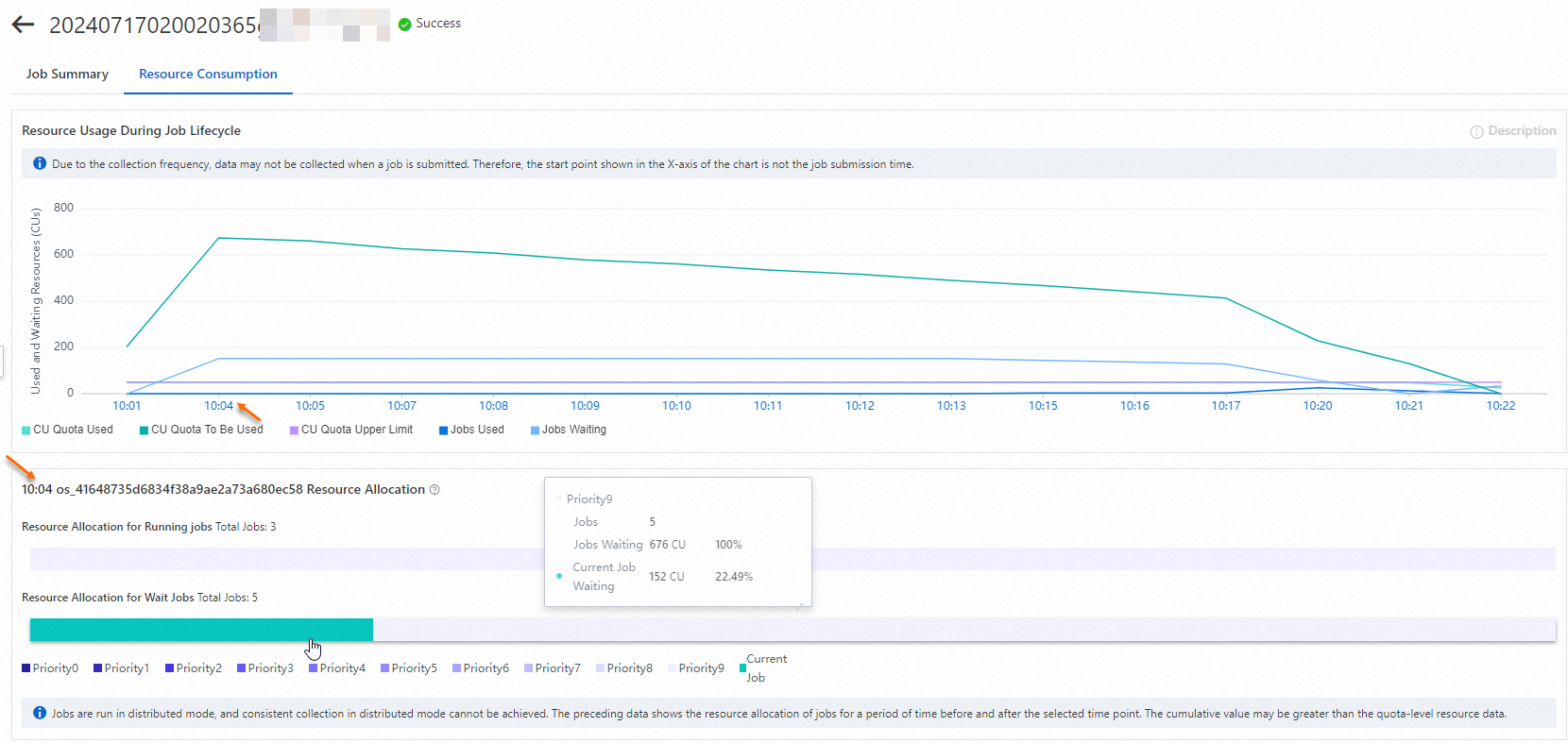
Click the color block corresponding to Resource Allocation for Wait Jobs to view a detailed list of the waiting jobs. The figure shows that the job consuming the most resources at this time has the instance ID 20240717020015831gza7jdf21uv3.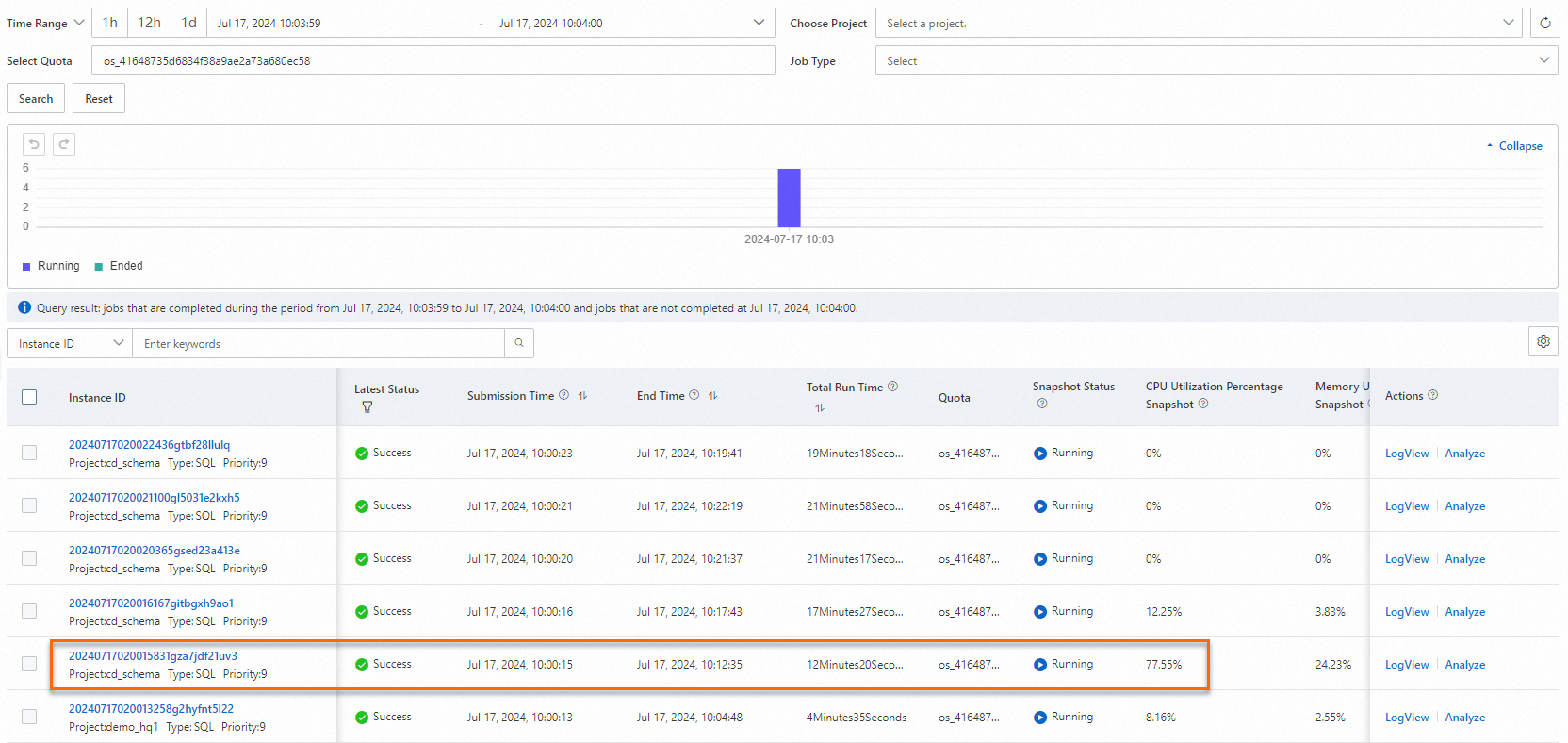
Drilling down into the resource consumption of job 20240717020015831gza7jdf21uv3 confirms that it was indeed consuming a large amount of computing resources at that time.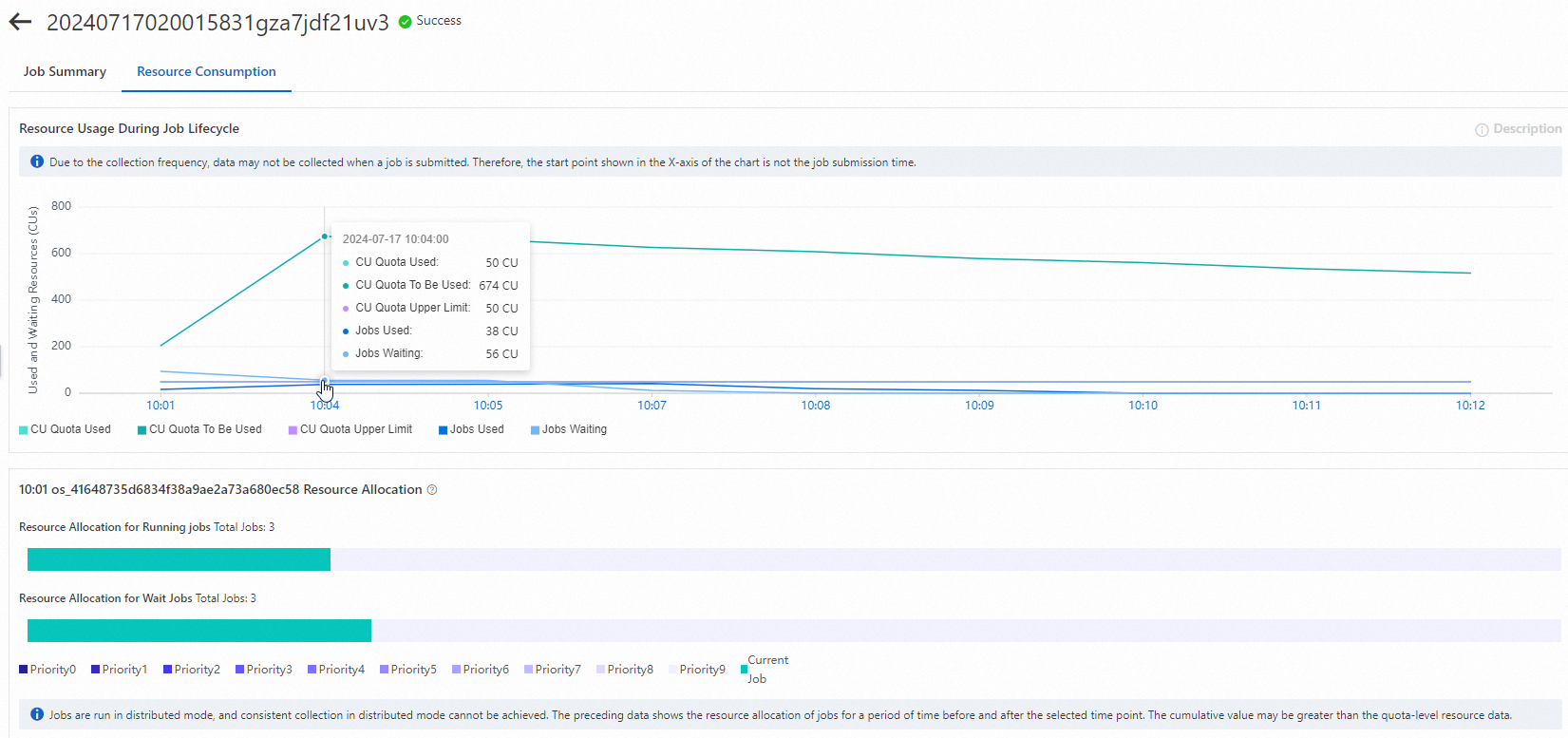
If you encounter this situation, consider the following three solutions:
-
Evaluate whether you can adjust job submission times to avoid having multiple jobs compete for limited computing resources.
-
Evaluate whether you can adjust job priority. If multiple jobs must start at the same time, you can increase the priority of critical jobs. When jobs request resources simultaneously, those with higher priority are allocated resources first.
-
Consider scaling up your subscription resources. You can navigate to the Cost Optimization page, set your desired job completion time, and review the system's recommended resource configuration.
After the developer changes the job's priority to 0, the next run shows a significant improvement. The job's wait time decreased, and it quickly acquired 50% of the reserved computing resources. The total runtime dropped from 21 minutes to 6 minutes.