When a job runs longer than expected and LogView cannot identify the cause, use the job analysis feature in the MaxCompute console to determine whether resource constraints are responsible and to identify the specific bottleneck.
Data developers and administrators can view the resource consumption information of historical jobs and running jobs on the job analysis page of the MaxCompute console.
Diagnose your situation
Before investigating further, match your symptom to a root cause:
| Symptom | Root cause | Recommended action |
|---|---|---|
| Job is slow; all reserved compute units (CUs) are occupied | Insufficient reserved resources — the quota has no headroom for additional jobs | Reschedule jobs or increase subscription CUs |
| Job spends most of its time waiting before execution begins | Resource competition — other higher-priority jobs hold all CUs | Reschedule jobs, raise job priority, or increase subscription CUs |
The diagnostic steps in this document are simplified for typical cases. Adjust job attributes based on your actual workload and monitor the effect after each change.
Scenario 1: Job runs slowly due to insufficient reserved resources
A team with 50 CUs of subscription capacity runs more than 10 batches of jobs (over 1,000 jobs) daily. Job 20240717020015831xxxxxxxxxxxx takes far too long and blocks downstream processing.
Diagnose the job:
-
Log in to the MaxCompute console.
-
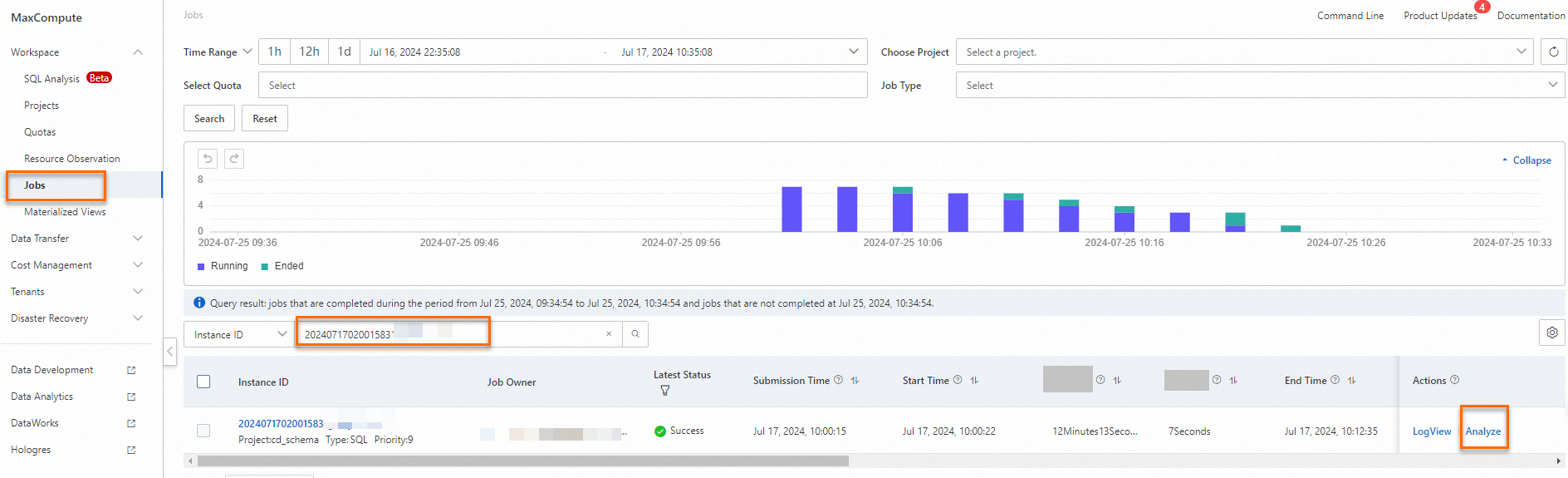
In the left-side navigation pane, choose Workspace > Jobs.
-
Search for the job by instance ID, then click Analyze in the Actions column.
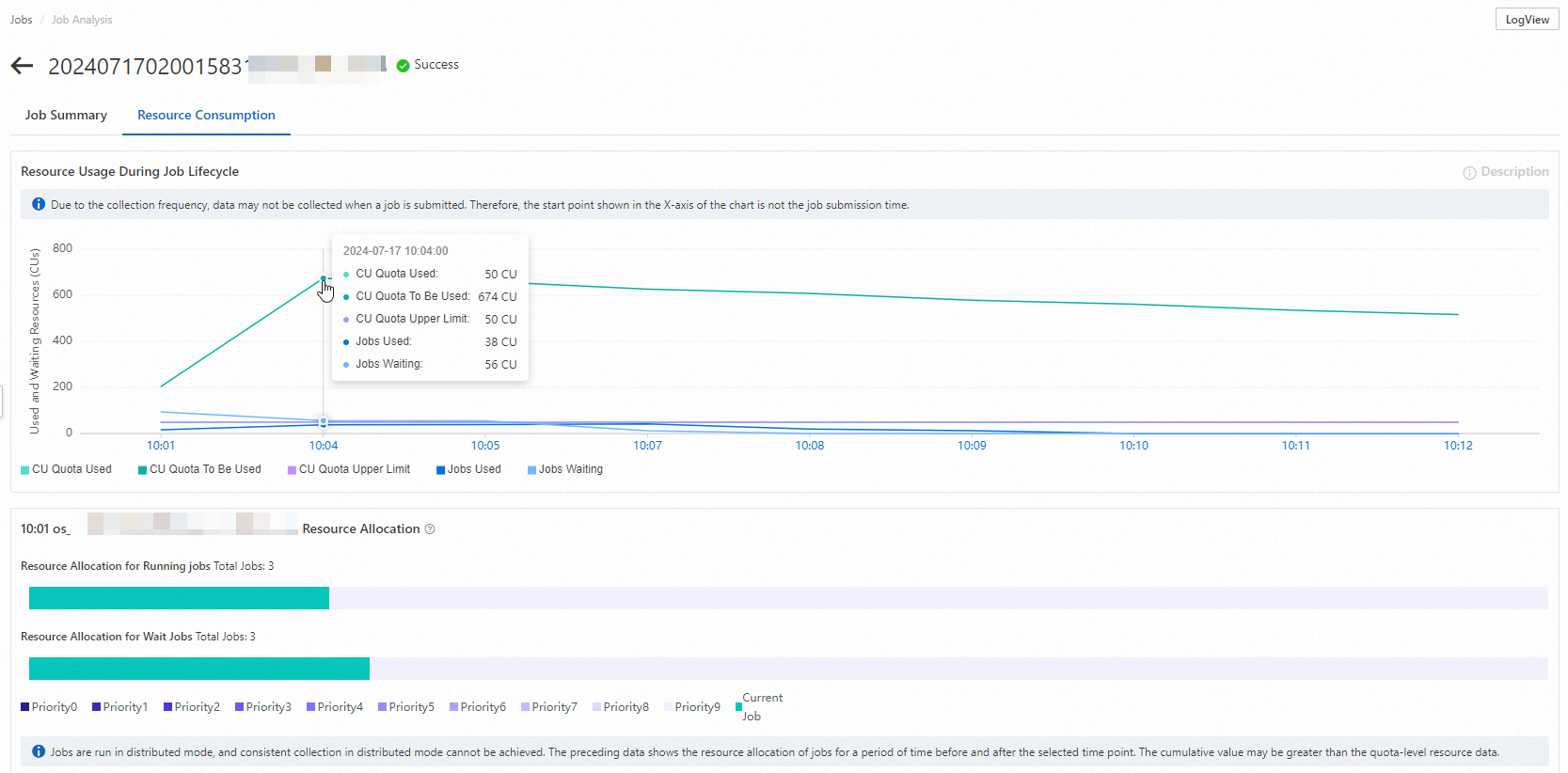
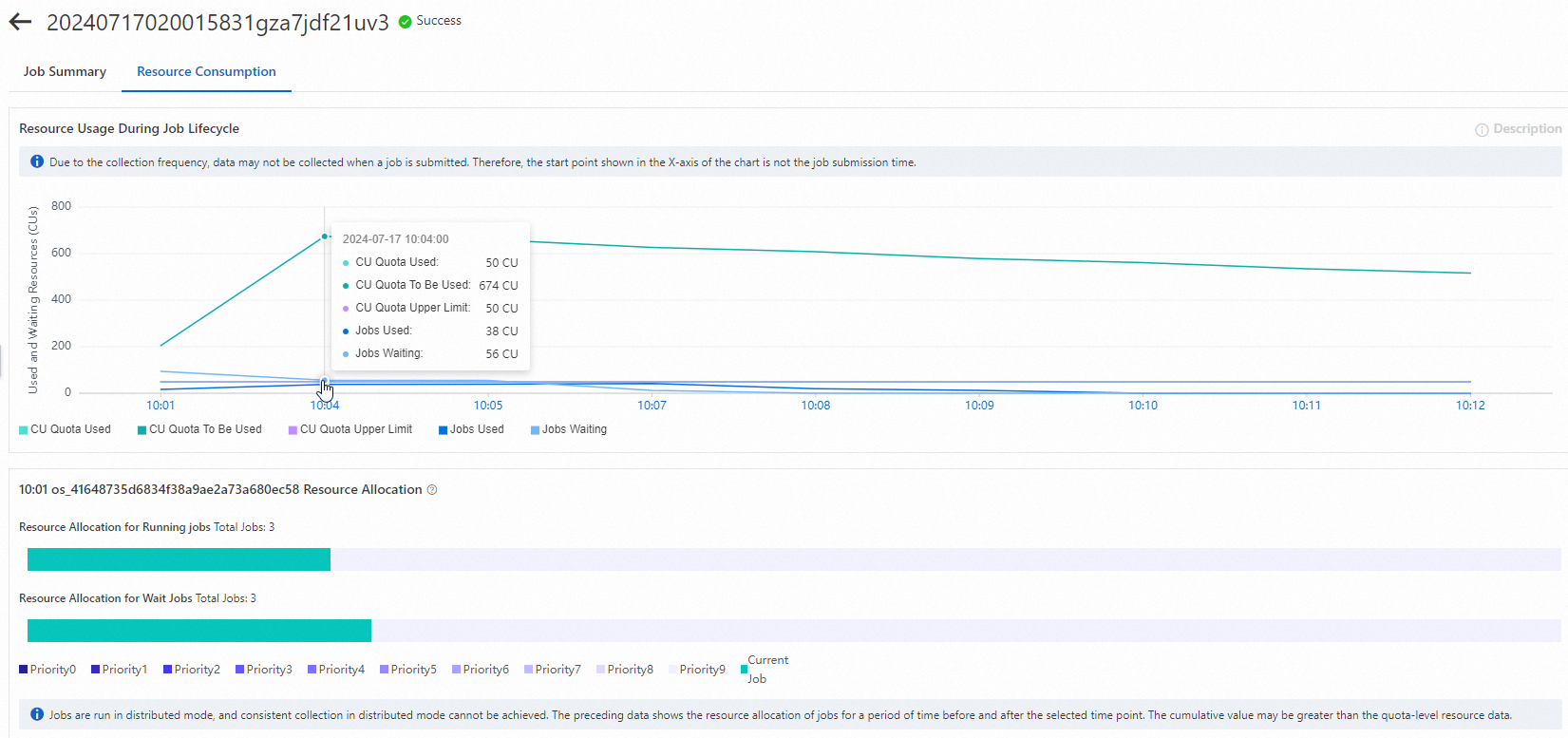
What to look for: All 50 CUs are occupied, and the current job is consuming most of them. The number of CUs that jobs are waiting for at the quota level remains high. The quota has no remaining capacity for additional job requests, so the current job receives fewer resources than it needs — causing it to run slowly.
Fix the issue using one of the following approaches:
-
Reschedule job start times to spread demand away from peak periods and reduce contention for the fixed CU pool.
-
Increase subscription CUs. Go to the Cost Optimization page, specify your expected job completion time, and review the recommended resource allocation plan.
Scenario 2: Job waits for resources due to resource competition
Using the same setup — 50 CUs of subscription capacity and more than 1,000 daily jobs — job 20240717020020365xxxxxxxxxxxx runs for 21 minutes and 17 seconds, with more than half that time spent waiting for resources.
Diagnose the job:
-
Log in to the MaxCompute console.
-
In the left-side navigation pane, choose Workspace > Jobs.
-
Search for the job by instance ID, then click Analyze in the Actions column.

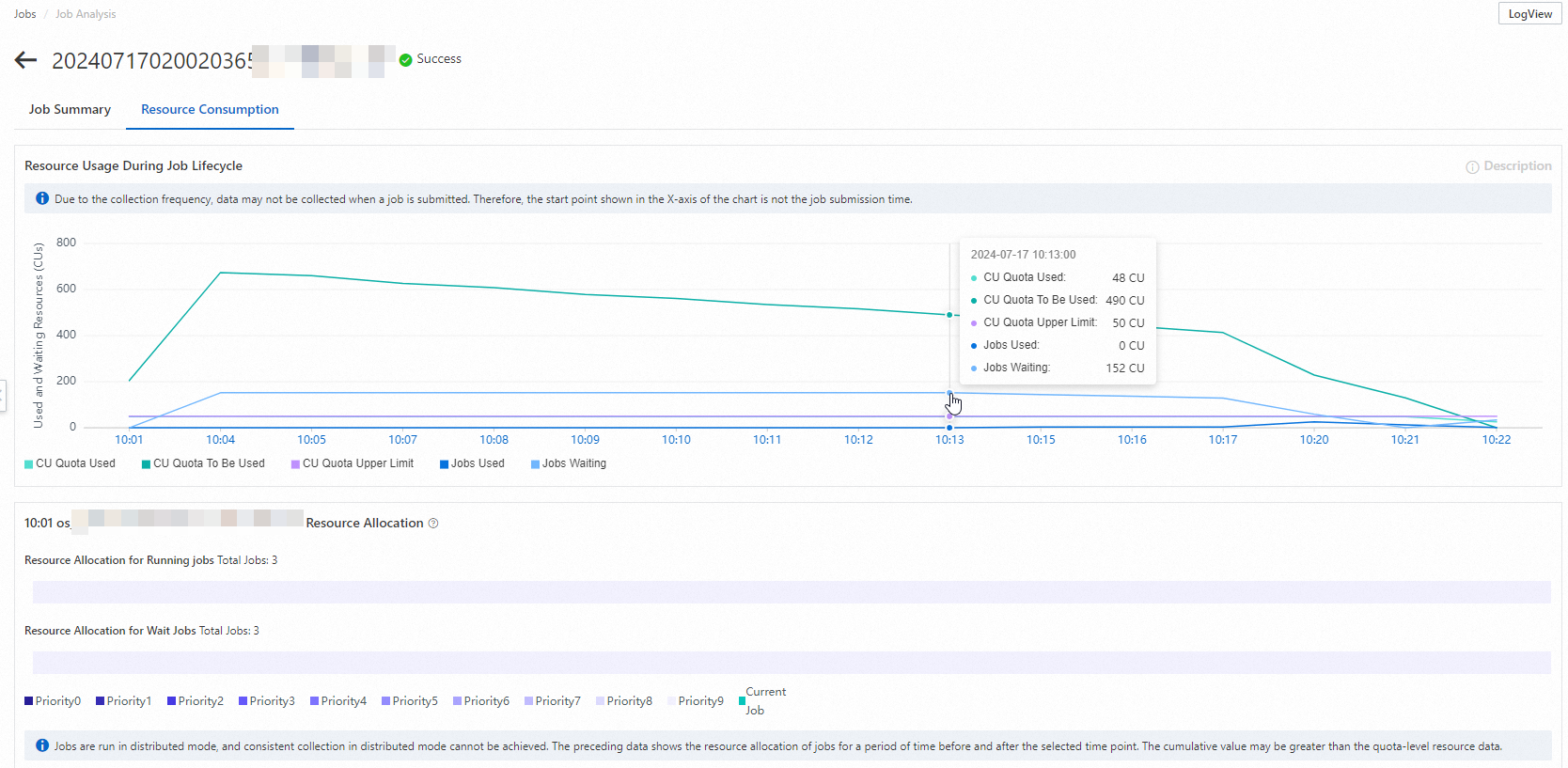
What to look for: The job waits for resources during the first 13 minutes after submission. During this period, quota-level resource usage hits its upper limit — other jobs have claimed all available CUs. After 13 minutes, the job gradually obtains resources, but quota-level usage no longer reaches the upper limit.
Identify which job is blocking resources:
Click a time point on the x-axis to see quota-level resource allocation at that moment, including all running and waiting jobs. At 10:04, the current job has no resources: three jobs with a priority of 9 are consuming CUs, and five jobs are waiting.
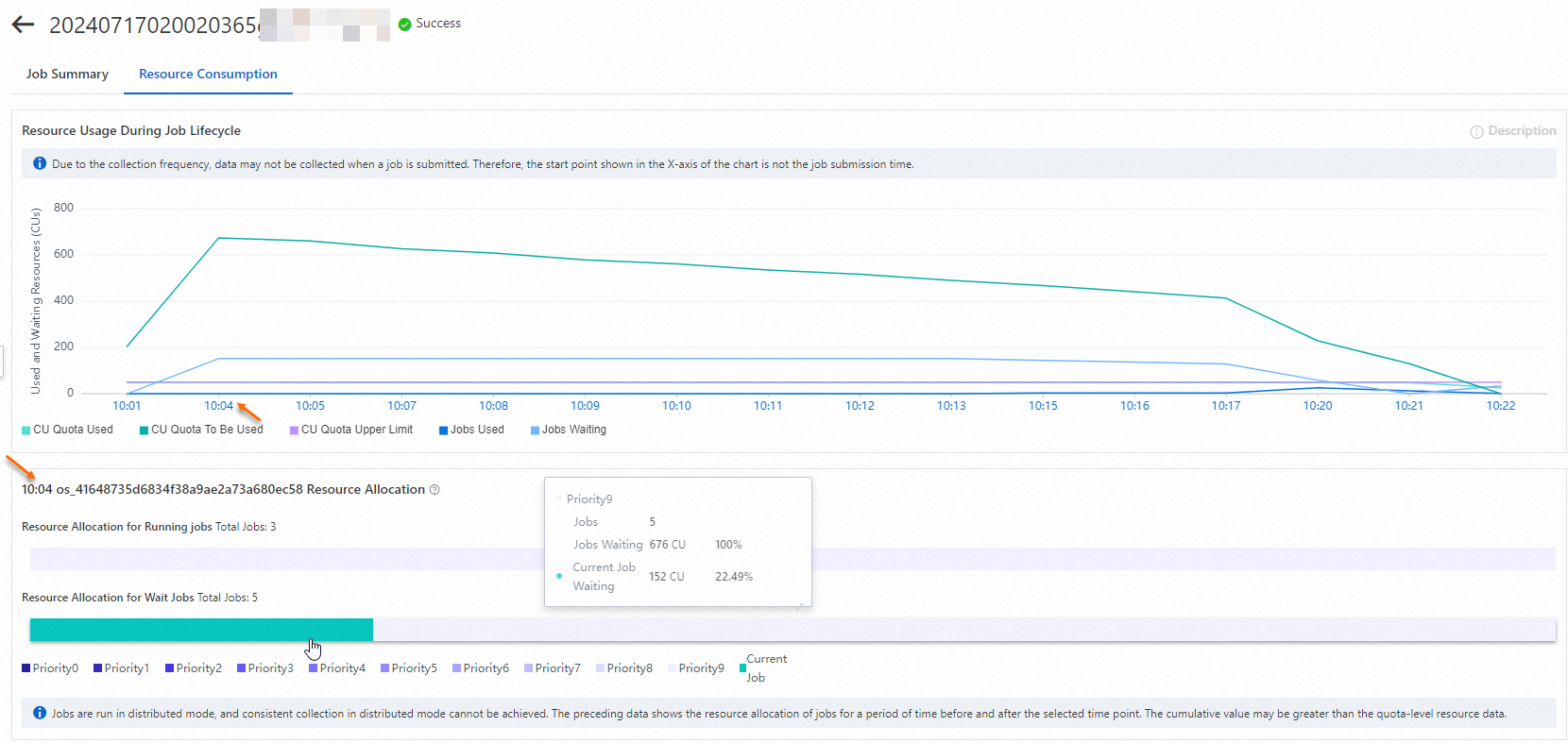
Click the Resource Allocation for Wait Jobs color bar to list the jobs waiting for resources. Job 20240717020015831gza7jdf21uv3 holds a large share of CUs at this time point.
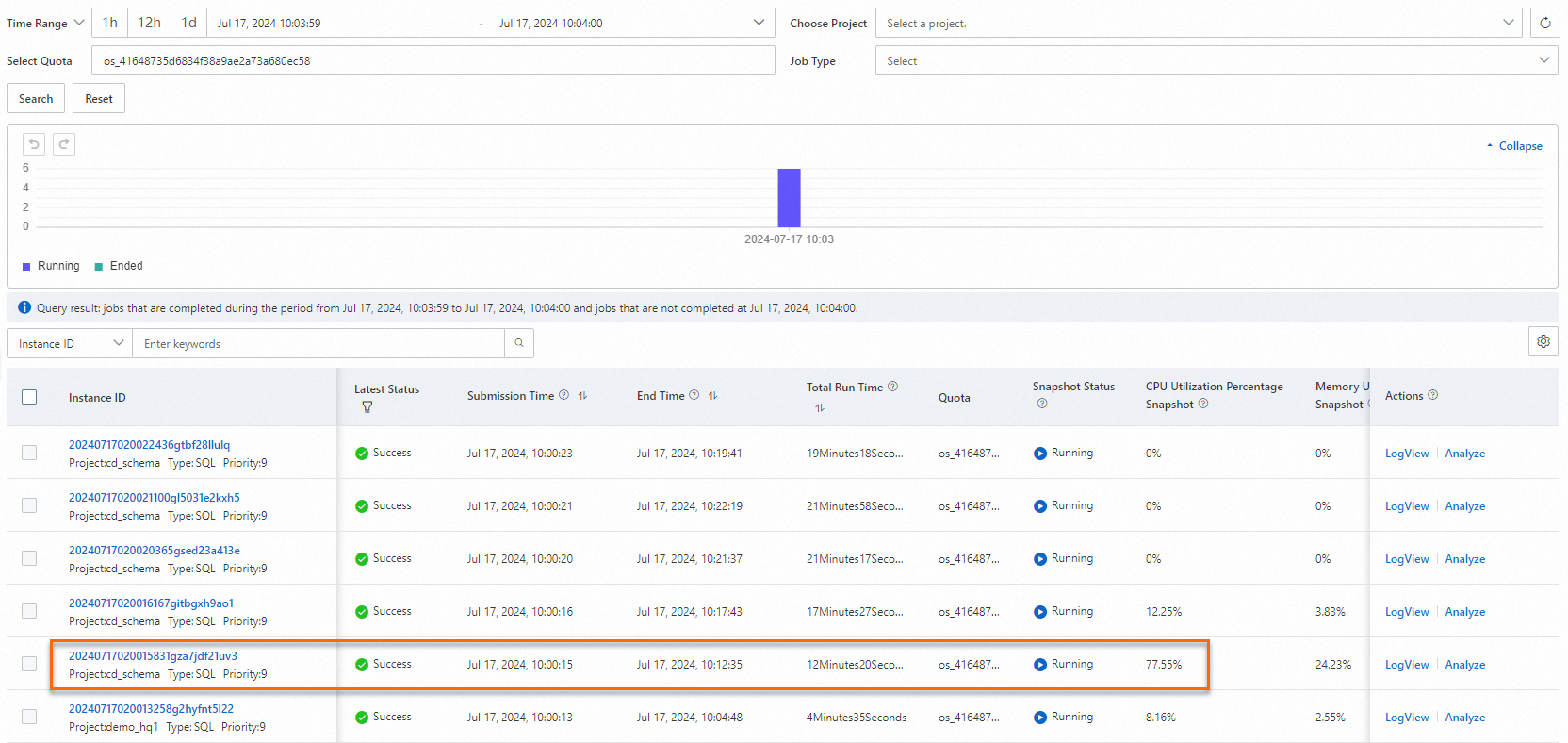
The resource consumption of job 20240717020015831gza7jdf21uv3 shows that it occupies a large number of computing resources at this time point.
Fix the issue using one of the following approaches:
-
Reschedule job start times to reduce overlap between competing jobs.
-
Adjust job priorities. When multiple jobs request resources simultaneously, MaxCompute allocates CUs to higher-priority jobs first. Raise the priority of time-sensitive jobs to ensure they get resources before lower-priority batch work.
-
Increase subscription CUs. Go to the Cost Optimization page, specify your expected job completion time, and review the recommended resource allocation plan.
Result after adjusting priority: After the task priority was changed to 0, wait time dropped sharply and the job acquired 50% of the reserved CUs almost immediately. Total runtime fell from 21 minutes to 6 minutes.