This article describes how to process the ods_user_info_d (user information) and ods_raw_log_d (access log) tables after they are synchronized to MaxCompute. You will use MaxCompute nodes in DataWorks to generate user profile data. This guide shows you how to use DataWorks and MaxCompute to compute and analyze data in a simple data warehousing scenario.
Prerequisites
Before you begin, complete the steps in Synchronize data.
Build the data processing pipeline
In the previous stage, you synchronized data to MaxCompute. Now, you will process this data to generate basic user profile data.
In the left-side navigation pane of DataStudio, click
 . In the Project Directory, find the workflow you created and click it to open the workflow canvas.
The following table describes the sample nodes used in this tutorial and their roles.
Node type
Node name
Node role
 MaxCompute SQL
dwd_log_info_diUses built-in functions and a User-Defined Function (UDF) (
getregion) to parse raw log data from theods_raw_log_dtable and write the output to multiple fields in thedwd_log_info_ditable.MaxCompute SQLdws_user_info_all_diAggregates data from the user information table (
ods_user_info_d) and the processed log data table (dwd_log_info_di), and writes the result to thedws_user_info_all_ditable.MaxCompute SQLads_user_info_1dProcesses data from the
dws_user_info_all_ditable and writes the basic user profiles to theads_user_info_1dtable.Connect the nodes by dragging and dropping to configure their dependencies. The final workflow should look like this:
 Note
NoteIn a workflow, you can manually connect nodes to set their upstream and downstream dependencies. The system can also automatically identify dependencies by parsing the code in child nodes. This tutorial uses the manual connection method. For more information about automatic dependency parsing, see Automatic parsing mechanism.
Register a user-defined function
Register the getregion User-Defined Function (UDF) to parse the synchronized log data into a structured table format.
This tutorial provides the resource required for the function that parses IP addresses into geographic regions. Download the resource, upload it to your DataWorks workspace, and then register the function.
This function is for tutorial purposes only and uses a sample IP resource. For production use cases that require mapping IP addresses to geographic locations, obtain the IP conversion service from a professional IP data provider.
Upload the resource (ip2region.jar)
Download ip2region.jar.
NoteThe
ip2region.jarresource is a sample for tutorial use only.In the left-side navigation pane of the DataStudio page, click
 . Click
  > Create Resource > MaxCompute > Jar and set a resource name.Note
The resource name does not have to match the uploaded file name.
For Source, select Local. Click Click to upload and select the
ip2region.jarfile that you downloaded.For Data Source, select the MaxCompute compute resources you bound in the Prepare the environmentprevious stage.
In the toolbar, click Save, and then click Publish. Follow the prompts to publish the resource to the MaxCompute projects in your development and production environments.
Register the function (getregion)
On the Resource Management page, click
> Create Function > MaxCompute > Function, and set the function name to getregion.On the Register Function page, configure the parameters. The following table describes the key parameters for this tutorial. Keep the default values for other parameters.
Parameter
Description
Function type
Select
OTHER.Data source
Select the MaxCompute compute resources you bound in the Prepare the environmentprevious stage.
Class name
Enter
org.alidata.odps.udf.Ip2Region.Resource list
Select
ip2region.jar.Description
Converts IP addresses to regions.
Command format
Enter
getregion('ip').Parameter description
An IP address.
In the toolbar, click Save, and then click Publish. Follow the prompts to publish the function to the MaxCompute projects in your development and production environments.
Configure data processing nodes
This tutorial processes data by scheduling MaxCompute SQL for each transformation layer. You will configure the provided sample code for the dwd_log_info_di, dws_user_info_all_di, and ads_user_info_1d nodes.
Configure the dwd_log_info_di node
The sample code for this node uses the registered function to process fields from the upstream table ods_raw_log_d and writes the results to the dwd_log_info_di table.
In the left-side navigation pane of DataStudio, click
. In the Project Directory, find the workflow you created and click it to open the workflow canvas.On the workflow canvas, hover over the
dwd_log_info_dinode and click Open Node.Paste the following code into the node editor.
Configure run parameters.
In the right-side pane of the MaxCompute SQL node editor, click Run Configuration. Configure the following parameters, which will be used for test runs in Step 4.
Parameter
Description
Compute resources
Select the MaxCompute compute resources you bound in the Prepare the environmentprevious stage and their corresponding computing quota.
Resource group
Select the Serverless resource group you purchased in the Prepare the environmentprevious stage.
Script parameter
No configuration is needed. The sample code in this tutorial uniformly uses
${bizdate}to represent the business date. When you run the workflow in the next step, you can set the Current Value to a specific constant, such as20250223. The task then replaces the variable with this constant during execution.(Optional) Configure scheduling configuration.
For this tutorial, you can keep the default values for the scheduling parameters. In the right-side pane of the MaxCompute SQL page, click Scheduling. For a detailed description of the scheduling parameters, see Node scheduling configuration.
Scheduling parameter: This is configured globally for the workflow, so you do not need to configure it for individual nodes. You can use the parameters directly in tasks or code.
Scheduling policy: You can set the Start time parameter to specify a delay for a child node's execution after the workflow starts. This tutorial does not set a delay.
In the toolbar, click Save.
Configure the dws_user_info_all_di node
This node aggregates data from the user information table (ods_user_info_d) and the processed log data table (dwd_log_info_di), and writes the result to the dws_user_info_all_di table.
On the workflow canvas, hover over the
dws_user_info_all_dinode and click Open Node.Paste the following code into the node editor.
Configure run parameters.
In the right-side pane of the MaxCompute SQL node editor, click Run Configuration. Configure the following parameters, which will be used for test runs in Step 4.
Parameter
Description
Compute resources
Select the MaxCompute compute resources you bound in the Prepare the environmentprevious stage and their corresponding computing quota.
Resource group
Select the Serverless resource group you purchased in the Prepare the environmentprevious stage.
Script parameter
No configuration is needed. The sample code in this tutorial uniformly uses
${bizdate}to represent the business date. When you run the workflow in the next step, you can set the Current Value to a specific constant, such as20250223. The task then replaces the variable with this constant during execution.(Optional) Configure scheduling configuration.
For this tutorial, you can keep the default values for the scheduling parameters. In the right-side pane of the MaxCompute SQL page, click Scheduling. For a detailed description of the scheduling parameters, see Node scheduling configuration.
Scheduling parameter: This is configured globally for the workflow, so you do not need to configure it for individual nodes. You can use the parameters directly in tasks or code.
Scheduling policy: You can set the Start time parameter to specify a delay for a child node's execution after the workflow starts. This tutorial does not set a delay.
In the toolbar, click Save.
Configure the ads_user_info_1d node
This node processes the data in the dws_user_info_all_di table and writes the result to the ads_user_info_1d table to generate basic user profiles.
On the workflow canvas, hover over the
ads_user_info_1dnode and click Open Node.Paste the following code into the node editor.
Configure run parameters.
In the right-side pane of the MaxCompute SQL node editor, click Run Configuration. Configure the following parameters, which will be used for test runs in Step 4.
Parameter
Description
Compute resources
Select the MaxCompute compute resources you bound in the Prepare the environmentprevious stage and their corresponding computing quota.
Resource group
Select the Serverless resource group you purchased in the Prepare the environmentprevious stage.
Script parameter
No configuration is needed. The sample code in this tutorial uniformly uses
${bizdate}to represent the business date. When you run the workflow in the next step, you can set the Current Value to a specific constant, such as20250223. The task then replaces the variable with this constant during execution.(Optional) Configure scheduling configuration.
For this tutorial, you can keep the default values for the scheduling parameters. In the right-side pane of the MaxCompute SQL page, click Scheduling. For a detailed description of the scheduling parameters, see Node scheduling configuration.
Scheduling parameter: This is configured globally for the workflow, so you do not need to configure it for individual nodes. You can use the parameters directly in tasks or code.
Scheduling policy: You can set the Start time parameter to specify a delay for a child node's execution after the workflow starts. This tutorial does not set a delay.
In the toolbar, click Save.
Process the data
Process the data.
In the workflow toolbar, click Run. Set the values for the parameter variables that are defined in each node for this run. This tutorial uses
20250223, but you can modify the value as needed. Then, click OK and wait for the run to complete.Check the results.
In the navigation pane on the left of DataStudio, click
 to go to the Data Development page. Then, in the personal folder area, click
  to create a file with the
 .sqlextension. You can specify a custom file name.At the bottom of the page, confirm that the language mode is
MaxCompute SQL.
In the SQL editor window, run the following SQL statement to check the record count in the final table,
ads_user_info_1d, to verify the output.-- You must change the partition filter to the actual business date of your operation. -- In this tutorial, the 'bizdate' parameter was set to 20250223. SELECT count(*) FROM ads_user_info_1d WHERE dt='20250223';If the command returns a count greater than zero, data processing is complete.
If no data is returned, ensure that the Value Used in This Run that is configured for the workflow run matches the data timestamp specified by
dtin the query. You can click the workflow, click Running History in the right-side pane, and then click View in the Actions column for a run record to confirm the data timestamp value (partition=[pt=xxx]) in the workflow run log.
Publish the workflow
Publish tasks to the production environment to run them automatically on a schedule. Follow these steps to publish the workflow.
This tutorial has already configured the scheduling parameters in the workflow's scheduling configuration, so you do not need to configure them for each node before publishing.
In the left-side navigation pane of DataStudio, click
. In the Project Directory, find the workflow you created and click it to open the workflow canvas.In the toolbar, click Publish to open the publishing dialog box.
Click Start Publishing to Production. In the confirmation dialog box that appears, select a publishing method:
Full Release: Publishes the current workflow and all its internal tasks.
Incremental Release: Publishes only the current workflow and any nodes within the workflow that have been changed since the last release. This is suitable for iterative optimizations and small-scale updates.
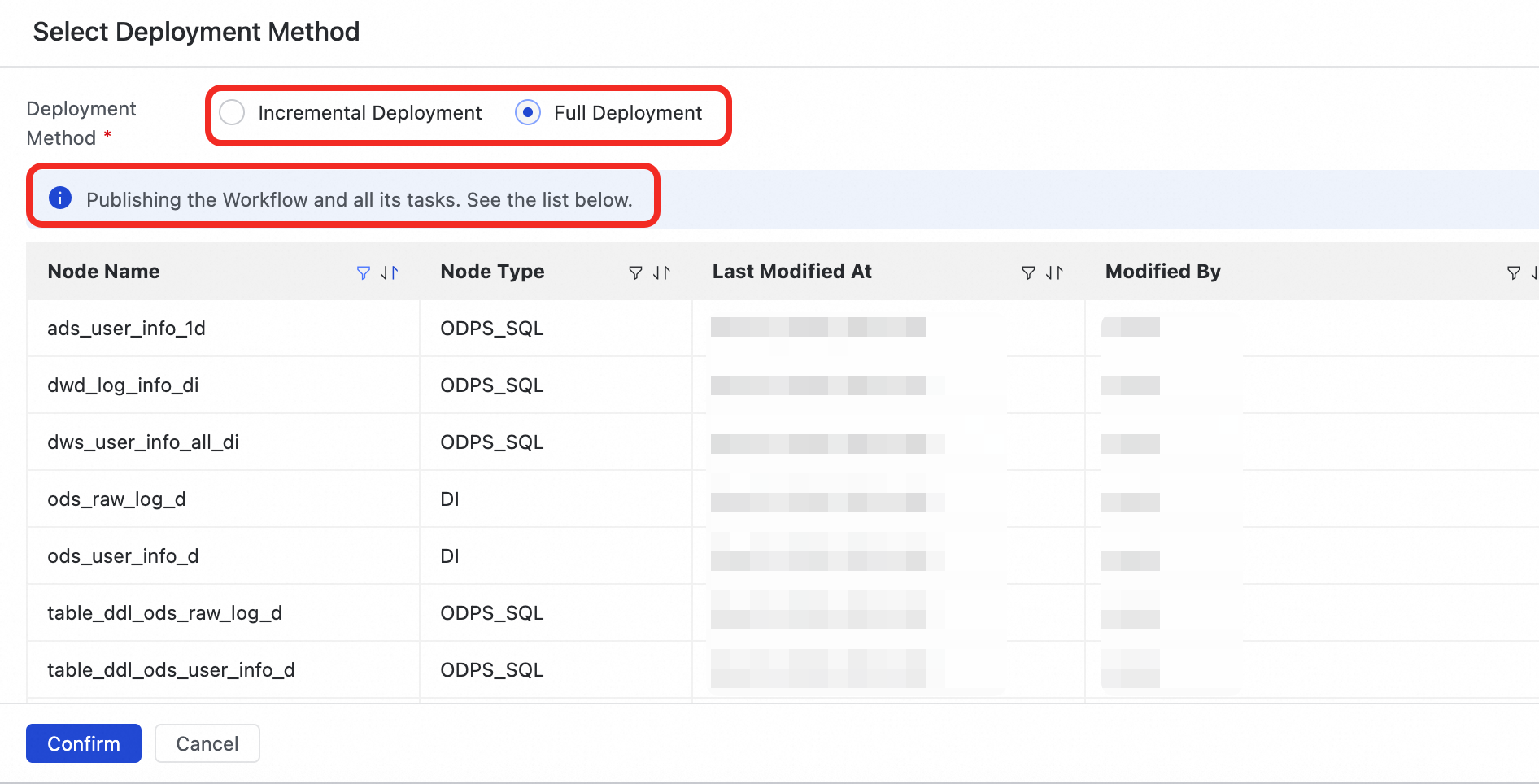
After you confirm the publishing method, the system automatically releases the workflow and selected nodes to the development and production environments. To complete the process, click Confirm Release when prompted.

Run the task in production
After a task is published, an instance is generated and run the next day. You can use the Backfill data feature to run the published workflow immediately and verify that it works correctly in the production environment. For more information, see Data backfill instance O&M.
After the task is successfully published, click Operation Center in the upper-right corner.
Alternatively, click the
 icon in the upper-left corner and select .
In the left-side navigation pane, click . On the Periodic Task page, click the
workshop_startvirtual node.In the DAG on the right, right-click the
workshop_startnode and select .Select the tasks you want to backfill, set the business date, and click Submit and Go to the Page.
On the backfill data page, click Refresh until all SQL tasks succeed.
After you complete the tutorial, to avoid charges, you can set the node's scheduling validity period or Freeze the root node of the workflow (the virtual node workshop_start).
Next steps
Visualize data: After completing the user profile analysis, use the data analysis module to visualize the processed data in charts. This helps you quickly extract key information and gain insights into business trends.
Monitor data quality: Configure data quality monitoring rules for the generated tables to identify and block dirty data at an early stage, preventing its impact from spreading.
Manage data: When the user profile analysis workflow is complete, corresponding data tables are created in MaxCompute. You can view these tables in the Data Map module and explore the relationships between them using Data lineage.
Use an API to provide data services: After obtaining the final processed data, use the Data Service module to create standardized APIs to share and apply the data, making it available for other business modules to consume.