Lindorm Distributed Processing System (LDPS) provided by Lindorm allows you to use the task orchestration feature of Data Management (DMS) to schedule Lindorm Spark jobs and view the publishing history and logs of Lindorm Spark jobs. LDPS can meet your computing requirements in scenarios such as data production, interactive analytics, machine learning, and graph computing. This topic describes how to use DMS to manage Lindorm Spark jobs.
Prerequisites
-
DMS is activated.
-
LDPS is activated for the Lindorm instance. For more information, see Activate the service.
-
A job is developed. For more information, see JAR job development practices or Python Job Development: A Practical Guide.
-
The developed job is uploaded to HDFS or Object Storage Service (OSS). For more information, see Upload files using the console.
Create a Lindorm Spark task flow
-
Log on to the DMS console V5.0.
-
Go to the Task Orchestration page.
-
Simple mode:
-
In the Scene Guide section, click Data Transmission and Processing (DTS).
-
Click Task Orchestration in the Data processing section on the right side of the page.
-
-
Normal mode: In the top navigation bar, choose .
-
-
On the Task Orchestration page, click Create Task Flow.
-
In the Create Task Flow dialog box, specify Task Flow Name and Description, and click Confirm.
-
In the Task Type section on the left side, drag Lindorm Spark nodes to the canvas, and connect one node to another node to specify the dependencies between the nodes.
-
Configure the Lindorm Spark node.
-
Double-click the Lindorm Spark node, or click the Lindorm Spark node and then click the
 icon.
icon. -
On the page that appears, configure the basic parameters and custom parameters of the job that you want to run.
-
In the Basic Configurations section, configure the basic parameters. The following table describes the basic parameters.
Parameter
Description
Region
Select the region where your Lindorm instance is deployed.
Lindorm Instance
Select the ID of your Lindorm instance.
Task Type
Select a Spark job type. The following types of jobs are supported:
-
JAR
-
Python
-
SQL
-
-
In the Job Configuration section, configure the custom parameters of the job that you want to run. The following sections describe the configuration templates and custom parameters of different types of Spark jobs.
-
The following section describes the configuration template and custom parameters of a JAR Spark job:
{
  "mainResource" : "oss://path/to/your/file.jar",
  "mainClass" : "path.to.main.class",
  "args" : [ "arg1", "arg2" ],
  "configs" : {
    "spark.hadoop.fs.oss.endpoint" : "",
    "spark.hadoop.fs.oss.accessKeyId" : "",
    "spark.hadoop.fs.oss.accessKeySecret" : "",
    "spark.hadoop.fs.oss.impl" : "org.apache.hadoop.fs.aliyun.oss.AliyunOSSFileSystem",
    "spark.sql.shuffle.partitions" : "20"
  }
}
Parameter
Type
Required
Description
Example
mainResource
String
Yes
The path in which the JAR package is stored in HDFS or OSS.
-
HDFS path in which the JAR package is stored: hdfs:///path/spark-examples_2.12-3.1.1.jar
-
OSS path in which the JAR package is stored: oss://testBucketName/path/spark-examples_2.12-3.1.1.jar
mainClass
String
Yes
The class that is used as the entry point for your program in the JAR job.
com.aliyun.ldspark.SparkPi
args
Array
No
The parameter that is passed to the mainClass parameter.
["arg1", "arg2"]
configs
Json
No
The system parameters of the Spark job. If the job is uploaded to OSS, you must configure the following parameters in configs:
-
spark.hadoop.fs.oss.endpoint: The path in which the Spark job is stored in OSS.
-
spark.hadoop.fs.oss.accessKeyId: The AccessKey ID used to access OSS. You can obtain the AccessKey ID in the console. For more information, see Obtain an AccessKey pair.
-
spark.hadoop.fs.oss.accessKeySecret: The AccessKey secret used to access OSS. You can obtain the AccessKey secret in the console. For more information, see Obtain an AccessKey pair.
-
spark.hadoop.fs.oss.impl: The class used to access OSS. Set the value to org.apache.hadoop.fs.aliyun.oss.AliyunOSSFileSystem.
{ "spark.sql.shuffle.partitions": "200"}
-
-
The following section describes the configuration template and custom parameters of a Python Spark job:
{
  "mainResource" : "oss://path/to/your/file.py",
  "args" : [ "arg1", "arg2" ],
  "configs" : {
    "spark.hadoop.fs.oss.endpoint" : "",
    "spark.hadoop.fs.oss.accessKeyId" : "",
    "spark.hadoop.fs.oss.accessKeySecret" : "",
    "spark.hadoop.fs.oss.impl" : "org.apache.hadoop.fs.aliyun.oss.AliyunOSSFileSystem",
    "spark.submit.pyFiles" : "oss://path/to/your/project_file.py,oss://path/to/your/project_module.zip",
    "spark.archives" : "oss://path/to/your/environment.tar.gz#environment",
    "spark.sql.shuffle.partitions" : "20"
  }
}
Parameter
Type
Required
Description
Example
mainResource
String
Yes
The path in which the Python file is stored in OSS or HDFS.
-
OSS path in which the Python file is stored: oss://testBucketName/path/spark-examples.py
-
HDFS path in which the Python file is stored: hdfs:///path/spark-examples.py
args
Array
No
The parameter that is passed to the mainClass parameter.
["arg1", "arg2"]
configs
Json
No
The system parameters of the Spark job. If you need to upload the job to OSS, you must configure the following parameters in configs:
-
spark.hadoop.fs.oss.endpoint: The path in which the Spark job is stored in OSS.
-
spark.hadoop.fs.oss.accessKeyId: The AccessKey ID used to access OSS. You can obtain the AccessKey ID in the console. For more information, see Obtain an AccessKey pair.
-
spark.hadoop.fs.oss.accessKeySecret: The AccessKey secret used to access OSS. You can obtain the AccessKey secret in the console. For more information, see Obtain an AccessKey pair.
-
spark.hadoop.fs.oss.impl: The class used to access OSS. Set the value to org.apache.hadoop.fs.aliyun.oss.AliyunOSSFileSystem.
{"spark.sql.shuffle.partitions": "200"}
-
-
The following section describes the configuration template and custom parameters of an SQL job:
{
  "mainResource" : "oss://path/to/your/file.sql",
  "configs" : {
    "spark.hadoop.fs.oss.endpoint" : "",
    "spark.hadoop.fs.oss.accessKeyId" : "",
    "spark.hadoop.fs.oss.accessKeySecret" : "",
    "spark.hadoop.fs.oss.impl" : "org.apache.hadoop.fs.aliyun.oss.AliyunOSSFileSystem",
    "spark.sql.shuffle.partitions" : "20"
  }
}
Parameter
Type
Required
Description
Example
mainResource
String
Yes
The path in which the SQL file is stored in OSS or HDFS.
-
OSS path in which the SQL file is stored: oss://testBucketName/path/spark-examples.sql
-
HDFS path in which the SQL file is stored: hdfs:///path/spark-examples.sql
configs
Json
No
Other configurations of the SQL job.
{ "spark.executor.memory" : "8g"}
-
-
-
-
After the preceding configuration is complete, click Try Run in the upper-left corner to check whether the job runs as expected.
-
-
Publish the task flow. After all nodes are configured, click Save in the upper-left corner of the page of the current task flow.
View the publishing history and logs of a task flow
-
On the Task Orchestration page, click the name of the task flow whose publishing history and logs you want to view.
-
On the page that appears, click Go to O&M in the upper-right corner.
-
View the publishing history and logs of the task flow.
-
View the publishing history of the task flow. On the Task Flow Information page, click the Published Tasks tab to view the publishing history of the task flow. The published tasks list contains the Version ID, Publisher, Publish Time, Remarks, and Actions columns. In the Actions column, you can click Details or DAG to view the publishing details of a version.
-
View the logs of the task flow.
-
On the Running History tab, select Triggered at Specified Time or Triggered Manually from the drop-down list in the upper-left corner to view the details of all nodes in the task flow. In the Running History tab, expand an execution record to view the running status, time consumption, and running logs of each subtask node.
-
Click View in the line of the node that you want to view. Then, view the logs for the submission of the Lindorm Spark job, and obtain the job ID and SparkUI of the node.
NoteIf the job failed to be submitted, provide the job ID and SparkUI when you submit a ticket.
-
-
Advanced settings
You can configure a Lindorm Spark task flow in the DMS console. After the Lindorm Spark task flow is configured, you must republish the task flow.
Configure the scheduling settings
You can configure a scheduling policy based on your business requirements. The Lindorm Spark task flow is automatically executed based on the scheduling policy. You can perform the following steps to configure a scheduling policy:
-
On the Task Orchestration page, click the name of the task flow for which you want to configure a scheduling policy.
-
In the lower-left corner of the page that appears, click Task Flow Information.
-
In the Scheduling Settings section on the right, turn on Enable Scheduling and configure a scheduling policy. The following table describes the parameters that you can configure.
Parameter
Description
Scheduling Type
Select a scheduling type:
-
Cyclic Scheduling: Schedule tasks on a recurring basis, for example, once a week.
-
Schedule Once: Execute a task once at a specified time. You only need to configure the specific execution time.
Effective Period
Select the period during which the scheduling cycle takes effect. The default value is 1970-01-01 to 9999-01-01, which means the scheduling is always effective.
Scheduling Cycle
Select the scheduling cycle:
-
Hour: Execute task scheduling based on the specified hour. Timed scheduling is required.
-
Day: Execute task scheduling once a day. You need to configure the specific time for daily scheduling.
-
Week: Execute task scheduling once on each specified day of the week. You need to configure the specified days and specific time.
-
Month: Execute task scheduling once on each specified day of the month. You need to configure the specified days and specific time.
Timed Scheduling
Two timed scheduling methods are available:
-
Fixed interval scheduling:
-
Start Time: The start time of task execution.
-
Interval: The interval between task executions, in hours.
-
End Time: The end time of task execution.
For example, if you set the start time to 00:00, the interval to 6 hours, and the end time to 20:59, the task is executed at 00:00, 06:00, 12:00, and 18:00.
-
-
Specified Time scheduling: Select specific time points for task execution.
For example, if you select 0 Hour and 5 Hour, the task is executed at 00:00 and 05:00.
Specified Time
-
If the scheduling cycle is Week, select the days of the week on which to execute the task. Multiple selections are supported.
-
If the scheduling cycle is Month, select the days of the month on which to execute the task. Multiple selections are supported.
Specific Time
Set the specific time for task flow execution.
For example, if you set the time to 02:55, the task is executed at 02:55 on the specified days.
Cron Expression
No manual configuration is required. The system automatically generates the cron expression based on the configured cycle and specific time.
Example: If you want your task flow to be scheduled at 00:00 and 12:00 every day, configure the scheduling policy by setting the following parameters:
-
Set Scheduling Type to Cyclic scheduling.
-
Select Hour from the Scheduling Cycle drop-down list.
-
In the Timed Scheduling field, select Specified Time. Select 0Hour and 12Hour from the Specified Time drop-down list.
-
Configure variables
For a task flow for which cyclic scheduling is enabled, you can configure a time variable for the job that you want to execute. For example, you can configure the time variable bizdate for the node. The time variable specifies the day before the time in point when the task is executed. You can perform the following steps to configure the time variable:
-
On the current task flow page, double-click the Lindorm Spark node, or click the Lindorm Spark node and click the
icon. -
In the right-side navigation pane, click Variable Setting.
-
On the Node Variable or Task Flow Variable tab, add a variable.
-
In the Job Configuration section, use the variable. For information about other variables, see Variables.
Use ${variable name} to reference a defined variable in the job parameters.
Manage notifications
If you enable the notification feature for your task flow, the system sends a notification message based on the execution result of the task flow. You can perform the following steps to enable the notification feature:
-
In the lower-left corner of the current task flow page, click Notification Configuration.
-
Turn on one of the following notification switches based on your business requirements:
-
Basic Notifications
-
Success Notification: The system sends a notification message if the task flow is executed.
-
Failure Notification: The system sends a notification message if the task flow fails to be executed.
-
-
Timeout Notification: The system sends a notification message if the task flow times out.
-
Alert Notification: The system sends a notification message when the task is about to start.
-
-
(Optional): Configure the recipients of the messages. For more information about how to configure message recipients, see Notification management.
Execute SQL statements
-
Log on to the DMS console V5.0.
-
Click the Home tab.
-
In the left-side navigation pane, click the
 icon to create an instance.
 -
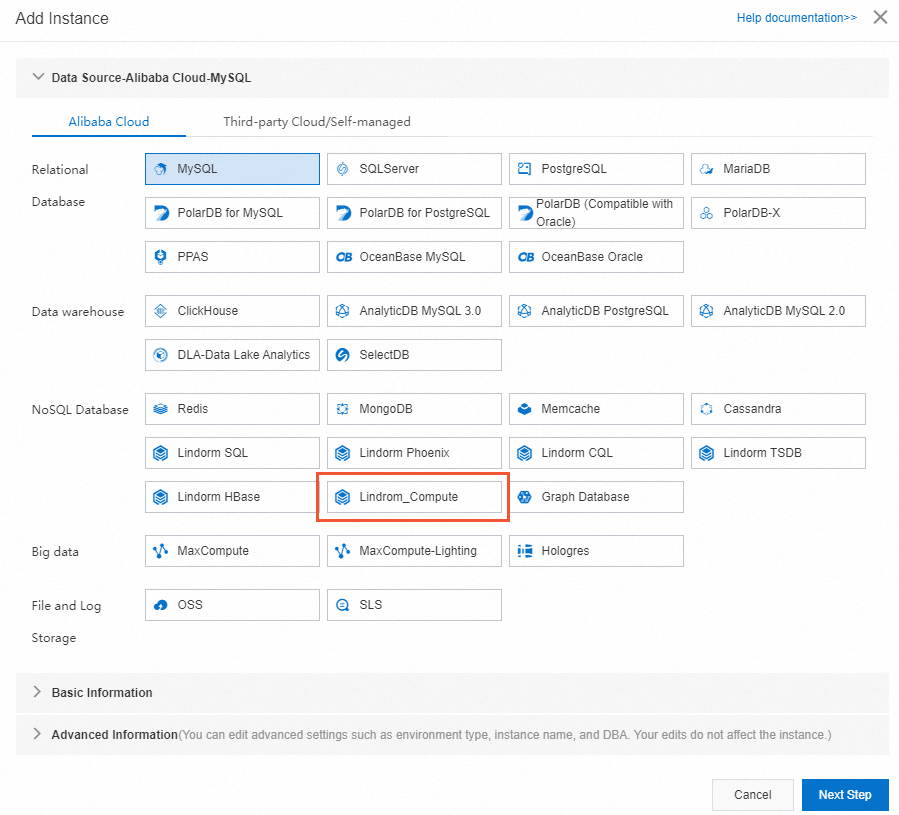
In the Add Instance dialog box, select Lindorm_Compute in the NoSQL Database section.
-
Specify Instance Region, Instance ID, Database Account, and Database password for the instance, and then click Submit.
-
In the dialog box that appears, click Submit to go to SQLConsole.
-
On the SQLConsole tab, enter the SQL statement to be executed and click Execute.
References
For more information about the task orchestration feature of DMS, see Overview.