Relay a live stream between Alibaba Cloud regions by connecting two MediaConnect flows over the backbone network.
How it works
Cross-region distribution uses two flows: Flow A in the source region and Flow B in the destination region. The ingest client pushes the stream to Flow A, which relays it to Flow B through the Alibaba Cloud backbone network. Receivers pull the stream from Flow B.
The following diagram uses Singapore-to-Germany as an example.

To reach multiple regions, create additional destination flows and connect each one to Flow A.
Prerequisites
Before you begin:
Access to the Intelligent Media Services (IMS) console
Familiarity with MediaConnect flows, including how to add a source to a flow and add an output to a flow
Relay an RTMP stream from Singapore to Germany (Frankfurt)
This example relays an RTMP stream in four steps:
Create Flow A in the source region with a source and an output.
Create Flow B in the destination region and link it to Flow A.
Start both flows.
Push the stream to Flow A and pull it from Flow B.
Step 1: Create Flow A (source region)
Log on to the IMS console. Choose MediaConnect > Flows, and click Create Flow.
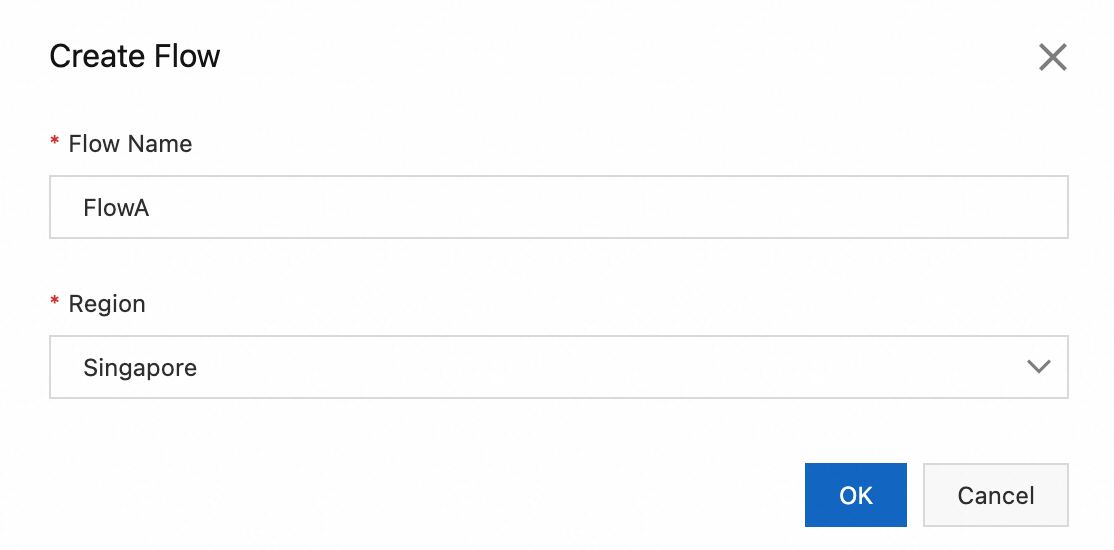 Example configuration: Click OK. On the flow details page, note the Flow ID — you need it for Flow B.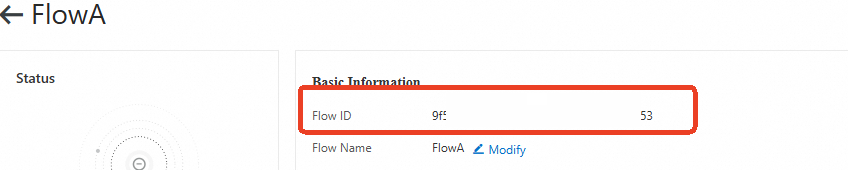
Flow Name: FlowA
Region: Singapore
Add a source. On the flow details page, click Add Source Stream.
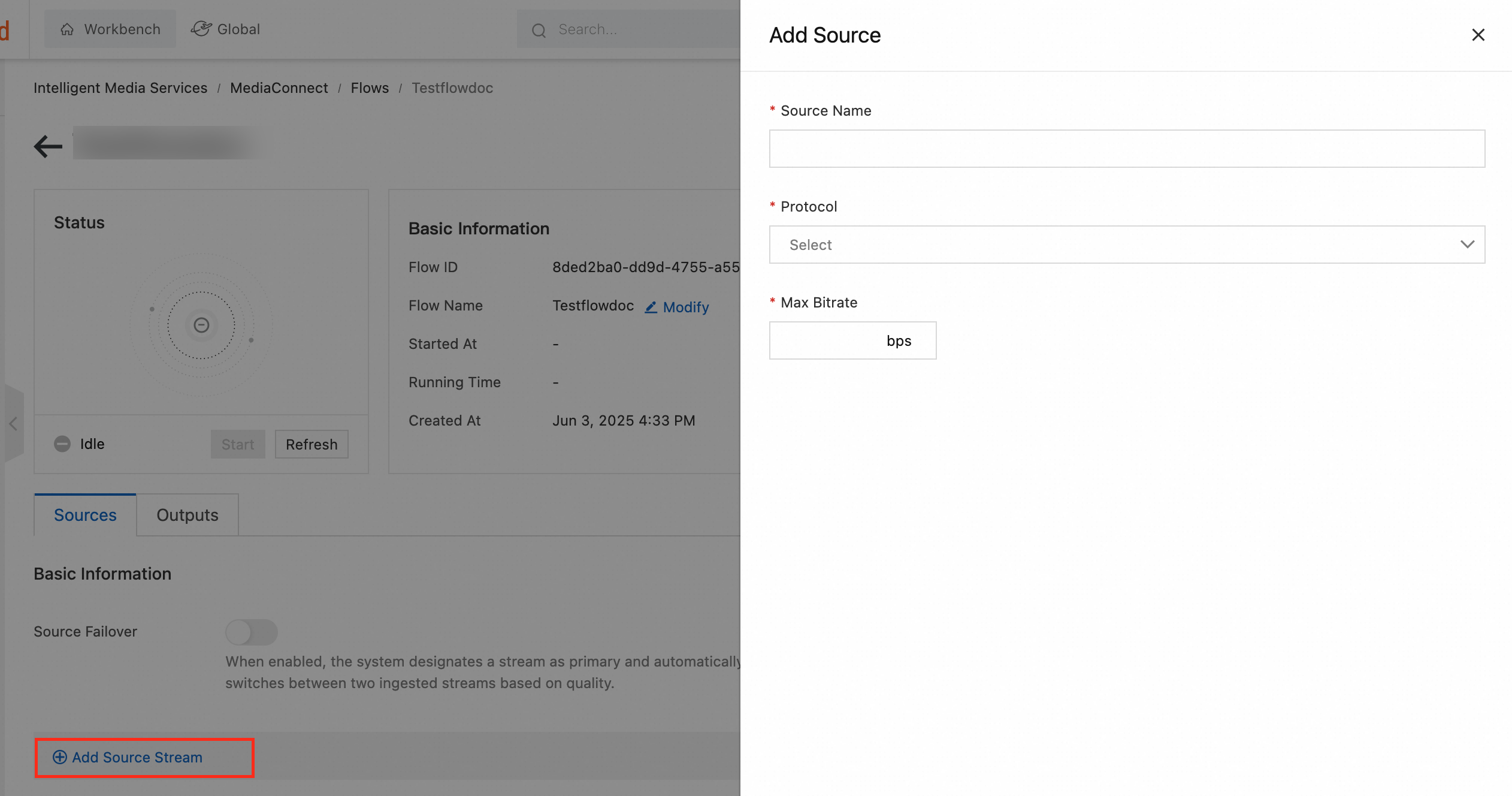 In the Add Source panel, configure the following:
Parameter
Example value
Description
Source Name
FlowAInput
A descriptive name for the source
Protocol
RTMP-PUSH
The ingest client pushes the stream to this flow
Max Bitrate
1000000 bps
Maximum allowed bitrate
IP Address Whitelist
(Optional)
Allowed sender IP addresses. Leave blank to allow all
Add an output. Click the Outputs tab, then click Add Output.
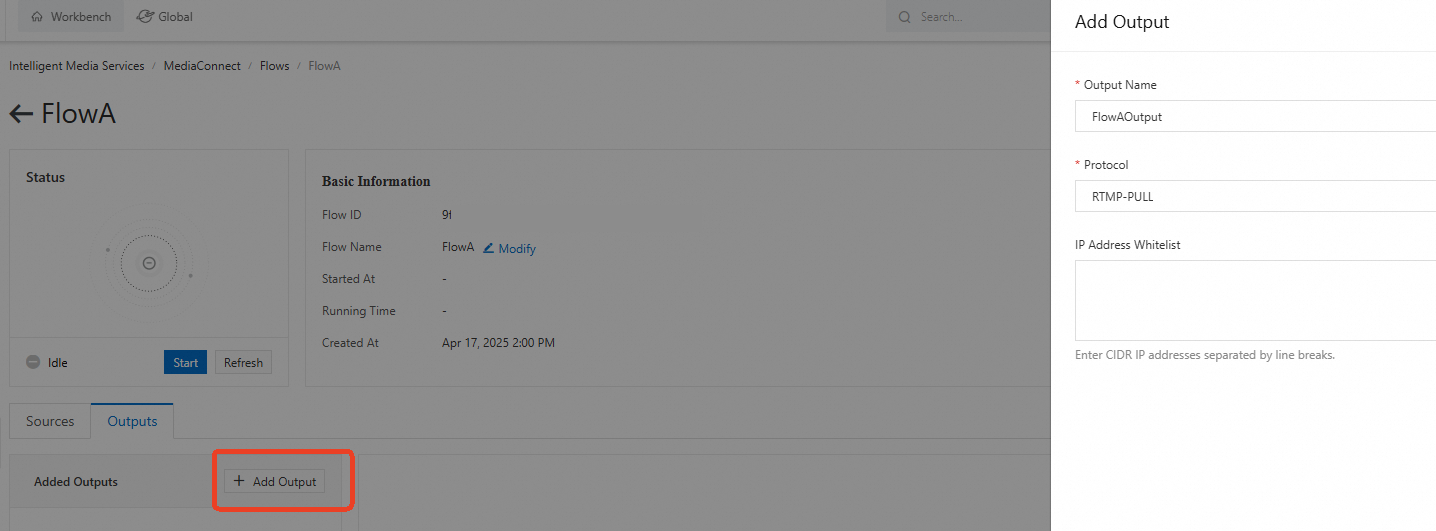 Example configuration: Click OK. Note the output name (FlowAOutput) for use in Flow B.
Output Name: FlowAOutput
Protocol: RTMP-PULL
Step 2: Create Flow B (destination region)
In the IMS console, click Create Flow.
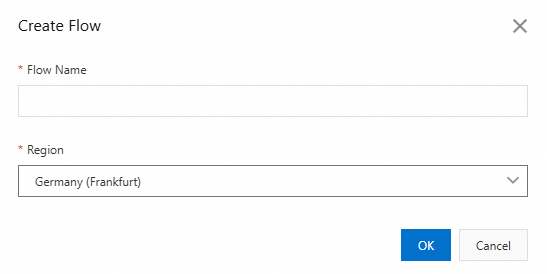 Example configuration: Click OK.
Flow Name: FlowB
Region: Germany (Frankfurt)
Add a source linked to Flow A. On the flow details page, click Add Source Stream.
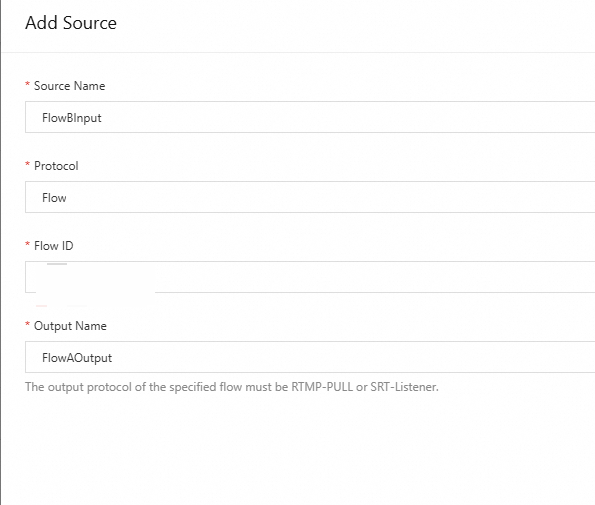 In the Add Source panel, configure the following:
Parameter
Example value
Description
Source Name
FlowBInput
A descriptive name for the source
Protocol
Flow
Connects Flow B to Flow A
Flow ID
(Flow A's ID)
The Flow ID noted in Step 1
Output Name
FlowAOutput
The output name noted in Step 1
NoteIf adding the source fails, verify that the Flow ID and Output Name match the values from Flow A.
Add an output. Click the Outputs tab, then click Add Output.
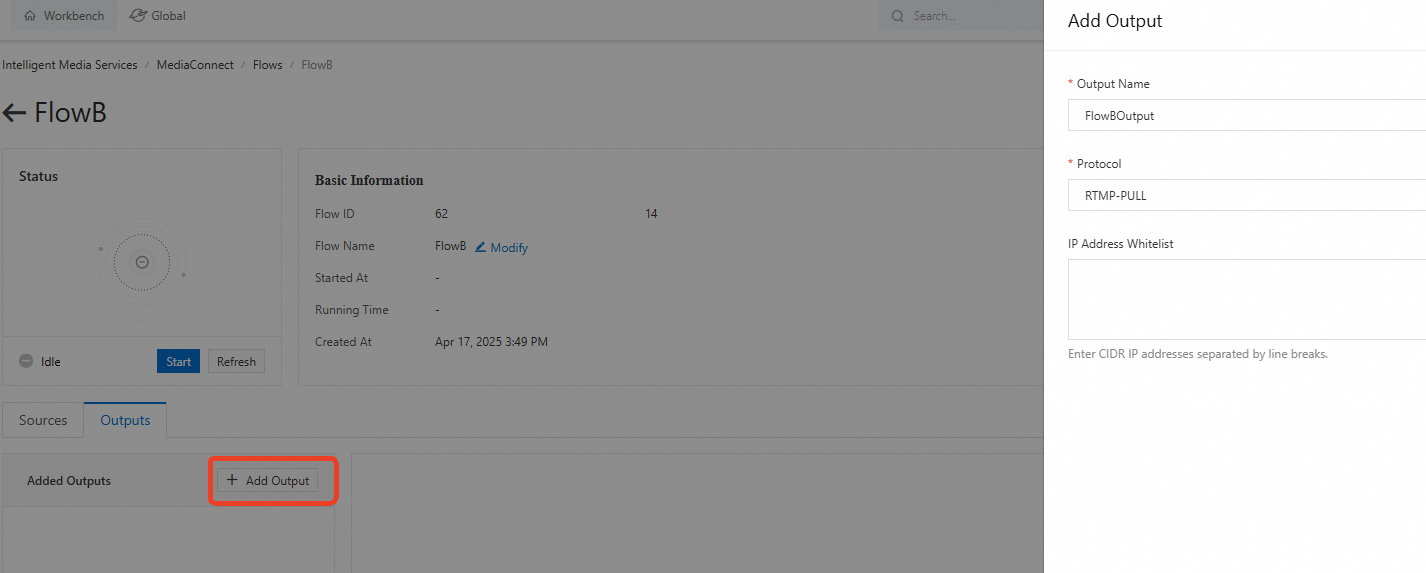 Example configuration:
Parameter
Example value
Description
Output Name
FlowBOutput
A descriptive name for the output
Protocol
RTMP-PULL
Receivers pull the stream from this output
IP Address Whitelist
(Optional)
Allowed receiver IP addresses. Leave blank to allow all
Step 3: Start both flows
On each flow's details page, click Start on the Status panel. Both flows must be running before the stream can be relayed.
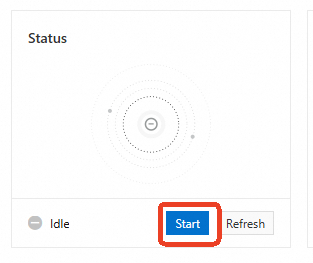
Check Flow status for state details.
Step 4: Ingest and play the stream
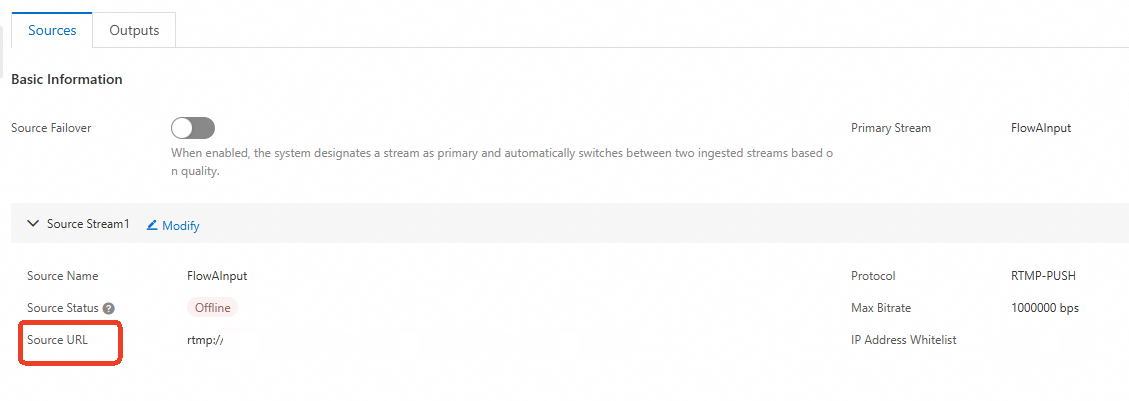
Push the stream to Flow A
Adding the source generates a Source URL. Push the stream to this URL.
Pull the stream from Flow B
Adding the output generates an output URL. Receivers pull the stream from this URL.

Supported protocol combinations
MediaConnect supports RTMP and SRT protocols. The source and destination protocols must be compatible — SRT output options appear only when the source also uses SRT.
Flow A input: This example uses RTMP-PUSH. You can also use RTMP-PULL to have Flow A pull the stream from a source URL. Add a source to a flow.
Flow B output: This example uses RTMP-PULL. You can also use RTMP-PUSH to have Flow B push the stream to an output URL. Add an output to a flow.
Flow A output: When the Flow B input protocol is set to Flow, the Flow A output protocol must be RTMP-PULL.
The following table lists supported protocol combinations.
Flow A input | Flow A output | Flow B input | Flow B output |
RTMP-PUSH / RTMP-PULL | RTMP-PULL | Flow | RTMP-PUSH / RTMP-PULL |
RTMP-PUSH / RTMP-PULL | Flow | RTMP-PUSH | RTMP-PUSH / RTMP-PULL |
SRT-Listener / SRT-Caller | SRT-Listener | Flow | SRT-Listener / SRT-Caller |
SRT-Listener / SRT-Caller | Flow | SRT-Listener | SRT-Listener / SRT-Caller |