An output is the destination where MediaConnect sends ingested live content. You can add RTMP, SRT, or flow-based outputs to a MediaConnect flow.
Procedure
To add an output to an existing flow:
-
Log on to the Intelligent Media Services (IMS) console.
-
In the left-side navigation pane, select . On the Flows page, find the flow to which you want to add an output.
-
On the Outputs tab, click Add Output. Configure the parameters in the panel that appears. For protocol-specific parameters, see one of the following tabs:
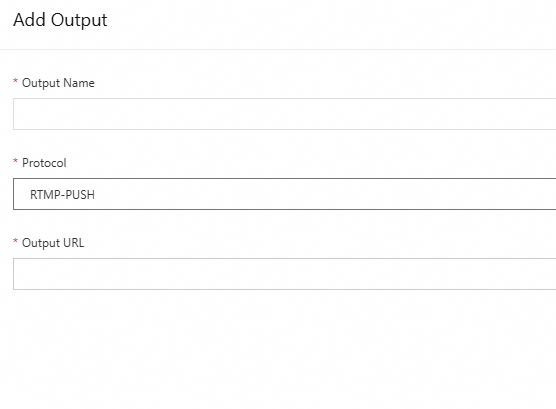
RTMP-PUSH
NoteTo use RTMP-PUSH for output, the source stream must use the RTMP protocol. If you use the output of another flow as the source, that output must also use RTMP.
Parameter
Description
Output Name
The output name. The name can contain letters, digits, hyphens (-), and underscores (_), with up to 128 characters.
Protocol
RTMP-PUSH.
Output URL
The RTMP push URL.
After the flow starts, MediaConnect pushes the ingested stream to this URL.
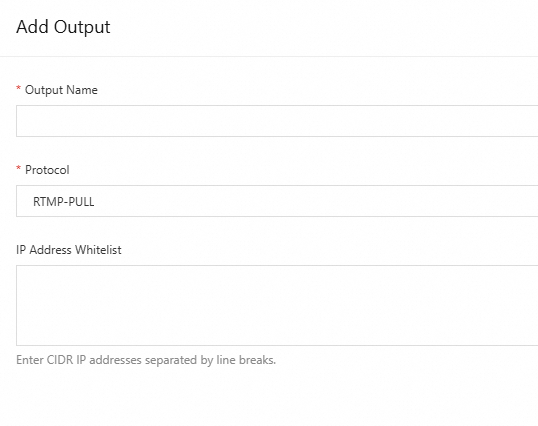
RTMP-PULL
NoteTo use RTMP-PULL for output, the source stream must use the RTMP protocol. If you use the output of another flow as the source, that output must also use RTMP.
Parameter
Description
Output Name
The output name. The name can contain letters, digits, hyphens (-), and underscores (_), with up to 128 characters.
Protocol
RTMP-PULL.
IP Address Whitelist
The IP addresses allowed to access this output. If left empty, no access control is enforced.
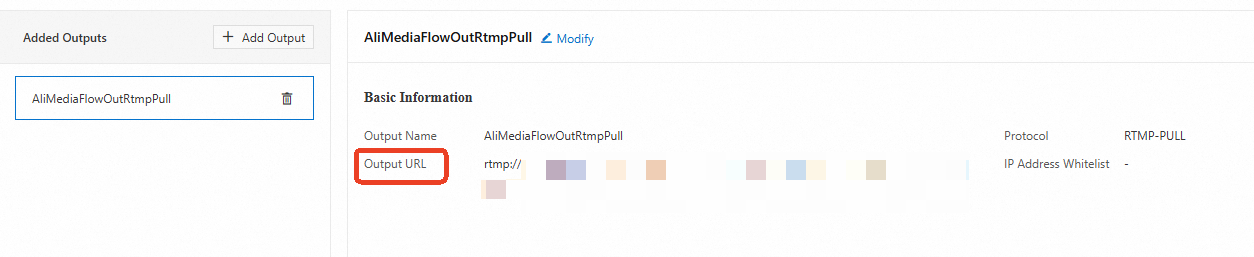
After you add the output, an RTMP URL is generated. You can use this URL for playback after the flow starts.
SRT-Listener
NoteTo use SRT-Listener for output, the source stream must use the SRT protocol. If you use the output of another flow as the source, that output must also use SRT.

Parameter
Description
Output Name
The output name. The name can contain letters, digits, hyphens (-), and underscores (_), with up to 128 characters.
Protocol
SRT-Listener.
IP Address Whitelist
The IP addresses allowed to access this output. If left empty, no access control is enforced.
SRT Latency
The latency for the SRT stream. Valid values: 100 to 10000 ms.
-
If the latency is too low, stream interruptions may occur under unstable network conditions. If it is too high, there may be a longer delay in transmitting the stream.
Set the value based on actual network conditions. If the network is stable, use a smaller value. If the transmission distance is long or the input/output region differs from the flow region, use a larger value to allow more room for error correction.
-
You can obtain the IP address of the SRT service by creating an SRT listener and use the Ping command to measure the response latency of the IP address. This information helps you configure the appropriate latency.
SRT Encryption
When SRT Encryption is enabled, the caller must provide the connection password to establish communication.
SRT Password
The password for the SRT connection. The password must be 10 to 79 ASCII characters.
Key Length
The key length for Advanced Encryption Standard (AES). Unit: bytes. Valid values: 0, 16, 24, and 32.
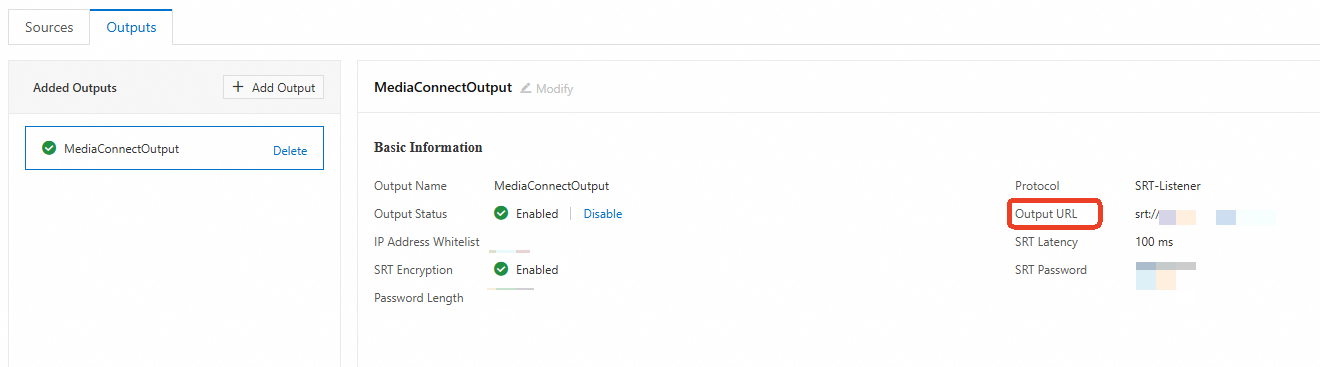
After you add the output, an SRT URL is generated. The flow acts as the server. SRT clients can access and play the stream through this URL.
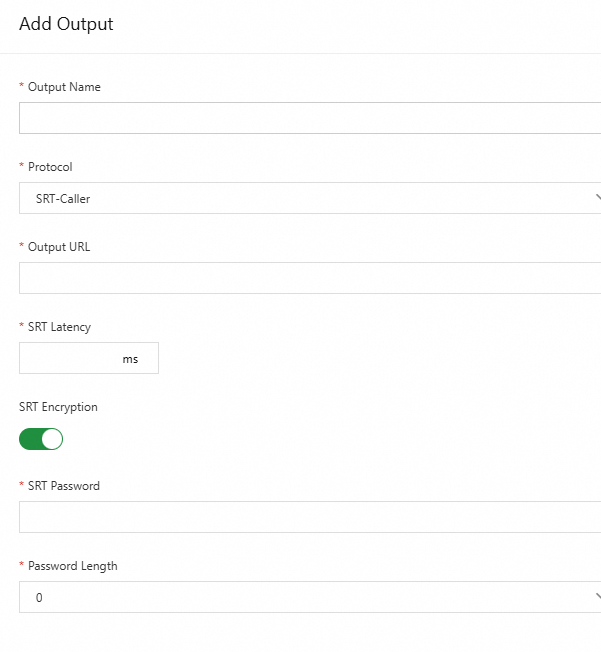
SRT-Caller
NoteTo use SRT-Caller for output, the source stream must use the SRT protocol. If you use the output of another flow as the source, that output must also use SRT.
Parameter
Description
Output Name
The output name. The name can contain letters, digits, hyphens (-), and underscores (_), with up to 128 characters.
Protocol
SRT-Caller.
Output URL
The SRT output URL.
After the flow starts, MediaConnect pushes the ingested stream to this URL.
SRT Latency
The latency for the SRT stream. Valid values: 100 to 10000 ms.
-
If the latency is too low, stream interruptions may occur under unstable network conditions. If it is too high, there may be a longer delay in transmitting the stream.
Set the value based on actual network conditions. If the network is stable, use a smaller value. If the transmission distance is long or the input/output region differs from the flow region, use a larger value to allow more room for error correction.
-
You can obtain the IP address of the SRT service by creating an SRT listener and use the Ping command to measure the response latency of the IP address. This information helps you configure the appropriate latency.
SRT Encryption
If a password is configured on the listener side, you must enable SRT Encryption. Otherwise, the SRT connection cannot be established.
SRT Password
The password configured on the listener side. The password must be 10 to 79 ASCII characters.
Key Length
The key length for Advanced Encryption Standard (AES). Unit: bytes. Valid values: 0, 16, 24, and 32.
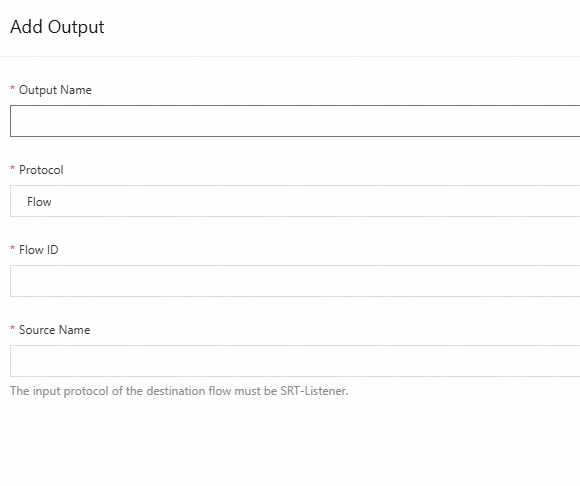
Flow
You can use the output of one flow as the source of another flow to connect multiple flows for flexible and scalable distribution.
Note:
-
The destination flow must be running.
-
The protocols must be compatible between the current and destination flows. The following table lists the requirements:
Source protocol of current flow
Source protocol of destination flow
-
SRT-Listener
-
SRT-Caller
-
SRT-Listener
-
RTMP-PUSH
-
RTMP-PULL
-
RTMP-PUSH
Parameter
Description
Output Name
The output name. The name can contain letters, digits, hyphens (-), and underscores (_), with up to 128 characters.
Protocol
Flow.
Flow ID
The ID of the destination flow. You can find this ID on the flow details page.
Source Name
The source name of the destination flow. You can find this name on the Sources tab of the flow details page.
NoteIf you fail to add the output, check whether the flow ID and source name of the destination flow are available.
-
-
Click OK to add the output.