When expanding globally, businesses often face network latency and Distributed Denial-of-Service (DDoS) attacks. Combining Global Accelerator (GA) with a DDoS protection product accelerates global user access and defends against these attacks, ensuring high service availability, improving user experience, and reducing security risks.
DDoS protection products
A DDoS attack is a malicious attempt to disrupt the normal traffic of a targeted system, making the service unavailable to legitimate users. You can choose from the following DDoS protection products based on your security needs:
Protection product | |||
Mitigation capacity | Low GA integrates with Alibaba Cloud DDoS protection to provide up to 5 Gbps of free basic DDoS protection for the accelerated IP addresses and public IP addresses of a GA instance's endpoints. The maximum free mitigation capacity varies by region. | High Anti-DDoS Origin allows you to add GA instances as protected objects, providing up to several hundred Gbps of protection for the accelerated IP addresses and public IP addresses of the GA instances' endpoints. The maximum mitigation capacity varies by region. | Very High You can integrate GA with Anti-DDoS Pro and Anti-DDoS Premium. This provides up to terabits per second (Tbps) of defense capacity for the secure CNAME of the GA instance, using Alibaba Cloud's global DDoS scrubbing centers. |
How it works | Anti-DDoS Basic protects cloud resources through two mechanisms: AI-based traffic analysis. Anti-DDoS Basic applies a default scrubbing threshold, which you can also configure manually. It continuously monitors inbound traffic using Alibaba Cloud's big data capabilities. Rather than relying on fixed thresholds alone, it learns normal traffic patterns and detects anomalies. Traffic scrubbing is triggered only when both conditions are met: the AI detects a DDoS attack, and inbound traffic reaches the BPS or PPS threshold you set. This dual-condition approach prevents false positives from normal traffic spikes. Blackhole filtering. If an attack exceeds the mitigation capability (the blackhole triggering threshold), Alibaba Cloud temporarily blocks all inbound traffic to the affected resource. This contains the attack and prevents it from degrading other assets on the platform. For details, see Blackhole filtering policy of Alibaba Cloud. Anti-DDoS Basic defends against network-layer and transport-layer attacks (L3/L4), such as UDP reflection attacks and SYN/ACK Flood attacks. It does not defend against application-layer attacks (L7), such as HTTP Flood attacks and CC attacks. Under certain conditions — including high-volume HTTP Flood or SYN Flood attacks, or traffic that exceeds platform specifications — service access may be affected even when Anti-DDoS Basic is active. | Anti-DDoS Origin primarily defends against Layer 3 and Layer 4 volumetric attacks. When traffic exceeds the default scrubbing threshold, scrubbing is automatically triggered to mitigate the DDoS attack. Anti-DDoS Origin primarily uses a passive scrubbing method, supplemented by active suppression. It relies on standard techniques like reverse detection, whitelists/blacklists, and packet compliance. It is deployed in bypass mode at the egress of Alibaba Cloud data centers to ensure that your protected cloud services remain available during an attack. | GA directs traffic to the Anti-DDoS instance IP for scrubbing based on the forwarding rules that you configure in Anti-DDoS Pro or Anti-DDoS Premium. These rules specify a website domain and use the secure GA CNAME as the server address.
|
References |
Use cases
GA and Anti-DDoS Origin
A company hosts a website on Alibaba Cloud in the US (Silicon Valley) region. The site serves users globally through a custom domain and forwards traffic on HTTP port 80. The website faces the following issues:
Unstable cross-border public networks, causing frequent latency, jitter, and packet loss.
Frequent high-volume DDoS attacks that lead to unstable service responses.
You can resolve these issues by deploying GA with Anti-DDoS Origin.
Global Accelerator (GA): Clients connect to the nearest acceleration region in the Alibaba Cloud network. Intelligent Routing and automatic network scheduling forward the traffic to the origin server in US (Silicon Valley), improving access speed. Enabling health checks enhances service reliability and availability by avoiding unhealthy nodes.
Anti-DDoS Origin: Anti-DDoS Origin allows you to add GA instances as protected objects, defending both the GA accelerated IP addresses and the public IP addresses of endpoints. When traffic exceeds the default scrubbing threshold, traffic scrubbing automatically starts to mitigate DDoS attacks.

Prerequisites
For this example, we configure an HTTP 80 service on Alibaba Cloud Linux 3 using Nginx. Your services are deployed on ECS01 and ECS02 in the US (Silicon Valley) region.
You have configured DNS records for your custom domain, including an A record that points the domain to the public IP addresses of your two backend servers.
If you use a DNS service other than Alibaba Cloud DNS, refer to your provider's documentation.
If you need to provide services over HTTPS port 443, you must request and create a certificate or upload a third-party certificate to SSL Certificates Service and bind it to your domain.
You have purchased an Anti-DDoS Origin instance.
Procedure
Step 1: Configure Global Accelerator
This example uses a pay-as-you-go standard GA instance.
On the page of the GA console, click Create Standard Pay-as-you-go Instance.
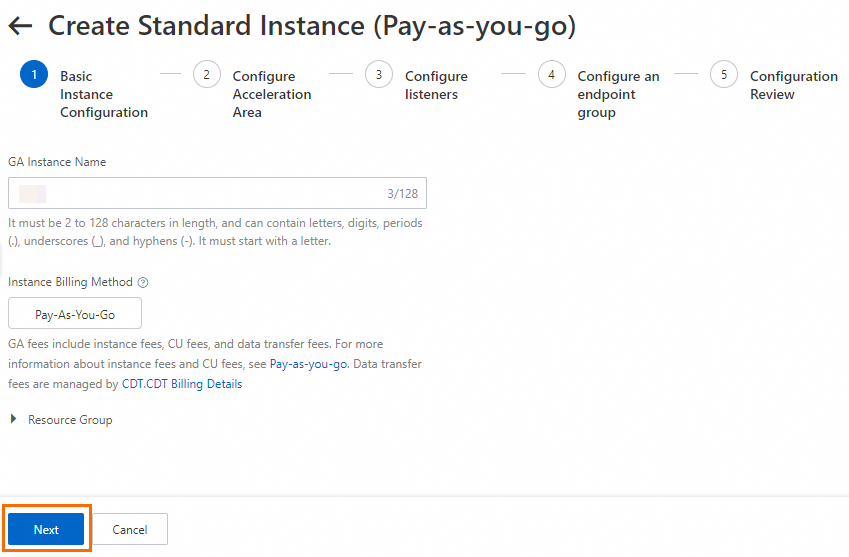
In the Basic Instance Configuration step, configure the basic information and click Next.
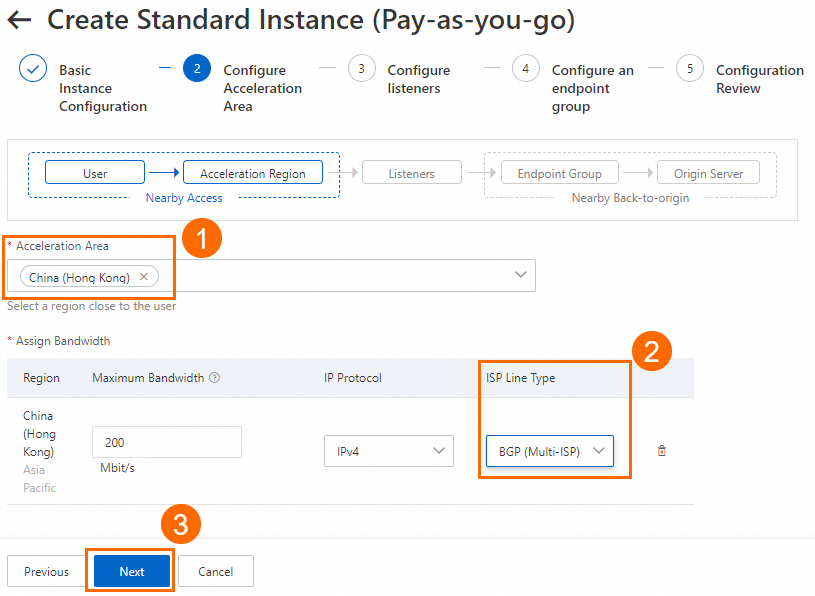
In the Configure Acceleration Area step, add an acceleration region, allocate bandwidth to the region, and then click Next.
In this example, the Acceleration Region parameter is set to China (Hong Kong), and the ISP Line Type parameter is set to BGP (Multi-ISP). You can use the default values for other parameters or modify the parameters based on your business requirements. For more information, see Add and manage acceleration areas.
ImportantIf the acceleration regions include regions in the Chinese mainland, you must apply for an ICP number for the domain name to provide services.
If you specify a small value for the maximum bandwidth, throttling may occur and packets may be dropped. Specify a maximum bandwidth based on your business requirements.
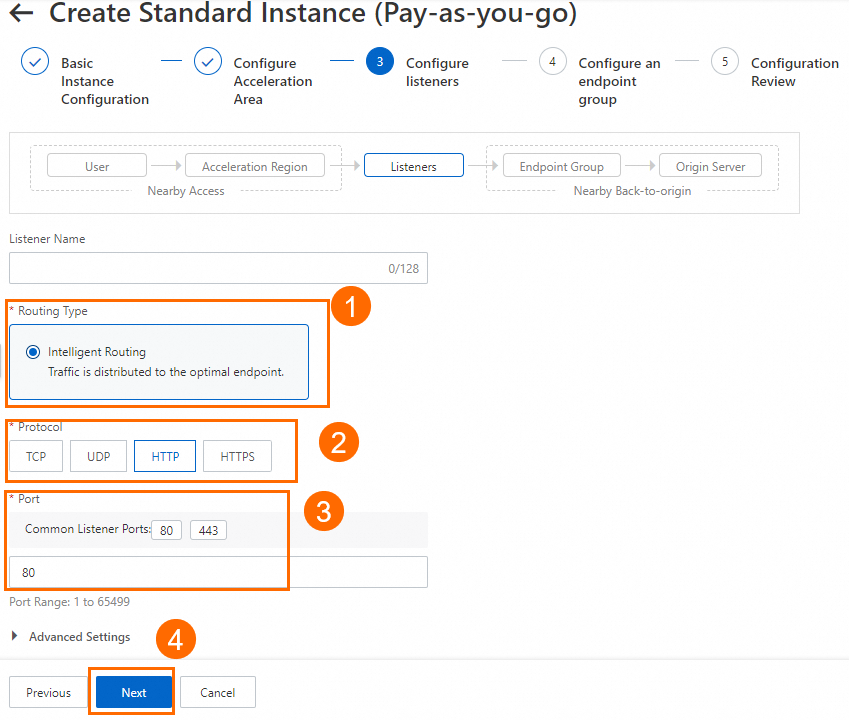
In the Configure listeners step, configure the forwarding protocol and port, and then click Next.
In this example, the Routing Type parameter is set to Intelligent Routing, the Protocol parameter is set to HTTP, and the Port parameter is set to 80. You can use the default values for other parameters or modify the parameters based on your business requirements. For more information, see Add and manage smart routing listeners.
NoteIf you want to use HTTPS 443 to provide external services, you can select HTTPS for Protocol and 443 for Port, associate the created certificate with the listener, and configure the mapping between listener port 443 and the backend service port 80 in the Port Mapping parameter of the endpoint group. This way, users can securely access the HTTP website over HTTPS.
On the Configure an Endpoint Group page, configure the backend service endpoints and click Next.
In this scenario, set Region to US (Silicon Valley), configure ECS01 and ECS02 as Backend Service, enable Health Check, and then read and select the Compliance Commitments Regarding Cross-border Data Transfers. You can keep the default values for other endpoint group parameters or modify them as needed. For more information, see Create and manage endpoint groups.
In the Configuration Review step, confirm the GA configurations and click Submit.
On the Instances page, find the created GA instance and obtain the CNAME assigned to the GA instance in the CNAME column.
On the backend servers, allow traffic from the CIDR block that GA uses to connect to them.
In this scenario, GA connects to the backend ECS instances over a private network. You need to add an inbound rule to the ECS security group to allow traffic from the vSwitch CIDR block. Also, ensure that the vSwitch has at least eight available private IP addresses.
Step 2: Configure Anti-DDoS Origin
On the Protected Object page of the Anti-DDoS Origin console, click Add Protected Object to add your GA instance as a protected object.
In the Add Protected Object dialog box, filter Product Type by GA. Select the target GA instance, click the right arrow to move it to the Selected Objects panel, and then click OK.
After the instance is added, you can view the protected GA instance on the GA Assets tab of the Protected Object page. You can also view the protected public IPs, including the GA accelerated IP addresses and the public IP addresses of the endpoint group, on the IP Assets tab.
Step 3: Configure a CNAME record
In actual business scenarios, we recommend that you use a custom domain name. You can create a CNAME record to map the custom domain name to the CNAME assigned by GA. This way, business traffic is switched to GA for accelerated access.
In this example, if you already created an A record that points to the backend server, you can specify the China (Hong Kong) region when you add a CNAME record that points to the GA instance. If the CNAME record works as expected, apply the CNAME record to other regions or retain only the CNAME record that points to the GA instance.
On the Authoritative DNS Resolution page, find the domain name that you want to use and click DNS Settings in the Actions column.
NoteFor a domain name that is not registered with Alibaba Cloud, you must add the domain name to the Alibaba Cloud DNS console before you can configure DNS records.
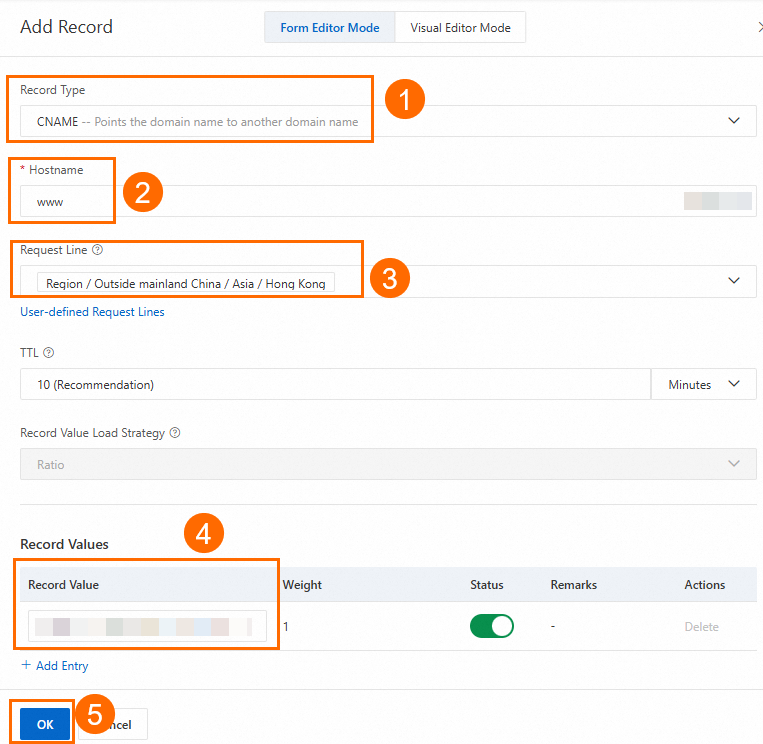
On the DNS Settings page, click Add DNS Record, configure a CNAME record, and then click OK.
In this example, the Record Type parameter is set to CNAME, the Hostname parameter is set to www, the DNS Request Source parameter is set to Asia_Hong Kong, and the Record Value parameter is set to the CNAME of the GA instance. You can use the default values for other parameters or modify the parameters based on your business requirements. For more information, see Add DNS records.
Step 4: Verify the results
GA acceleration verification
From a probe point in China (Hong Kong), run a network probe test on your website's custom domain before and after configuring GA. Check the response time to measure latency.
Test network latency before configuring GA.
You can view details like the response time. The Resolved IP column shows the public IP address of an ECS instance.
Test network latency after configuring GA.
You can view details like the response time. The Resolved IP column now shows the accelerated IP of the GA instance.
The verification shows that using GA reduces latency for clients in China (Hong Kong) accessing services in the US (Silicon Valley) region.
The actual acceleration performance of GA depends on your business tests.
GA health check verification
In a browser, enter your website's custom domain to access the site deployed in the US (Silicon Valley) region.
The test confirms that you can access the website through its custom domain. If you refresh the browser multiple times, the responding server switches between ECS01 and ECS02.
When the browser page returns
Hello World ! This is ECS01, service running on port 80., it indicates that the current request was handled by ECS01.When ECS02 responds, the page displays
Hello World ! This is ECS02, service running on port 80..Simulate a failure: Stop the ECS01 server.
After a short period, check the Health Check Status on the Endpoint Group tab of the GA instance.
The health check status of the endpoint group shows as Partially Unhealthy. The health check status for ECS01 is Unhealthy, and for ECS02 is Healthy.
Refresh the browser multiple times. You can still access the service, but only ECS02 responds.
Anti-DDoS Origin protection verification
You can use the following features in the Anti-DDoS Origin console to verify the protection:
The Business Monitoring page provides real-time traffic trends and DDoS attack event records for protected assets.
The Attack Analysis page allows you to query and analyze details of DDoS attack events on your Anti-DDoS Origin instance, including attack type, traffic volume, and duration.
The Mitigation Logs page records how Anti-DDoS Origin processes traffic, including details on attack detection and scrubbing. Analyzing these logs can help you further verify the effectiveness of your protection policies.
GA and Anti-DDoS Pro and Premium
A multinational game is deployed on Alibaba Cloud in the US (Silicon Valley) region, serving players globally through a custom domain. The service faces the following issues:
Unstable cross-border public networks, causing frequent latency, jitter, and packet loss.
Frequent large-scale DDoS attacks that cause complete service outages.
To resolve these issues, the game company plans to deploy GA and integrate it with Anti-DDoS Pro and Anti-DDoS Premium:
Global Accelerator (GA): Clients connect to the nearest acceleration region in the Alibaba Cloud network. Intelligent Routing and automatic network scheduling forward the traffic to the origin server in US (Silicon Valley), improving access speed. Enabling health checks enhances service reliability and availability by avoiding unhealthy nodes.
Anti-DDoS Pro and Anti-DDoS Premium: After integrating GA with Anti-DDoS Pro and Anti-DDoS Premium, normal traffic is accelerated directly to the origin server through GA with no added latency. During a large-scale DDoS attack, GA uses DNS resolution to redirect traffic to a scrubbing center. The scrubbed traffic is then routed back to the Alibaba Cloud acceleration network through the secure GA CNAME and forwarded to the server, ensuring stable access to the game server.

Limitations
Only pay-as-you-go standard GA instances support integration with Anti-DDoS Pro and Anti-DDoS Premium. Subscription standard GA instances and basic GA instances are not supported.
Prerequisites
For this example, we configure an HTTP 80 service on Alibaba Cloud Linux 3 using Nginx. Your services are deployed on ECS01 and ECS02 in the US (Silicon Valley) region.
You have configured DNS records for your custom domain, including an A record that points the domain to the public IP addresses of your two backend servers.
If you use a DNS service other than Alibaba Cloud DNS, refer to your provider's documentation.
If you need to provide services over HTTPS port 443, you must request and create a certificate or upload a third-party certificate to SSL Certificates Service and bind it to your domain.
You have purchased an Anti-DDoS Pro or Anti-DDoS Premium instance.
This example uses an Anti-DDoS Proxy (Outside Chinese Mainland) instance with the Insurance and Standard editions for clients accessing from the China (Hong Kong) region.
ImportantIf your configured GA acceleration region includes the Chinese mainland, you must also purchase an Anti-DDoS Pro (Mainland China) instance and ensure that your custom domain has an ICP filing.
Procedure
Step 1: Configure Global Accelerator
On the page of the GA console, click Create Standard Pay-as-you-go Instance.
In the Basic Instance Configuration step, configure the basic information and click Next.
In the Configure Acceleration Area step, add an acceleration region, allocate bandwidth to the region, and then click Next.
In this example, the Acceleration Region parameter is set to China (Hong Kong), and the ISP Line Type parameter is set to BGP (Multi-ISP). You can use the default values for other parameters or modify the parameters based on your business requirements. For more information, see Add and manage acceleration areas.
ImportantIf the acceleration regions include regions in the Chinese mainland, you must apply for an ICP number for the domain name to provide services.
If you specify a small value for the maximum bandwidth, throttling may occur and packets may be dropped. Specify a maximum bandwidth based on your business requirements.
In the Configure listeners step, configure the forwarding protocol and port, and then click Next.
In this example, the Routing Type parameter is set to Intelligent Routing, the Protocol parameter is set to HTTP, and the Port parameter is set to 80. You can use the default values for other parameters or modify the parameters based on your business requirements. For more information, see Add and manage smart routing listeners.
NoteIf you want to use HTTPS 443 to provide external services, you can select HTTPS for Protocol and 443 for Port, associate the created certificate with the listener, and configure the mapping between listener port 443 and the backend service port 80 in the Port Mapping parameter of the endpoint group. This way, users can securely access the HTTP website over HTTPS.
On the Configure an Endpoint Group page, configure the backend service endpoints and click Next.
In this scenario, set Region to US (Silicon Valley), configure ECS01 and ECS02 as Backend Service, enable Health Check, and then read and select the Compliance Commitments Regarding Cross-border Data Transfers. You can keep the default values for other endpoint group parameters or modify them as needed. For more information, see Create and manage endpoint groups.
In the Configuration Review step, confirm the GA configurations and click Submit.
On the Instances page, find the created GA instance and obtain the CNAME assigned to the GA instance in the CNAME column.
On the backend servers, allow traffic from the CIDR block that GA uses to connect to them.
In this scenario, GA connects to the backend ECS instances over a private network. You need to add an inbound rule to the ECS security group to allow traffic from the vSwitch CIDR block. Also, ensure that the vSwitch has at least eight available private IP addresses.
Step 2: Connect GA to Anti-DDoS Pro and Premium
On the GA console, on the page, find the GA instance you created. In the Actions column, click
 > Associate with Anti-DDoS Pro/Premium.
In the Associate with Anti-DDoS Pro/Premium dialog box, select the Anti-DDoS Pro or Anti-DDoS Premium instance to integrate and click OK.
For example, if the acceleration region is China (Hong Kong), select an Anti-DDoS Proxy (Outside Chinese Mainland) instance. If the acceleration region (client region) that you configure includes a Chinese mainland region, you also need to select an Anti-DDoS Pro (Mainland China) instance and follow Step 3 to configure a Website Config for the Anti-DDoS Pro (Mainland China) instance.
To the right of the instance ID, hover over the Anti-DDoS Pro/Premium icon. From the Anti-DDoS Proxy tooltip, copy the Secure GA CNAME.
NoteAfter connecting a GA instance to Anti-DDoS Pro or Anti-DDoS Premium, each acceleration region is assigned four accelerated IP addresses. Two of these are secure accelerated IP addresses, which are mapped to the secure GA CNAME record. During an attack, scrubbed traffic is routed through the secure GA CNAME to the Alibaba Cloud acceleration network.
Step 3: Configure Website Config
On the Anti-DDoS Proxy (Outside Chinese Mainland) console, navigate to the Website Config page and click Add Website.
In the Add Website panel, complete the Website Config wizard and click Next.
In this scenario, select the purchased Anti-DDoS Pro or Anti-DDoS Premium Instance, enter your custom domain for Website, select Site Domain for Server Address and enter the Secure GA CNAME from Step 2. Ensure that the Protocol and Server Port match the GA listener (HTTP 80). Then, read and select the Compliance Commitments Regarding Cross-border Data Transfers. You can keep the default values for other parameters or modify them as needed. For more information, see Add websites.
WarningMake sure to select the Secure GA CNAME for the Server Address, not the regular GA CNAME. Using the regular CNAME can cause a traffic loop.
In the Forwarding Settings wizard, confirm the forwarding settings and click Next.
In this scenario, you can keep the default configuration.
In the Complete wizard, click Complete and Return to Domain Name List.
On your origin server, add the back-to-origin IP addresses of Anti-DDoS Pro or Anti-DDoS Premium to the whitelist.
You need to add the CIDR blocks of the back-to-origin IPs to the whitelists of your security software and security groups to prevent traffic from being blocked.
Step 4: Configure a CNAME record
In actual business scenarios, we recommend that you use a custom domain name. You can create a CNAME record to map the custom domain name to the CNAME assigned by GA. This way, business traffic is switched to GA for accelerated access.
In this example, if you already created an A record that points to the backend server, you can specify the China (Hong Kong) region when you add a CNAME record that points to the GA instance. If the CNAME record works as expected, apply the CNAME record to other regions or retain only the CNAME record that points to the GA instance.
On the Authoritative DNS Resolution page, find the domain name that you want to use and click DNS Settings in the Actions column.
NoteFor a domain name that is not registered with Alibaba Cloud, you must add the domain name to the Alibaba Cloud DNS console before you can configure DNS records.
On the DNS Settings page, click Add DNS Record, configure a CNAME record, and then click OK.
In this example, the Record Type parameter is set to CNAME, the Hostname parameter is set to www, the DNS Request Source parameter is set to Asia_Hong Kong, and the Record Value parameter is set to the CNAME of the GA instance. You can use the default values for other parameters or modify the parameters based on your business requirements. For more information, see Add DNS records.
Step 5: Verify the results
GA acceleration verification
From a probe point in China (Hong Kong), run a network probe test on your website's custom domain before and after configuring GA. Check the response time to measure latency.
Test network latency before configuring GA.
You can view details like the response time. The Resolved IP column shows the public IP address of an ECS instance.
Test network latency after configuring GA.
You can view details like the response time. The Resolved IP column now shows the accelerated IP of the GA instance.
The verification shows that using GA reduces latency for clients in China (Hong Kong) accessing services in the US (Silicon Valley) region.
The actual acceleration performance of GA depends on your business tests.
GA health check verification
In a browser, enter your website's custom domain to access the site deployed in the US (Silicon Valley) region.
The test confirms that you can access the website through its custom domain. If you refresh the browser multiple times, the responding server switches between ECS01 and ECS02.
When the browser page returns
Hello World ! This is ECS01, service running on port 80., it indicates that the current request was handled by ECS01.When ECS02 responds, the page displays
Hello World ! This is ECS02, service running on port 80..Simulate a failure: Stop the ECS01 server.
After a short period, check the Health Check Status on the Endpoint Group tab of the GA instance.
The health check status of the endpoint group shows as Partially Unhealthy. The health check status for ECS01 is Unhealthy, and for ECS02 is Healthy.
Refresh the browser multiple times. You can still access the service, but only ECS02 responds.
Anti-DDoS Pro and Premium protection verification
Use the
curlcommand to test the connection to your custom domain through the Anti-DDoS instance IP. A successful connection confirms that the link between GA and Anti-DDoS Pro/Premium is working, and that GA can redirect traffic to the scrubbing center during an attack.WarningAfter connecting GA to Anti-DDoS Pro or Anti-DDoS Premium, ensure the following conditions are met to avoid traffic disruption:
Complete this connectivity test to confirm that the link between GA and Anti-DDoS Pro/Premium is working.
Do not release the Anti-DDoS Pro or Anti-DDoS Premium instance before you release the GA instance. Make sure the Anti-DDoS instance has not expired and remains active.
curl 170.33.XX.XX -H "Host: <your_domain_name>"C:\Users\Administrator>curl 170.33.xxx.xxx -H "Host: www.xxx.xxx" Hello World ! This is ECS02, service running on port 80.You can use the following features on the Anti-DDoS Pro and Anti-DDoS Premium console to check protection status or be notified of service anomalies:
The Attack Analysis page displays records and details of attack events on your Anti-DDoS instance.
The Advanced Mitigation Logs page shows the usage of advanced mitigation sessions. This feature is available if you have purchased an instance that includes advanced mitigation sessions or an additional advanced mitigation resource pack.
The CloudMonitor Alerts page allows you to set up alert monitoring and a real-time dashboard. CloudMonitor sends alerts when anomalies occur, helping you reduce response time and restore services faster. You can also use the real-time dashboard to view monitoring details for troubleshooting.
References
GA fees include the instance fee, capacity unit (CU) fee, and traffic fee.
By default, GA uses Premium Bandwidth Cross-border Acceleration for cross-border scenarios. For higher network quality, you can use Leased Line Cross-domain Acceleration. For more information, see Select an acceleration configuration.
Learn more about DDoS protection: