Commercial SSL certificates offer multiple types, brands, and domain options — including wildcard, multi-domain, and hybrid-domain certificates — for websites of all sizes. This guide walks you through purchasing, applying for, and deploying a commercial certificate.
Procedure overview
Deploy a commercial SSL certificate in three steps:
-
Step 1: Purchase a commercial SSL certificate: Obtain a commercial SSL certificate quota.
-
Step 2: Apply for an SSL certificate: Submit certificate information for CA validation and issuance.
-
Step 3: Deploy the SSL certificate: Deploy the issued certificate to a web server or cloud service.
Prerequisites
-
Real-name verification is completed. For more information, see Individual identity verification or Enterprise identity verification.
If the website is deployed in the Chinese mainland, you must complete an ICP filing for it as required by the Ministry of Industry and Information Technology (MIIT). Otherwise, access to the website is affected. For more information, see What is an ICP filing?.
Step 1: Purchase a commercial SSL certificate
Log in to the Certificate Management Service console.
In the navigation pane on the left, choose .
-
On the Commercial Certificates tab, click Buy Now. Configure the following specifications, click Buy Now, and complete payment.
Parameter
Description
Domain Type
Select Single Domain to bind the certificate to a single domain, subdomain, or IPv4 address (e.g.,
www.example.comor1.1.X.X). For all first-level subdomains, select a wildcard domain.Brand
Select Alibaba Cloud for the most cost-effective option.
Certificate Type
Defaults to DV Certificate (domain validation certificate), suitable for personal websites, app services, informational sites, and test environments.
Quantity
Fixed at 1 (one certificate instance per order).
Duration
Select 1 Year for a one-year subscription period.
NoteFor more detailed instructions on purchasing and configuring commercial certificates, see Purchase a commercial certificate.
Step 2: Apply for an SSL certificate
-
Return to the Commercial Certificates tab. In the Actions column, click Apply for Certificate.

-
In the Apply for Certificate panel, configure the following parameters and click Submit.
Parameter
Description
Domains to Bind
Enter your website domain name, for example,
www.example.com. If you purchased a wildcard domain name, enter*.example.com.Domain Verification Method
Select a method to verify the domain owner's identity.
If DNS for
example.comis not managed under the current account (e.g., third-party DNS or another Alibaba Cloud account), you can select only Manual DNS Verification or File Verification. Complete domain verification as guided after submission; otherwise, the certificate cannot be issued.If the domain's Alibaba Cloud DNS is under the current account, the system auto-selects Automatic DNS Verification and completes verification automatically — just wait for issuance.
Contact
Click Create Contact to create a new contact, or select an existing one. Ensure contact information is accurate.
Company
Select the company that owns the domain.
Encryption Algorithm
Select RSA as the certificate encryption algorithm.
RSA is the most widely used asymmetric encryption algorithm with broad compatibility.
CSR Generation
Select Automatic. Certificate Management Service auto-generates a CSR using the encryption algorithm specified in Encryption Algorithm.
A CSR (Certificate Signing Request) contains server and organization information submitted to the CA for review.
NoteParameter limits and detailed configuration are covered in Apply for a certificate.
-
Optional: If you selected Manual DNS Verification or File Verification, complete domain verification as guided. For more information and operation examples, see Domain ownership verification.
-
If you selected Automatic DNS Verification, no action is needed. Wait for the certificate to be issued. DV certificates are typically issued within 1 to 15 minutes.
-
If you selected Manual DNS Verification, manually add DNS records in your DNS resolution service to verify domain ownership. After the DNS records take effect (usually within a few minutes), the system automatically completes domain verification and issues the certificate.
NoteIf the domain DNS resolution is not managed under the current Alibaba Cloud account (for example, you use a third-party DNS service or another Alibaba Cloud account), you can only select manual DNS verification. After you add the DNS records, the system automatically detects the verification result. You do not need to manually trigger verification in the console.
-
Step 3: Deploy the SSL certificate
Deploy the certificate to a web server
This example uses CentOS 8.0 (64-bit) with NGINX 1.14.2. Steps vary by OS and web server. For other servers (Apache, Tomcat, IIS), see Deploying certificate manually.
Log in to the Certificate Management Service console.
In the navigation pane on the left, choose .
-
On the Commercial Certificates tab, locate the target certificate and click Actions > Download.
-
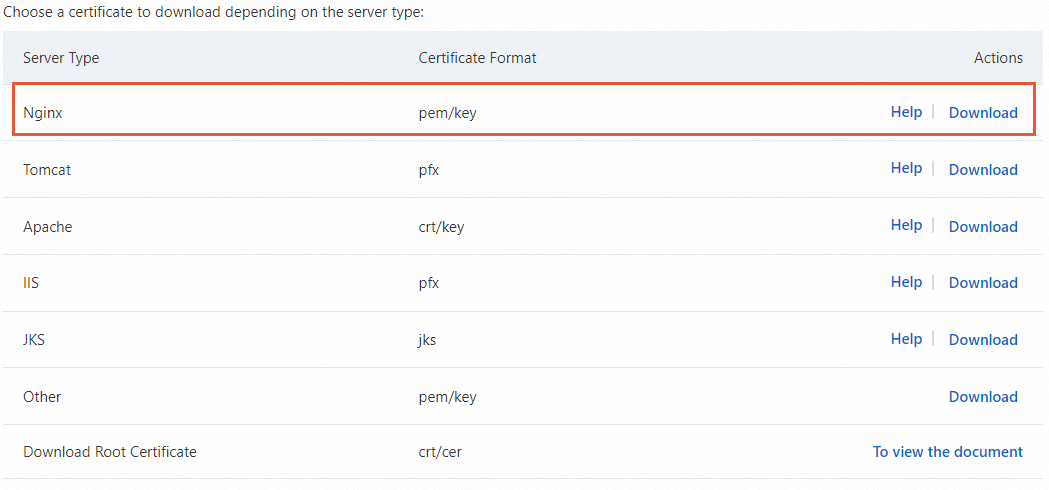
In the Server Type row for NGINX, click Download in the Actions column.
-
Decompress the downloaded SSL certificate package.
The files that you receive after decompression vary depending on the CSR generation method that you selected when you submitted the certificate request. The following table describes the files.
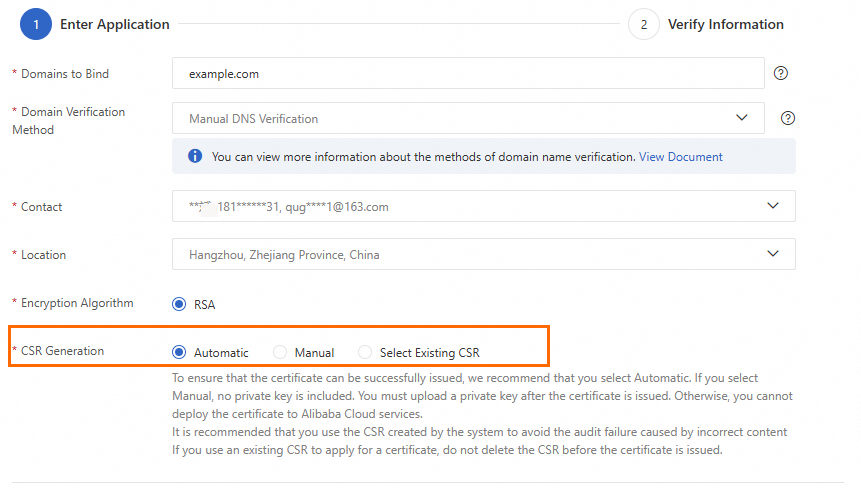
CSR generation
Files included in the certificate package
Automatic or Select Existing CSR
-
Certificate file (PEM format): Contains the Base64-encoded complete certificate chain. After decompression, the file is named
CertificateID_BoundDomain. -
Private key file (KEY format): The default name is BoundDomainName.
Manual
If you enter a CSR that was generated in the Certificate Management Service console, the downloaded certificate file is identical to the Automatic one.
If you enter a CSR that was not created in the Certificate Management Service console, the download includes only the certificate file in PEM format and does not include a certificate password or private key file. You can use a certificate tool to convert the certificate file to the required format. For more information about converting the format of a certificate, see Convert certificate formats.
-
-
Log on to the server and create a certificate directory under the NGINX
confdirectory.# Go to the default NGINX configuration directory. This is the default directory for a manually compiled and installed NGINX. If you have changed the default installation directory or used another installation method, adjust the path accordingly. cd /usr/local/nginx/conf # Create a directory named cert for storing certificates. mkdir cert -
Upload the certificate file and the private key file to the certificate directory of the NGINX server (/usr/local/nginx/conf/cert).
NoteYou can use the local file upload feature of a remote logon tool to upload files. Examples of such tools include PuTTY, Xshell, or WinSCP. If you use an Alibaba Cloud Elastic Compute Service instance, see Upload or download files for more information.
-
Edit the NGINX configuration file
nginx.confto modify the certificate-related configuration.-
Run the following command to open the configuration file.
sudo vim /usr/local/nginx/conf/nginx.confNoteIf you are unsure of the location of
nginx.conf, runnginx -tto check the configuration file path. -
In
nginx.conf, locate the HTTPS server configuration.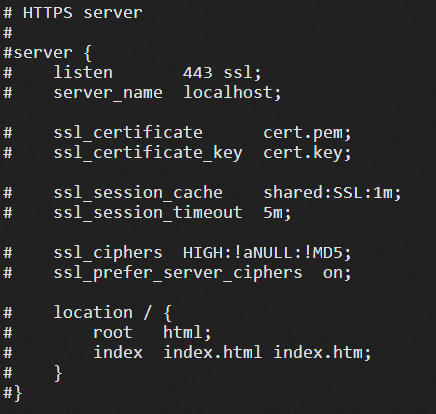 Note
NoteIf the server block shown in the preceding figure does not exist in
nginx.confor in a file referenced by the include directive, add it manually. -
Remove the comment character
#from the beginning of each line and modify the lines as shown in the following example:server { # The default access port for HTTPS is 443. # If the default HTTPS access port is not configured here, NGINX may fail to start. listen 443 ssl; # Enter the domain bound to your certificate. server_name <YOURDOMAIN>; # Enter the absolute path to your certificate file. ssl_certificate cert/<cert-file-name>.pem; # Enter the absolute path to your private key file. ssl_certificate_key cert/<cert-file-name>.key; ssl_session_cache shared:SSL:1m; ssl_session_timeout 5m; # Customize the TLS protocol type and cipher suite (the following is an example. Evaluate whether you need this configuration). # A higher TLS protocol version improves the security of HTTPS communication, but has lower browser compatibility than lower versions. ssl_ciphers ECDHE-RSA-AES128-GCM-SHA256:ECDHE:ECDH:AES:HIGH:!NULL:!aNULL:!MD5:!ADH:!RC4; ssl_protocols TLSv1.1 TLSv1.2 TLSv1.3; # Prioritize server cipher suites. Enabled by default. ssl_prefer_server_ciphers on; location / { root html; index index.html index.htm; } } -
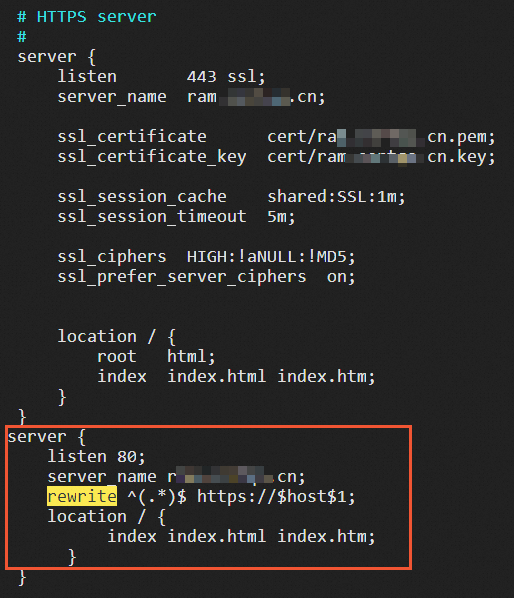
Optional: Set up automatic HTTP-to-HTTPS redirection.
If you want all HTTP requests to be automatically redirected to HTTPS pages, you can use the rewrite directive to implement the redirection.
ImportantIn the
nginx.conffile, locate the HTTP server configuration block and add the following redirection code.If you cannot find this block, you can place the following code snippet after the
server {}block in thenginx.conffile. After the configuration, thenginx.conffile will contain twoserver {}blocks.server { listen 80; # Enter the domain bound to your certificate. server_name <YOURDOMAIN>; # Redirect all HTTP requests to HTTPS using the rewrite directive. rewrite ^(.*)$ https://$host$1; location / { index index.html index.htm; } }The following figure shows the expected configuration:
-
-
Restart NGINX to apply the configuration.
# Go to the executable directory of the NGINX service. cd /usr/local/nginx/sbin # Reload the configuration file. ./nginx -s reloadNote-
If the error
the "ssl" parameter requires ngx_http_ssl_moduleis reported: You need to recompile NGINX and add the--with-http_ssl_moduleconfiguration during compilation and installation. -
If the error
"/cert/3970497_demo.aliyundoc.com.pem":BIO_new_file() failed (SSL: error:02001002:system library:fopen:No such file or directory:fopen('/cert/3970497_demo.aliyundoc.com.pem','r') error:2006D080:BIO routines:BIO_new_file:no such file)is reported: You need to remove the leading/from the relative path of the certificate. For example, change/cert/cert-file-name.pemto the correct relative pathcert/cert-file-name.pem.
-
Verify the deployment
After the certificate is deployed, you can verify the deployment by accessing the domain name that is bound to the certificate.
https://yourdomain #Replace yourdomain with your domain name.-
If the
 icon appears in the browser address bar, the certificate is installed successfully.
 -
Starting from Chrome 117, Chrome has replaced the HTTPS
icon in the address bar with the  icon. Click this icon and refer to the following example. When the
  symbol appears, the certificate is installed successfully.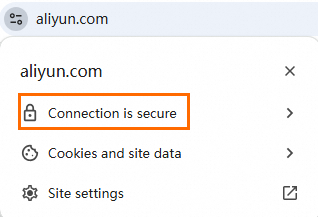
If the certificate does not take effect after installation, see How do I fix certificate errors shown in my browser?
Deploy the certificate to a cloud service
This example deploys an issued certificate to Alibaba Cloud CDN. For other cloud services or web servers, see Deploy a certificate.
Log in to the Certificate Management Service console.
In the navigation pane on the left, choose .
-
On the Commercial Certificates tab, locate the issued certificate. In the Actions column, click Deploy.
-
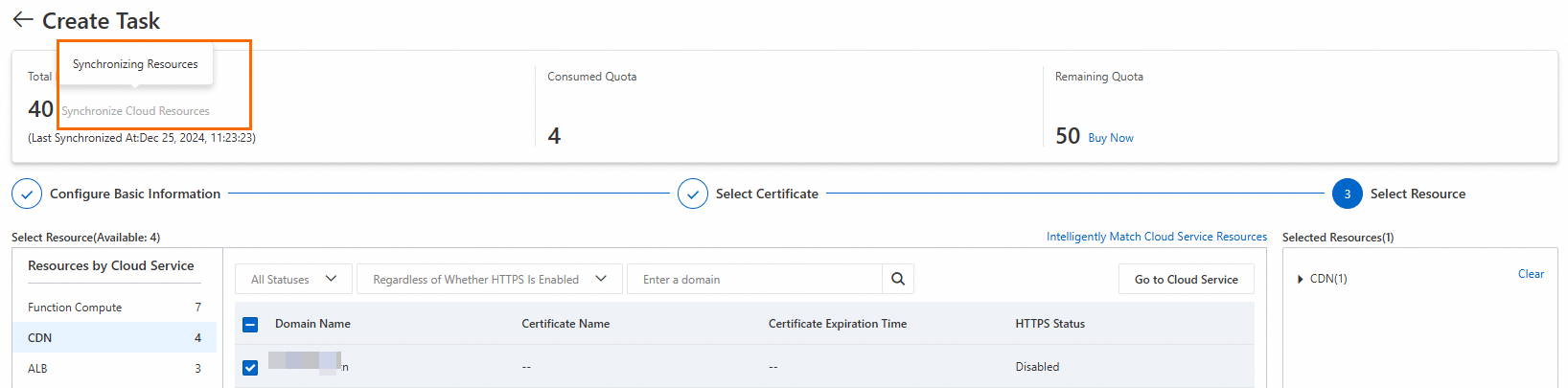
On the Select Resource page, select CDN and the corresponding resource, and then click Preview and Submit.
The system auto-retrieves resources from all cloud services. If the target resource is missing, check sync status in the Total Resources area. Sync time depends on the number of resources.
-
In the Task Preview panel, verify the certificate instance and cloud service resource information. If everything is correct, click Submit.
The preview shows matching certificate count and deployment attempts consumed. A match count of 0 means the certificate does not match the selected resource, causing deployment failure.
Verify the deployment
-
Log on to the CDN console.
-
In the left navigation pane, click Domain Names.
-
On the Domain Names page, find the target domain name and click Manage in the Actions column.
-
In the domain's navigation pane, click HTTPS.
-
Check the deployed certificate information. If HTTPS Certificate shows Enabled, deployment succeeded.
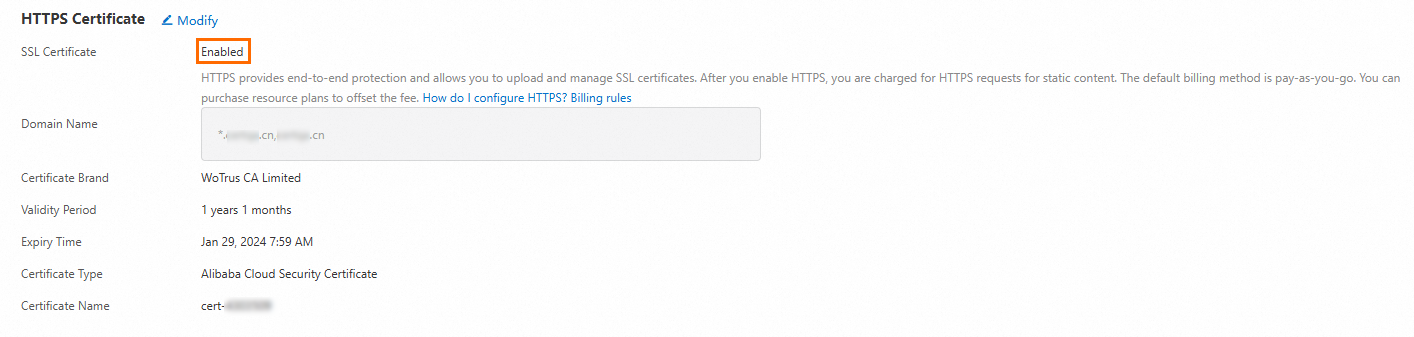
You may need to wait for the CDN cache to refresh before the updated certificate information appears.