Accelerate global services with an Anycast EIP
If your global services face challenges such as a widely distributed user base, high access latency, or unstable cross-region networks, you can use Global Accelerator (GA) to configure an accelerated IP address of the Anycast EIP type. This allows global users to automatically connect to the Alibaba Cloud acceleration network from the nearest access point. GA delivers high-availability, high-performance network acceleration without requiring you to manage user distribution.
Anycast EIP accelerated IP type
Anycast Elastic IP Address (Anycast EIP) is a product that improves public network availability across multiple regions worldwide. It is built on Alibaba Cloud's high-quality BGP bandwidth and global transmission network to provide nearby access to network entry points in multiple regions, which improves the quality of public network access.
GA is integrated with Anycast EIP. You can configure an accelerated IP address of the Anycast EIP type in GA. This allows users from multiple regions to automatically access the Alibaba Cloud acceleration network from the nearest access point through the Anycast EIP provided by GA. This approach accelerates access and simplifies traffic management across multiple regions.
Key features
-
Unified IP entry point: Anycast EIP addresses can be announced from multiple regions and are not restricted by region.
-
Automatic nearest-point access: Client traffic is automatically routed to the nearest Alibaba Cloud access point by using the Anycast EIP, which improves public network access quality.
-
Simplified O&M: Eliminates the need to manually configure acceleration areas and allocate bandwidth for clients in different regions, reducing operational complexity.
-
High availability: Supports multiple access points and provides automatic failover if an access point becomes unavailable, ensuring high network reliability.
Item | Elastic IP Address | Anycast EIP |
Access mode | Uses the custom nearby access mode. You must configure an acceleration area.  You can select acceleration areas and regions as needed. GA provides an EIP for each acceleration region. | Uses the automatic nearby access mode. You do not need to configure an acceleration area.  GA provides two Anycast EIPs in multiple regions across the globe. Clients can connect to the nearest access point of the Alibaba Cloud acceleration network through the Anycast EIPs. |
Supported access points | GA supports Acceleration areas and regions. | Relies on access points covered by Anycast EIP to provide network acceleration, mainly for regions outside the Chinese mainland. Clients in the Chinese mainland connect through China (Hong Kong). |
Features |
|
|
Use cases
-
Game acceleration for global servers: Players worldwide are automatically connected to the nearest Alibaba Cloud access point. This reduces latency and jitter, and prevents disconnections caused by regional network failures.
-
Cross-border e-commerce acceleration: Global users connect to the Alibaba Cloud acceleration network through an Anycast EIP from a nearby location, ensuring fast page loads and a smooth payment process.
Limitations
-
The Anycast EIP accelerated IP address type is in a phased release. To apply for a trial, contact your business manager.
-
Only pay-as-you-go standard GA instances support Anycast EIPs as accelerated IP addresses. After configuration, the GA instance provides 2 Anycast EIPs in multiple regions globally. Subscription standard GA instances do not support Anycast EIPs as accelerated IP addresses.
Example scenario
A gaming company develops a new game with servers deployed in the Germany (Frankfurt) region on Alibaba Cloud. The company already uses a GA instance with the default EIP accelerated IP address type to accelerate access for users worldwide.
Using the default EIP accelerated IP address type, the company must configure separate acceleration areas and bandwidth limits for each global location. As traffic patterns change, the company needs to adjust these configurations in real time.

To resolve these issues, the company can use a GA instance with the Anycast EIP accelerated IP address type. All user traffic from the acceleration areas can enter the Alibaba Cloud acceleration network through the Anycast EIPs provided by GA from the nearest access point. This also eliminates the need for the company to adjust acceleration areas and security configurations in response to business changes, which reduces O&M costs.
Prerequisites
-
A service is deployed on your backend server.
This topic uses an Alibaba Cloud Linux 3 operating system and uses Nginx to configure an HTTP service on port 80.
-
You have registered a custom domain name.
-
If you want to provide services over HTTPS, you must create and apply for a certificate or upload a third-party certificate to the SSL Certificates service and bind the certificate to your custom domain name.
Procedure
Step 1: Configure a GA instance
This topic uses a pay-as-you-go standard GA instance as an example.
-
Log on to the Global Accelerator console. In the left-side navigation pane, choose . On the page that appears, click Create Standard Pay-as-you-go Instance.
-
On the Basic Instance Configuration page, set Accelerated IP Address Type to Anycast EIP and click Next.
-
On the Configure acceleration areas page, click N Access Points to view the list of supported access points, specify a bandwidth peak in the Bandwidth field, and then click Next.
N indicates the number of access points displayed in the console. The bandwidth limit is 200 to 5,000 Mbps. In this example, the bandwidth is set to the default value of 200.
Important-
The number of access points is for reference only and may change without notice due to events such as device maintenance, failures, or updates to the access point network.
-
Setting the peak bandwidth too low may result in throttling and dropped traffic. Plan your peak bandwidth to meet your business requirements.
-
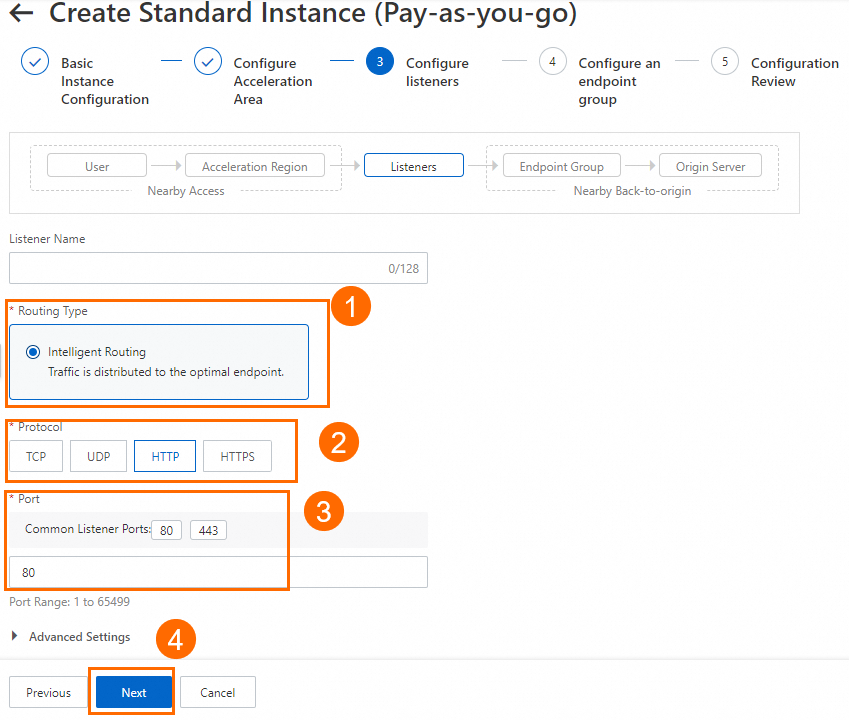
In the Configure listeners step, configure the forwarding protocol and port, and then click Next.
In this example, the Routing Type parameter is set to Intelligent Routing, the Protocol parameter is set to HTTP, and the Port parameter is set to 80. You can use the default values for other parameters or modify the parameters based on your business requirements. For more information, see Add and manage smart routing listeners.
NoteIf you want to use HTTPS 443 to provide external services, you can select HTTPS for Protocol and 443 for Port, associate the created certificate with the listener, and configure the mapping between listener port 443 and the backend service port 80 in the Port Mapping parameter of the endpoint group. This way, users can securely access the HTTP website over HTTPS.
-
On the Configure an Endpoint Group page, configure the backend service for the endpoint, and then click Next.
In this example, select Germany (Frankfurt) for the Region, configure the ECS instance with the deployed service as the Backend Service, and then read and select the Compliance Commitments Regarding Cross-border Data Transfers checkbox. You can use the default values for other endpoint group parameters or modify them as needed.

In the Configuration Review step, confirm the GA configurations and click Submit.
On the Instances page, find the created GA instance and obtain the CNAME assigned to the GA instance in the CNAME column.
-
On the Instances page, click the ID of the GA instance that you created. On the instance details page, click the Acceleration Areas tab to obtain the accelerated IP addresses.
-
In the security settings of the backend server, add rules to allow traffic from the CIDR blocks that GA uses to connect to the backend service.
In this example, GA connects to the backend server (ECS instance) over a private network. You must add rules to the security group of the ECS instance to allow traffic from its vSwitch CIDR block. The vSwitch must also have at least eight available private IP addresses in its CIDR block.
If your backend service connects to GA over the internet, you must add rules to the security group of the backend service to allow traffic from the public IP addresses of the endpoint.
Step 2: Configure a CNAME record
Add a CNAME record to map your custom domain name to the CNAME assigned by the GA instance. This redirects service traffic to GA for acceleration.
If you are migrating from an existing GA instance that uses an EIP, you can test the new configuration by creating a temporary, region-specific CNAME record. For example, add a CNAME record for the China (Hong Kong) region that points to the new GA instance for testing. After successful testing, you can either expand this approach to other regions or replace the old CNAME record with one pointing to the new GA instance.
-
On the Alibaba Cloud DNS page, find the target domain name and click Configure in the Actions column.
NoteIf your domain name is not registered with Alibaba Cloud, you must first add the domain name to the Alibaba Cloud DNS console before you can configure DNS records.
-
On the Configure page, click Add Record, configure a CNAME record, and then click OK.
In this example, set Record Type to CNAME, Hostname to www, DNS Request Source to Asia_China Hong Kong, and Record Value to the CNAME of the new GA instance. You can use the default values for other DNS record parameters or modify them as needed.
Step 3: Test access and performance
In this example, we use clients in China (Hong Kong) and US (Virginia) to test if they can access the accelerated service in Germany (Frankfurt) through the GA instance's Anycast EIP.
Test connectivity
On clients in China (Hong Kong) and US (Virginia), run the curl -v <your-domain-name> command to verify connectivity and check the DNS resolution results.
The following output indicates that the backend server is accessible and the domain name resolves to the Anycast EIP of the GA instance.
C:\Users\Administrator>curl -v www.example.com
* Host www.example.com:80 was resolved.
* IPv6: (none)
* IPv4: 139.95.xxx.xxx, 139.95.xxx.xxx
*   Trying 139.95.xxx.xxx:80...
* Connected to www.example.com (139.95.xxx.xxx) port 80
* using HTTP/1.x
> GET / HTTP/1.1
> Host: www.example.com
> User-Agent: curl/8.11.1
> Accept: */*
>
* Request completely sent off
< HTTP/1.1 200 OK
< Server: nginx/1.20.1
< Date: Fri, 30 May 2025 02:06:25 GMT
< Content-Type: text/html
< Content-Length: 27
< Last-Modified: Fri, 23 May 2025 05:26:39 GMT
< Connection: keep-alive
< ETag: "6830070f-1b"
< Accept-Ranges: bytes
<
Hello World ! This is ECS.
* Connection #0 to host www.example.com left intact
Test GA performance
This topic describes how to use a network probing tool to perform a comparative test after you configure GA. The test simultaneously probes the Anycast EIP of GA and the public IP address of the backend server to evaluate the acceleration effect.
In the figures, ① represents the Anycast EIP of the GA instance, and ② represents the public IP address of the website.
-
Acceleration performance comparison for China (Hong Kong)

-
Acceleration performance comparison for US (Virginia)
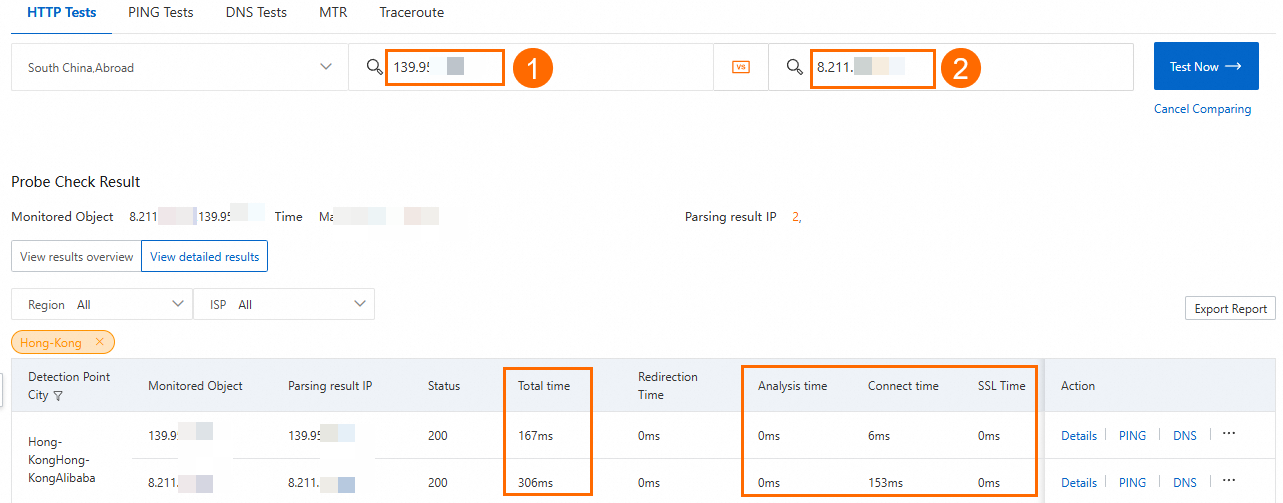
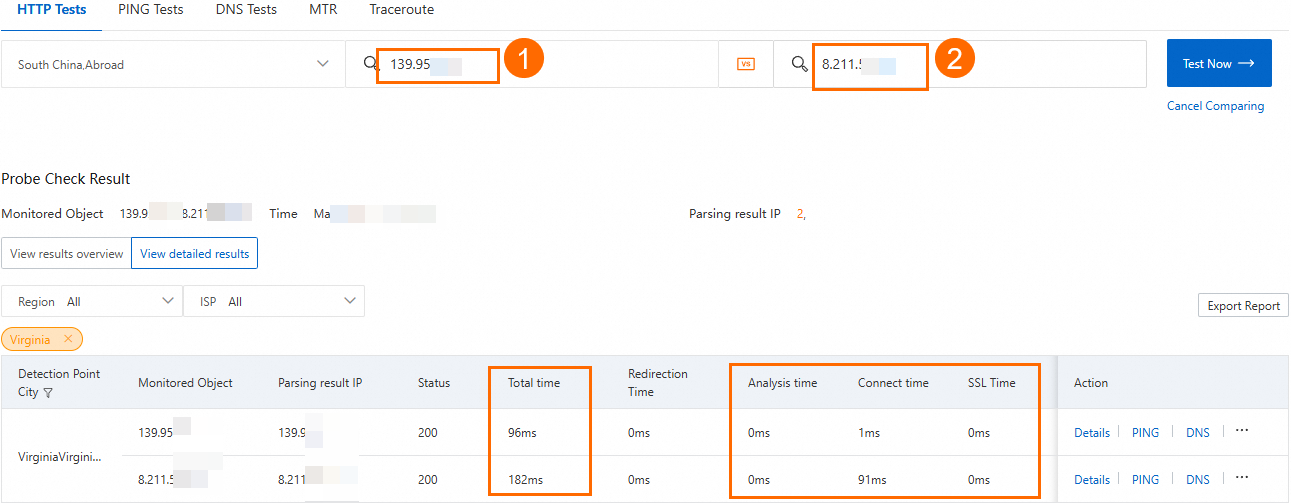
The test results show that using a GA instance with an Anycast EIP reduces access latency for clients in both China (Hong Kong) and US (Virginia) connecting to the service in Germany (Frankfurt).
The acceleration performance of GA depends on your specific workload and network conditions.
FAQ
Can I use Global Accelerator (GA) if my client is in a region GA doesn't support?
Yes. GA lets clients reach the Alibaba Cloud acceleration network from the nearest access point, regardless of whether their region is explicitly listed.
The setup depends on the accelerated IP address type you use:
Elastic IP Address (EIP): Select the acceleration area closest to your client when configuring the acceleration area. Clients connect to the Alibaba Cloud acceleration network using the accelerated IP address or CNAME assigned to that area.
Anycast EIP: No acceleration area configuration is needed. GA provides a single unified IP entry point across multiple regions worldwide. Clients connect automatically from the nearest access point using the Anycast EIP or CNAME.
References
Billing and console
-
The fees for a pay-as-you-go GA instance include the instance fee, CU fee, and traffic fee.
-
For cross-border scenarios, Premium Cross-border Acceleration is used by default. If you require higher network quality, you can use Cross-border acceleration over Express Connect circuits. For more information, see Select an acceleration configuration.
-
For more information about accelerated IP addresses of the Anycast EIP type, see Acceleration areas and regions.
-
You can view monitoring information such as instance bandwidth and bandwidth usage on the Monitoring Chart tab of the instance details page.
API reference
-
CreateAccelerator: By setting
AccessModetoAnycast, you can create a Global Accelerator (GA) instance with an accelerated IP address of the Anycast EIP type. -
ListAvailableAccelerateAreas: Set the
AccessModeparameter toAnycastto query the regions that support the Anycast EIP accelerated IP address type.