You can use the Alibaba Cloud account of Enterprise A to create a Resource Access Management (RAM) role, grant permissions to the RAM role, and then assign the RAM role to a RAM user of Enterprise B. This way, the RAM user of Enterprise B can access Express Connect resources that belong to Enterprise A.
Sample scenarios
If Enterprise A purchases a variety of cloud resources for business use and wants to entrust some tasks to Enterprise B, Enterprise A can create a RAM role to grant permissions to Enterprise B. A RAM role does not have a specific logon password or an AccessKey pair. A RAM role can be used only after the RAM role is assumed by a trusted entity. To meet the business requirements of Enterprise A, perform the following steps:
Create a RAM role for Enterprise A. For more information, see Step 1: Create a RAM role for Enterprise A.
Grant permissions to the RAM role. For more information, see Step 2: Grant permissions to the RAM role.
Create a RAM user for Enterprise B. For more information, see Step 3: Create a RAM user for Enterprise B.
Grant the AliyunSTSAssumeRoleAccess permission to the RAM user. For more information, see Step 4: Grant permissions to the RAM user.
The RAM user of Company B accesses the resources of Enterprise A in the console or by calling API operations. For more information, see Step 5: The RAM user of Company B accesses the resources of Enterprise A in the console or by calling API operations.
The following system policies of Express Connect can be attached to a RAM role:
AliyunExpressConnectFullAccess: allows the RAM user to manage Express Connect.
AliyunExpressConnectReadOnlyAccess: grants the RAM user read-only permissions on Express Connect.
Limits
By default, Express Connect resources cannot be accessed across accounts due to security and compliance requirements. If you want to access Express Connect resources of another Alibaba Cloud account, contact your account manager.
Step 1: Use the Alibaba Cloud account of Enterprise A to create a RAM role
Log on to the RAM console and create a RAM role with the Alibaba Cloud account of Enterprise A.
Log on to the RAM console as a RAM user who has administrative rights.
In the left-side navigation pane, choose .
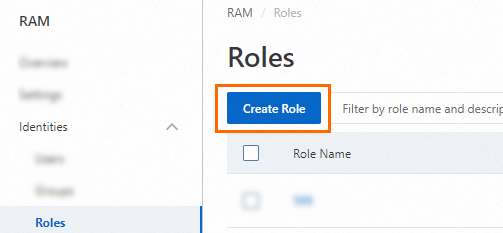
On the Roles page, click Create Role.
On the Create Role page, set the Principal Type parameter to Cloud Account, specify an Alibaba Cloud account, and then click OK.

Current Account: If you want a RAM user or RAM role that belongs to your Alibaba Cloud account to assume the RAM role, select Current Account.
Other Account: If you want a RAM user or RAM role that belongs to a different Alibaba Cloud account to assume the RAM role, select Other Account and enter the ID of the Alibaba Cloud account. This option is provided to grant permissions on resources that belong to different Alibaba Cloud accounts. For more information, see Use a RAM role to grant permissions across Alibaba Cloud accounts. You can view the ID of your Alibaba Cloud account on the Security Settings page.
Optional. If you want the RAM role to be assumed only by a specific RAM user or RAM role that belongs to the trusted Alibaba Cloud account, click Switch to Policy Editor and modify the trust policy of the RAM role in the editor.
The editor supports the Visual editor and JSON modes. In the following example, only the RAM user
Alicewithin the Alibaba Cloud account whose ID is 100******0719 can assume the RAM role.Visual editor
Specify a RAM user for the Principal element.


JSON
Specify a RAM user for the
RAMfield of thePrincipalparameter.{ "Version": "1", "Statement": [ { "Effect": "Allow", "Principal": { "RAM": "acs:ram::100******0719:user/Alice" }, "Action": "sts:AssumeRole" } ] }
In the Create Role dialog box, configure the Role Name parameter and click OK.
Step 2: Grant permissions to the RAM role
The RAM role that is created in Step 1 does not have permissions. Therefore, Enterprise A must grant permissions to the RAM role.
Log on to the RAM console as a RAM administrator.
In the left-side navigation pane, choose .
On the Roles page, find the RAM role that you created in Step 1: Create a RAM role for Enterprise A and click Grant Permissions in the Actions column.
In the Grant Permissions panel, grant permissions to the RAM role that you created in Step 1: Create a RAM role for Enterprise A.
Specify the authorized scope. In this example, Account is selected.
Account: The permissions are granted to the current Alibaba Cloud account.
ResourceGroup: The permissions are granted to a specific resource group.
NoteIf you select Resource Group for the Resource Scope parameter, make sure that the required cloud service supports resource groups. For more information, see Services that work with Resource Group.
Configure the Principal parameter.
The principal is the RAM role to which you want to grant permissions. The current RAM role is automatically selected.
Select a policy. In this example, the
AliyunExpressConnectFullAccesspermission is selected.You can select
AliyunExpressConnectFullAccessorAliyunExpressConnectReadOnlyAccessfor Express Connect based on your business requirements. If the system policies for Express Connect cannot meet your business requirements, you can create custom policies. For information about how to create a custom policy, see Create a custom policy.
Click OK. Then, click Complete.
Step 3: Create a RAM user with the Alibaba Cloud account of Enterprise B
Log on to the RAM console and create a RAM user with the Alibaba Cloud account of Enterprise B.
Procedure
Log on to the RAM console by using an Alibaba Cloud account or a RAM user who has administrative rights.
In the left-side navigation pane, choose .
On the Users page, click Create User.

In the User Account Information section of the Create User page, configure the following parameters:
Logon Name: The logon name can be up to 64 characters in length, and can contain letters, digits, periods (.), hyphens (-), and underscores (_).
Display Name: The display name can be up to 128 characters in length.
Tag: Click the
 icon and enter a tag key and a tag value. You can add one or more tags to the RAM user. This way, you can manage the RAM user based on the tags.
NoteYou can click Add User to create multiple RAM users at a time.
In the Access Mode section, select an access mode and configure the required parameters.
To ensure the security of your Alibaba Cloud account, we recommend that you select only one access mode for the RAM user. This way, the RAM user for an individual is separated from the RAM user for a program.
Console Access
If the RAM user represents an individual, we recommend that you select Console Access for the RAM user. This way, the RAM user can use a username and password to access Alibaba Cloud. If you select Console Access, you must configure the following parameters:
Set Console Password: You can select Automatically Regenerate Default Password or Reset Custom Password. If you select Reset Custom Password, you must specify a password. The password must meet the complexity requirements. For more information, see Configure a password policy for RAM users.
Password Reset: specifies whether the RAM user is required to reset the password upon the next logon.
Enable MAF: specifies whether to enable multi-factor authentication (MFA) for the RAM user. After you enable MFA, you must bind an MFA device to the RAM user. For more information, see Bind an MFA device to a RAM user.
Using permanent AccessKey to access
If the RAM user represents a program, you can select Using permanent AccessKey to access for the RAM user. This way, the RAM user can use an AccessKey pair to access Alibaba Cloud. If you select OpenAPI Access, the system automatically generates an AccessKey ID and AccessKey secret for the RAM user. For more information, see Obtain an AccessKey pair.
ImportantAn AccessKey secret for a RAM user is displayed only when you create an AccessKey pair. You cannot query the AccessKey secret in subsequent operations. Therefore, you must back up your AccessKey secret.
An AccessKey pair is a permanent credential for application access. If the AccessKey pair of an Alibaba Cloud account is leaked, the resources that belong to the account are exposed to potential risks. To prevent credential leak risks, we recommend that you use Security Token Service (STS) tokens. For more information, see Best practices for using an access credential to call API operations.
Click OK.
Complete security verification as prompted.
Step 4: Grant permissions to the RAM user with the account of Enterprise B
Enterprise B must attach the AliyunSTSAssumeRoleAccess permission policy to the RAM user so that the RAM user can assume the RAM role created by Enterprise A.
Log on to the RAM console as a RAM administrator.
In the left-side navigation pane, choose .
On the Users page, find the RAM user that you created in Step 3: Create a RAM user for Enterprise B and click Add Permissions in the Actions column.
In the Grant Permission panel, grant permissions to the RAM user.
Specify the authorized scope. In this example, Account is selected.
Account: The permissions are granted to the current Alibaba Cloud account.
ResourceGroup: The permissions are granted to a specific resource group.
NoteIf you select Resource Group for the Resource Scope parameter, make sure that the required cloud service supports resource groups. For more information, see Services that work with Resource Group.
Select a principal. Select the RAM user that you created in Step 3: Create a RAM user for Enterprise B.
Select a policy. In this example,
AliyunSTSAssumeRoleAccessis selected.
Click OK. Then, click Complete.
Step 5: Access the resources of Enterprise A by using the console or calling API operations as the RAM user of Enterprise B
After the preceding steps are completed, the RAM user of Enterprise B can perform the following steps to access the Express Connect resources of Enterprise A by using the console or calling API operations.
Access the cloud resources of Enterprise A by using the console
Log on to the Alibaba Cloud Management Console with the Alibaba Cloud account of Enterprise B.
For more information, see Log on to the Alibaba Cloud Management Console as a RAM user.
Move the pointer over the avatar and click Switch Identity.
NoteWhen you switch the role, you need to enter the alias of the Alibaba Cloud account of Enterprise A and the RAM role created in Step 1: Create a RAM role for Enterprise A.
For more information, see Assume a RAM role.
Log on to the Express Connect console. Then, you can access the cloud resources of Enterprise A.
Call API operations
To access the cloud resources of Enterprise A by calling API operations as the RAM user, you must specify the AccessKeyId, AccessKeySecret, and SecurityToken of the RAM user in the code. The SecurityToken is a temporary security token. For more information about how to obtain a temporary security token by using Security Token Service (STS), see AssumeRole.