Excessive or long-running slow queries in Redis (such as 20 seconds) can block the single-threaded operation queue and cause service unavailability. You can use Alibaba Cloud Elasticsearch and Rsbeat to collect and analyze Redis slow logs in real time, enabling rapid detection and resolution of performance issues.
Background information
Rsbeat collects Redis slow logs and sends them to Elasticsearch for visualization and analysis in the Kibana console. The following terms are used in this topic:
-
Elasticsearch: a Lucene-based, distributed, real-time search and analytics engine released under the Apache License. It enables you to store, query, and analyze large datasets in near-real time.
Alibaba Cloud Elasticsearch is compatible with open source Elasticsearch features such as Security, Machine Learning, Graph, and Application Performance Monitoring (APM). It is released in versions such as 5.5.3, 6.3.2, 6.7.0, 6.8.0, and 7.4.0. It supports the commercial plug-in X-Pack and provides enterprise-level permission management, security monitoring and alerting, and automated reporting. In this example, Alibaba Cloud Elasticsearch is used. For more information, see What is Alibaba Cloud Elasticsearch?
-
Rsbeat: a data shipper that is used to collect and analyze Redis slow logs. For more information, see official Rsbeat documentation.
-
Redis: an open source, in-memory data structure store. It can be used as a database, cache, and messaging middleware. For more information, see official Redis documentation.
ApsaraDB for Redis is compatible with native Redis protocols and supports hybrid memory-disk storage with a highly available hot standby architecture, and can scale to meet requirements for high-performance read/write operations. In this example, ApsaraDB for Redis is used. For more information, see What is ApsaraDB for Redis?
Procedure
-
Create an Alibaba Cloud Elasticsearch cluster, an ApsaraDB for Redis instance, and an Elastic Compute Service (ECS) instance in the same virtual private cloud (VPC).
-
Step 1: Configure slow query parameters for the ApsaraDB for Redis instance
Configure the conditions to generate Redis slow logs and specify the maximum number of slow logs that can be recorded based on your requirements.
-
Step 2: Install and configure Rsbeat
Install Rsbeat on the ECS instance and specify the ApsaraDB for Redis instance and Alibaba Cloud Elasticsearch cluster in the Rsbeat configuration file.
-
Step 3: Analyze the Redis slow logs in the Kibana console by using graphs
View the details of the Redis slow logs in the Kibana console of the Alibaba Cloud Elasticsearch cluster and analyze the logs based on your business requirements.
Make preparations
-
Create an Alibaba Cloud Elasticsearch cluster and enable the Auto Indexing feature for the cluster.
For more information, see Create an Alibaba Cloud Elasticsearch cluster and Configure the YML file. In this example, an Elasticsearch V6.7 cluster of the Standard Edition is used.
-
Create an ApsaraDB for Redis instance.
For more information, see Step 1: Create an ApsaraDB for Redis instance. In this example, an ApsaraDB for Redis V5.0 instance of the Community Edition is used. This instance resides in the same VPC as the Alibaba Cloud Elasticsearch cluster. This allows you to access the Elasticsearch cluster over an internal network.
-
Create an ECS instance.
For more information, see Create an instance by using the wizard. In this example, an ECS instance that runs an image of 64-bit CentOS 7.6 is used. This instance resides in the same VPC as the ApsaraDB for Redis instance and Alibaba Cloud Elasticsearch cluster.
-
Configure an IP address whitelist for access to the ApsaraDB for Redis instance.
Add the private IP address of the ECS instance to an IP address whitelist of the ApsaraDB for Redis instance. For more information, see Configure whitelists.
Step 1: Configure slow query parameters for the ApsaraDB for Redis instance
-
Log on to the ApsaraDB for Redis console.
-
In the top navigation bar, select a region.
-
On the Clusters page, click the ID of the target instance.
-
In the left-side navigation pane, click Parameters.
-
On the System Parameters tab, find the slowlog-log-slower-than and slowlog-max-len parameters. Then, modify these parameters based on your requirements.
Parameter
Description
Example
slowlog-log-slower-than
If the runtime of a command exceeds the value of this parameter, the command is defined as a slow query and recorded as a slow log. The runtime does not include the time spent in queuing. Unit: microseconds. Default value: 10000 (10 milliseconds).
ImportantIf you set this parameter to a negative number, ApsaraDB for Redis does not record slow queries as slow logs. If you set this parameter to 0, ApsaraDB for Redis records all commands.
In this example, this parameter is set to 20000. This value indicates that a command whose runtime exceeds 20 milliseconds is recorded as a slow log.
slowlog-max-len
The maximum number of slow query commands that can be recorded as slow logs. If the number of commands that are recorded exceeds the value of this parameter, ApsaraDB for Redis deletes the earliest slow logs.
In this example, this parameter is set to 100. This value indicates that ApsaraDB for Redis records the latest 100 slow query commands as slow logs.
Step 2: Install and configure Rsbeat
-
Connect to the ECS instance.
For more information, see Connect to an ECS instance.
-
Download and decompress the package of Rsbeat.
In this example, Rsbeat 5.3.2 is used.
wget https://github.com/Yourdream/rsbeat/archive/master.zip unzip master.zip -
Modify the configurations of Rsbeat.
-
Run the following command to open the rsbeat.yml file:
cd rsbeat-master vim rsbeat.yml -
Modify the configurations in the rsbeat and output.elasticsearch sections based on the following instructions and save the modifications.
The following example shows the rsbeat.yml configuration:
################################ Rsbeat ######################################

rsbeat:
  # Defines how often an event is sent to the output
  period: 1s
  redis: ["r-xxx.redis.rds.aliyuncs.com:6379"]
  slowerThan: 100

#================================ General =====================================

# The name of the shipper that publishes the network data. It can be used to group
# all the transactions sent by a single shipper in the web interface.
#name:

# The tags of the shipper are included in their own field with each
# transaction published.
#tags: ["service-X", "web-tier"]

# Optional fields that you can specify to add additional information to the
# output.
#fields:
#  env: staging

#============================== Outputs =======================================

# Configure what outputs to use when sending the data collected by the beat.
# Multiple outputs may be used.

#-------------------------- Elasticsearch output ------------------------------
output.elasticsearch:
  # Array of hosts to connect to.
  hosts: ["es-cn-xxx.elasticsearch.aliyuncs.com:9200"]

  # Optional protocol and basic auth credentials.
  #protocol: "https"
  username: "elastic"
  password: "xxx"

  # Overwrite existing template
  template.overwrite: true
Table 1. Configurations in the rsbeat section Parameter
Description
period
The interval at which Rsbeat sends Redis slow logs to the Elasticsearch cluster.
redis
The endpoint that is used to connect to the ApsaraDB for Redis instance. For more information, see View endpoints.
ImportantThe password that is used to access the ApsaraDB for Redis instance is not specified in the configuration file of Rsbeat. To enable Rsbeat to access the ApsaraDB for Redis instance, you must enable password-free access after you obtain the endpoint. For more information, see Enable password-free access.
slowerThan
The time that is required to send the
config set slowlog-log-slower-thancommand to the Redis server. Unit: microseconds.Table 2. Configurations in the output.elasticsearch section Parameter
Description
hosts
The endpoint that is used to access the Elasticsearch cluster. You can obtain the endpoint on the Basic Information page of the Elasticsearch cluster. For more information, see View the basic information of a cluster.
username
The username that is used to access the Elasticsearch cluster. The default username is elastic.
password
The password that is used to access the Elasticsearch cluster. The password is specified when you create the Elasticsearch cluster. If you forget the password, you can reset it. For more information about the precautions and procedures for resetting the password, see Reset the access password for an Elasticsearch cluster.
template.overwrite
Specifies whether the Rsbeat-created index template that has the same name as the index template of the Elasticsearch cluster overwrites the index template of the Elasticsearch cluster. Default value: true.
-
-
Start the Rsbeat service.
./rsbeat.linux.amd64 -c rsbeat.yml -e -d "*"
Step 3: Analyze the Redis slow logs in the Kibana console by using graphs
-
Log on to the Kibana console of the Elasticsearch cluster.
For more information, see Log on to the Kibana console.
-
Create an index pattern.
- In the left-side navigation pane, click Management.
- In the Kibana section, click Index Patterns.
- Click Create index pattern.
-
In the section that appears, enter an index pattern name in the Index pattern field and click Next step.
- Specify Time Filter field name. In this topic, this parameter is set to @timestamp.
- Click Create index pattern.
-
View the details of the Redis slow logs.
-
In the left-side navigation pane, click Discover.
-
In the left part of the Discover page, select rsbeat-* from the drop-down list below Add a filter.
-
In the upper-right corner of the page, select a time range and view the details of the Redis slow logs during the time range.
On the Discover page, select
rsbeat-*as the index pattern and set the time range to Last 24 hours to view the slow log records within that period. The page displays the number of matched results, a histogram showing the time distribution, and a list of log entries containing fields such ascmd,ipPort,slowId,key, andduration.
-
-
Record the top 10 keys with the largest number of Redis slow logs and arrange them in descending order.
-
In the left-side navigation pane, click Visualize.
-
On the Visualize page, click the
 icon.
icon. -
In the New Visualization dialog box, click Pie.
-
In the From a New Search, Select Index section, click rsbeat-*.
-
Configure parameters in the Metrics and Buckets sections.
Metrics configuration:
Slice Size: Set Aggregation to Count, and set Custom Label to
slowlog count.
Buckets configuration:
Split Slices: Set Aggregation to Terms, set Field to
key, set Order By to metric: slowlog count, set Order to Descend, and set Size to10.
-
Click the
 icon to view the result.
 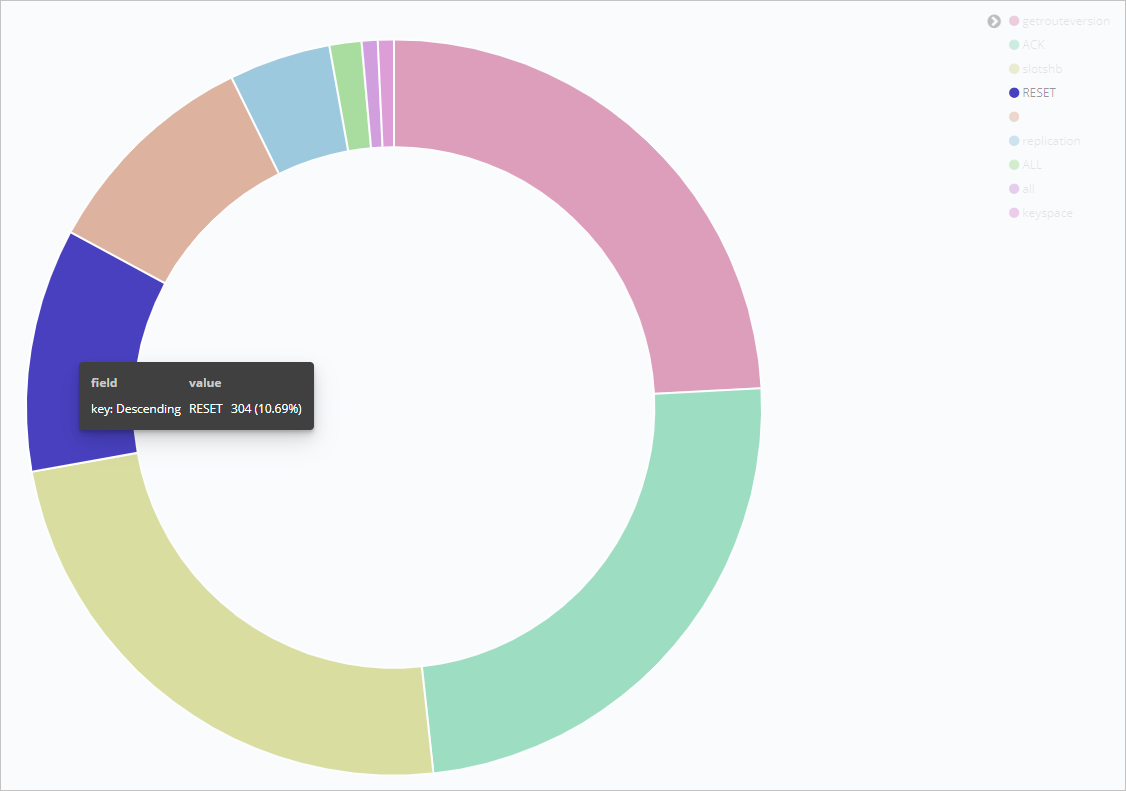 Note
NoteFor more information about the usage notes of the Kibana console, see Kibana User Guide.
-