StarRocks supports multiple data models for various business scenarios, and all data must be organized according to a specific model. Learn the basic concepts, principles, system configurations, use cases, best practices, and FAQ for different import methods.
Background information
Data import cleans, transforms, and loads raw data into StarRocks based on a specific data model for querying. StarRocks provides multiple import methods that you can choose from based on data volume, import frequency, and other business requirements.
The following figure shows the relationship between StarRocks import methods and various data sources.
Select an import method based on your data source.
-
Import offline data: If your data source is Hive or Hadoop Distributed File System (HDFS), use the Broker Load method. To import a large number of tables without data migration, you can use Hive external tables, though they deliver lower performance than Broker Load.
-
Import real-time data: After you synchronize log data and binary database logs to Kafka, use the Routine Load method to import the data to StarRocks.Routine Load If multi-table joins and extract, transform, and load (ETL) operations are required, use a Flink Connector to process data first, then write the results to StarRocks by using Stream Load.
-
Import data from programs: Use the Stream Load method. See the sample Java or Python code in the Stream Load topic.
-
Import text files: Use the Stream Load method.
-
Import data from MySQL: Use MySQL external tables and execute the
insert into new_table select * from external_tablestatement. -
Import data within StarRocks: Use the INSERT method together with an external scheduler for simple ETL processing.
The images and some content in this topic are from the Overview of data loading documentation for open source StarRocks.
Precautions
When you import data into StarRocks, you typically use a program to establish a connection. Note the following:
-
Choose a suitable import method: Select an import method based on the data volume, import frequency, and data source location.
For example, if the source data is on HDFS, you can use Broker Load.
-
Determine the protocol for the import method: If you choose Broker Load, the external system must be able to use the MySQL protocol to periodically submit and check import jobs.
-
Determine the type of import method: Import methods are either synchronous or asynchronous. For an asynchronous import method, after you submit the import job, you must run a command to view the job status. The result of this command indicates whether the import was successful.
-
Create a label generation policy: The policy must ensure that each label is unique and fixed for each batch of data.
-
Ensure Exactly-Once semantics: The external system must ensure At-Least-Once data import. The StarRocks label mechanism ensures At-Most-Once data import. Together, these two mechanisms guarantee Exactly-Once semantics for the entire data import process.
Terms
|
Term |
Description |
|
import job |
An import job reads data from a specified data source, cleanses and converts the data, and imports it into StarRocks for querying. |
|
Label |
A label identifies an import job. Each import job has a unique label within a database. You can specify a label or use a system-generated one. Each label can be used for only one import job. After a job completes successfully, its label cannot be reused. Only labels of failed jobs can be reused. This mechanism ensures at-most-once semantics for data associated with a specific label. |
|
atomicity |
All StarRocks import methods guarantee atomicity: either all qualified data within a job is imported, or none of it is. Qualified data excludes rows filtered out due to quality issues such as data type conversion errors. |
|
MySQL and HTTP protocols |
StarRocks supports submitting import jobs over the MySQL and HTTP protocols. |
|
Broker Load |
An import method that uses deployed brokers to read data from external sources such as HDFS and import it into StarRocks. The broker process uses computing resources to preprocess and import data. |
|
FE |
A frontend (FE) node manages metadata and scheduling in StarRocks. During data import, it generates execution plans and schedules import jobs. |
|
BE |
A backend (BE) node handles compute and storage in StarRocks. It performs ETL operations on data and stores the results. |
|
Tablet |
A tablet is a logical shard of a StarRocks table. Tables can be divided into multiple tablets based on partitioning and bucketing rules. For more information, see Apache StarRocks. |
Basic principles
The following figure shows the workflow of an import job.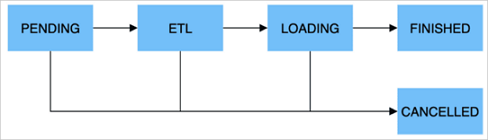
The following table describes the stages of an import job.
|
Stage |
Description |
|
PENDING |
Optional. The job is submitted and waits to be scheduled by an FE node. |
|
ETL |
Optional. Data is preprocessed, including cleansing, partitioning, sorting, and aggregation. |
|
LOADING |
Data is cleansed, converted, and sent to BE nodes for processing. After all data is imported, it enters a queue and waits to take effect. The job status remains LOADING during this time. |
|
FINISHED |
After the data takes effect, the job status changes to FINISHED and the data becomes queryable. FINISHED is a final status. |
|
CANCELLED |
You can cancel a job at any time before it enters the FINISHED state. StarRocks can also cancel a job automatically when import errors occur. CANCELLED is also a final status. |
The following table describes the supported data types.
|
Data type |
Description |
|
Integer |
TINYINT, SMALLINT, INT, BIGINT, and LARGEINT. Example: 1, 1000, and 1234. |
|
Floating point |
FLOAT, DOUBLE, and DECIMAL. Example: 1.1, 0.23, and 0.356. |
|
Date |
DATE and DATETIME. Example: 2017-10-03 and 2017-06-13 12:34:03. |
|
String |
CHAR and VARCHAR. Example: "I am a student" and "a". |
Import methods
StarRocks provides multiple import methods for different data sources such as HDFS, Kafka, and on-premises files. Both synchronous and asynchronous modes are supported.
All import methods support the CSV data format. Broker Load also supports the Parquet and ORC data formats.
Data import methods
|
Import method |
Description |
Import mode |
|
Broker Load |
Uses the broker process to read data from external sources and creates a job to import data into StarRocks over the MySQL protocol. The job runs asynchronously. Run the Suitable when data resides in a broker-accessible system such as HDFS and ranges from tens to hundreds of gigabytes. |
Asynchronous mode |
|
Stream Load |
Imports data into StarRocks synchronously. You send an HTTP request to import an on-premises file or data stream and wait for the result, which indicates whether the import succeeded. Suitable for importing on-premises files or streaming data from a program. For more information, see Stream Load. |
Synchronous mode |
|
Routine Load |
Automatically imports data from a specified data source. You submit a routine import job over the MySQL protocol, and a resident thread continuously reads data from a source such as Kafka and imports it into StarRocks. For more information, see Routine Load. |
Asynchronous mode |
|
Insert Into |
Works like the MySQL INSERT statement. You can execute |
Synchronous mode |
Import modes
If you import data from external programs, select an import method before determining the import logic.
-
Synchronous import
In a synchronous import, StarRocks executes the task immediately and returns the result, which indicates whether the import succeeded.
Procedure:
-
The user (external system) creates an import task.
-
StarRocks returns the import result.
-
The user (external system) checks the import result. If the import fails, the user can create the import task again.
-
-
Asynchronous import
In an asynchronous import, StarRocks returns a creation-success message immediately, but the data is not yet imported. You must poll the job status by running a command. If task creation fails, you can retry based on the failure information.
Procedure:
-
The user (external system) creates an import task.
-
StarRocks returns the result of the task creation.
-
The user (external system) checks the task creation result. If the task is created successfully, proceed to step 4. Otherwise, return to step 1 and try to create the import task again.
-
The user (external system) polls the task status until it is FINISHED or CANCELLED.
-
Scenario
|
Scenario |
Description |
|
Import data from HDFS |
To import tens to hundreds of gigabytes of data from HDFS, use Broker Load. The HDFS data source must be accessible to the deployed broker process. The job runs asynchronously. Run the |
|
Import on-premises files |
To quickly import an on-premises file smaller than 10 GB, use Stream Load. Create an import job over the HTTP protocol. The job runs synchronously and returns the result directly. |
|
Import data from Kafka |
To import data from a streaming source such as Kafka in real time, use Routine Load. Create a routine import job over the MySQL protocol so that StarRocks continuously reads and imports data from Kafka. |
|
Import data by using INSERT INTO statements |
Use INSERT INTO statements to write data to a StarRocks table for testing or processing temporary data. INSERT INTO tbl SELECT ...; reads data from one StarRocks table and imports it into another. |
Memory limits
You can configure parameters to limit memory usage per import job, preventing excessive memory consumption that leads to out of memory (OOM) errors. Memory limit configurations vary by import method. For details, see the topic for each import method.
In most cases, an import job runs on multiple BE nodes. You can limit memory usage per BE node and specify the maximum total memory for import jobs on each BE node. For more information, see the General system configurations topic in this topic.
A memory limit that is too small may degrade import efficiency because data is frequently flushed to disk. A limit that is too large may cause OOM errors under high concurrency. Configure memory parameters based on your workload.
General system configurations
FE node configurations
The following table describes the system parameters of FE nodes. You can modify the parameters in the fe.conf configuration file.
|
Parameter |
Description |
|
max_load_timeout_second |
The maximum and minimum timeout period for an import job, in seconds. The default maximum timeout is 3 days, and the default minimum is 1 second. The custom timeout you set for an import job cannot exceed this range. This parameter applies to all types of import tasks. |
|
min_load_timeout_second |
|
|
desired_max_waiting_jobs |
The maximum number of import tasks that the waiting queue can hold. The default value is 100. For example, if the number of import tasks in the PENDING state (waiting for execution) on the FE reaches this value, new import requests are rejected. This configuration applies only to asynchronously executed imports. If the number of waiting asynchronous import tasks reaches the limit, subsequent requests to create import jobs are rejected. |
|
max_running_txn_num_per_db |
The maximum number of running import tasks in each database. This is counted across all import types. The default value is 100. When the number of running import tasks in a database exceeds the maximum value, subsequent import tasks are not executed. For synchronous jobs, the job is rejected. For asynchronous jobs, the job waits in the queue. |
|
label_keep_max_second |
The retention period for import task records. Records of completed (FINISHED or CANCELLED) import tasks are kept in the StarRocks system for a period of time determined by this parameter. The default value is 3 days. This parameter applies to all types of import tasks. |
BE node configurations
The following table describes the system parameters of BE nodes. You can modify the parameters in the be.conf configuration file.
|
Parameter |
Description |
|
push_write_mbytes_per_sec |
The write speed limit for a single tablet on a BE. The default value is 10, which means 10 MB/s. The maximum write speed for a single tablet on a BE is typically between 10 MB/s and 30 MB/s, depending on the schema and system. You can adjust this parameter to control the import speed. |
|
write_buffer_size |
During data import, data is first written to a memory block on the BE. When this memory block reaches a threshold, it is written to disk. The default value is 100 MB. A small threshold can cause many small files on the BE. You can increase this threshold to reduce the number of files. However, a large threshold can cause RPC timeouts. For more information, see the tablet_writer_rpc_timeout_sec parameter. |
|
tablet_writer_rpc_timeout_sec |
The RPC timeout for sending a batch (1024 rows) during the import process. The default is 600 seconds. This RPC may involve writing multiple tablet memory blocks to disk. Therefore, an RPC timeout can occur due to disk writing. You can adjust the timeout to reduce timeout errors, such as send batch fail. Also, if you increase the write_buffer_size parameter, you should also increase the tablet_writer_rpc_timeout_sec parameter. |
|
streaming_load_rpc_max_alive_time_sec |
During the import process, StarRocks starts a writer for each tablet to receive and write data. This parameter specifies the writer's wait timeout. The default is 600 seconds. If the writer does not receive any data within the specified time, it is automatically destroyed. When the system processing speed is slow, the writer may not receive the next batch of data for a long time, causing an import error: |
|
load_process_max_memory_limit_percent |
These parameters specify the maximum memory and maximum memory percentage, respectively. They limit the total memory that can be used for import tasks on a single BE. The system uses the smaller of the two values as the final memory limit for import tasks on the BE.
|
|
load_process_max_memory_limit_bytes |