DTS synchronizes incremental data from a PolarDB for Oracle cluster to a self-managed Kafka cluster, enabling log collection, monitoring aggregation, stream processing, and analytics.
Prerequisites
-
The source PolarDB for PostgreSQL (Compatible with Oracle) cluster must run the latest version. For more information about how to update a cluster, see Version management.
-
Tables to be synchronized in the source PolarDB for PostgreSQL (Compatible with Oracle) cluster must have a primary key or a non-null unique index.
-
In the source PolarDB for PostgreSQL (Compatible with Oracle) cluster, the wal_level parameter is set to logical. This setting adds the necessary information to the write-ahead logging (WAL) to support logical decoding. For more information, see Configure cluster parameters.
Usage notes
-
Only incremental synchronization is supported. Schema and full data synchronization are not supported.
-
Each task supports one database. To synchronize multiple databases, create a separate task for each.
-
DTS creates a heartbeat table named
dts_postgres_heartbeatin the source instance for latency measurements. The following figure shows the table schema.
-
Long-running transactions on the source instance can cause WAL accumulation during incremental synchronization, potentially exhausting disk space.
Billing
Synchronization type | Pricing |
Schema synchronization and full data synchronization | Free of charge. |
Incremental data synchronization | Charged. For more information, see Billing overview. |
Procedure
-
Purchase a data synchronization task. Purchase process.
NoteWhen you purchase the task, set Source Instance to PolarDB for Oracle, Destination Instance to Kafka, and Synchronization Topology to One-way Synchronization.
-
Log on to the DTS console.
NoteIf you are automatically redirected to the Data Management (DMS) console, you can click the
 icon in the lower-right corner and then click
  to return to the classic DTS console.
 -
In the left-side navigation pane, click Data Synchronization.
-
At the top of the Synchronization Tasks page, select the region where your destination instance is located.
-
Find the data synchronization task that you purchased and click Configure Task.
-
Configure the source and destination instances.
Section
Parameter
Description
N/A
Task name
DTS generates a default name. Specify a descriptive name for easier identification. The name does not need to be unique.
Source Instance
Instance type
Fixed as PolarDB Instance.
Instance region
The region selected when purchasing the instance. Cannot be changed.
PolarDB instance ID
Select the source PolarDB for Oracle cluster.
Database name
Enter the name of the database to synchronize.
Database account
Enter a privileged account of the source PolarDB for Oracle cluster. Create a database account.
Database password
Enter the database account password.
Destination Instance
Instance type
Select based on your Kafka deployment. This example uses self-managed database on an ECS instance.
NoteDifferent instance types require additional preparation. Preparation overview.
Instance region
The region selected when purchasing the instance. Cannot be changed.
ECS instance ID
Select the ECS instance where the Kafka cluster is deployed.
Instance type
Select Kafka.
Port
Client connection port of the Kafka cluster. Default: 9092.
Database account
Kafka cluster username. Leave blank if no authentication is required.
Database password
Account password. Leave blank if no authentication is required.
Topic
Click Get Topic List and select a topic.
Kafka version
Select your Kafka cluster version.
Connection method
Select Non-encrypted or SCRAM-SHA-256 based on your security requirements.
-
In the lower-right corner of the page, click Set Whitelist and Next.
If the source or destination database is an Alibaba Cloud database instance, such as an ApsaraDB RDS for MySQL or ApsaraDB for MongoDB instance, DTS automatically adds the CIDR blocks of DTS servers to the IP address whitelist of the instance. If the source or destination database is a self-managed database hosted on an Elastic Compute Service (ECS) instance, DTS automatically adds the CIDR blocks of DTS servers to the security group rules of the ECS instance, and you must make sure that the ECS instance can access the database. If the self-managed database is hosted on multiple ECS instances, you must manually add the CIDR blocks of DTS servers to the security group rules of each ECS instance. If the source or destination database is a self-managed database that is deployed in a data center or provided by a third-party cloud service provider, you must manually add the CIDR blocks of DTS servers to the IP address whitelist of the database to allow DTS to access the database. For more information, see Whitelist DTS server IP addresses.
WarningAdding the public IP address blocks of the DTS service, either automatically or manually, may pose security risks. Using this product, you acknowledge that you understand and accept the potential security risks and that you must implement basic security measures. These measures include, but are not limited to, strengthening password security, limiting the ports open to each CIDR block, using authentication for internal API calls, and regularly checking and restricting unnecessary CIDR blocks. Alternatively, you can connect through a private network using a leased line, VPN Gateway, or Smart Access Gateway.
-
Configure synchronization objects.
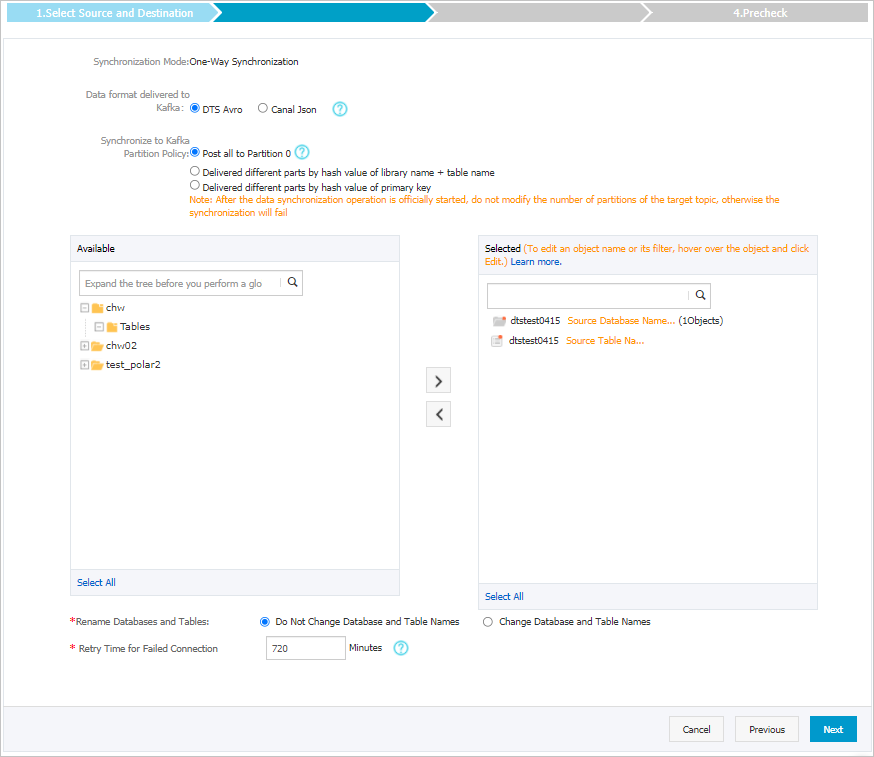
Parameter
Description
Synchronization objects
In the Source Objects section, select tables to synchronize, then click
 to move them to the Selected Objects section. Note
DTS maps table names to the topic selected in Step 6. To remap a table to a different topic, hover over the table name and click Edit. The target topic must already exist in the Kafka cluster. Set object names in the destination instance.
Data format delivered to Kafka
Delivered in Avro or SharePlex JSON format. Data formats in a message queue.
Policy for shipping data to Kafka partitions
Select a partition policy. Kafka partition synchronization strategy.
Object name mapping
Change the names of synchronized objects in the destination instance. For more information, see Map databases, tables, and columns.
Retry time for failed connections
If DTS cannot connect to the source or destination instance, it retries for 720 minutes (12 hours) by default. You can also specify a custom retry duration. If DTS reconnects to the source or destination instance within the specified duration, the synchronization task automatically resumes. Otherwise, the task fails.
NoteYou are billed for task run time during connection retries. Customize the retry duration based on your business needs, or release the DTS instance as soon as the source and destination instances are released.
-
After you complete the preceding configurations, click Next in the lower-right corner of the page.
-
Configure the synchronization initialization and filter options.

Parameter
Description
Synchronization initialization
Incremental Data Synchronization is selected by default. DTS synchronizes incremental data in real time.
Filter options
Ignore DDL in the incremental synchronization phase is selected by default. DDL operations from the source are not synchronized.
NoteDDL operations are not supported in this scenario regardless of this setting.
-
After completing the preceding configurations, click Precheck and Start in the lower-right corner of the page.
Note-
A precheck runs before the synchronization task starts, and you can only start the task after it passes.
-
If the precheck fails, click the
 icon next to the failed item to view the details.
-
You can fix the issues based on the cause and run the precheck again.
-
If you do not need to fix the items that triggered warnings, you can click Ignore or Ignore Warnings and Rerun Precheck to skip the warnings and run the precheck again.
-
-
-
After the Precheck dialog box displays Precheck Passed, close the Precheck dialog box. The synchronization task starts automatically.
-
Wait for the task to finish initialization and enter the Synchronizing state.
You can view the status of the data synchronization task on the Data Synchronization page.