A dedicated Express Connect circuit provides an exclusive, secure, and high-performance link between your on-premises data center and Alibaba Cloud. The end-to-end provisioning process typically takes one to three months, so plan your budget and connectivity strategy well in advance.
Connection workflow
Setting up a dedicated physical connection requires coordination among you(the customer), Alibaba Cloud, your circuit provider, and the data center operator. The following diagram shows the overall workflow:

After you Apply for a physical port you can track each step's status in the Construction Procedure column of the target physical port on the Express Connect console.
Step 1: Choose an access point
An access point is a physical location where Alibaba Cloud provides dedicated connection services. Each access point has redundant access devices that allow you to connect your on-premises data center to the Alibaba Cloud network over a physical connection. Each region has one or more access points. For the full list, see Access point addresses。
Factor | Description |
Proximity | Choose the access point closest to your data center to minimize latency. Each access point supports different providers and bandwidth capacities depending on the region. |
Internet Service Provider (ISP) | Select an access point that supports your provider. Supported providers include China Unicom, China Telecom, China Mobile, and select local providers. China Unicom, China Telecom, and China Mobile require connections over their own circuits. Cross-provider connections and dark fiber are not supported. |
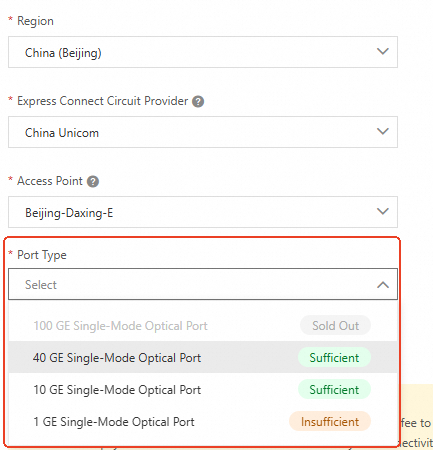
Port requirements | Only fiber-optic ports are supported. Available port types: 100 GE Single-Mode Optical Port, 40GE single-mode optical port, 10GE single-mode optical port, GE single-mode optical port.
You can check port availability in the next step when you Apply for a physical port. For example, in Classic mode, after you select a Region, ISP and Access Point, the console displays port availability for each port type.
For connections above 10 Gbps, contact your account manager. |
Step 2: Apply for a physical port
A physical port is a network interface that Alibaba Cloud provisions at the access point facility. After the provider lays the dedicated circuit to the Alibaba Cloud facility, a patch cable connects it to this port, completing the physical link. If this is your first application, you must activate outbound data transfer billing as prompted in the console.
The following application modes are available:
High Reliability Mode
High-reliability mode provides automatic failover through redundant links. Refer to the Express Connect Service Level Agreement for SLA details.
CloudBox scenarios do not support high-reliability mode.
Go to the Physical Connection page in the Express Connect console. Click Create Physical Connection and set Select Access Point Mode to High Reliability Mode. Select a Combination Type:
Topology Type
Description
Diagram
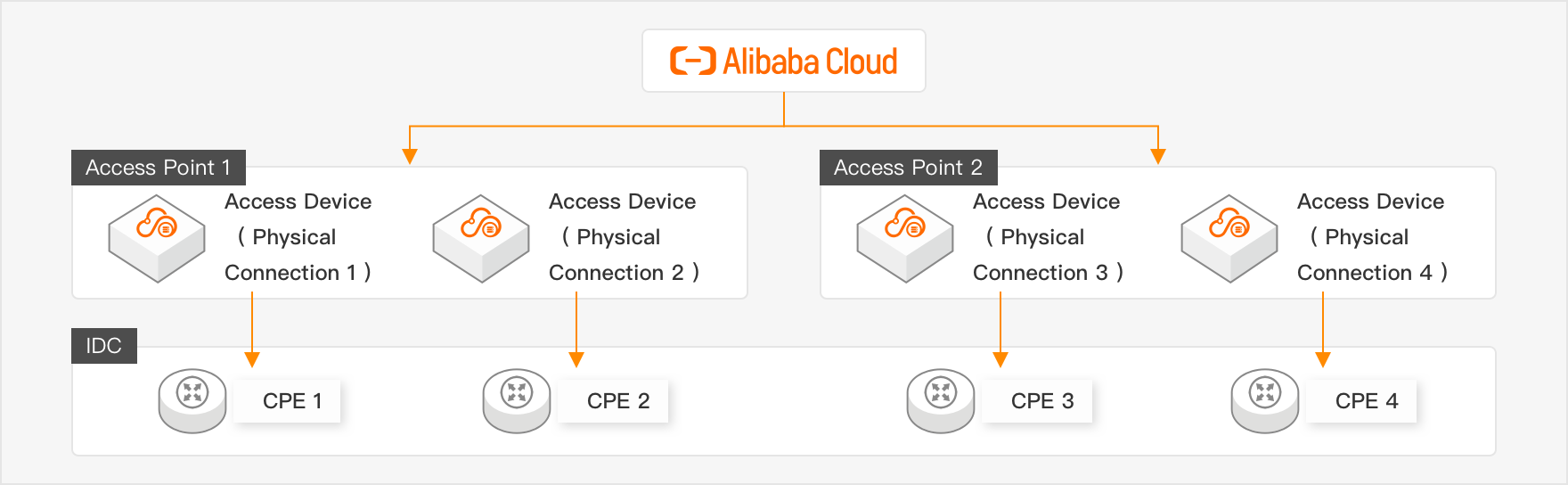
Optimal Disaster Recovery
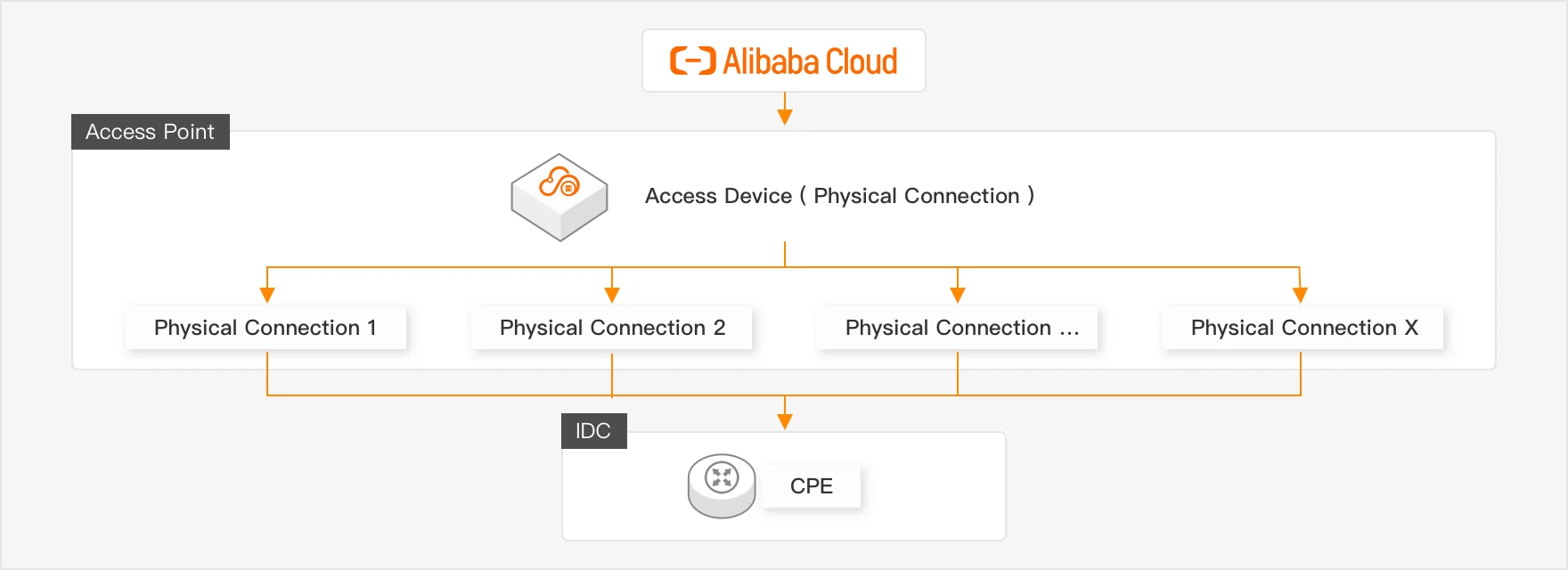
Four physical connections across two access points, with two connections per access point. Provides the highest level of protection against single-device and single-site failures.
Powerful Disaster Recovery
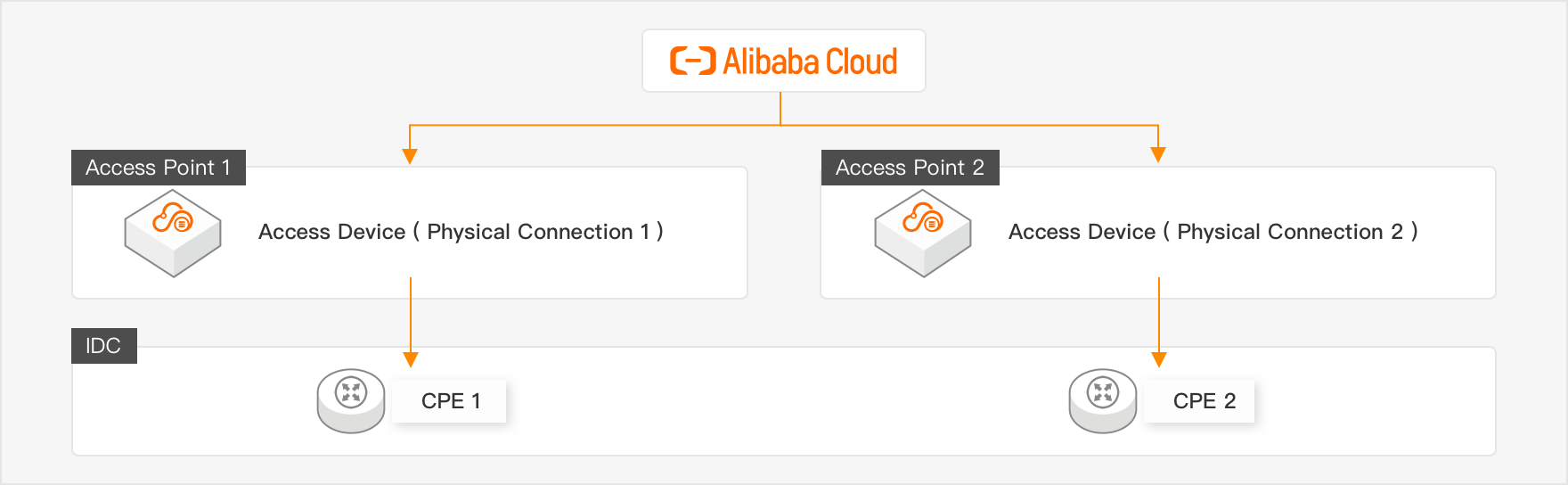
Two physical connections across two access points, one connection per access point. Provides strong protection against single-device and single-site failures.
Development and Testing
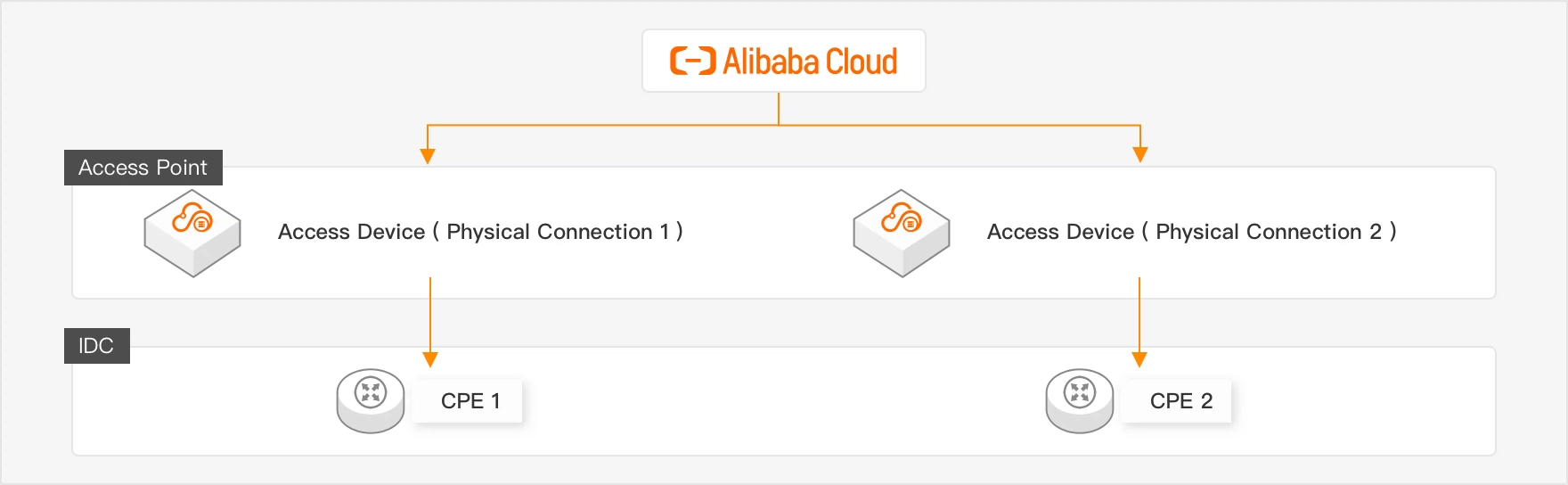
Two physical connections to a single access point. Provides device-level failover but no site-level redundancy.
Load Balancing for Large Bandwidth
Multiple physical connections to a single access point, load-balanced to increase aggregate throughput.
Contact your account manager to request access for Load Balancing for Large Bandwidth.
 Important
Each access point allows up to 2 physical connections by default (quota: ec_quota_pconn_count_per_ap). You can request a quota increase.
If you purchase multiple ports in a single order and any port fails to create, the entire order fails.
Configure Connection:
Port Type: Select your target type, supporting 100 GE Single-Mode Optical Port, 40GE single-mode optical port, 10GE single-mode optical port, GE single-mode optical port.
Advanced Configurations: Optional capabilities including VBR Bandwidth Limits、IPv6、BFD、MPBGP、MPBGP、QOS、VBR-HA、Failover Group. Port creation fails if the selected access point does not have ports that support the chosen advanced capabilities.
Select Access Point:Choose your target Region, ISP and Access Point. For the full list, see Access point addresses.
Review Configuration: Verify the configuration, select I have read and understand the billing rules, and click Submit.
Classic Mode
Select access point resources for the circuit from a drop-down list. This mode is for users with specific access point requirements.
Log on to the Express Connect console. Click Create Physical Connection and select Classic Mode to apply for a port.
Configuration
Description
Region
The region where your Alibaba Cloud resources are located.
Express Connect Circuit Provider
The ISP that provides the Express Connect circuit. The available access points vary based on the ISP.
NoteIf you select China Unicom, China Telecom, or China Mobile, you can use only circuits from the selected ISP. Circuits from other ISPs are not allowed. Bare optical fibers are not supported.
Access Point
Select the access point closest to your on-premises data center. For more information about how to select the nearest access point, see Alibaba Cloud access points.
CloudBox Device Cluster Name
Select a CloudBox device cluster. To purchase a dedicated connection port for CloudBox, contact your account manager to request permissions.
Port Type
You can select 100GE single-mode optical port, 40GE single-mode optical port, GE single-mode optical port, or 10GE single-mode optical port.
Alibaba Cloud-side port:
By default, Alibaba Cloud provides single-mode optical transceivers for 1 Gbps, 10 Gbps, 40 Gbps, and 100 Gbps ports. These transceivers support a transmission distance of 10 km.
Only dual-fiber connections are supported.
Customer-side port requirements: You must purchase your own optical transceivers. Ensure that their specifications match those of the Alibaba Cloud-side optical transceivers.
Advanced Configuration
Click Advanced Configuration. You can select VBR Bandwidth Limits, IPv6, BFD, MPBGP, MPBGP-v6, QOS, and VBR-HA.
If the backend resources do not have ports with the advanced capabilities that you select, the creation fails.
Resource Group
Resource group: Select an existing resource group to manage physical ports by group.
Tag Key
Tag key and value: Select existing tag keys and tag values, or enter new tag keys and tag values. You can bind specific tags to physical port instances for categorized management.
Tag Value
Select the billing rule and click OK.
NoteAfter the Express Connect circuit is installed and payment is complete, the Port Status of the dedicated connection port changes to Up. Before payment, the Port Status is Down.
Recommend Mode
Based on the zone where your cloud resources are located, this mode recommends the access point with the lowest latency to that zone.
Latency data is for reference only. Always validate with your own benchmarks.
You can log on to the Express Connect console, click Request Physical Port, and select Recommended Mode.
NoteThe latency data is for reference only. The actual latency may vary. We recommend that you perform your own tests.
Configuration
Description
Access point selection method
Select an access point in one of the following ways.
System Recommended: The system calculates the latency from each access point to the specified zone in the selected region. By default, the system recommends the access point with the lowest latency.
Manual Selection: After you select a region for the access point, the system calculates the average latency from each access point to each zone in that region. The results are displayed on a visualization dashboard.
Region of cloud resources
Select the region where your Alibaba Cloud resources are located.
NoteThis parameter takes effect only when you set Access point selection method to System Recommended.
Zone of cloud resources
Select the zone where your Alibaba Cloud resources are located.
NoteThis parameter takes effect only when you set Access point selection method to System Recommended.
Select access point
The system calculates the latency from each access point to the specified zone in the selected region. The access points are sorted by latency in ascending order. By default, the access point with the lowest latency is selected. You can select an access point that meets your latency requirements.
NoteThis parameter takes effect only when you set Access point selection method to System Recommended.
In the Trend column of the access point latency list, click the icon to view historical latency data for a specified or custom time range.
Latency dashboard
After you select a region for the access point, the system calculates the average latency from each access point to each zone in that region.
In the right-side pane, you can turn on Show Latency, click to select a suitable access point, and view the Information about the selected access point.
NoteThis parameter takes effect only when you set Access point selection method to Manual Selection.
In the Trend column of the access point latency list, click the icon to view historical latency data for a specified or custom time range.
Port type
You can select 100GE single-mode optical port, 40GE single-mode optical port, GE single-mode optical port, or 10GE single-mode optical port.
Alibaba Cloud-side port requirements:
By default, Alibaba Cloud provides 1 Gbps, 10 Gbps, 40 Gbps, and 100 Gbps single-mode optical transceiver modules with a transmission distance of 10 kilometers.
Only dual-core connections are supported.
Customer-side port requirements: Purchase your own optical transceiver modules. Ensure that the specifications match those of the Alibaba Cloud-side modules.
Advanced Configuration
Click Advanced Configuration. You can select VBR Bandwidth Limits, IPv6, BFD, MPBGP, MPBGP-v6, QOS, and VBR-HA.
If the backend resources do not have ports with the advanced capabilities that you select, the creation fails.
Resource group
Resource group: Select an existing resource group to manage physical ports by group.
Tag key
Tag key and value: Select existing tag keys and tag values, or enter new tag keys and tag values. You can bind specific tags to physical port instances for categorized management.
Tag value
Select the billing rule and click OK.
After the Express Connect circuit is installed and payment is complete, the Port Status of the port changes to UP. Before payment, the Port Status is Down.
Step 3: Apply for and download the LOA
A Letter of Authorization (LOA) grants construction personnel access to the Alibaba Cloud colocation facility for circuit installation. Workers must present the LOA to enter the facility. After each physical port is created, you must apply for an LOA for that port.
Apply for the LOA: After you submit the LOA application, Alibaba Cloud reviews it within 2 business days. Once approved, Alibaba Cloud installs and racks the optical module, preparing for on-site construction.
NoteIf circuit adjustments or other changes require re-entry into the facility, you can submit a second LOA application.
LOA processing, facility access, and construction timelines may be affected by holidays and network freeze policies.
On the Physical Connection page, find the port and click Apply for LOA.
In the Apply For LOA panel, enter the following information and click OK.
Parameter
Description
Company Name
For a corporate account, enter the company name specified when the Alibaba Cloud account was created.
For an individual account, enter the name of the Alibaba Cloud account owner.
Construction Company That Enters Data Centers of Alibaba Cloud
The name of the construction company, typically the connectivity provider or IDC operator.
Leased Line Type
You can select MSTP, MPLSVPN, Fiber Connection, or Others.
Construction Schedule
The time when the construction company will enter the data center.
Customer Data Center Location
The location of the data center.
Leased Line Bandwidth
Enter the bandwidth value specified in your Express Connect circuit contract.
NoteThe bandwidth value here is only used as a reference for Alibaba Cloud service configuration. Your actual fees and bandwidth limit are based on the contract you signed with the carrier. Please fill in the actual contract bandwidth.
Add Field Engineer
Click Add Field Engineer to add information about the personnel who need to enter the Alibaba Cloud data center for construction. You can specify one or more field engineers.
ImportantThe field engineer information is required.
After you apply for an LOA, the LOA Status of the instance becomes LOA Being Applied. After the Alibaba Cloud reviewer approves the application within two business days, the LOA Status changes to LOA Approved.
Receive a text message notification and perform the following steps:
NoteYou can skip this step if your access point is a third-party data center access point, or an access point in China (Hong Kong) or an international data center.
Obtain an entry credential: Click the entry credential link in the text message and log on to the entry application platform. Select the data center information and Confirm Visit, then click Entry Credential to obtain the entry QR code.
Complete your personal information:
Copy the text message link to a computer browser and access the link. Read and agree to the privacy protection statement and the Alibaba Cloud data center entry agreement.
Fill in your personal information and click Submit Information. When the page displays Submitted Successfully, you can close the browser window.
Download the LOA: After approval, download the LOA to get the access point and facility details. Alibaba Cloud determines whether the facility is a third-party site:
Third-party facility: The provider takes the LOA and contacts the on-site engineer to enter the facility for a site survey.
Alibaba Cloud facility: Alibaba Cloud sends an SMS. The provider obtains an access QR code, then scans it to enter the facility for a site survey or construction.
Step 4: Circuit construction
The construction process varies depending on the network topology. Below are two common scenarios. For your specific setup, consult your provider.
On-premises IDC and Alibaba Cloud access point in different facilities

On-premises IDC and Alibaba Cloud access point in the same facility

Construction steps:
Provider site survey: Alibaba Cloud assists site survey personnel in completing the on-site inspection within 2 business days. Contact your provider to confirm end-to-end costs. For pricing details, see Billing overview.
NoteMainland China: The survey team must apply for access to the Alibaba Cloud private cage within the facility.
Outside mainland China: The construction team only needs to request access to the provider's Meet-Me Room from the facility operator. Access to the Alibaba Cloud private cage is not required.
Key items to verify during the site survey:
Equipment specifications
Confirm optical module specifications, including transmission rate, wavelength, and distance.
Determine cable type and connector specifications, including single-mode fiber (SMF), multi-mode fiber (MMF), and connector type (e.g., LC-LC).
Physical cabling plan
Identify the exact rack and position for cable termination.
Confirm cable routing paths.
Verify actual cable distances and related parameters.
Safety requirements: Confirm whether the facility requires anti-static measures such as ESD wrist straps.
Operational procedures: Confirm any facility-specific operational procedures.
On-site installation: Provider construction personnel install the dedicated circuit to the equipment outside the Alibaba Cloud private cage, following the site survey plan.
In-building patch cable procurement: The facility operator procures in-building patch cables. You pay the facility operator for in-building cable rental.
In-building construction at the facility:
In-building construction covers equipment deployment and configuration, fiber laying, cross-connection and optical power testing, network connectivity, bandwidth and SLA testing to ensure reliable operation. This spans the full lifecycle of physical deployment, link validation, compliance management, and operational assurance.
After construction is complete, obtain the circuit test report from the construction team, and get the provider's circuit ID, in-building cable labels, or patch panel port information from the provider.
Report completion: Click Confirm Delivery in the console. An Alibaba Cloud on-site engineer connects the dedicated circuit to the designated physical port in the Alibaba Cloud facility, completing the patch cable installation.
Patch cable installation takes up to 2 business days for facilities in mainland China and up to 3 business days for facilities outside mainland China.
Pay the port reservation fee: After patch cable installation, pay the Port resource usage fee in the Express Connect console. Once the instance status changes to Available, the physical connection is active.
Step 5: Connect to your VPC
After the physical port is activated, create a Virtual Border Router (VBR) based on the physical port, then use Express Connect Router (ECR) and Transit Router (TR) to connect your on-premises IDC to your cloud VPCs. For detailed steps, see Connect a data center to the cloud over active/standby circuits using ECR。

Manage physical connections
Modify the O&M information about an Express Connect circuit
Log on to the Express Connect console and select the region.
In the Actions column, click
 > Line O&M. In the dialog box that appears, modify the following parameters and click OK.
 Parameter
Description
Provider
The name of the ISP.
Leased Line ID/Cable ID
To obtain the ID, contact the ISP or the circuit supplier.
ODF Port Specifications
O&M Contact Information
The contact information of the O&M personnel of the ISP.
Upgrade a physical port
After you upgrade a physical port, the related data is migrated and modified. For example, the VBR that is associated with the original port is deleted. This causes temporary service interruptions. Therefore, we recommend that you back up the data before you upgrade a physical port.
Perform Step 1: Apply for a physical port to apply for a physical port that supports larger bandwidth.
Migrate the existing configurations and connection to the new port.
Create a VBR for the new port, create an ECR, associate the VBR and a VPC with the ECR, and then configure BGP.
Delete a physical port instance
Before you delete a physical port instance, make sure that its associated VBRs and shared ports are deleted.
You can delete a physical port in the following states: Rejected, Port Allocated, Pending Payment, Canceled, Disabled, or Allocation Failed. You can check the status in the Port Status column.
ImportantIf the port instance remains active, you can find the instance and choose
 > Terminate in the Actions column. After a port instance is terminated, you are still charged. For more information, see Port resource occupation fees and Renewal management. If you no longer need a physical port instance, you can unsubscribe from it and release the resources.
 Make sure that the VBRs and shared ports are deleted on the Express Connect circuit.
Log on to the Express Connect console and select the region.
Find the physical port instance and click Delete in the Actions column. In the dialog box that appears, click OK.
Related API operations
CreateHighReliablePhysicalConnection: Creates an Express Connect circuit in high-reliability mode.
CreatePhysicalConnection: Creates a connection over an Express Connect circuit.
ApplyPhysicalConnectionLOA: Applies for an LOA.
CompletePhysicalConnectionLOA: Reports the completion of the Express Connect circuit installation.
CreatePhysicalConnectionOccupancyOrder: Creates an order for a resource usage fee.
ConfirmPhysicalConnection: Confirms that the Express Connect circuit is active.
EnablePhysicalConnection: Enables an Express Connect circuit.
ModifyPhysicalConnectionAttribute: modifies the configurations of a connection over an Express Connect circuit.
DescribePhysicalConnections: queries the connections over Express Connect circuits in a specific region.
CancelPhysicalConnection: cancels a connection over an Express Connect circuit before it is enabled.
TerminatePhysicalConnection: disables a connection over an Express Connect circuit.
DeletePhysicalConnection: deletes a connection over an Express Connect circuit.
FAQ
Cannot connect on-premises IDC to VPC: See Troubleshooting.
Dedicated circuit construction questions: See FAQ about installing an Express Connect circuit.
Dedicated connection questions: See FAQ about Express connection.
Testing connection performance: See Test the performance of an Express Connect circuit.