Serverless PySpark node
DataWorks provides the Serverless PySpark node, which allows you to develop and run distributed PySpark jobs on EMR Serverless Spark without managing cluster infrastructure. This document describes the scope, resource dependency configuration, and guidelines for coding and submission commands for the Serverless PySpark node.
Limitations
Compute resource limitations: Only EMR Serverless Spark compute resources are supported. You must ensure network connectivity between the resource group and the compute resource.
Resource group limitations: This type of job runs only in Serverless resource groups.
Permission requirements: You must be a main account or a RAM user with the Dev or Workspace Administrator role in the workspace. For more information about how to add members, see Add members to a workspace.
Create a node
Log on to the DataWorks console. After you switch to the desired region, click in the left-side navigation pane. Select the target workspace and click Data Analytics.
On the DataStudio page, create a Serverless PySpark node.
Configure the Path and Name for the node. In this example, the node name is serverless_pyspark_test1.
Develop the node
The Serverless PySpark node uses a dual-pane editor:
Upper pane: The Python code editor, where you write your core business logic. You can reference uploaded resource files, such as
.pymodules.The lower pane is the command editing area where you can submit spark-submit commands to EMR Serverless Spark.
This design is highly optimized for EMR Serverless Spark scenarios. The system automatically parses code dependencies, injects resources, and uses the built-in spark-submit tool to submit jobs to the Serverless Spark runtime environment with a single click. For more information about spark-submit 's parameter specifications, common options, and best practices, see Submit jobs by using spark-submit.
The following example uses the Monte Carlo method to demonstrate how to estimate the value of Pi (π) in a distributed manner on a Serverless PySpark node.
Step 1: Upload resources
Upload your custom Python file (in this example, utils.py) to the Resource Management module in DataWorks. After you upload the file, you can reference this resource in your node. This Python file defines the core logic of the Monte Carlo sampling simulation within a single Spark task.
For detailed instructions on uploading resources, see EMR resources and functions. On the Resource Management page in DataStudio, click Create Resource, select
EMR Fileas the resource type, and configure the resource Name.Click Re-Upload to upload the example utils.py file.
Select the Storage path, Connection, and Resource Groups, then click Save.
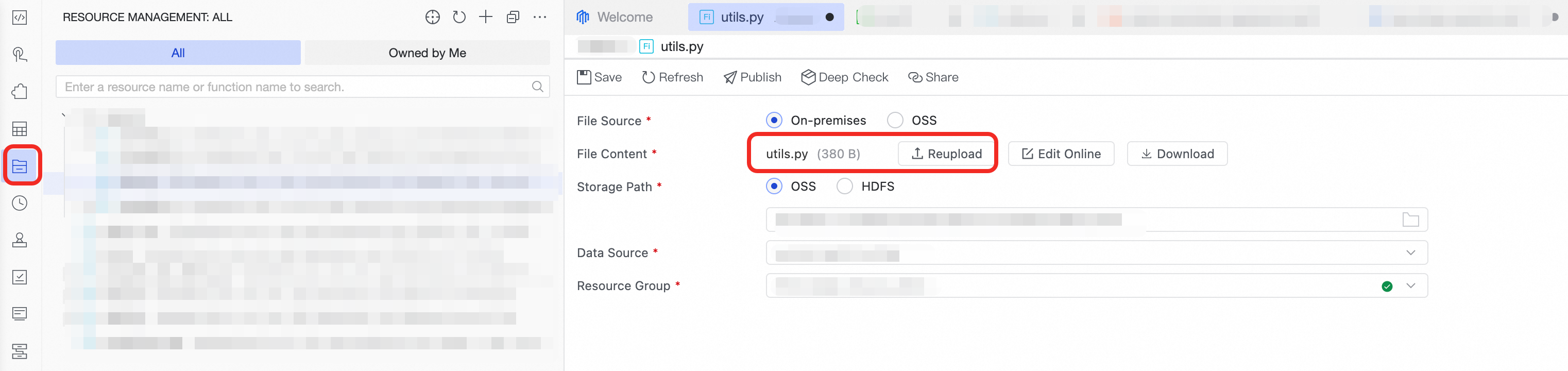
Step 2: Write the Python code
In the Python code editor, write the following code. This Python program estimates the value of π by using parallel computing across the cluster. The program breaks down the total computation into sub-tasks, distributes them to compute nodes, and aggregates the results to produce the final estimation of π.
You cannot currently reference resources directly through the UI. To reference a resource, you must manually add a reference declaration in your Python code: ##@resource_reference{"resource_name"}.
##@resource_reference{"utils.py"}
from pyspark.sql import SparkSession
from utils import estimate_pi_in_task
import sys

def main():
    # Create a SparkSession
    spark = SparkSession.builder.appName("EstimatePi").getOrCreate()

    sc = spark.sparkContext

    # Total number of samples
    total_samples = int(sys.argv[1])
    num_partitions = ${test1}

    # Number of samples per partition
    samples_per_partition = total_samples // num_partitions

    # Create an RDD where each partition executes estimate_pi_in_task
    rdd = sc.parallelize(range(num_partitions), num_partitions)

    # Map each partition to run the sampling task
    inside_counts = rdd.map(lambda _: estimate_pi_in_task(samples_per_partition))

    # Aggregate the results from all partitions
    total_inside = inside_counts.sum()
    pi_estimate = 4.0 * total_inside / total_samples

    print(f"Total samples: {total_samples}")
    print(f"Samples within the circle: {total_inside}")
    print(f"Estimated value of Pi: {pi_estimate:.6f}")

    spark.stop()

if __name__ == "__main__":
main()You can only submit the entire Python file as a single Spark job. Running a selection of code is not supported.
The following table describes the parameters used in the script.
Parameter | Type | Value | Description |
| Command-line argument | The value following the script name in the | Represents the total number of samples, such as |
| Scheduling parameter | DataWorks dynamically replaces this with an actual value at runtime or during scheduling. | Represents the number of partitions, such as |
Step 3: Write the submit command
In the Submit command editor, write the following command. This command uses the spark-submit tool to package and submit the specified Python script to Alibaba Cloud EMR Serverless Spark for execution.
spark-submit \
 --py-files utils.py \
serverless_pyspark_test1.py 10000File name consistency: The main Python script file name in the
spark-submitcommand must match the node's Name and end with the.pyextension. For example, if the node name isserverless_pyspark_test1, the command must useserverless_pyspark_test1.py.Dependency declaration: If you reference an external
.pyfile, you must explicitly declare it using the--py-filesoption.For more information about
spark-submitarguments, common options, and best practices, see Submit a job by using spark-submit.
Run the node
In the Running Configurations pane, configure the Compute Resource and Resource Group.
Parameter
Description
Compute resource
Select a bound EMR Serverless Spark compute resource. If no compute resources are available, you can select Create compute resource from the drop-down list.
Resource group
Select the resource group that is bound to the workspace.
Script parameters
If you defined variables in the node content by using the
${parameter_name}format, you must configure the Script Parameters in the Value Used in This Run section. The system dynamically replaces the variables with these values at runtime.The parameter values are synchronized with those in the scheduling configuration.
NoteThe value for this run is valid only for the current execution. The Value Used in This Run is used with priority. If this value is not specified, the Parameter Value is used.
In the toolbar at the top of the node editor, click Run. The system merges the complete Python script, including resource references, submits it to EMR Serverless Spark by using
spark-submit, and then returns the execution logs and results.NoteAfter the job runs, you can also log on to the EMR Serverless Spark console, navigate to the corresponding Serverless Spark workspace, and view the job's execution status, duration, and resource usage on the Operation and Maintenance Center > History page. You can also view detailed logs in the Spark UI. For more information, see Step 5: View the Spark UI.
Next steps
Configure node scheduling: If you need to run a node periodically, configure its Scheduling Policy in the Scheduling Settings panel on the right.
Publish a node: To run a task in the production environment, click the
 icon to publish the node. A node runs on schedule only after it is published to the production environment.
Task O&M: After a task is published, you can monitor the status of its periodic runs in the Operation Center. For more information, see Get started with Operation Center.