This topic describes how to configure a serverless synchronization task to synchronize all data in a MySQL database to MaxCompute in real time.
Prerequisites
A MySQL data source and a MaxCompute data source are added to DataWorks. For more information, see Data source configuration.
If your ApsaraDB RDS for MySQL instance and MaxCompute project are configured with IP address whitelists, make sure that the required IP addresses are added to the IP address whitelists. If the instance and project are not configured with IP address whitelists, the connectivity test is automatically passed. For information about the IP addresses that need to be added, see Configure network connectivity and IP whitelists.
Limits
Synchronizing source data to MaxCompute external tables is not supported.
Create a serverless synchronization task
A serverless synchronization task is a fully managed data synchronization service that is charged based on the pay-as-you-go billing method. You do not need to manage underlying resource groups or make network configurations. You need to only focus on business logic to implement data synchronization.
Step 1: Create a serverless synchronization task
Go to the Data Integration page.
Log on to the DataWorks console. In the top navigation bar, select the desired region. In the left-side navigation pane, choose . On the page that appears, select the desired workspace from the drop-down list and click Go to Data Integration.
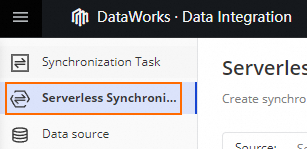
In the left-side navigation pane, click Serverless Synchronization Task.
In the upper part of the Serverless Synchronization Task page, select MySQL from the Source drop-down list and MaxCompute from the Destination drop-down list, and click Create Serverless Synchronization Task.
Step 2: Configure basic information for the serverless synchronization task
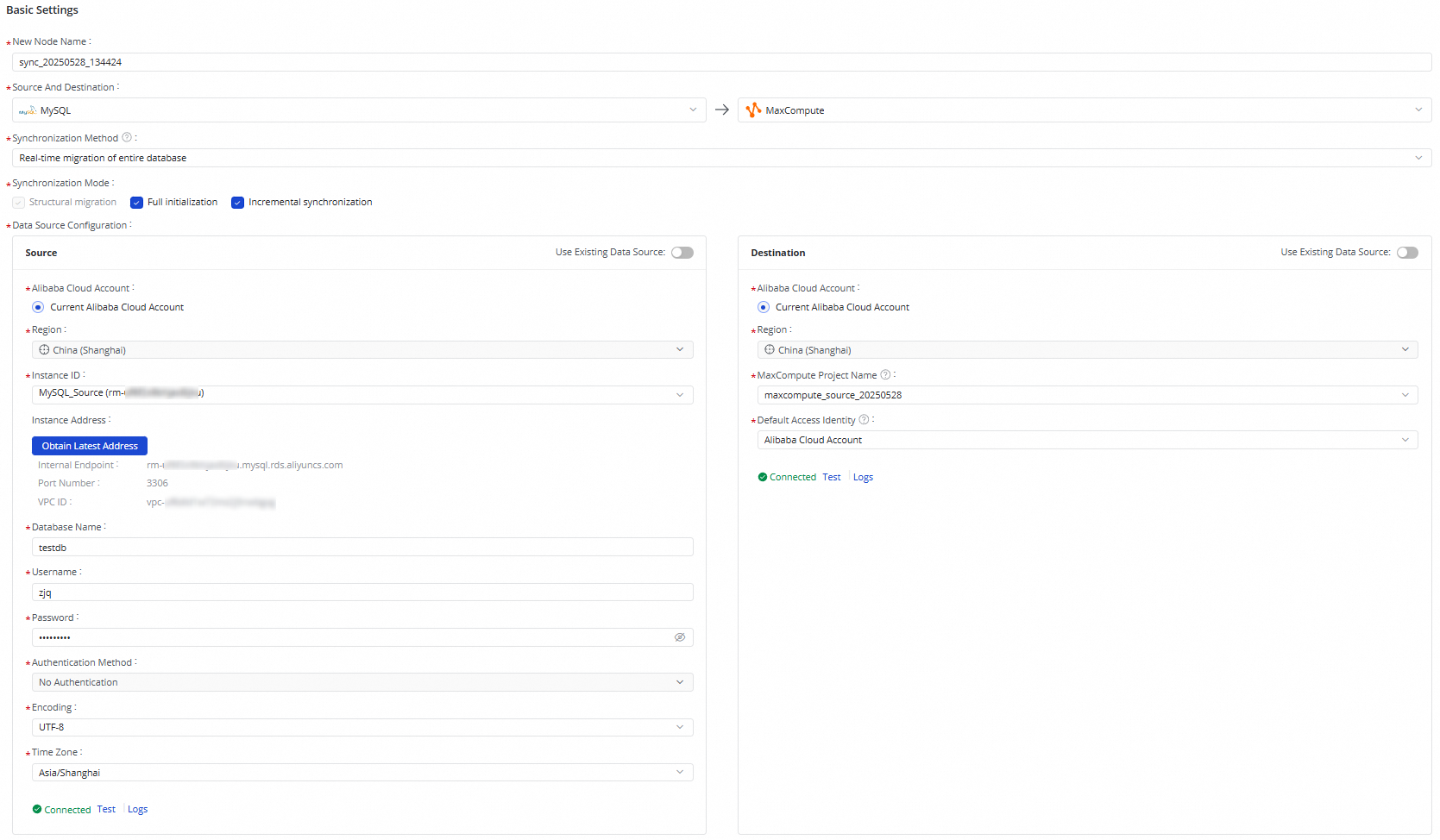
The source and destination that you select do not need to be added in Data Integration or Management Center in advance. You can directly configure information about the source or destination.
If you want to use an existing data source, you can click Use Existing Data Source and select an existing data source. The information about the data source will be automatically retrieved.
After you configure information about the source and destination, click Test. If the ApsaraDB RDS for MySQL instance and the MaxCompute project are not configured with IP address whitelists, the connectivity test is automatically passed. If the instance and the project are configured with IP address whitelists, you must add the required IP addresses to the IP address whitelists. For information about the IP addresses that need to be added, see Configure network connectivity and IP whitelists.
Step 3: Configure detailed information for the serverless synchronization task
1. Select the tables from which you want to synchronize data
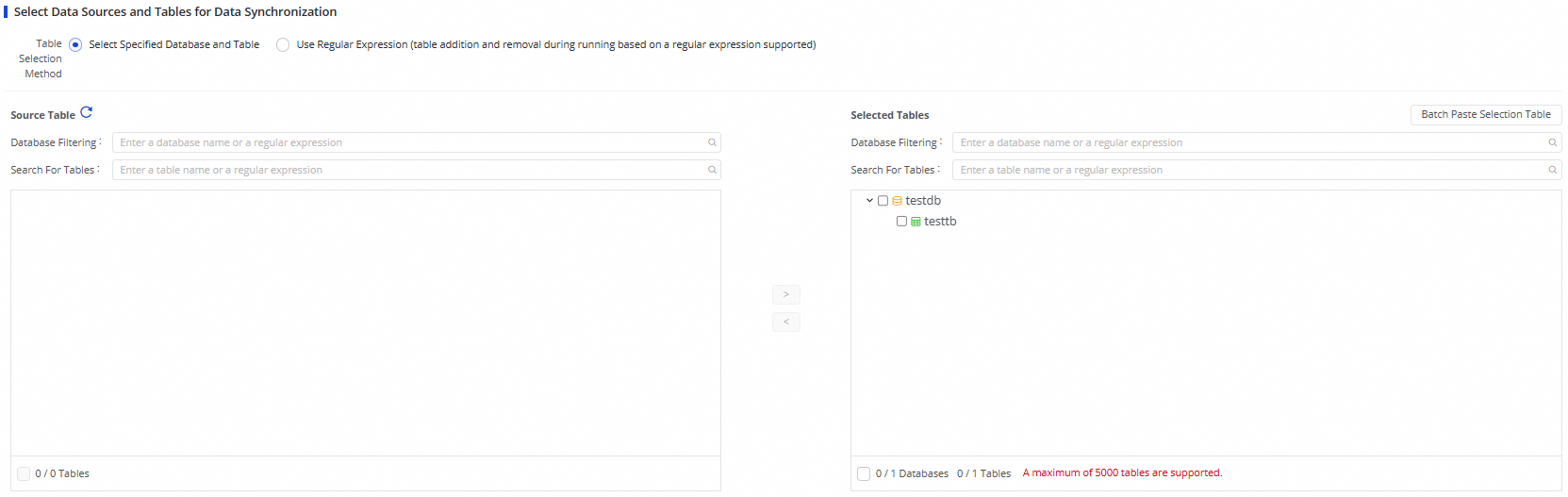
After the source passes the connectivity test, the serverless synchronization task automatically pulls the tables from the source. The current serverless synchronization task supports the following table selection methods: Select Specified Database and Table and Use Regular Expression (table addition and removal during running based on a regular expression supported).
After you select tables from the Source Table list, click the  icon to move them to the Selected Tables list.
2. Configure table mappings
Find a row in which the desired source table is displayed and click Refresh in the Actions column. Then, configure parameters such as Customize Mapping Rules for Destination Table Names and Customize Mapping Rules for Destination Schema Names, and modify mappings between data types of source fields and those of destination fields.

3. Configure alert rules and advanced parameters
Click Configure Alert Rule, Configure Advanced Parameters, or Configure DDL Capability in the upper right corner of the configuration page and configure the parameters as prompted.

Step 4: Complete the configuration
After the preceding configuration is complete, click Complete.
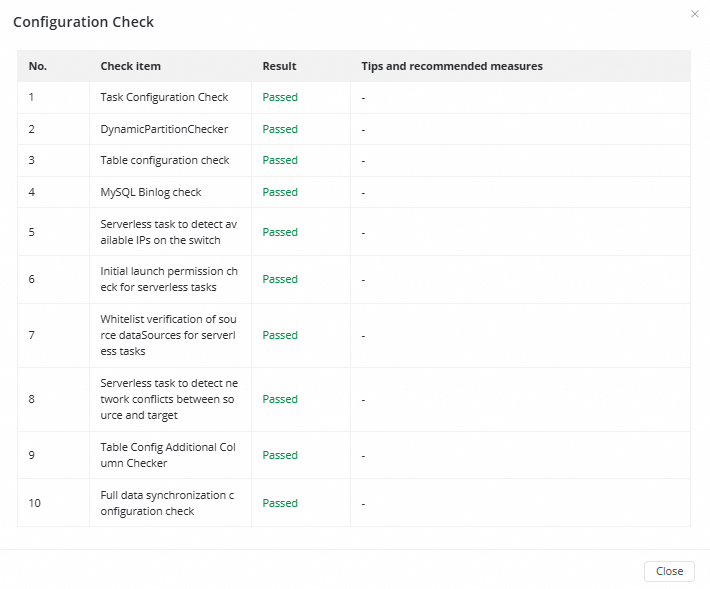
The first time you click Complete, a configuration check will be automatically performed on the serverless synchronization task. Take note that the configuration check does not block the completion of the configuration and is only a precheck.
Start the serverless synchronization task
When you start the serverless synchronization task, another configuration check is triggered. The serverless synchronization task can be successfully started only if it passes the configuration check.
The check items of the configuration check vary based on the synchronization type of the serverless synchronization task.
The first time you start the serverless synchronization task, the system checks whether your account is attached the AliyunBSSOrderAccess and AliyunDataWorksFullAccess policies. The permissions are the same as the permissions that are required to purchase a pay-as-you-go serverless resource group.
In the Tasks section of the Serverless Synchronization Task page, find the created serverless synchronization task, and click Start in the Actions column.

After you start the serverless synchronization task, the task enters the environment preparation stage, which indicates that the backend is preparing dedicated running resources for the task. This stage is estimated to complete within minutes.

After the serverless synchronization task is started, the status of the task changes to Running.

Perform O&M operations on the serverless synchronization task
View the details of the serverless synchronization task
Find the serverless synchronization task in the Tasks section, and click the task name or ID in the Name/ID column or click a stage in the Execution Overview column to go to the task details page. On the task details page, view the following information about the serverless synchronization task.
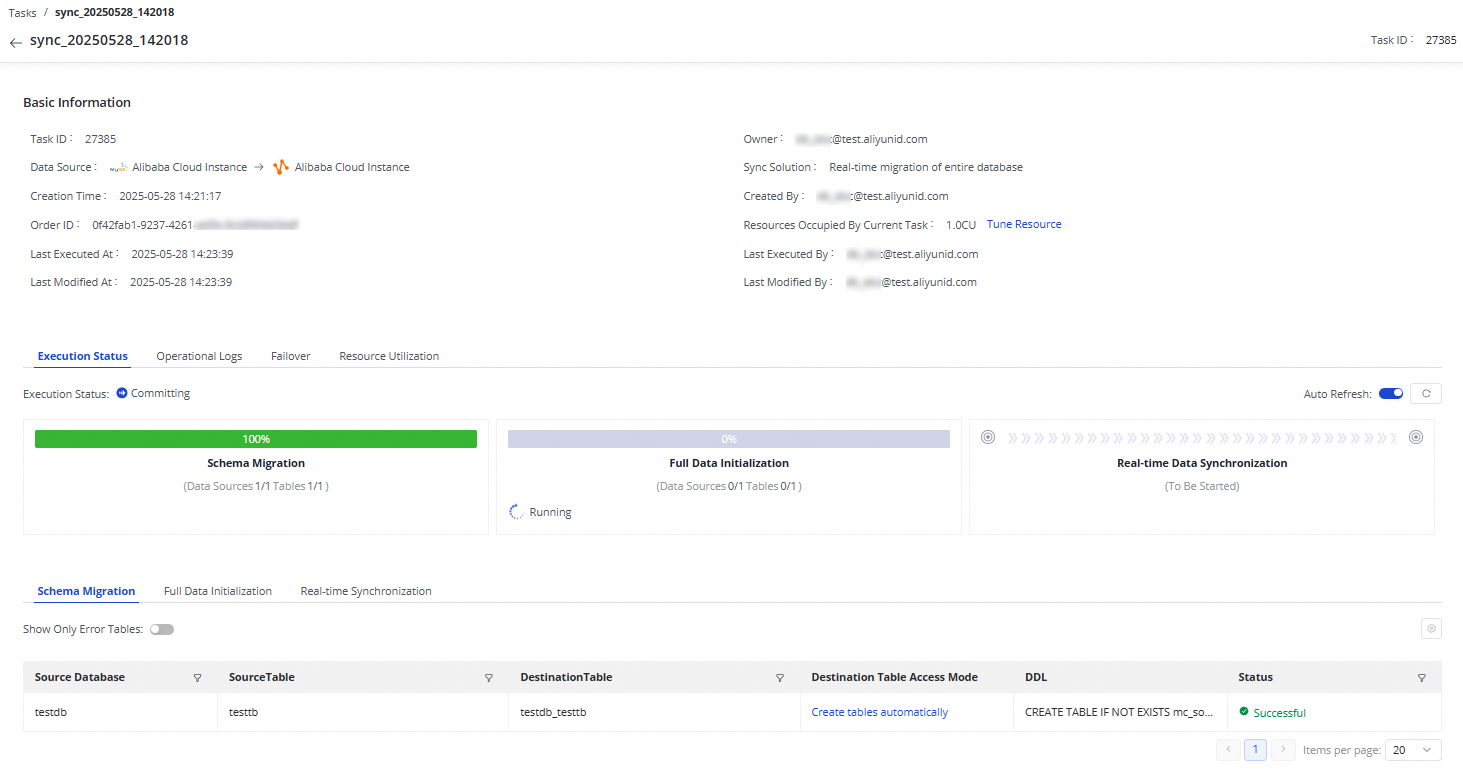
Basic information: includes the data source information, order ID, and synchronization type of the serverless synchronization task.
Running information: includes the running status of each stage. You can also view the operational logs, failover records, and resource utilization of the serverless synchronization task.
Details: include the details of schema migration, full data initialization, and real-time synchronization.
Modify the serverless synchronization task
Find the serverless synchronization task in the Tasks section, click More in the Operation column, and then select Edit to go to the task configuration page.

On the task configuration page, add tables to, remove tables from, or modify other configurations of the serverless synchronization task. Then, click Complete.
In the Tasks section, click Apply Updates in the Operation column of the serverless synchronization task.

After you click Apply Updates, the system automatically checks the configuration of the serverless synchronization task. If the serverless synchronization task fails the check, the modifications cannot take effect.
The number of items that are checked after you click Apply Updates is less than the number of items that are checked the first time you start the serverless synchronization task. This is because the first startup requires resource preparation, but resource initialization is complete when you apply updates to the serverless synchronization task.
References
For information about how to view the details of the order generated for a serverless synchronization task and how to configure advanced parameters, see Appendix.
For information about how to resolve the issues that occur when you use a serverless synchronization task to perform real-time synchronization, see Real-time synchronization.