The data processing feature in DataWorks batch synchronization tasks cleans, AI-processes, and vectorizes data directly within the synchronization pipeline, simplifying your ETL architecture.
Limitations
-
Available only in workspaces with the new version of Data Studio enabled.
-
Only serverless resource groups are supported.
-
Currently enabled only for some single-table batch synchronization channels.
-
Enabling data processing consumes additional compute resources (CUs). Monitor your resource quota.
Configuration access
-
On the configuration page for a batch synchronization task, scroll down to the data processing section.
-
By default, this feature is disabled. Turn on the switch to enable the data processing module.
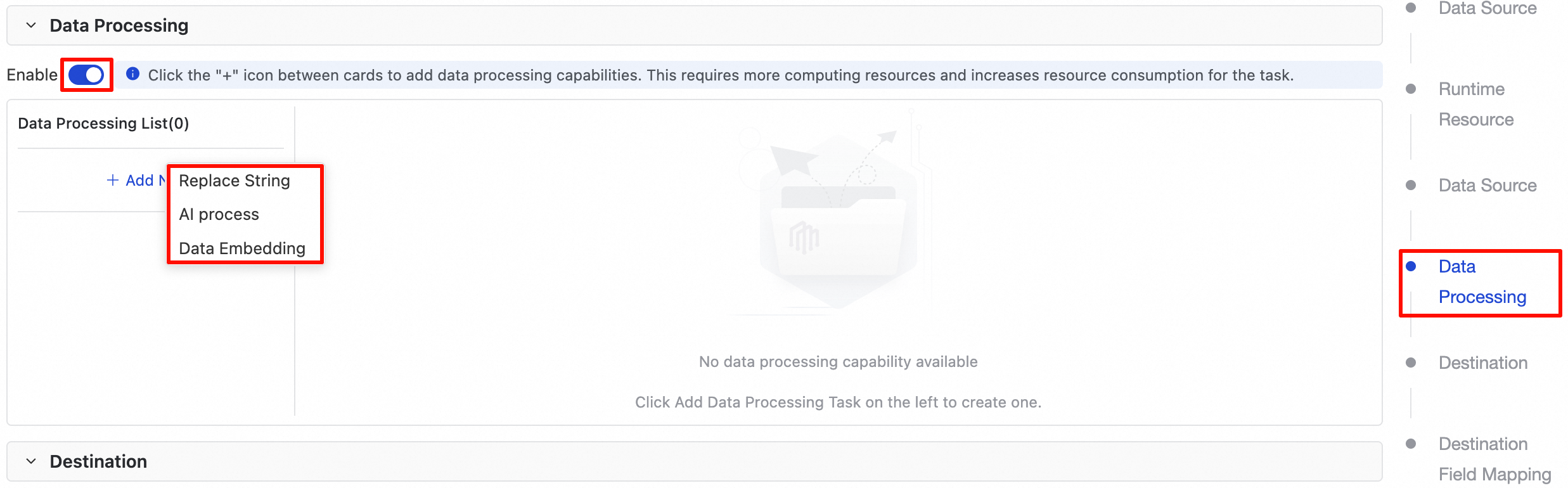
Features
After you enable data processing, you can add one or more of the following processing rules.
1. String replacement
Define replacement rules for different columns to standardize or clean column values.
Wizard mode configuration
In the Data Processing List, click the +Add Node button and select Replace String to add a replacement rule. The following table describes the parameters.
|
Parameter |
Description |
|
Name |
A custom name for the replacement rule. |
|
Description |
(Optional) A description of the rule's purpose. |
|
Column Name |
Click the +Add Rule button to add a column rule. Select a column from the drop-down list of source table columns to apply this rule. |
|
String to Replace |
Enter the original string to find and replace. |
|
Replace With |
The new string to use as the replacement. |
|
|
Enables regular expressions for the string-to-replace pattern. |
|
|
Controls whether the replacement is case-sensitive. By default, the search is case-insensitive. |
You can add multiple rules for different columns. For example, create one rule to replace 'Male' with '1' in the gender column, and another to replace 'active' with 'valid' in the status column.
Output data preview
-
After you configure the rules, click Output Data Preview in the upper-right corner of the data processing section.
-
In the dialog that appears, configure Input Data. The following two methods are supported:
-
Auto-fetch: The system automatically fetches data from the output of the upstream node. Click Re-fetch Upstream Output to refresh the data.
-
Manual construction: Click +Manually Construct Data to enter custom values for each column in the data rows, or test specific boundary conditions (such as
NULLor empty strings).
-
-
Click the Preview button in the Preview Results section.
-
The system runs all configured processing rules and displays the results. Compare them with your expectations to verify the rules.
Preview results are for debugging and reference only. Final results depend on actual task execution.
Script mode configuration
To enable data processing in script mode, add a JSONObject with "category": "map", "stepType": "stringreplace" to the steps module in the JSON script. For the general script mode configuration process, see Script mode configuration.
{
  "category": "map",
  "stepType": "stringreplace",
  "parameter": {
    "condition": [
      {
        "name": "<Column name to process>",
        "replaceString": "<String to replace>",
        "replaceByString": "<New replacement string>",
        "useRegex": false,
        "caseSensitive": false
      }
    ]
  },
  "displayName": "<Rule name>",
  "description": "<Rule description>"
}
2. AI-assisted processing
Use a built-in large language model (LLM) to process and enrich column content.
Core use cases:
-
Content summarization: Extract key summaries from large blocks of text, such as product reviews or news articles.
-
Information extraction: Extract key information from unstructured text, such as names, addresses, and contact details.
-
Text translation: Translate column content into a specified language.
-
Sentiment analysis: Determine the sentiment of text (such as positive, negative, or neutral).
Configuration and usage:
When you click Add Node, select AI-assisted processing. For detailed configuration instructions and typical use cases, see AI-assisted processing.
3. Data vectorization
Convert text or other data into high-dimensional vectors by using an embedding model. These vectors capture semantic information for AI applications such as Retrieval-Augmented Generation (RAG), semantic search, and recommendation systems.
Core use cases:
-
Building knowledge bases: Vectorize text data such as documents, tickets, and product manuals, and store them in a vector database to serve as an external knowledge base for LLMs.
-
Personalized recommendations: Calculate similarity based on vector representations of users and items to enable precise recommendations.
Configuration and usage:
When you click Add Node, select Data Vectorization, and then select the columns to process and the embedding model to use. For detailed configuration instructions and practical examples, see Vectorization.