This document explains how to add Tablestore data sources in DataV, including details on parameter configurations.
Prerequisites
Ensure the Tablestore data source is ready to be added.
You must first add the whitelist IP address of the corresponding area to your data source whitelist to ensure that DataV-Board can access your database normally. For more information, see configure database whitelist.
Limits
Supports only Enterprise Edition or higher.
Add Tablestore data sources
Access the DataV console.
On the Workbench page, click Data Preparation > Data Source to access the Data Source page, and then click Create Data Source.
From the Type list, select Tablestore.
Enter the required Tablestore information.
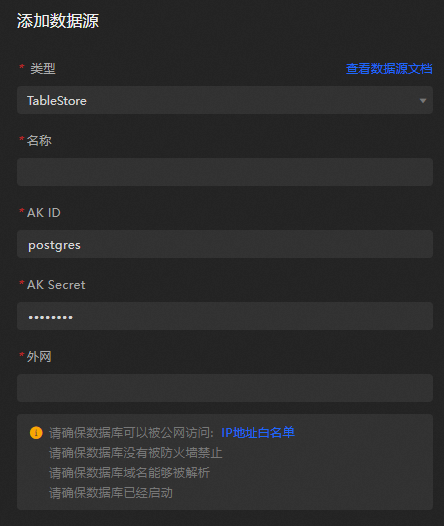
Parameter
Description
Name
The display name of the data source, which you can name freely.
AK ID
The AccessKey ID of the account with Tablestore access privileges.
AK Secret
The AccessKey Secret of the account with Tablestore access privileges.
Public Network
The endpoint of Tablestore, which needs to be filled in according to the Tablestore instance you are accessing.
After entering the information, click OK to add the data source.
The new data source will appear in the list automatically.
Use Tablestore data sources
Access the DataV console.
-
On the Workbench page, hover over the data dashboard you want to edit and click Edit.
ImportantIf you haven't created a data dashboard on your Workbench page, please see Create a PC Dashboard Using a Template for guidance on creating one.
-
On the canvas editing page, select a widget from the canvas.
If your canvas lacks widgets, please add them first. For more information, see Widget Canvas Operations.
-
In the widget configuration panel on the right, select Data Source.
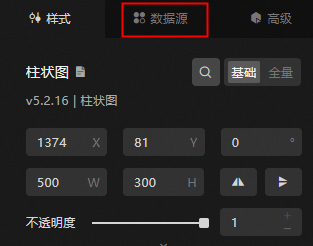
In the Set Data Source module, select Data Source Type as Tablestore.
Choose the configured Tablestore data source from the Select Existing Data Source list.
Select the desired operation from the Select Operation list.
The system supports the following operations:
getRow: This corresponds to the GetRow API of Tablestore. For more information, see the GetRow API Reference.getRange: This corresponds to the GetRange API of Tablestore. For more information, see the GetRange API Reference.SQL: Allows SQL query operations.
Input the query statement in the Select Operation edit box.
The query parameter must be a JSON object.
For the
getRowoperation, retrieve a single row of data using the specified primary key. The parameter format is as follows.The format of the parameter is as follows:
{
    "table_name": "test",
    "rows": {
        "id": "1"
    },
    "columns": [
        "id",
        "test"
    ]
}
Parameter
Description
table_name
The name of the Tablestore table to query.
rows
The primary key of the row.
ImportantWhen there are multiple primary key columns in a table, the number and data types of the primary key columns you set must be consistent with the number and data types of the primary key columns in the data table.
columns
Enter the column names you want to return.
For the
getRangeoperation, read data within a specified primary key range. The parameter format is as follows.{ "table_name": "test", "direction": "FORWARD", "columns": [ "id", "test" ], "range": { "limit": 4, "start": { "id": "InfMin" }, "end": { "id": "3" } } }Parameter
Description
table_nameThe name of the Tablestore table to query.
directionThe direction for reading.
If the value is FORWARD, the start primary key must be smaller than the end primary key. The returned rows are sorted in ascending order based on their primary key values.
If the value is BACKWARD, the start primary key must be larger than the end primary key. The returned rows are sorted in descending order based on their primary key values.
For example, if you set the direction parameter to FORWARD for a table that contains two primary keys A and B and the value of A is smaller than the value of B, the rows whose primary key values are greater than or equal to the value of A but smaller than the value of B are returned in ascending order from A to B. If you set the direction parameter to BACKWARD, the rows whose primary key values are smaller than or equal to the value of B and greater than the value of A are returned in descending order from B to A.
columnsThe columns that you want to read. You can specify the names of primary key columns or attribute columns.
If you do not specify a column, all data in the row is returned.
If a row is within the specified range to be read based on the primary key value but does not contain the specified columns to return, the response excludes the row.
limitThe maximum number of rows that you want to return. The value of this parameter must be greater than 0.
An operation stops after the maximum number of rows that you want to return in the forward or backward direction is reached, even if some rows within the specified range are not returned.
startThe start and end primary keys of the range to read. The start and end primary keys must be valid primary keys or virtual points that consist of the InfMin and InfMax type data. The number of columns for each virtual point must be the same as the number of columns of each primary key.
InfMin indicates an infinitely small value. All values of other types are greater than the InfMin type value. InfMax indicates an infinitely great value. All values of other types are smaller than the InfMax type value.
ImportantWhen there are multiple primary key columns in a table, the number and data types of the primary key columns you set must be consistent with the number and data types of the primary key columns in the data table.
start indicates the start primary key. If the row that contains the start primary key exists, the row of data is returned.
end indicates the end primary key. No matter whether the row that contains the end primary key exists, the row of data is not returned.
end
Click View Data Return Results to see the data retrieval outcome.
Sample requests
Prepare the Tablestore data.
Log on to the Tablestore console.
Create instances and data tables in the Tablestore console. For more information, see how to create an instance and how to create a data table.
The following figure shows an instance named test with three rows of data, each containing two columns:
id (primary key, integer)andtest (string).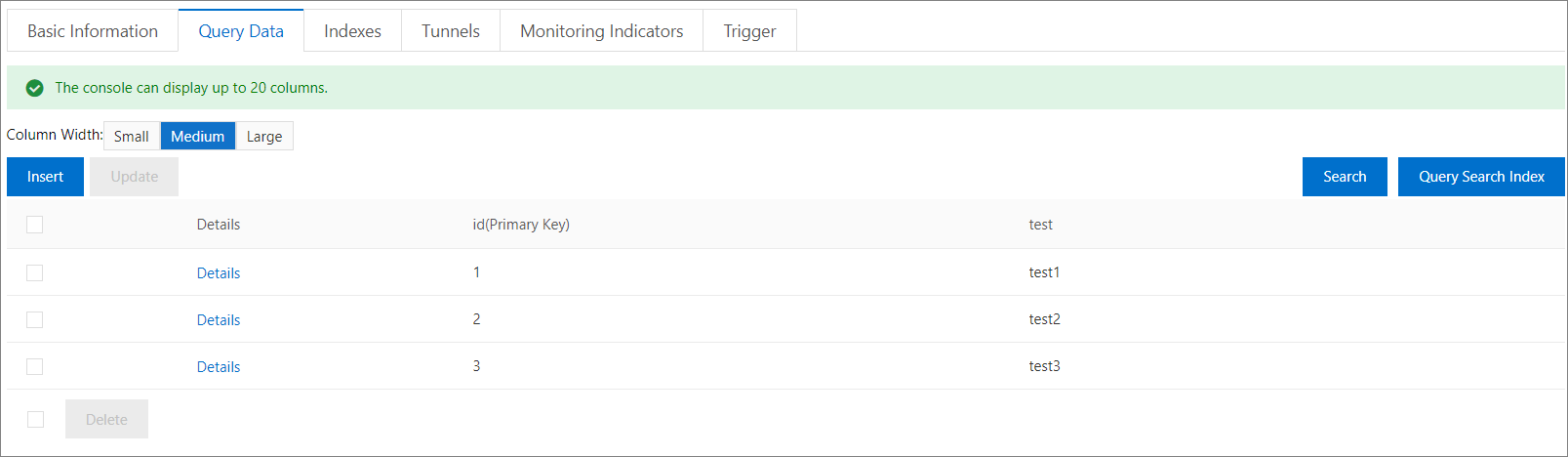
Configure the data source.
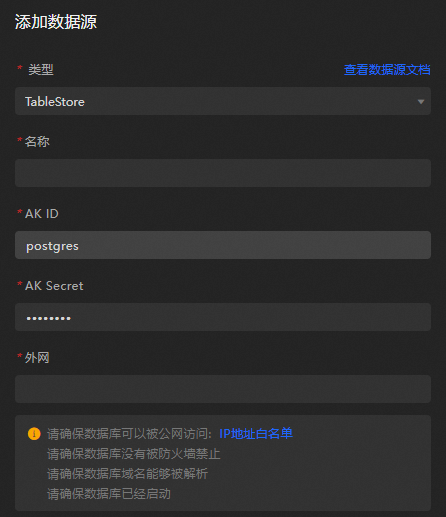
Set the query parameters.
Query using the
getRowmethod.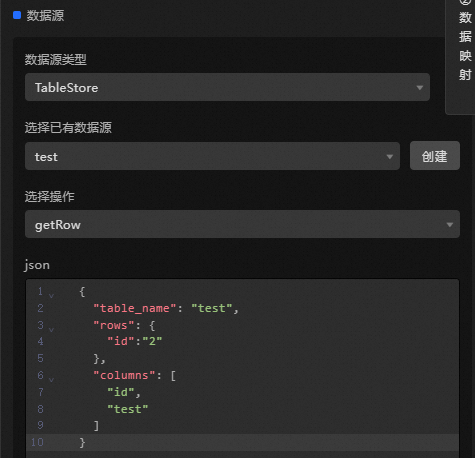
The data response is shown below.
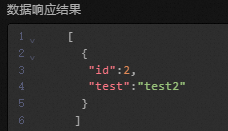
Query using the
getRangemethod.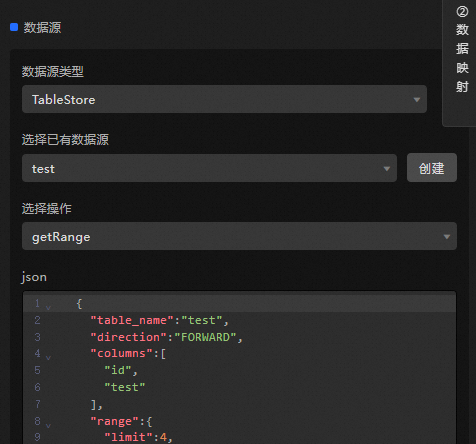
The data response is shown below.
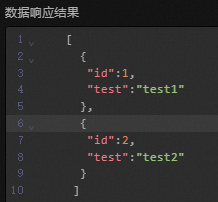
NoteNote that when using the getRange method, the filter condition starts with id: InfMin and ends with id: 3. The query returns two rows with ids 1 and 2, as getRange does not include the end row, thus excluding the row with id 3.
What to do next
Once you have the raw data, you can consult datasource config for widget data adaptation.
FAQ
For additional questions, consult the FAQ about datasource config.