X-Data Quality uses large models to analyze issues, such as abnormal results from data quality rule checks and problems reported during asset use. It creates key evidence chains and provides rectification suggestions to help you resolve these issues. This topic describes how to use X-Data Quality.
Prerequisites
To use X-Data Quality, you must purchase both the Data Quality and X-Data Quality features.
Permissions
Super administrators, Data Quality administrators, and custom global roles with the Issue Checklist - View permission can use X-Data Quality.
Intelligent analysis flow for quality issues
This section describes the end-to-end flow for intelligent root cause analysis of quality issues using a large model. The flow includes selecting quality issues, analyzing the issues, and providing rectification suggestions.
Quality issue: Select the quality issues that require intelligent root cause analysis.
Problem analysis: The large model analyzes the selected quality issues and detects abnormal data in the relevant data tables.
Rectification suggestions: Based on a comprehensive assessment of the key evidence chain, the system provides rectification suggestions to improve data quality.
Procedure
On the Dataphin home page, from the top menu bar, choose Super X > X-Data Quality to go to the X-Data Quality page.
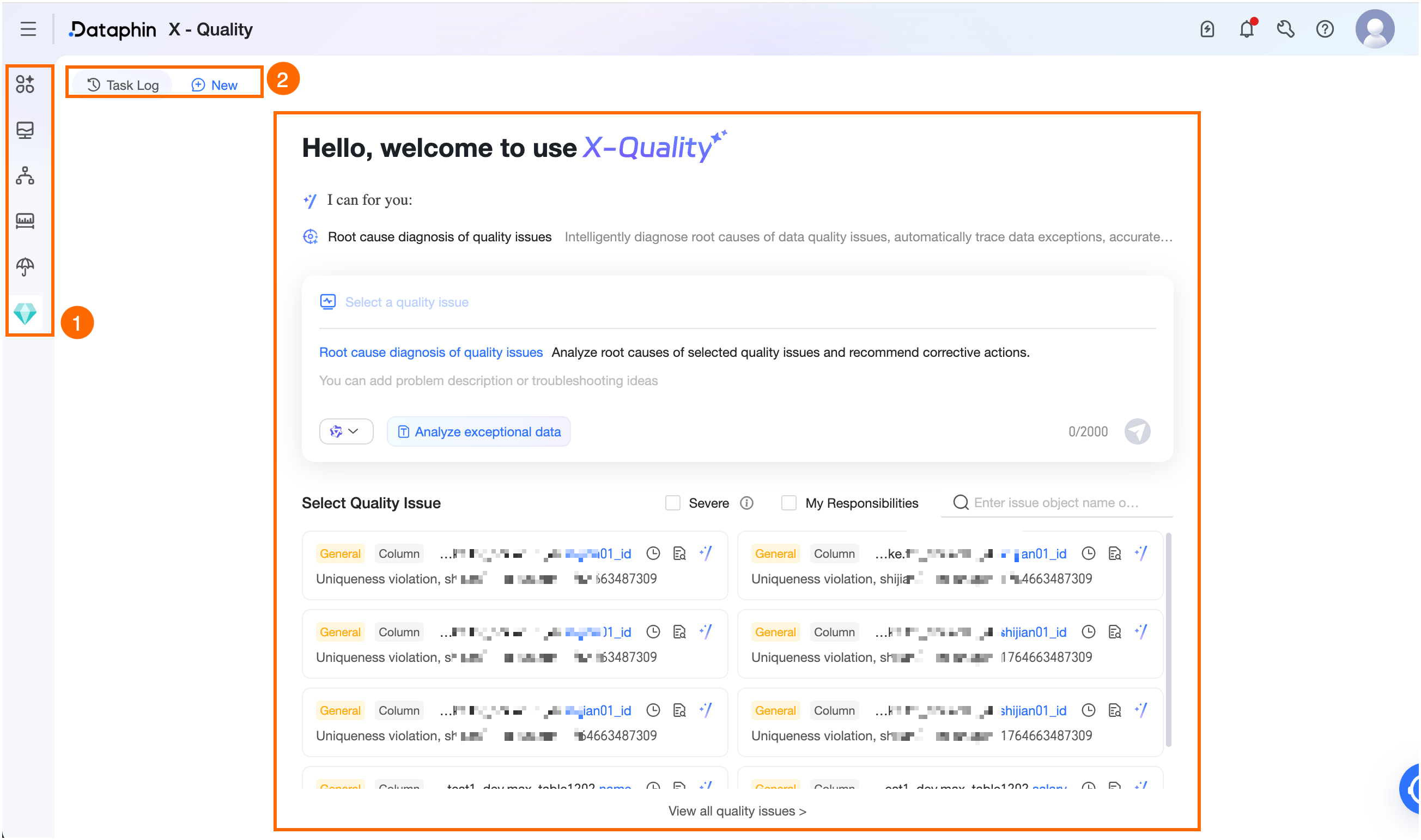
On the X-Data Quality page, you can perform intelligent root cause analysis on quality issues to find solutions and improve data reliability and analysis efficiency.
Region
Description
①Intelligent Assistant
Supports switching between enabled smart applications that you have permission to use.
② Task Record / New Task
Task Records: Click Task Records in the upper-left corner. In the Task Records dialog box, you can view up to 20 task records from the last 7 or 30 days and perform the following operations:
Search: Search for task records by keyword.
Rename: Click the Rename icon next to a task record name to rename it. The name can be up to 256 characters long.
Delete: Click the Delete icon next to a task record name to delete the record.
New Task: Click New Task in the upper-left corner to open a new task page.
③Intelligent root cause analysis
Quality Issue: Select the quality issue for smart root cause analysis. Select an issue from the Select A Quality Issue list or enter a custom issue in the text box. The issue description cannot exceed 2000 characters.
Analyze Abnormal Data: When the task runs, it uses a large language model to query and analyze abnormal data from the data table of the selected quality issue. The query is limited to data tables for which the current account has SELECT permission.
Switch model: Lets you switch between the models configured for the current AI assistant for AI chat.
Quality issue list: Displays quality issues for Dataphin tables that are in the To be processed state. Click View All Quality Issues at the bottom to go to the Administration > Data Quality > Issue Checklist page and view all quality issues.
Search and filter: Search by the name or description of the issue object, or filter for Critical or My Issues.
Operations: The following operations are available for each quality issue:
View discovery time: Hover the mouse pointer over the clock icon to view the discovery time and duration of the issue. For system-generated issues, the discovery time is the check time. For manually created issues, it is the submission time.
View details: Click the View icon to see the rule check details, operation records, and related knowledge base information for the issue object. The knowledge base is available only for system-generated issues.
Smart root cause analysis: Click the Smart root cause analysis icon. The system uses a large language model to analyze the quality issue and provide suggestions for correction. For more information, see View smart root cause analysis.
Start execution: After you configure the quality issue, click the
 icon to trigger the task.
For the task execution flow, see Smart analysis flow for quality issues. After the task runs successfully, you can view the smart root cause analysis.
View intelligent root cause analysis
The problem analysis page displays the configured quality issues. This page uses the large model's capabilities to analyze problems, form a complete evidence chain, and provide improvement suggestions.
You can view the basic information and root cause inference for the current quality issue.
Basic Information: Includes the object name, rectification status, issue source, discovery time, and issue overview.
Root Cause Inference: Includes the cause category, specific reason, probability analysis, and root cause overview.
On the problem analysis page, you can perform the following operations.
View and Initiate Rectification: If a rectification process has been initiated for a quality issue, click View Details. You are redirected to the Administration > Data Quality > Rectification Flow page to track the entire rectification process.
View Problem Analysis: Click the drop-down arrow icon next to View Kinship to view the complete quality issue analysis event chain diagram on the canvas.
View Kinship: If your account has the Asset Checklist - View permission, you can click this option. This action opens the Administration > Asset Checklist details page, where you can view the kinship information for the current asset object.
View Detailed Description: Click the View icon in the Operations column. In the Detailed Description panel, you can view the root cause overview, key evidence chain, impact assessment, and improvement suggestions for the quality issue. You can click Download at the bottom of the panel to save the analysis details to your computer.