All Products
Search
Document Center

Dataphin:View offline integration task lists

Last Updated:Jan 13, 2026

Offline integration task lists are collections of offline integration tasks created in Dataphin. The offline integration task list in Dataphin displays basic information about offline integration tasks and related management operation options, enabling you to view and manage your created offline integration tasks. This topic describes the management features supported by the offline integration task list.

Access to offline integration lists

  1. In the top navigation bar of the Dataphin homepage, choose Develop > Data Integration.

  2. In the top navigation bar of the Integration page, select Project.

  3. In the left navigation bar, choose Integration > Batch Pipeline. At the bottom of the Batch Pipeline list, click Offline Integration Task List to open the offline integration task list tab.

Introduction to offline integration task list

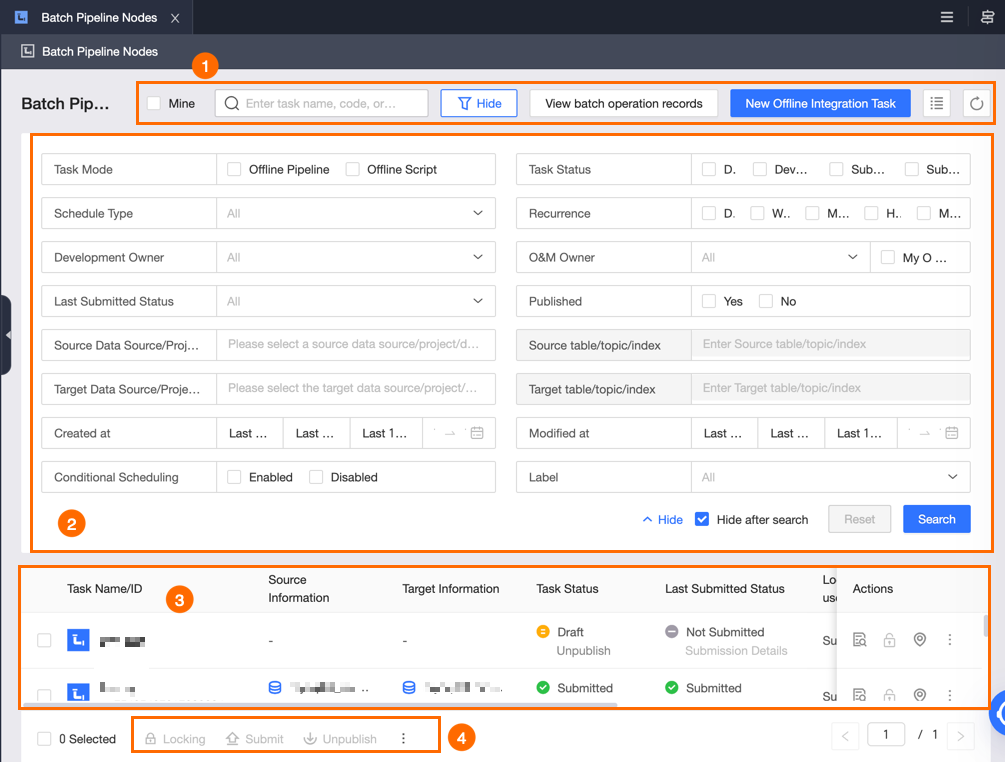
The offline integration task list page primarily consists of a toolbar, filter area, offline integration task list, and batch operation area. You can view and manage your created offline integration tasks on this page.

image

Area

Description

Function area

  • Search: You can enter an integration task ID, name, or code in the text box to search for offline integration tasks. This is suitable for scenarios where you know the task ID, name, or code.

  • Filter: You can select My Development to filter tasks. You can also click Filter and then click More in the filter area to expand all filter options.

  • View Batch Operation Records: Click View Batch Operation Records to view records of batch Submit or Other Operations (batch lock acquisition, batch unpublish, batch unpublish and delete, batch move, batch change of development owner, batch schedule configuration, batch dependency configuration, batch parameter configuration, batch run configuration, batch channel configuration).

  • Create Offline Integration Task: Click Create Offline Integration Task to create an offline pipeline task or offline script task.

    • Offline Pipeline: An offline pipeline is a pipeline script that processes offline integration tasks. It can synchronize single or multiple tables from one or more source data sources to one or more target data sources. For more information, see Create an integration task through a single pipeline.

    • Script Task: You can complete data synchronization development by directly writing JSON scripts for data synchronization, providing more flexible capabilities and more fine-grained configuration management for data synchronization development. For more information, see Create an integration task in code editor.

  • Set Integration Task List Display Items: You can select the display items for the current offline integration task list. The display items supported by offline integration tasks include the following:

    • Basic Information: Task Name/ID, Task Mode, Source Information, Target Information, Task Status, Latest Submission Status, Current Lock Owner, Development Owner, Operation Owner.

    • Configuration Information: Schedule Type, Recurrence, Dependencies, Parameters.

    • Other Information: Created At, Last Modified By, Actions.

      Note

      The Task Name/ID and Actions items cannot be disabled.

  • Refresh: Click image to refresh the current offline integration task list.

Filter area

Click Filter to expand the filter area. In the filter area, click More to expand all filter options.

Supported filter options include the following:

  • Task Mode: Filter by task mode, including Offline Pipeline and Offline Script.

  • Task Status: Filter by the development status of integration tasks. Includes Draft, Developing, Submitted, and Submitting.

  • Schedule Type: Filter by the schedule type of integration tasks. Includes Normal, Dry-Run, Paused, and One-Time Task. For more information, see Description of scheduling methods.

  • Recurrence: Supports filtering by five scheduling cycles: Minute, Hour, Day, Week, and Month.

  • Development Owner: Filter by the development owner of tasks.

  • Operation Owner: You can select My O&M or filter by the operation owner of tasks.

  • Latest Submission Status: Filter by the submission status of the most recent submission. Includes Submitting, Submission Failed, Submission Alert, and Submission Successful.

  • Published: Filter by whether the integration task has been published.

  • Source Data Source/Project/Data Domain: Filter by selecting the source data source/project/data domain of the integration task. Source data sources include all source data sources in the integration task list.

  • Source Table/Topic/Index: Filter by selecting the source table name/topic/index of the integration task.

    Note

    Before filtering by source table/topic/index, you need to first select the source data source/project/data domain of the integration task.

  • Target Data Source/Project/Data Domain: Filter by selecting the target data source/project/data domain of the integration task. Target data sources include all target data sources in the integration task list.

  • Target Table/Topic/Index: Filter by selecting the target table name/topic/index of the integration task.

    Note

    Before filtering by target table/topic/index, you need to first select the target data source/project/data domain of the integration task.

  • Created At: Filter by the creation time of integration tasks. You can select Last 3 Days, Last 7 Days, Last 1 Month, or Custom Time Range.

  • Last Modified Time: Filter by the last modification time of integration tasks. You can select Last 3 Days, Last 7 Days, Last 1 Month, or Custom Time Range.

  • Conditional Scheduling: Filter by whether conditional scheduling is Enabled or Disabled for integration tasks.

  • Tag: Filter by one or more task tag values.

To filter again, you can click Reset to quickly clear all filter conditions and restore the system defaults.

Offline integration task list

The offline integration task list displays information about currently created offline integration tasks and supported operations.

The information displayed for offline integration tasks is determined by the display items set in the task list. For operations supported by offline integration tasks, see Operations supported by the offline integration task list.

Batch operation area

You can use the batch operation functions provided in the batch operation area to process offline integration tasks in batches, improving operational efficiency.

For batch operations supported by offline integration tasks, see Batch operations supported by offline integration tasks.

Operations supported by the offline integration task list

The operations supported in the operation column of the offline integration list are as follows:

Operation

Description

Open Task

Open the current offline integration task in the editor.

Get Lock

Obtain and lock the edit lock for the current offline integration task.

Note

The list does not support releasing locks. Please go to the editing area to release locks.

Locate in Directory

Locate the offline integration task in the directory tree on the left.

Change Development Owner

Change the development owner of the current offline integration task to another development owner.

Go to Publish

Jump to the Publish Center to publish the offline integration task. For details about publishing integration tasks, see Manage publish tasks.

Go to O&M

Jump to the Operation Center to perform operations management on the offline integration task. For details, see Operation Center.

Note

Only published offline integration tasks are supported.

Unpublish

Unpublish operations can be performed on published offline integration tasks.

Note
  • If there are downstream dependent nodes in the offline integration task, the unpublish operation will not take effect.

  • After the unpublish submission is successful, you can go to the to-be-published list to publish objects to the production environment.

Delete

Delete operations can be performed on unpublished offline integration tasks.

Note

If the current tenant has not enabled the Development Platform Settings > Unpublish and Delete > Development environment can delete published objects configuration, then in Dev-prod projects, if a draft development object has a corresponding production object, deletion is not supported.

Unpublish and Delete

Unpublish and delete operations can be performed on published offline integration tasks.

Note
  • If there are downstream dependent nodes in the offline integration task, the unpublish and delete operation will not take effect. Tasks already published to production will only be unpublished, not deleted.

  • After the unpublish and delete submission is successful, you can go to the to-be-published list to publish objects to the production environment.

  • If the current tenant has not enabled the Development Platform Settings > Unpublish and Delete > Development environment can delete published objects configuration, then in Dev-prod projects, unpublish and delete operations are not supported for published development objects.

Batch operations supported by offline integration tasks

Operation

Description

Lock

Obtain edit locks for multiple offline integration tasks simultaneously.

Submit

Submit multiple offline integration tasks simultaneously.

Unpublish

Unpublish multiple offline integration tasks simultaneously.

Note
  • If there are downstream dependent nodes in the offline integration task, the unpublish operation will not take effect.

  • After the unpublish submission is successful, you can go to the to-be-published list to publish objects to the production environment.

Batch modify tags

Replace or append tags for multiple offline integration tasks.

  1. In the offline integration task list, select one or more tasks, or select the check box next to Select at the bottom of the page to select all.

  2. Click the image icon at the bottom of the page and select Batch modify tags.

  3. In the Batch Modify Tags dialog box, select the Modification Type and Tag. If you select Replace, the system removes all existing tags from the selected tasks and applies the tags that you select. If you select Append, the system retains the existing tags on the selected tasks and adds the tags that you select.

  4. Click OK to update the tag.

Unpublish and Delete

Unpublish and delete multiple offline integration tasks simultaneously.

Note
  • If there are downstream dependent nodes in the offline integration task, the unpublish and delete operation will not take effect. Tasks already published to production will only be unpublished, not deleted.

  • After the unpublish and delete submission is successful, you can go to the to-be-published list to publish objects to the production environment.

  • If the current tenant has not enabled the Development Platform Settings > Unpublish and Delete > Development environment can delete published objects configuration, then in Dev-prod projects, unpublish and delete operations are not supported for published development objects.

Move

Move multiple offline integration tasks to other code directories simultaneously.

Transfer Developer Ownership

Change the development owner of multiple offline integration tasks to another development owner simultaneously.

Schedule Configuration

Important

Batch schedule configuration only takes effect for recurring tasks. After batch configuration, the original scheduling property configurations of the selected recurring tasks will be overwritten. Please operate with caution. If the selected recurring tasks have configured conditional scheduling, setting them to dry-run or paused in batch will disable conditional scheduling in batch.

Configure schedule configuration information for multiple offline integration tasks simultaneously. You can batch modify basic scheduling or conditional scheduling separately.

  • Batch Modify Basic Scheduling: After enabling batch modification of basic scheduling, you can batch modify the Configuration Method, Schedule Type, and Recurrence information of the selected tasks. For configuration details, see Configure offline pipeline scheduling configuration.

  • Batch Modify Conditional Scheduling: Disabled by default. After enabling batch modification of conditional scheduling, you can batch modify the Configuration Method and Scheduling Conditions of the selected tasks. For configuration details, see Conditional scheduling.

    Note
    • Conditional scheduling only takes effect for tasks with the scheduling method set to Normal.

    • When the configuration method is set to custom settings, cross-node parameters are not supported as conditions.

    • The Trigger Time parameter only takes effect for tasks with scheduling cycles set to Day/Week/Month.

Dependency Configuration

Configure dependency information for multiple offline integration tasks simultaneously. If there are multiple upstream dependencies, you can click +Add Dependency to add them.

The list only displays common upstream dependencies (with the same dependent object and dependency settings) that are manually added to the selected tasks. Adding, deleting, or editing dependencies will apply to all selected tasks.

Parameter Configuration

Configure parameters for multiple offline integration tasks simultaneously. To configure multiple parameters, you can click +Add Parameter to add them.

The configurable parameters are the collection of local variables from the selected tasks. The system will overwrite the values of corresponding parameters for all selected tasks. If you set parameter paramA=valueA, and task taskA does not contain parameter paramA, taskA will be skipped. If it contains paramA, taskA's paramA will be set to valueA. Batch setting of namespace variable and global variable values is not supported.

Run Configuration

Configure run configurations for multiple offline integration tasks simultaneously.

Important

After batch configuration, the original run configurations of the selected tasks will be overwritten. Please operate with caution.

Channel Configuration

Configure channel configurations for multiple offline integration tasks simultaneously.