Create a data synchronization task by writing JSON scripts directly, which provides more flexible capabilities and fine-grained configuration control.
Prerequisites
The source and target data sources are configured. For supported data sources, see Supported data sources.
Procedure
Step 1: Create an offline script
-
On the Dataphin home page, choose Development > Data Integration from the top menu bar.
-
Open the Create Offline Script dialog box:
Select a project (in Dev-Prod mode, also select the environment) > Click Batch Pipeline > Click the
 New icon > Click Batch Script.
 -
Configure the parameters in the Create Offline Script dialog box.
Area
Parameter
Description
Basic Information
Task Name
Name the script. Naming rules:
-
All characters except | : ? <> * " / and \.
-
Maximum 64 characters.
Schedule Type
Select the Schedule Type:
-
Recurring Task Node: Periodic execution.
-
Manual Node: Manual execution, no dependencies.
Description
Brief description of the script. Maximum 1000 characters.
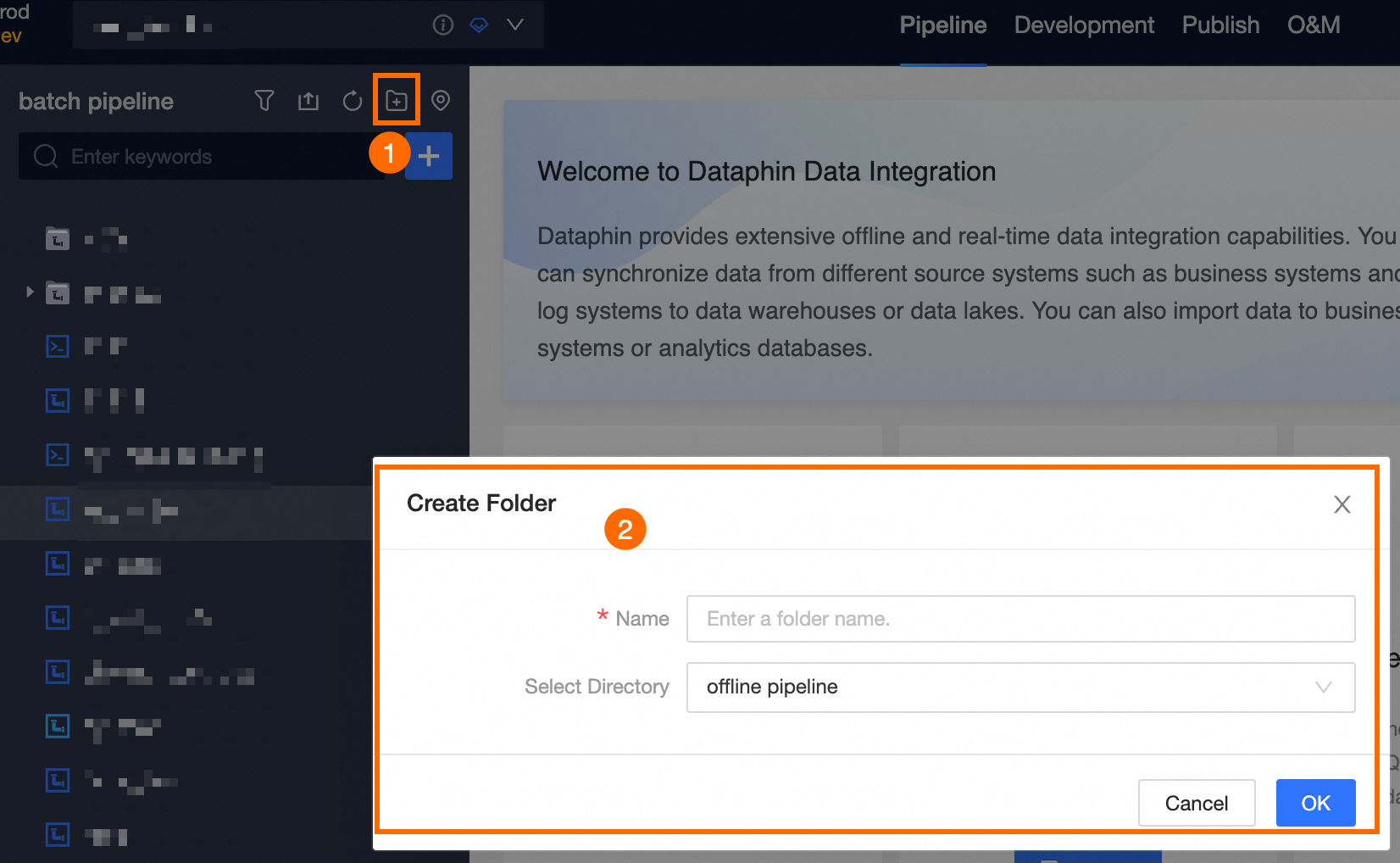
Select Directory
Defaults to the offline pipeline directory. You can create and select a different folder.
Datasource Config
Source Type
Select the source type.
Datasource
Select the source. If unlisted, click Create. Supported data sources.
NoteOnly data sources with read-through permissions are listed. Request data source permission.
Target Type
Select the target type.
Datasource
Select the target. If unlisted, click Create. Supported data sources.
NoteOnly data sources with write-through permissions are listed. Request data source permission.
-
-
Click OK.
Step 2: Develop the offline script
Develop the script using the code editor. The JSON script provides flexible data synchronization capabilities with fine-grained configuration control.
Maximum input: 500,000 characters.

Step 3: Configure the pipeline schedule
-
Click
 on the development canvas menu bar to open schedule configuration.
 -
Configure the following settings for the integration pipeline:
-
Basic Information: Set the development and operation owners and add a description. Configure basic information of offline integration pipeline.
-
Schedule Configuration: Define the scheduling type, cycle, logic, and execution properties. Offline integration pipeline schedule configuration.
-
Schedule Dependency: Define dependency nodes. Dataphin executes nodes sequentially based on these dependencies. Offline integration pipeline schedule dependency configuration.
-
Run Configuration: Set task-level run timeout and rerun policies for failed tasks. Offline integration pipeline run configuration.
-
Resource Configuration: Assign the task to a resource group for scheduling. Configure offline integration pipeline task resources.
-
-
Click OK.
Step 4: Save and submit the offline integration task
-
Click the
 icon at the top of the canvas to save the task.
 -
Click the
 icon to submit the task. In the Submit Remarks dialog box, enter remarks and click OK And Submit.
Dataphin performs lineage analysis and submission checks upon submission. Integration task submission instructions.
What to do next
-
In Dev-Prod mode, publish the task. Manage publishing tasks.
-
In Basic mode, the task is scheduled in production upon successful submission. View published tasks in the Operation Center. Operation Center.