Modeling tasks are field-oriented Operations and Maintenance (O&M) features in Dataphin for logical table tasks created through standardized modeling, including logical dimension tables, logical fact tables, and logical aggregate tables.
Background information
-
Modeling tasks include logical dimension table tasks, logical fact table tasks, and logical aggregate table tasks. Each logical table task corresponds to a logical table node. The system automatically configures the schedule based on parameters that you set, such as the statistical period. You can perform O&M on logical table tasks from a table or field perspective.
NoteYou can view logical table tasks only in projects that support standardized modeling.
-
Modeling tasks automatically generate multiple materialized nodes based on the materialization logic of standardized modeling. Each logical table node is a combination of these materialized nodes. Multiple fields or modeling task nodes can belong to the same materialized node.
Usage notes
Standardized modeling uses dynamic materialization logic, so you can perform O&M from either a physical or logical perspective:
-
Physical perspective: You may need to view the latest code or operational logs of a materialized node to understand how an operation affects associated fields or logical table task nodes. For example, to backfill data for a modeling task node, you must first identify and then backfill each materialized node individually. This process is complex and cannot ensure data consistency.
-
Logical perspective: You only need to select the fields or logical table task nodes that require O&M. The system automatically determines the corresponding materialized nodes based on the current materialization method and prompts you about related fields that require associated operations to ensure data consistency and correctness. This shortens the operational path and reduces O&M costs.
Access the modeling task page
-
On the Dataphin home page, choose Develop > Task O&M from the top menu bar.
-
In the navigation pane on the left, choose Task O&M > Recurring Task.
-
In the top menu bar, select the production or development environment.
-
On the Recurring Task page, click the Modeling Task tab.
Operations in the modeling task list
After a modeling task is submitted to the Operation Center for scheduling, it appears in the Recurring Task > Modeling Task list. The list displays the task object, schedule, priority, owner, related baselines, project, last update time, tags, and supported operations.
-
Recurrence: The time when the recurring task is scheduled to run in the specified time zone.
-
Priority: The priority of the task. For a logical aggregate table, the priorities of all metrics in the table are displayed. Therefore, a logical aggregate table can have multiple priorities.
-
Operation Owner: The O&M owner of the logical table task. For a logical aggregate table, the owners of all metrics in the table are displayed. Therefore, a logical aggregate table can have multiple owners.
-
Related Baselines: The baselines to which the node belongs as a guaranteed leaf node and the related baselines that include the node as an ancestor node.
NoteThis column is not displayed if the baseline feature is disabled.
-
Project: The project to which the task belongs. The project is displayed in the
Project English Name (Project Chinese Name)format. If a logical aggregate table spans multiple projects, the names of the projects are displayed and separated by commas (,).
The following operations are available in the modeling task list.
|
Operation |
Description |
|
DAG |
Click |
|
View recurring instances |
View the recurring instances that are generated when a task runs. You can also perform O&M on recurring instances. |
|
Edit development node |
Go to the task editing page in the Dev project to edit the task. This operation is applicable only to the Dev-Prod development mode. |
|
Edit node |
Go to the task editing page to edit the task. This operation is applicable only to the Basic mode. |
|
View production node |
Go to the Prod project to view the task configuration. Note
This feature is not supported for tasks that are not published to the production environment in Basic mode or Dev-Prod development mode. |
|
Field and batch operations |
Go to the field and batch operations list to perform operations on fields. Supported operations include viewing the data generation lineage, viewing the data consumption lineage, and backfilling data. For more information, see Manage modeling task fields. |
|
View production lineage |
Click to view the data generation lineage of the table. For more information, see Manage modeling task fields. |
|
View consumption lineage |
Click to view the data consumption lineage of the table. For more information, see Manage modeling task fields. |
|
View materialization code |
View the materialization code of the logical table task. |
|
View data backfill instances |
View and perform O&M on instances generated by data backfill operations. |
|
Data backfill |
Backfill data for logical table task nodes. For more information, see Data backfill for auto triggered tasks. |
|
Download ancestor and descendant nodes |
Download the list of ancestor and descendant nodes for the current node. The list includes all columns, even those that are not displayed. After you click Download Ancestor/Descendant Nodes, in the Download Ancestor/Descendant Nodes dialog box, select the levels for ancestor and descendant nodes. You can select from Level 1~Level 10, or All Levels. The default is Level 1 for both. After you select the levels, click OK to download the Excel file. The file is named |
|
Modify owner |
Click to modify the owner of the logical table. Note
|
|
Modify priority |
For a logical table task that is not on a baseline, click to modify the priority of the logical table. Note
|
|
Configure monitoring and alerting |
Configure monitoring rules for task runs. For more information, see Overview of offline task monitoring. Note
|
 to view the DAG of the modeling task. For more information, see
 Operations for modeling task DAG nodes
The Directed Acyclic Graph (DAG) shows the dependencies between a task node and its ancestor and descendant nodes. By default, the DAG displays the main node (the selected node) and its first-level ancestor and descendant nodes. You can select a modeling task node to perform O&M operations on it.
Dataphin supports cross-project O&M. To perform O&M on a cross-project modeling task node, you must have view and operation permissions for the project to which the metric belongs. For aggregate table tasks, you can operate only on metrics for which you have the required permissions.
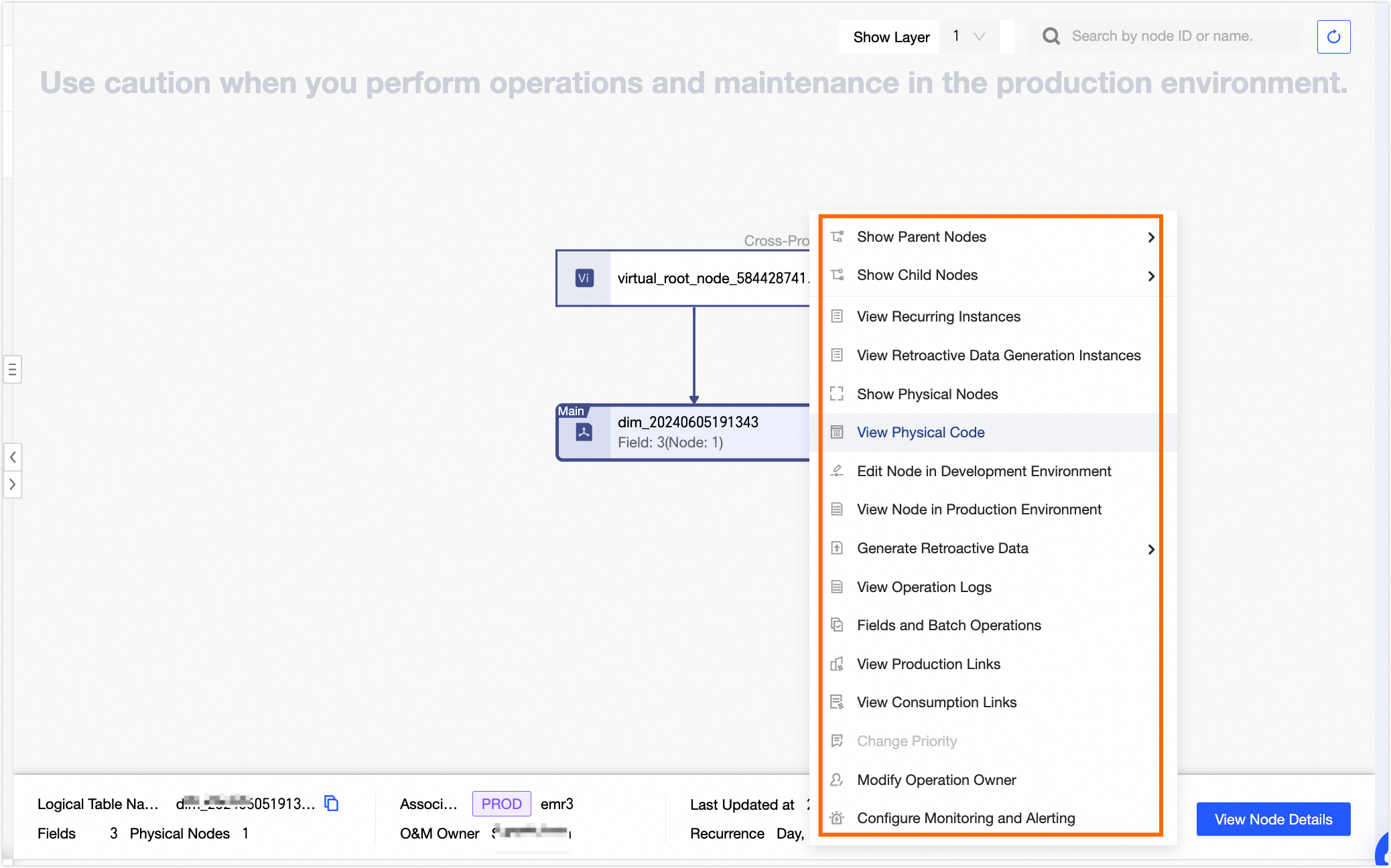
-
Operations in the DAG
Operation
Description
Expand Parent Nodes
Expand the dependency nodes at different levels of the main node in the DAG.
Expand Child Nodes
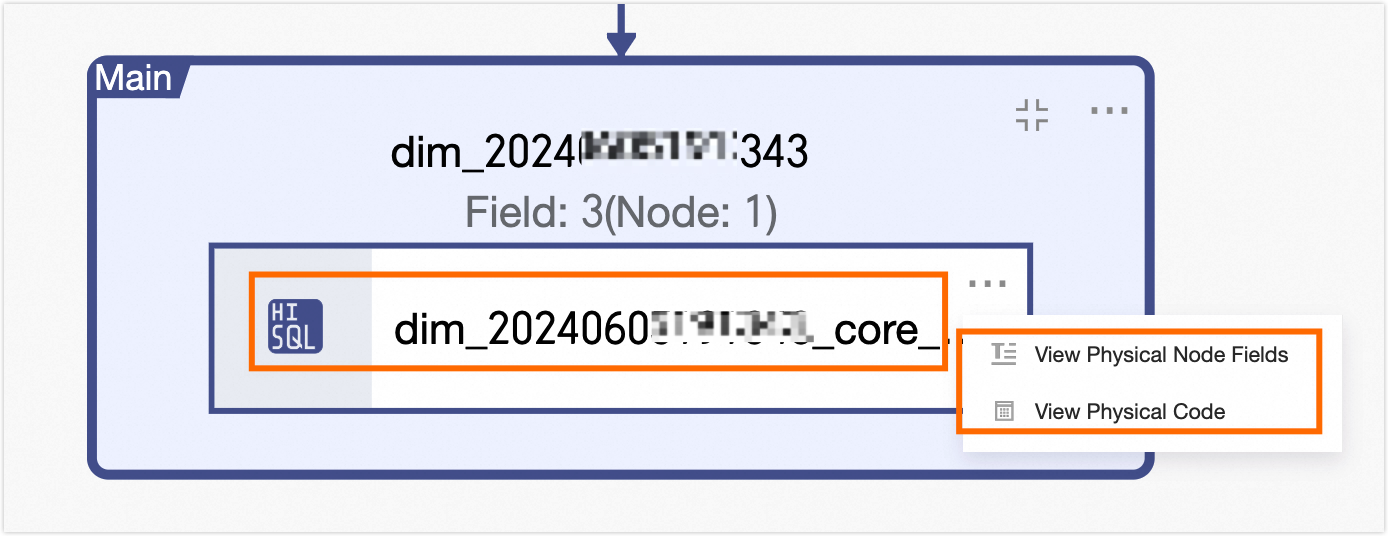
Expand Materialized Nodes
Expand the materialized nodes of the current logical table task node to view the names of the materialized nodes, the fields in the materialized nodes, and the materialization code.
View Operation Logs
View the operation logs of the current node.
-
Operations for modeling nodes
Hover over a DAG node to view its name, type, schedule, owner, and description. The operations for modeling DAG nodes are the same as those in the modeling task list. For more information, see Operations in the modeling task list.
NoteBecause an aggregate table task does not belong to a specific project, you cannot configure monitoring and alerting for cross-project metrics and their aggregate tables within the current project.
Batch operations for modeling tasks
Modeling tasks support the following batch operations:
|
Operation |
Description |
|
Modify O&M Owner |
Batch modify the owners of modeling tasks. Note
|
|
Modify priority |
Batch modify the priorities of modeling tasks. Note
|
|
Data Backfill |
By default, data is backfilled for the selected tasks and their ancestor and descendant nodes. The backfill operation uses the All Fields and Large Volume Mode - Specify Node ID methods. You can customize the basic information and other configurations for data backfill, except for the timestamp range. For more information about the parameters, see Backfill data for the current node and its ancestor and descendant nodes. |