Data standards support business, technology, and management activities. This process involves defining and applying standardized definitions for data and its attributes. This topic describes how to create and manage data standards.
Permissions
A super administrator or data standard administrator can create or clone data standards in any standard set.
Standard set maintainers and members can create or clone data standards within the standard sets they have joined.
A super administrator, data standard administrator, or standard owner can manage the data standards they are responsible for. Management tasks include editing, submitting for release, deleting, taking offline, and editing associated standards.
Limits
You can create a maximum of 1,000 data standards in a single standard set.
Standard List
On the Data Standard page, you can select a specific standard set to view the standards it contains. The data standard list provides Edit and View display modes. On the Standard List page, click the  icon in the upper-right corner to switch between them.
In View mode, you can view the configured standard set directory and data standard information but cannot perform any operations. This mode is suitable for browsing.
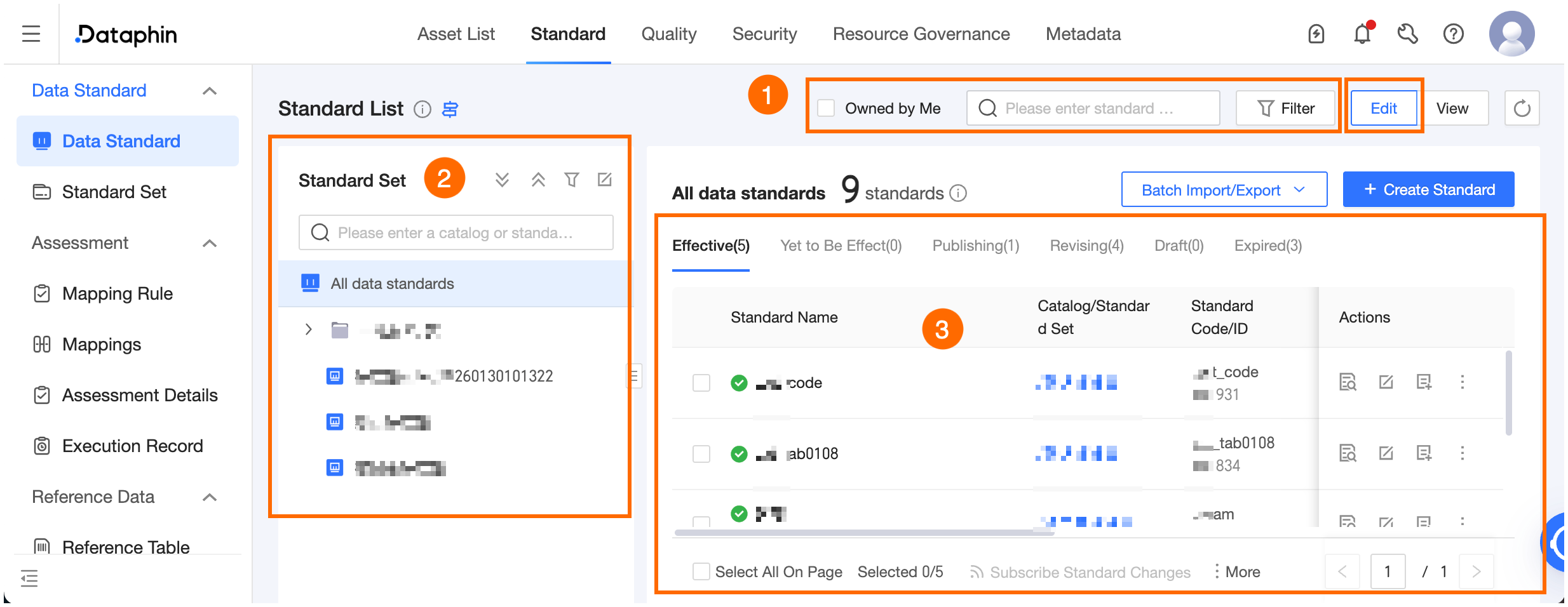
In Edit mode, you can view the configured standard set directory and data standards and also perform operations such as editing, deleting, creating, cloning, submitting for release, publishing, and revoking. You can also edit and delete standard set directories. Only users with data standard management permissions for the current standard set can enter Edit mode. The following figure shows an example in Edit mode.
Area | Description |
① Filter and search area | You can search for a standard by its name, code, or ID. You can also filter by My Responsibilities, standard owner, standard set, standard type, or standard template. |
② Standard set | The standard set directory categorizes and hierarchically manages standard sets and data standards from a business or organizational perspective.
|
③ Standard list | The information displayed and the available operations for a standard vary depending on its status. For details about operations, see Supported operations for standards.
|
 or collapse all
  icon to expand or collapse the standard sets.
Supported operations for standards
Status | Actions |
Effective, Pending, Expired | Supports View, Edit, Add mapping, View mappings, Clone, Edit associated standards, Edit associated documents, Subscribe to standard changes, and Take offline. You can also click the Subscribe to standard changes or Take offline buttons at the bottom to perform these actions in batch on multiple standards that are effective, pending, or expired. |
Publishing | Supports View, Go to approval task, Republish, Revoke release, Clone, Edit associated standards, Edit associated documents, and Subscribe to standard changes. |
In Revision, Draft | Supports View, Edit, Submit for release, Clone, Edit associated standards, Edit associated documents, Subscribe to standard changes, and Delete. You can also click the Subscribe to standard changes, Submit for release, or Delete buttons at the bottom to perform these actions in batch on multiple standards that are in revision or in a draft state. |
Actions | Description |
View |
Click a standard's name or the View icon in the Actions column to see its Basic information, Monitoring rules, and Version history configuration details. On the Basic Information and Monitoring Details pages, you can switch between versions to view their history.
|
Edit |
|
Add mapping | You can manually add mappings in batch between a data standard and asset objects. In the Actions column, click the Add Mapping icon, select the asset objects, and click OK to add the mappings. For more information, see Add a mapping relationship. |
View mappings | Click to go to the Data Standard > Mappings > Effective Mappings tab. The system displays all effective mappings for the current data standard in a fully expanded view. |
Submit for release | If the standard set requires release approval, the submission must be approved. After approval, the standard becomes effective or pending. If approval is not enabled, the standard is released to the production environment directly after it passes validation. Note
|
Clone | Quickly creates a copy of a standard. |
Delete | You can delete standards that are in a draft or in revision state. This action cannot be undone. Proceed with caution. Note When you delete multiple standards in a batch, the operation applies only to the standards for which you have permissions; others are skipped. You can view details in the batch operation records. For more information, see Import and export data standards in batches. |
Go to approval task | This action takes you to the corresponding approval task for the standard. |
Republish |
Note If merged approvals are enabled for the standard set and a previous approval workflow was rejected or revoked, republishing initiates a new approval process for all standards from the original workflow. We recommend that you first click View Historical Approval Tasks to confirm that the scope of standards being submitted is as expected. If you do not want to republish all associated standards, revoke the release and then submit a new release request. |
Revoke release |
Note If merged approval tasks are enabled for the standard set, the entire approval task is revoked. Click View Approval Task to confirm whether this is the desired outcome before revoking the release. |
Edit associated standards | Configure associated data standards to quickly view their relationships. For example, a metric standard can be associated with its dimensional standards. Associated standards are not versioned. You can only view the association relationship when the latest version is selected. Edit: Click the Edit button to add or delete associated standards. Click the Save button to complete the changes. |
Edit associated documents | Configure associated standard documents to quickly view related document relationships. Associated documents are not versioned. You can only view the association relationship when the latest version is selected. Edit: Click the Edit button to add, download, or delete associated documents. Click the Save button to complete the changes. |
Subscribe to standard changes | By subscribing to standard status updates, you can receive timely notifications and adjust your business processes accordingly. You can view your subscriptions in My Subscribed Assets. For more information, see View my subscribed assets.
Note
|
Take offline | If the standard set requires approval to take a standard offline, the request must be approved. After approval, the standard's status changes to draft. If approval is not enabled, the standard's status changes directly to draft after passing validation. Note
|


Create a data standard
You must create a data standard within a specific standard set and base it on a specific standard template.
The standard set determines the standard's classification, permission controls, and release approval workflow. The standard template determines the attribute information and configurable monitoring rules required to create the data standard.
You can create a data standard in three ways, which differ by how you select a standard template:
Method 1: From the global standard list, click the New Standard button in the upper-right corner. You must select a standard set and a standard template before proceeding to the standard details configuration page.
Method 2: On the data standard list page for a specific standard set, if a default standard template is configured for the set, the system takes you directly to the standard details configuration page, which is generated from the default template's attributes. If no default template is configured, you must first select a standard template to proceed.
Method 3: From the standard template list, click the New Standard icon for a specific template. The standard template is pre-filled. After you select a standard set, the system takes you to the new standard creation page.
Procedure
On the Dataphin homepage, click Governance > Data Standard in the top navigation bar.
The following steps show how to create a standard from the global standard list. In the left-side navigation pane, click Data Standard, and then click + New Standard.
In the Create Data Standard dialog box, select a standard set and a standard template.
Standard Set: Select the standard set to which the data standard belongs.
Standard Template: If the selected standard set has a default standard template, it is pre-selected. If no default template is set, you must select one. To create a standard template, see Create and manage standard templates.
Click Next to go to the new standard page and configure its parameters.
To change the standard template, click Switch in the upper-right corner and select a different one.
ImportantIf you have already configured data standard information, switching the template clears all existing configurations. This action is irreversible. Ensure that the configuration is complete and complies with the attribute value specifications before switching.
Parameter
Description
Attribute configuration
Attribute information
The rules for filling in attribute values depend on the attribute configuration of the standard template. For example, if the value type for the Pause Scheduling Date attribute is Enumerated value (single-select) and its value range references the Chinese Legal Holidays code table, this attribute appears as a drop-down list with options from the referenced code table when you create the data standard.

Standard code value: If the standard code for the current template is automatically generated based on a coding rule, the system displays the generated code. You can click Regenerate to get a new code, or click Switch to custom editing to enter a code value that complies with the template's coding rules.
System attribute configuration:
Range value: If the attribute's value type is Range Value, configure it as follows:
Enter enumerated values: Use this method when the value range can be enumerated. Separate multiple values with commas (,). The maximum length is 5,000 characters.
Interval value: Use this method when the value range is a continuous sequence of numbers or dates. You can select from the operators >, >=, <, <=, or No Limit. If you select No Limit for both the maximum and minimum values, no configuration is needed.
Reference code table: Use this method when the attribute value range is dynamic or needs to adhere to a specific constraint. You can only select code tables with a Published status.
For more information about attribute configuration, see Custom attributes.
Built-in attributes: If you reference Dataphin's built-in system attributes, the configuration constraints are as follows:
If the attribute configuration references System Attribute - Data Type, you must select the data type used to store the field in the database.
If you select CHAR(n) or VARCHAR(n) as the data type, you must configure the length. The default for CHAR is 255 (range: 1–255). The default for VARCHAR is 1,000 (range: 1–65,535).
If you select DECIMAL(p,s) as the data type, you must configure the precision. The default is [38,18].
The precision (p) can be an integer from 1 to 38, and the scale (s) can be an integer from 0 to 18. The scale must be less than the precision; otherwise, the input is invalid.
If the attribute configuration references System Attribute - Value Range, configure the value constraint range based on the attribute's value type and range type.
If the attribute configuration references System Attribute - Allow Null/Allow Empty String/Is Unique Value, you can select a value constraint of Yes or No.
If the attribute configuration references System Attribute - Data Classification/Data Sensitivity Level, select the required data classification category and data sensitivity level to better manage data access. For information on how to create data classifications and sensitivity levels, see Manage data classifications and Manage data sensitivity levels.
NoteIf a data standard references a built-in system attribute, its associated standard-to-asset monitoring is also referenced. If you have not activated the corresponding module, you can reference only the attribute configuration, not the monitoring configuration. Different functional modules correspond to different attributes:
The Value Range, Is Nullable, Is Emptyable, and Is Unique attributes have built-in content quality monitoring. You must activate the Asset Quality module for this monitoring to take effect.
The Data Classification and Data Sensitivity Level attributes require you to activate the Asset Security module for their monitoring to take effect.
When referencing a public system attribute, you can choose whether to automatically add the corresponding standard-to-asset monitoring configuration. The system generates validation details based on the attribute value and its meaning, which you can then edit. If you do not need this audit, you can deselect the monitoring configuration.
Note: The selection status of the monitoring configuration next to an attribute corresponds to a rule in the standard-to-asset monitoring configuration list below.
Business information
Standard set and directory
The name of the default standard set.
Effective period
Set the effective period for the standard.
Permanent: The standard is effective indefinitely.
Custom: The standard is effective for a specified period. After the period ends, the standard's status changes to expired. To continue using the standard, you can modify the effective period and republish it.
Owner
Select the owner of the standard. The standard owner must be a maintainer or member of the standard set and has permission to edit and delete the standard.
Description
Enter a custom description, up to 256 characters long.
Standard-to-asset monitoring configuration
Monitoring rules include metadata monitoring and content quality monitoring inherited from system attributes, as well as custom quality monitoring rules. For details on metadata and content quality monitoring, see Metadata monitoring and Content quality monitoring. To create a quality monitoring rule, see Quality Monitoring Rule Configuration. You can click the
 icon to view a detailed description of the monitoring configuration.
Monitoring rule configuration
If you have purchased the Asset Quality module, you can add custom quality monitoring rules, such as Field Uniqueness Check. After configuration, all asset objects mapped to this standard can quickly reference this monitoring configuration on the quality rule configuration page. This helps enforce data standard constraints and enables the creation of quality monitoring rules in a batch. Each data standard can have up to 100 monitoring rules. You can view, edit, and delete these rules.
When creating quality rules for Dataphin data tables, you can reference the quality monitoring rules configured here to quickly generate quality rules in a batch.
On the standard mapping page, you can quickly reference the monitoring rules configured for the standard and generate the corresponding quality monitoring rules for each effective mapping.
NoteIf a quality monitoring rule is deleted from the standard, the quality rule configurations that reference it become incomplete. Proceed with caution based on your business needs.
If you modify a quality monitoring rule in the standard, quality rules that reference it update accordingly, but their custom configurations do not change.
Referencing public attributes that include monitoring automatically adds the corresponding monitoring rules, such as metadata monitoring.
The editable information for quality rules varies depending on where they were generated. For details, see Notes on editing quality rules.
Intelligent mapping configuration
Identification feature
After you configure an identification feature for a standard, the system uses the defined feature expressions, combined with data content and metadata such as object descriptions, to intelligently recommend mappings between standards and asset objects when the system executes mapping rules. This reduces manual configuration effort. You can select up to 20 identification features. Multiple features have an OR relationship.
Click the View icon next to an identification feature to see its details in the View Feature Details dialog box.
Associated information
Associated standards
View information about associated data standards, including the standard name, standard code, parent directory and standard set, owner, and association relationship.
Add Associated Standard: Click the Add button. In the Add Associated Standard dialog box, select the data standards to associate. You can add up to 50 associated standards. Click OK to add them to the list. The association is saved only when you click the Save or Save and Publish button at the bottom.
View Standard: You can click a standard's name to view its basic information, monitoring rules, and version history details in the View Standard panel.
Delete Associated Standard: Click the Delete icon in the Actions column to remove an associated standard.
Associated code tables
View information about associated code tables, including the code table name, code table code, owner, and association relationship.
View Code Table: You can click a code table's name or the View icon in the Actions column to see its details and reference information.
Edit Associated Code Table: An associated code table is automatically generated based on the configured standard attribute values. You can modify the associated code table information by changing the attribute values.
Associated documents
View information about associated standard documents, including the name, description, remarks, parent directory, and creator.
Add Associated Document: Click the Add button. In the Add Associated Document dialog box, configure the information and click OK to add the document to the list. The association is saved only when you click the Save or Save and Publish button at the bottom.
Standard Document: Add the standard documents to associate. You can add up to 50 associated documents.
Remarks: Enter information about the business background or use cases for the associated document. The maximum length is 2,000 characters.
Preview Document: You can preview PDF documents online.
Download Document: You can download the standard document to your local machine to view it.
Delete Associated Document: Click the Delete icon in the Actions column to remove an associated document.
Click Save to view the configuration in the standard list.
Click Save and Publish. In the Submit Standard for Release dialog box, enter Approval Remarks to provide context for the approval, and then click OK to publish the standard to the production environment.
Quality Monitoring Rule Configuration
Parameter | Description | |
Basic information | Rule name | Enter a custom rule name based on your business needs. The maximum length is 128 characters. |
Description | Enter a custom description for the quality rule. The maximum length is 128 characters. | |
Template source | System Template: Built-in parameters are configurable. Suitable for creating common rules. Custom Template: Pre-set parameters that do not require configuration. Generally used for creating rules that contain business logic. | |
Rule template | Rule templates are categorized into integrity, uniqueness, validity, and stability.
For detailed descriptions of the templates, see Template types. | |
Rule configuration | Configure the details of the monitoring rule. For templates that require a validation field, the system automatically selects the field based on the fields or metrics mapped to the standard, so you do not need to configure it here. For other configurations, see Data table parameter configuration. Note: You can only modify rule configurations within the data standard. After a rule is referenced from the Asset Quality page, its configuration cannot be modified. However, you can modify details such as the rule name, rule strength, scheduling configuration, and effective status, and then run or test run it. | |
Validation configuration | The validation configuration varies depending on the selected template. For configuration details, see Validation configuration description. Note: You can only modify the validation configuration within the data standard. After a rule is referenced from the Asset Quality page, its validation configuration cannot be modified. | |