Your subscription list lets you monitor status changes for subscribed standards and manage subscriptions, including editing and unsubscribing.
Instructions
Ensure that you have purchased the data standard value-added services and activated the data standard module for your tenant. For more information, see Tenant settings.
Entry introduction
You can access the personal data center in two ways:
Method 1:
On the asset checklist page, click Personal Data Center in the upper-right corner.

Method 2:
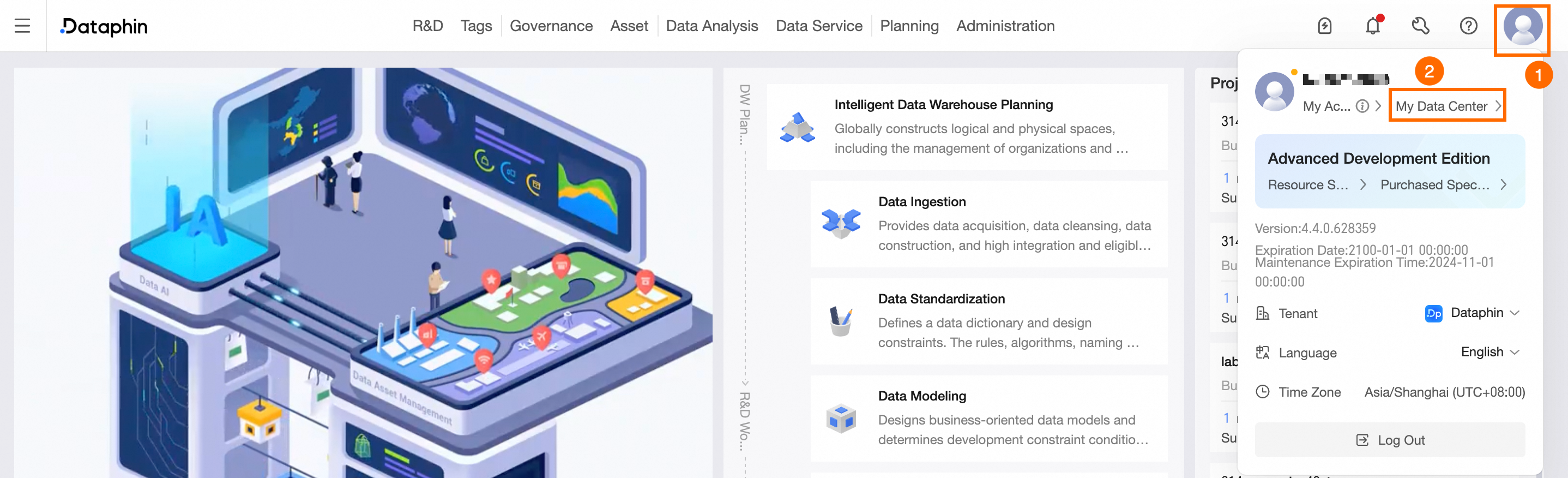
Click your profile picture in the upper-right corner to open the user center, then click Personal Data Center.
Click your profile picture and then click Personal Data Center.
View my subscribed assets
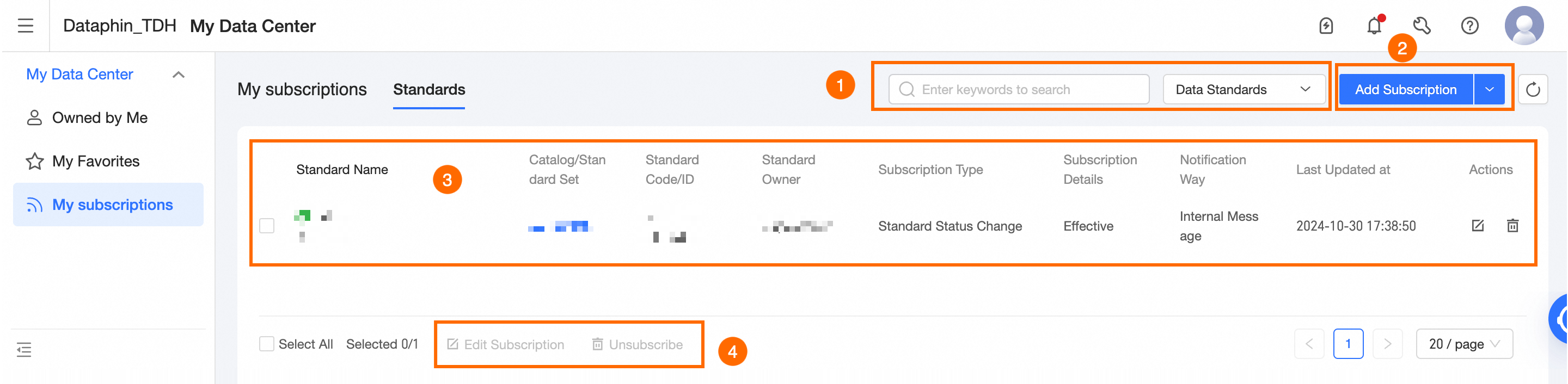
This section lists all the standards you own and have subscribed to. You can monitor status updates and manage your subscriptions, including editing or unsubscribing.
|
Area |
Description |
|
①Filter and Search Area |
Use keywords or encodings for a fuzzy search, or apply filters based on data standards. |
|
②Function Area |
|
|
③Subscription List |
View details such as standard name, directory/standard set, encoding/ID, owner, subscription type, details, reception method, and latest update time. Edit or unsubscribe from subscriptions as needed.
|
|
④Batch Operation Area |
Batch-edit or unsubscribe from multiple subscriptions. |
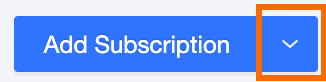 and click View subscription push records to access the Subscription Push Records panel. This displays push records from the past 30 days, including data standard name, change content, reception method, push status, and push time.
Add subscription
-
In the Personal Data Center page, click the My Subscriptions tab, then click Add Subscription to open the Add Standard Change Subscription dialog box.
-
In the Add Standard Change Subscription dialog box, set the parameters.
Parameter
Description
Subscription Object
Select multiple standard objects by filtering based on the standard set.
Subscribed Standards
Choose how to handle conflicts when the standard object already has a subscription. You can skip or overwrite.
-
Skip: If the standard is already subscribed, the current configuration is ignored.
-
Overwrite: If the standard is already subscribed, the subscription is updated with the current configuration.
Subscription Content
Select the standard statuses to subscribe to: active, inactive, offline, and delete.
Recipient
Displays the current account owner's name as the recipient.
Reception Method
Supported reception methods include internal message, mailbox, DingTalk group bot, Lark bot, WeChat bot. You can configure the reception channel in the message channel. For more information, see Configure channel settings.
-
-
Click OK to add the subscription.