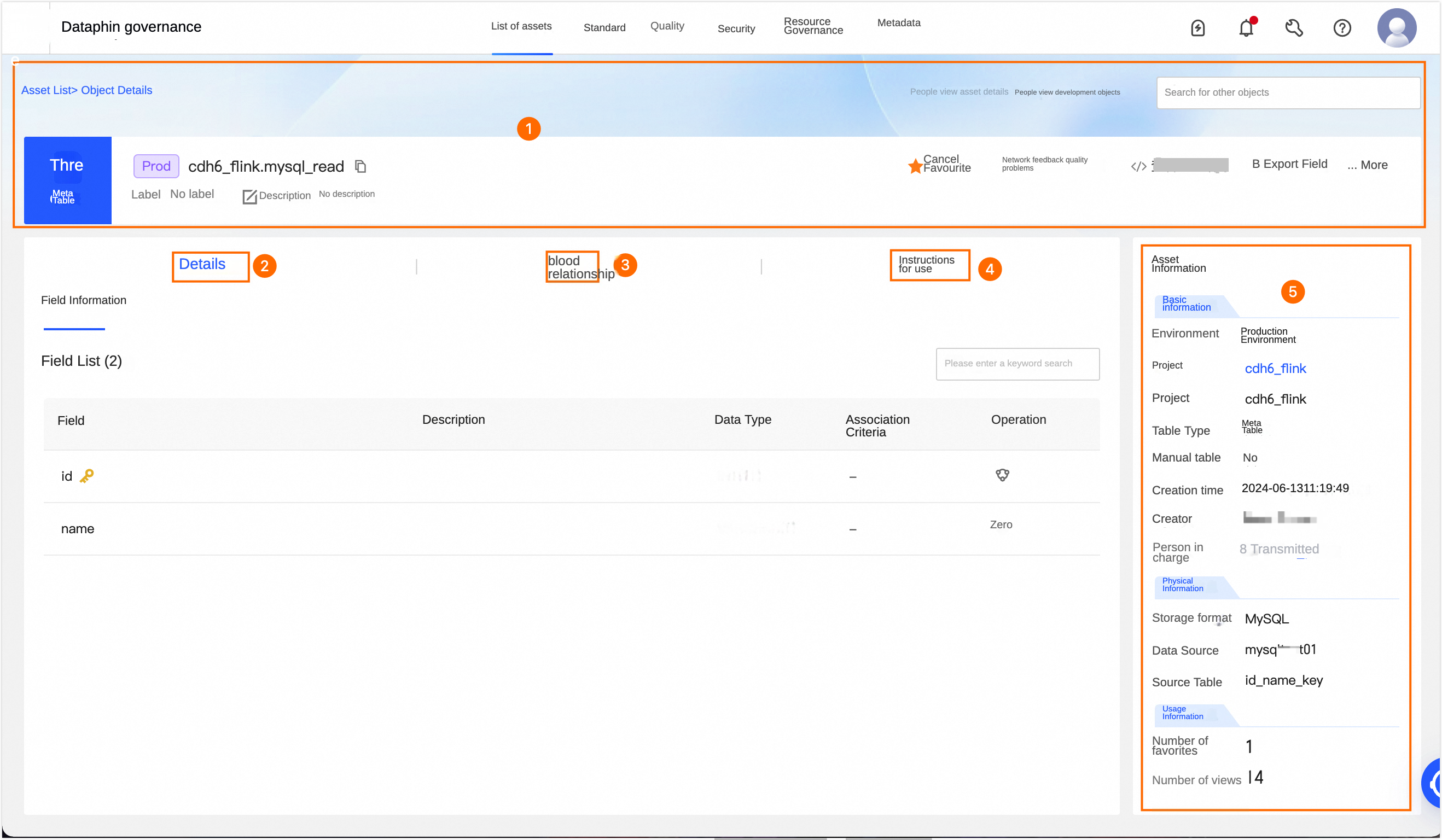
Area | Description |
①Summary | This section displays information about the table, such as its type, environment, name, tags, and description. You can also perform the following operations: Search for other asset objects: Quickly search for and view the details of other assets. View asset details: If the object is listed in the Asset Catalog, you can go to the catalog details page to view its listing information. View production/development object: Quickly switch to the details page for the object in the corresponding production or development environment. Tag: Displays the tag values configured for the asset. To modify tags, click Edit: The length of each tag value cannot exceed 128 characters. Each asset object can have up to 20 tag values. Super administrators can modify asset tags for all table types. The current table owner can modify asset tags for tables they own. Project administrators can modify asset tags for real-time metatables in the projects they manage.
Favorite: Click to add or remove an asset from your favorites. After you favorite an asset, you can view the 30 most recently favorited assets under Asset Checklist-My Footprints for easy retrieval. You can also view all your favorited assets in the Personal Data Center. For more information, see View and manage my favorited assets. Report a quality issue: Use this feature to report quality issues to the quality owner. Examples include unstable data output or inaccurate data content. The owner is then notified to make corrections, which helps improve asset availability and health. For configuration details, see Add and manage a problem checklist. You must enable the Data Quality module to use this feature. You can then track the status and resolution of reported issues in the problem checklist within the Data Quality module. View DDL Statement: Click to view the Flink DDL statement for the current data table in the tenant's compute engine. Additionally, you can select a Data Source Type and click Generate DDL Statement. The system generates a DDL statement to create a table with the same structure as the current table in the specified type of data source. If you select Automatically Add Escape Characters, the generated DDL statement automatically includes the corresponding escape characters for the selected source type. This helps prevent issues such as system keywords being misinterpreted. 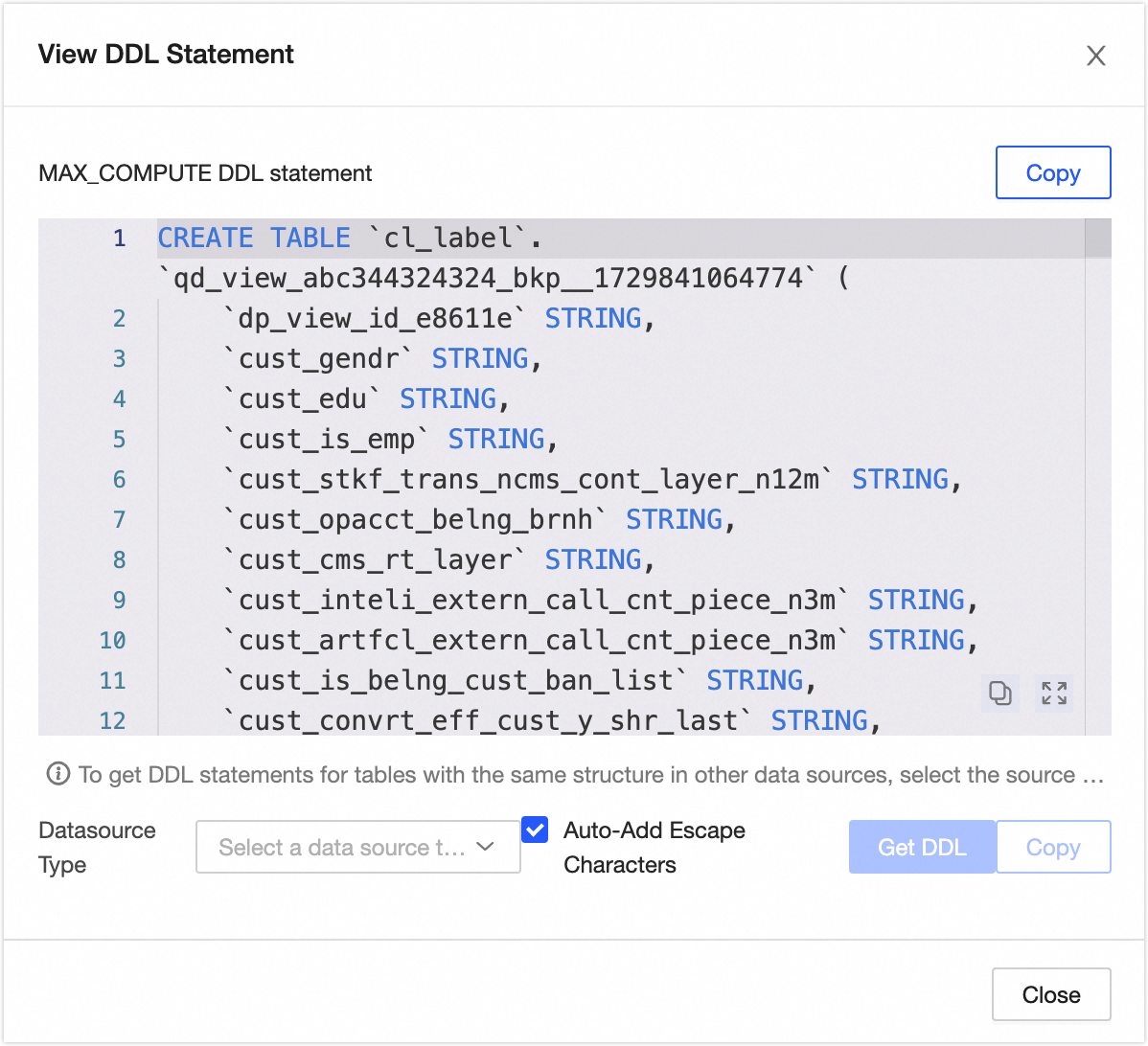
Export fields: Export the table's field information in CSV format. This lets other developers or business users quickly analyze and use the data. View transfer records: In the upper-right corner, click More and select View transfer records. This shows the 100 most recent owner transfer records for the data table. View permission list: In the upper-right corner, click More and select View permission list to view the data table's permission information.
|
②Details | Displays the details of the field, including its name, description, data type, and associated data standard (you must purchase the Data Standard module). You can also click the field lineage icon in the Actions column to view the field lineage centered on the specified field. icon in the Actions column to view the field lineage centered on the specified field. |
③Lineage | This section shows the lineage between tables. Lineage sources include sync tasks, compute nodes with custom lineage, and SQL compute nodes and logical table tasks where lineage can be automatically parsed. For more information, see Table lineage.
Note When a node is submitted, the system parses the lineage for tables in the development environment. When a node is published, the system parses the lineage for tables in the production environment. The system can parse up to 100,000 lineage relationships for a single submission or publication. If this limit is exceeded, the lineage is not recorded and does not appear in the Asset Catalog. |
④Usage guide | Add a usage guide for the data table to provide information for data viewers and consumers. Click Add Usage Guide, then enter a title and content.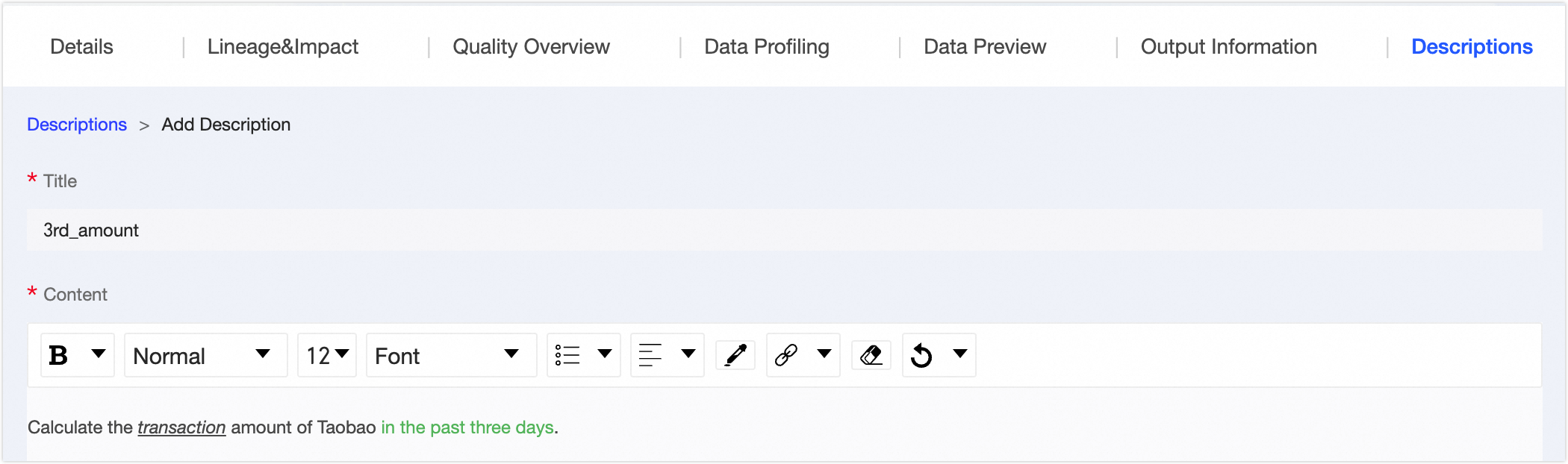 |
⑤Asset information | This section displays details about the physical table, including Basic Information, Physical information, and Usage information. Basic information: Includes the environment, project, table type, whether it is a manual table, creation time, creator, and owner. Project: The project to which the table belongs. Click the project name to go to the project's asset details page. Owner: The owner of the table. You can change the owner to another user. In the Change Owner dialog box, choose whether to also change the owner for the table in the development or production environment. Select a recipient and click OK to complete the transfer-out. We recommend that you sync with the recipient promptly after the transfer. You can view transfer information on the transfer records page. For more information, see View transfer records.
Note Super administrators can change the owner for all table types. The current table owner can change the owner for tables they own.
Physical information: Includes the storage format, storage size, and lifecycle. Storage File Format: The storage format of the source table that corresponds to the metatable. Datasource: The data source of the source table that corresponds to the metatable. Source table: The source table that corresponds to the metatable.
Usage information: Includes the number of favorites and page views. Number Of Favorites: The number of users who have favorited the table. This number is updated in real time. Page Views: The number of page views (PV) for the data table. The count increases by one each time the page is refreshed. This number is updated in real time.
|
 icon in the Actions column to open the object details page.