Dynamic data masking protects sensitive data by transforming query results without altering the underlying data. Masking rules define which data to mask and the masking methods to apply.
Limitations
Data masking applies only to fields in Dataphin tables.
Permissions
-
Security administrators and users with a global custom role that includes masking rule and data classification management permissions can create and manage dynamic data masking rules.
-
Level-1 directory administrators can configure masking rules for the data classifications they manage.
-
Masking rule owners can manage their rules, subject to their data classification management permissions.
Masking rules
-
Dynamic data masking rules protect sensitive data in production environments by transforming or encrypting data that matches specified conditions.
-
When you write to a development table or perform a data query, the system masks fields that belong to a specified data board or project and are tagged with the selected data classification, using the configured masking method and algorithm.
Create a dynamic data masking rule
-
In the top navigation bar of the Dataphin homepage, choose Governance > Data Security.
-
In the left-side navigation pane, choose Sensitive Data Protection > Masking Rule. On the Masking Rule page, click the Dynamic Data Masking Rule tab, and then click + New Dynamic Data Masking Rule.
-
In the New Dynamic Data Masking Rule dialog box, configure the parameters.
Parameter
Description
Rule name
The name of the masking rule, for example,
ID_Card_Number_Masking.Description
A description of the rule, up to 200 characters. Example: Reads data from the production environment into a development environment.
Data classification
A data classification for which you have management permissions. Example: /Personal Information/Basic Information/ID Card.
Data board
The data board scope. Select All or Enumerate.
Project
The project scope. Select All or Enumerate.
Application scenario
The scenarios where data masking is applied. Supported scenarios: Write to Development Table and Data Query.
-
Write to Development Table: Masks sensitive data from a source table before writing it to a development table, preventing data leakage from the production environment. In special cases, writing to a Basic table from a personal account is also treated as writing to a development table.
-
Data Query: Masks the results of
SELECTstatements for non-production queries, such as one-time task runs, ad-hoc queries, and analysis queries, without affecting production tasks.
Note-
For robust data protection, we recommend enabling both application scenarios.
-
To access unmasked data in a development environment, use a dynamic masking whitelist. Whitelists allow plaintext data to be written to specific tables. For this use case, set the masking method to presentation-level masking.
Masking method
The masking method. Options: backend masking and presentation-level masking.
-
backend masking: Masks data at query time. All subsequent SQL processing uses the masked data, providing stronger protection.
-
presentation-level masking: Masks data only at the final display stage. The original plaintext is used during SQL processing, maintaining compatibility with
WHEREandJOINconditions. If a UDF is applied to a sensitive field (such as substring operations), masking is downgraded and the derived field is masked as***.
Masking algorithm
Algorithms marked with the
 icon are advanced algorithms. To use these algorithms, a security function must be installed in the project where the data resides. Otherwise, they are downgraded to the default masking method (MD5). Masking algorithms include Redaction Mask, Hash Masking, Encryption, and Other.Note
When Doris is the compute engine, you must use Apache Doris v2.1.x or later to use the Birthday, Mobile Phone, Mobile Phone (Hidden Length), Fixed-line Phone, Fixed-line Phone (Hidden Length), SHA256, SHA384, and SHA512 masking algorithms.
-
hash masking
Algorithms that require a masking key include Hash Masking - Salted SHA256, Hash Masking - Salted SHA384, Hash Masking - Salted MD5, and Hash Masking - Salted SHA512.
Masking key: Required for salted hash masking algorithms. No strict format requirements.
-
Redaction Mask
-
Redaction Mask-Keyword Replacement
Requires a regular expression and a replacement string.
-
Redaction Mask - Custom Mask, Redaction Mask -Custom Mask (Custom Replacement Value)
Requires masking parameters: start position, end position, and replacement content. You can add or remove parameter sets.
-
-
Encryption: Available when the compute engine is MaxCompute.
If you select Native FPE (Format-Preserving Encryption), you need to configure the encryption alphabet and tweak. If you select FPE (Format-Preserving Encryption), you need to configure the encryption range. For more information, see Configure the Encryption Transformation Component.
-
Encryption alphabet: The character set used for encryption. Options: Built-in (Digits, Uppercase English letters, Lowercase English letters, Digits + Uppercase English letters, Digits + Lowercase English letters, Digits + English letters, and Special characters) or Custom.
-
Tweak: Ensures that the same plaintext and key produce different ciphertexts in different contexts, improving ciphertext uniqueness and security. Accepts any characters.
-
Encryption range: Encrypt a specified range of characters or all characters. The encryption and decryption ranges must match; otherwise, the decrypted result may differ from the original data.
-
Exception handling: Specifies behavior when errors occur (algorithm incompatibility, key mismatch, or encoding format mismatch). Options: Return Null, Return Plaintext, or Throw Exception.
No encryption key configuration is needed. The system uses its built-in key to prevent reverse-engineering of masked data.
-
To test different algorithms, see Test a security algorithm.
For details about security algorithms, see Security algorithm overview and Security algorithm examples.
For masking algorithms supported by each compute engine, see Masking methods supported by different compute engines.
Status
Set to Enabled or Disabled to activate or deactivate the rule.
-
-
Click OK to create the dynamic data masking rule.
Default masking policy
-
The default masking policy is a fallback strategy that provides uniform protection for sensitive data in Dataphin tables not covered by a specific masking rule.
-
Only security administrators can configure the default masking policy.
-
On the Masking Rule page, click the Dynamic Data Masking Rule tab, and then click Default Masking Policy.
-
In the Default Masking Policy dialog box, configure the parameters.
Parameter
Description
Data sensitivity level
Data sensitivity levels, from lowest to highest: Public (L1) and higher, Internal (L2) and higher, Confidential (L3) and higher, and Top Secret (L4) and higher. To create a data sensitivity level, see Create a data sensitivity level.
Masking algorithm
Options: Return Null, Return MD5 Hash Value, Return Masked Value (fixed-length ***), and No Masking.
-
Click OK to create the default masking policy.
Manage dynamic data masking rules
View, edit, transfer, or delete your dynamic data masking rules.
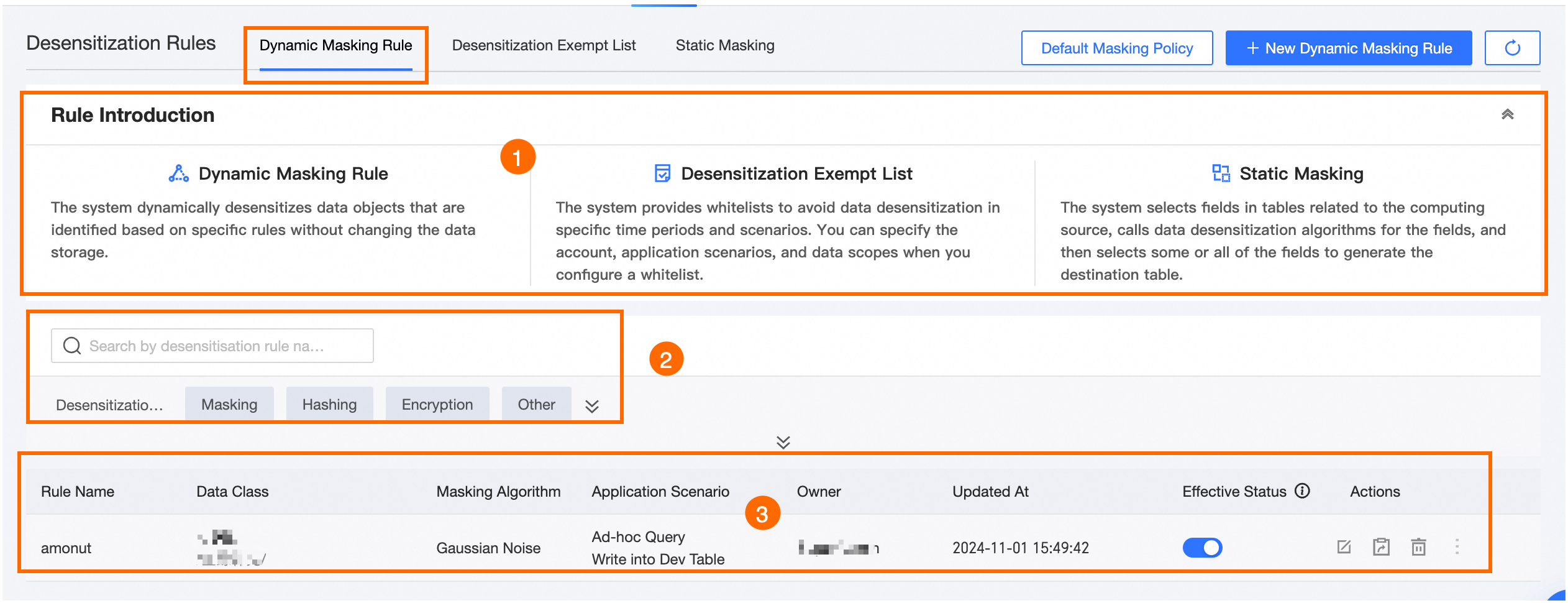
|
Area |
Description |
|
① Introduction to Masking Rules |
Overview of dynamic data masking rules, dynamic masking whitelists, and static masking rules. |
|
② Filter and search area |
Search by rule name or data classification, or filter by Masking Type and application scenario. |
|
③ Dynamic data masking rule list |
Lists masking rules with their name, data classification, masking algorithm, application scenario, owner, update time, and status. The Actions column supports the following operations: Edit, transfer, Delete, View Masking Algorithm, and View Masking Whitelist.
|