Use offline full database migration to migrate data from self-managed databases in an on-premises data center or on ECS instances to targets such as MaxCompute, Hive, and TDH Inceptor. This topic shows you how to create and configure a full database migration task.
Prerequisites
You must have a data source created for the data you want to migrate. Full database migration supports sources such as MySQL, Microsoft SQL Server, Oracle, and OceanBase. For supported data sources, see Supported data sources for full database migration.
Overview
Offline full database migration improves user efficiency and reduces costs. Instead of configuring a separate offline pipeline for each table, you can configure pipelines for multiple tables from a database in a single batch.
Procedure
-
In the top navigation bar on the Dataphin homepage, choose Development > Data Integration.
-
In the top menu bar, select the desired project.
-
In the left navigation pane, choose full database migration > offline full database migration.
-
On the Offline Full Data Migration page, configure the parameters as described in the following table.
-
Configure basic information.
Full database migration folder name: The name can be up to 256 characters long and cannot contain the following characters: vertical bar (|), forward slash (/), backslash (\), colon (:), question mark (?), angle brackets (<>), asterisk (*), or double quotation mark (").
-
Configure data source information.
-
Source
Parameter
Description
Data source type
Select the data source type for the source. For a list of supported data sources and instructions on how to create them, see Supported data sources for full database migration.
-
Oracle data source
-
Schema: Select the schema that contains the tables. You can select tables from multiple schemas. If you do not specify a schema, the system uses the schema configured for the data source.
-
File encoding: If you select an Oracle data source, you must select the file encoding. Supported values are UTF-8, GBK, and ISO-8859-1.
-
-
Microsoft SQL Server, PostgreSQL, Amazon Redshift, Amazon RDS for PostgreSQL, Amazon RDS for MySQL, Amazon RDS for SQL Server, Amazon RDS for Oracle, Amazon RDS for DB2, PolarDB-X2.0, and GBase 8C data sources
Schema: Select the schema that contains the tables. You can select tables from multiple schemas. If you do not specify a schema, the system uses the schema configured for the data source.
-
DolphinDB data source
Database: Select the database that contains the tables. If you leave this parameter empty, the system uses the database specified during data source registration.
-
Hive data source
If you select a Hive data source, configure the following parameters.
-
File encoding: Supported values are UTF-8 and GBK.
-
ORC table compression format: Supported values are zlib, hadoop-snappy, lz4, and none.
-
Text table compression format: Supported values are gzip, bzip2, lzo, lzo_deflate, hadoop_snappy, framing-snappy, zip, and zlib.
-
Parquet table compression format: Supported values are hadoop_snappy, gzip, and lzo.
-
Field delimiter: This delimiter is used to write data to the destination table. If you leave this parameter empty, the default value is
\u0001.
-
Time zone
Select a time zone based on your database configuration. In regions in the Chinese mainland, the default time zone for Data Integration is
GMT+8. This time zone does not support Daylight Saving Time (DST). If your database is configured with a time zone that supports DST, such asAsia/Shanghai, and the timestamps to synchronize fall within a DST period, we recommend that you select a time zone such asAsia/Shanghai. Otherwise, the synchronized data may be off by one hour from the data in the database.Supported time zones include: GMT+1, GMT+2, GMT+3, GMT+5:30, GMT+8, GMT+9, GMT+10, GMT-5, GMT-6, GMT-8, Africa/Cairo, America/Chicago, America/Denver, America/Los_Angeles, America/New York, America/Sao Paulo, Asia/Bangkok, Asia/Dubai, Asia/Kolkata, Asia/Shanghai, Asia/Tokyo, Atlantic/Azores, Australia/Sydney, Europe/Berlin, Europe/London, Europe/Moscow, Europe/Paris, Pacific/Auckland, and Pacific/Honolulu.
Data source
Select the data source. If the data source you need is not available, you can click New Data Source to create one.
Batch read size
For Oracle, Microsoft SQL Server, OceanBase, IBM DB2, PostgreSQL, Amazon Redshift, Amazon RDS for PostgreSQL, Amazon RDS for MySQL, Amazon RDS for SQL Server, Amazon RDS for Oracle, Amazon RDS for DB2, DolphinDB, or GBase 8C data sources, you can configure the batch read size. This parameter specifies the number of rows to read in a single batch. The default value is 1024.
-
-
Destination
Parameter
Description
Data source type
Select the data source type for the destination. For a list of supported data sources and instructions on how to create them, see Supported data sources for full database migration.
Note-
If you synchronize data to an AnalyticDB for PostgreSQL data source, the system creates a date-based partition for the destination table every day.
-
If you need other partitions, generate the pipelines first. Then, click an individual pipeline and modify the partition-related prepared statement.
Data source
Select the data source. If the data source you need is not available, you can click New Data Source to create one. For a list of supported data sources and instructions on how to create them, see Supported data sources for full database migration.
-
TDH Inceptor and ArgoDB destination data source types
You must configure the storage format.
-
TDH Inceptor: Supports PARQUET, ORC, and TEXTFILE storage formats.
-
ArgoDB: Supports PARQUET, ORC, TEXTFILE, and HOLODESK storage formats.
-
-
Hive destination data source type
The required parameters vary depending on the data lake table format selected: Hudi, Iceberg, or none.
NoteYou can select Iceberg or Hudi for the data lake table format only if data lake table formats are enabled for the selected data source or the current project's execution engine.
Hive
-
Is external table: Click the switch to specify whether to create an external table. By default, this option is turned off.
-
Storage format: Supported storage formats: PARQUET, ORC, and TEXTFILE.
-
File encoding: If the storage format is ORC, you can configure the file encoding. Supported values are UTF-8 and GBK.
-
Compression format:
-
ORC storage format: Supports zlib, hadoop-snappy, and none.
-
PARQUET storage format: Supports gzip and hadoop-snappy.
-
TEXTFILE storage format: gzip, bzip2, lzo, lzo_deflate, hadoop-snappy, and zlib.
-
-
Performance configuration: If the storage format is ORC, you can configure performance settings. In scenarios where the output table format is ORC and the table contains a large number of fields, you can increase this value to improve write performance if memory is sufficient. If memory is insufficient, you can decrease this value to reduce garbage collection (GC) time and improve write performance. The default value is
{"hive.exec.orc.default.buffer.size":16384}, in bytes. The recommended maximum value is 262,144 bytes (256 KB). -
Field delimiter: For the TEXTFILE storage format, you can configure a field delimiter. The system uses the specified delimiter to write to the target table. If a delimiter is not specified, the default is
\u0001. -
Field delimiter handling: For the TEXTFILE storage format, you can configure how to handle field delimiters. If your data contains the default or a custom field delimiter, you can select a handling strategy to prevent data write errors. Options include Keep, Remove, and Replace with.
-
Row delimiter handling: For the TEXTFILE storage format, you can configure how to handle row delimiters. If your data contains newline characters (
\r\nor\n), you can select a handling strategy to prevent data write errors. Options include Keep, Remove, and Replace with. -
Development data source location: For projects in Dev-Prod mode, you can specify the storage location for the table in the development data source's table creation statement. Example:
hdfs://path_to_your_extemal_table. -
Production data source location: For projects in Dev-Prod mode, you can specify the storage location for the table in the production data source's table creation statement. Example:
hdfs://path_to_your_extemal_table.NoteFor projects in Basic mode, you need to specify only one data source location.
Hudi
-
Execution engine: If Spark is enabled for the selected data source, you can select Spark or Hive as the execution engine. If Spark is not enabled, you can select only Hive.
-
Hudi table type: You can select MOR (merge on read) or COW (copy on write). The default is MOR (merge on read).
-
Extended properties: Enter officially supported Hudi configuration properties in the format
k=v.
Iceberg
-
Execution engine: If Spark is configured for the selected data source, Spark is displayed and selected by default. If Spark is not configured, only Hive is displayed and selected.
-
Is external table: Click the switch to specify whether to create an external table. By default, this option is turned off.
-
Storage format: Supported storage formats: PARQUET, ORC, and TEXTFILE.
-
File encoding: If the storage format is ORC, you can configure the file encoding. Supported values are UTF-8 and GBK.
-
Compression format:
-
ORC storage format: Supports zlib, hadoop-snappy, and none.
-
PARQUET storage format: Supports gzip and hadoop-snappy.
-
TEXTFILE storage format: gzip, bzip2, lzo, lzo_deflate, hadoop-snappy, and zlib.
-
-
Performance configuration: If the storage format is ORC, you can configure performance settings. In scenarios where the output table format is ORC and the table contains a large number of fields, you can increase this value to improve write performance if memory is sufficient. If memory is insufficient, you can decrease this value to reduce garbage collection (GC) time and improve write performance. The default value is
{"hive.exec.orc.default.buffer.size":16384}, in bytes. The recommended maximum value is 262,144 bytes (256 KB). -
Field delimiter: TEXTFILE The system uses the delimiter that you specify to write to the target table. If you do not specify a delimiter, the default is
\u0001. -
Field delimiter handling: For the TEXTFILE storage format, you can configure how to handle field delimiters. If your data contains the default or a custom field delimiter, you can select a handling strategy to prevent data write errors. Options include Keep, Remove, and Replace with.
-
Row delimiter handling: For the TEXTFILE storage format, you can configure how to handle row delimiters. If your data contains newline characters (
\r\nor\n), you can select a handling strategy to prevent data write errors. Options include Keep, Remove, and Replace with. -
Development data source location: For projects in Dev-Prod mode, you can specify the storage location for the table in the development data source's table creation statement. Example:
hdfs://path_to_your_extemal_table. -
Production data source location: For projects in Dev-Prod mode, you can specify the storage location for the table in the production data source's table creation statement. Example:
hdfs://path_to_your_extemal_table.NoteFor projects in Basic mode, you need to specify only one data source location.
Paimon
-
Execution engine: Currently, only Spark is supported.
-
Paimon table type: You can select MOR (merge on read), COW (copy on write), or MOW (merge on write). The default is MOR (merge on read).
-
Extended properties: Enter officially supported Paimon configuration properties in the format
k=v.
-
-
AnalyticDB for PostgreSQL, GaussDB (DWS), and OushuDB destination data source types
Configure the following parameters.
ImportantThe conflict resolution strategy is effective only in Copy mode when the PostgreSQL kernel version is later than 4.3. If the kernel version is earlier than 4.3 or is unknown, use this option with caution to avoid task failures.
-
Conflict resolution strategy: For the copy load strategy, you can set a conflict resolution strategy. Options include Report error on conflict and Overwrite on conflict.
-
Schema: You can select tables across schemas. Select the schema that contains the tables. If you do not specify a schema, the system uses the schema that is configured for the data source.
-
-
Lindorm destination data source type
Configure the following parameters.
-
Storage format: Supports PARQUET, ORC, TEXTFILE, and ICEBERG storage formats.
-
Compression format: Different storage formats support different compression formats.
-
ORC storage format: Supports zlib, hadoop-snappy, lz4, and none.
-
PARQUET storage format: Supports gzip and hadoop-snappy.
-
TEXTFILE storage format: Supports gzip, bzip2, lzo, lzo_deflate, hadoop-snappy, and zlib.
-
-
Development data source location: For projects in Dev-Prod mode, you can specify the root storage path (Location) for tables in the development environment's table creation statements. Example:
/user/hive/warehouse/xxx.db. -
Production data source location: For projects in Dev-Prod mode, you can specify the root storage path (Location) for tables in the production environment's table creation statements. Example:
/user/hive/warehouse/xxx.db.
-
-
MaxCompute data source
MaxCompute table type: You can select Standard Table or Delta Table.
-
Databricks data source
Schema: You can select tables across schemas. Select the schema that contains the tables. If you do not specify a schema, the system uses the schema that is configured for the data source.
Load strategy
-
For Hive (when the data lake table format is Hudi or Paimon), TDH Inceptor, ArgoDB, StarRocks, Oracle, MaxCompute, Lindorm (compute engine), and Data Lake Formation destination data sources, the supported load strategies are overwrite data, append data, and update data.
-
Overwrite data: Deletes existing data in the destination before writing new data.
-
Append data: Adds new data without changing or deleting existing data.
-
Update data: Updates existing rows based on the primary key and inserts new rows that do not have a matching primary key.
Note-
If the MaxCompute table type is Standard Table, you can select append data or overwrite data as the load strategy. If the MaxCompute table type is Delta Table, you can select update data or overwrite data.
-
If the destination data source is Data Lake Formation, only the append data and update data load strategies are supported.
-
-
-
For Hive destination data sources (when no data lake table format is selected), the supported load strategies are Overwrite only data written by integration task, append data, and Overwrite all data.
-
For AnalyticDB for PostgreSQL, GaussDB (DWS), and OushuDB destination data sources, the supported load strategies are insert and copy.
-
insert: Synchronizes data row by row. This method is suitable for small datasets and can improve data accuracy and integrity.
-
copy: Synchronizes data as files. This method is suitable for large datasets and can increase synchronization speed.
-
Batch write data size
Hive (when the data lake table format is Hudi), AnalyticDB for PostgreSQL, and StarRocks destination data sources support configuring the batch write data size. This parameter specifies the amount of data to write per batch. If Batch write row count is also set, data is written when either the size or row count limit is reached.
Batch write row count
For Hive (when the data lake table format is Hudi), AnalyticDB for PostgreSQL, and StarRocks destination data sources, you can configure the batch write row count, which specifies the number of rows to write per batch.
Field length conversion factor (Optional)
When the source and destination have different units for measuring field length (for example, MySQL counts by characters, while Doris counts by bytes), creating tables with identical lengths can cause write failures for multi-byte data such as Chinese characters. You can set this factor to the maximum number of bytes per character in the destination to avoid truncation. The formula is
Destination field length = Source field length × Factor (rounded up). You can enter a positive integer. If you leave this parameter empty, the default is 1 (same length as the source). For example, if the source field isVARCHAR(500)and the factor is set to 3, the one-click table creation feature generates aVARCHAR(1500)field in the destination.Note-
The field length conversion factor takes effect only during one-click automatic table creation. If the destination table already exists, the system does not modify its field lengths.
-
This factor affects only the length of character-type fields (such as CHAR, VARCHAR, and TEXT) and does not change the field type semantics. Numeric, time, and other non-character types are not affected.
-
-
-
Configure data synchronization
-
For non-FTP sources
By default, the target table's name matches the source table's name. If a name conversion rule is configured, the rule determines the target table's name.
NoteIf you select an external data source without a configured collection task, no metadata can be retrieved, and the data synchronization metadata will be empty. To fix this, go to the Metadata Center to configure a collection task.
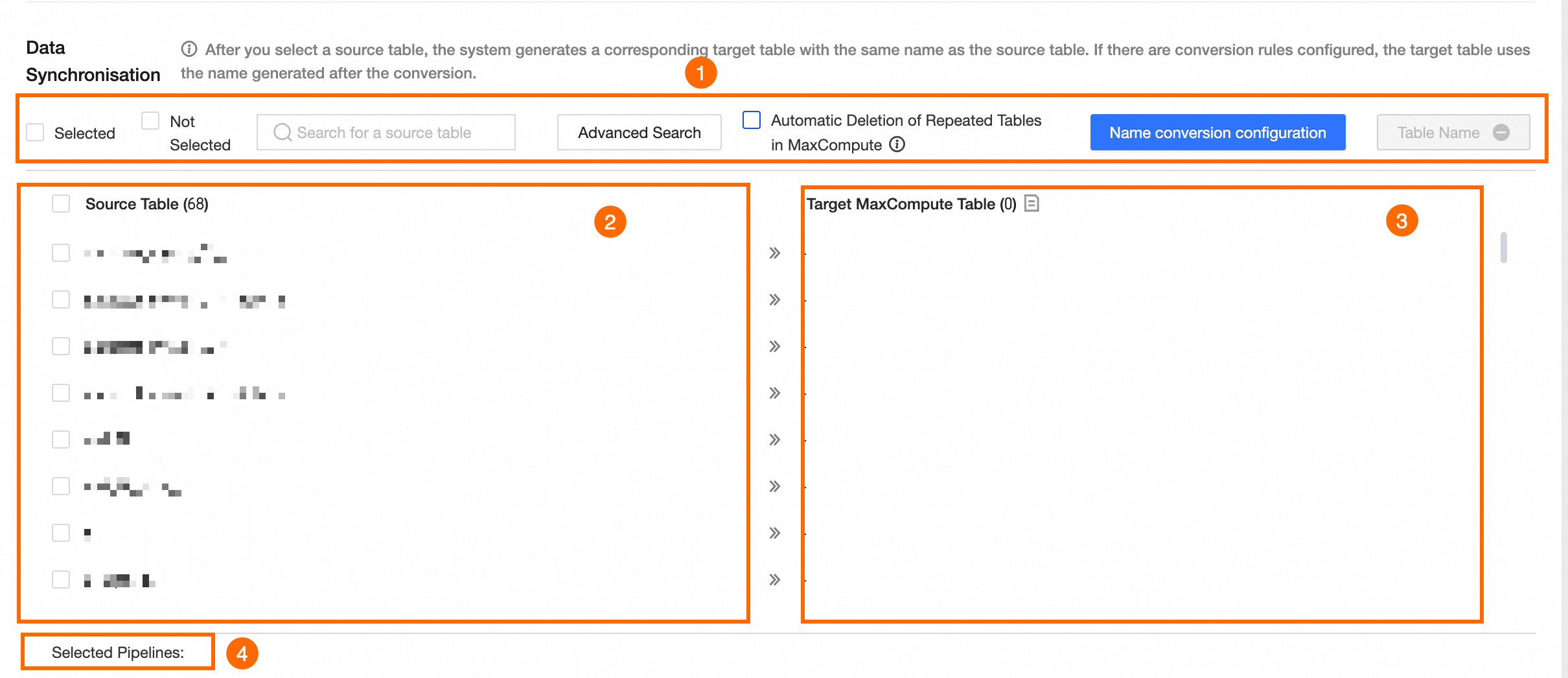
Area
Description
①Operation area
-
Selected/Unselected: You can filter source tables by whether they are Selected or Unselected.
-
Search source tables: Search for source tables by name. The search is case-sensitive.
-
advanced search: This page displays a maximum of 10,000 tables. To perform a bulk search across all tables in the database, click advanced search. In the advanced search dialog box, configure the search parameters.
-
Configure search method
You can search for tables by using Enter Exact Table Name or fuzzy search.
-
Enter exact table name: Enter table names in bulk in the Search Content field. Separate the names using the configured delimiter. The default delimiter is
\nand can be customized. -
fuzzy search: Enter a keyword in the Search Content field to perform a fuzzy search for table names.
-
-
Enter search content
-
The required search content depends on the selected search method.
-
Enter exact table name: Enter one or more table names, separated by the configured delimiter.
-
fuzzy search: Enter a keyword from the table name.
-
-
-
Search results
After you configure the Search Method and Search Content, click Search to display the results. From the results, select the desired tables and click Bulk Select or Bulk Deselect. Click OK to apply the changes.
-
-
Automatically delete tables with the same name in the data source: If this option is selected, Dataphin first deletes any existing tables in the data source that match the names of the tables to be generated, then recreates them.
ImportantIf the data source is a project data source, tables with the same name in both the production and development environments are deleted. Proceed with caution.
-
name conversion rule: Optional. Define rules to modify source table and field names before synchronization.
-
Click Name Conversion Rule.
-
On the name conversion rule page, configure the rules.
-
Table name conversion rule: Click New Rule. In the rule item, enter the Source Table String to Replace and Target Table Replacement String. For example, to replace
dataworkwithdataphinin a table name, set the string to replace toworkand the replacement string tophin. -
Table name prefix: In the Table name prefix input field, enter a prefix for the target table names. This prefix is automatically added during synchronization. For example, if you enter
pre_as the prefix and the table name isdataphin, the generated target table name becomespre_dataphin. -
Table name suffix: In the Table name suffix input field, enter a suffix for the target table names. This suffix is automatically appended during synchronization. For example, if you enter
_prodas the suffix for a table nameddataphin, the generated target table name becomesdataphin_prod. -
field name rule: Click Add Rule. In the rule item, enter the Source field string to replace and Target field replacement string. For example, to convert a field name from
dataworktodataphin, enterworkas the source string andphinas the target string.
-
-
After you finish the configuration, click OK. The converted target table names are displayed in the Corresponding Target Table column.
NoteEnglish letters in replacement strings and table name prefixes and suffixes are automatically converted to lowercase.
-
-
validate table name: Checks if the target table names already exist in the target database.
②Source table
In the Source Table list, select the source tables to synchronize.
③Corresponding target table
After you select a source table, a corresponding target table is generated. By default, the target table's name matches the source table's name. If a name conversion rule is configured, the rule determines the target table's name.
NoteTarget table names can only contain letters, numbers, and underscores (_). If a source table name contains other characters, you must configure a table name conversion rule.
④Pipeline statistics
The number of pipelines currently selected.
-
-
For FTP sources
-
Click Download Excel Template, fill in the template as instructed, and then upload the file. To avoid parsing errors, strictly adhere to the template's format.
NoteYou can upload a single .xlsx file or a .zip archive, which can contain one or more .xlsx files. The uploaded file or archive must be smaller than 50 MB.
-
After the file is uploaded, click parse file.

Parameter
Description
①Operation area
-
Search source files: Search for source files by file name.
-
View failed parse tasks only: Filters the list to show only tasks that failed to parse.
-
Automatically delete tables with the same name in the data source: If this option is selected, existing tables in the data source that have the same names as the new target tables are automatically deleted and then recreated.
ImportantIf the data source is a project data source, tables with the same name in both the production and development environments are deleted. Proceed with caution.
-
validate table name: Checks if the target table names already exist in the target database.
②Source file and Corresponding target table
-
source file: In the Source File list, select the source files to synchronize.
-
Corresponding Target Table: After the file is parsed, target tables are generated based on the template file.
③Pipeline statistics
The number of pipelines currently selected.
-
-
-
-
Task name configuration
Generation mode: Specifies how to generate names for offline full database migration tasks. You can select System default or Custom rule.
Parameter
Description
Generation mode
System default
Generates task names using the system's default naming convention.
Custom rule
ImportantYou must select the source and destination data sources before configuring a custom task naming rule.
-
Default rule: After you select the source and destination data sources and choose Custom rule as the generation mode, the system populates the Task naming rule text box with a default rule. The default rule for task names is
${source_data_source_type}2${destination_data_source_type}_${source_table_name}.For example, if the source data source type is MySQL, the destination data source type is Oracle, and the name of the first source table is
source_table_name1, the default naming rule isMySQL2Oracle_${source_table_name}, and the task name preview isMySQL2Oracle_source_table_name1.NoteThis default rule is not the same as the System default generation mode.
-
Custom rule: Enter a naming rule in the Task naming rule text box on the left. You can delete the existing default rule or modify it.
The name must not contain a vertical bar (|), forward slash (/), backslash (\), colon (:), question mark (?), angle brackets (<>), asterisk (*), or double quotation mark ("). The name must be no more than 256 characters long. You can click valid metadata names in the Addable metadata list on the right to copy them.
NoteAfter you add metadata to the naming rule, the task name preview uses metadata values from the first table in the source table list.
-
-
Configure synchronization mode and data filtering
Parameter
Description
Synchronization mode
Select a synchronization mode. The available options are daily sync, one-time sync, and daily sync + one-time sync.
-
Daily sync: Creates a daily scheduled task for the integration pipeline. Use this mode for daily incremental or full data synchronization.
-
One-time sync: Creates a manual task for the integration pipeline. Use this mode to synchronize full historical data.
-
Daily sync + one-time sync: Creates both a daily scheduled task and a manual task. Use this mode for scenarios that require an initial full data load followed by daily incremental or full updates.
NoteThe daily sync + one-time sync mode is not supported when the source is FTP.
Create target table as
Select the type of target table to create: a partitioned table or a non-partitioned table. The creation rules vary based on the synchronization mode:
-
Daily sync: If you select partitioned table, a partitioned table is created, and data is written to the
ds=${bizdate}partition by default. If you select non-partitioned table, a non-partitioned table is created. -
One-time sync: If you select partitioned table, a partitioned table is created. You must configure the Partition for one-time sync parameter, which accepts a constant (e.g.,
20230330) or a partition parameter (e.g.,ds=${bizdate}). If you select non-partitioned table, a non-partitioned table is created. -
Daily sync + one-time sync: This mode creates the target table as a partitioned table by default. You must configure the Partition for one-time sync parameter, which accepts a constant (e.g.,
20230330) or a partition parameter (e.g.,ds=${bizdate}).NoteCurrently, a one-time sync can write data to only a single specified partition of the target table. To write full historical data to different partitions, you can run an SQL task after the one-time sync to process and write the data to the respective partitions. Alternatively, you can use daily sync for incremental data and then perform data backfilling to populate historical partitions.
Data filtering
-
When the source is not Hive or MaxCompute

-
Filter for daily sync: If your synchronization mode includes daily sync, you can configure this filter. For example, specifying
ds=${bizdate}extracts all data from the source whereds=${bizdate}and writes it to the specified target table partition. -
Filter for one-time sync: If your synchronization mode includes one-time sync, you can configure this filter. For example, specifying
ds=<${bizdate}extracts all data from the source whereds=<${bizdate}and writes it to the specified target table (or partition).
-
-
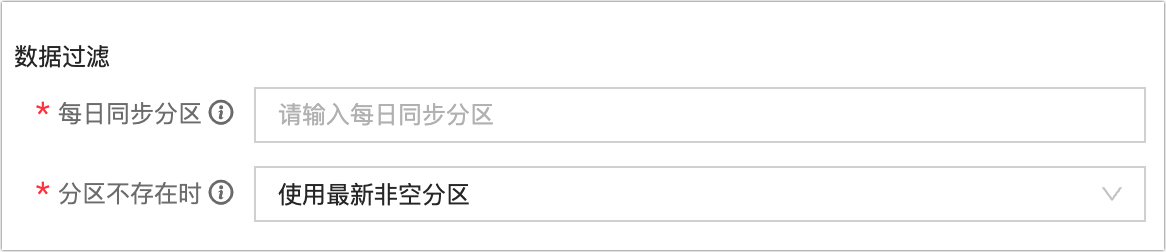
When the source is Hive or MaxCompute
-
Daily sync partition: When the source is a Hive or MaxCompute partitioned table, you must specify which partition to read from daily. You can specify a single partition, such as
ds=${bizdate}, or multiple partitions, such as/*query*/ds>=20230101 and ds<=20230107. -
One-time sync partition: When the source is a Hive or MaxCompute partitioned table and the synchronization mode includes one-time sync, you must specify which partition to read from. You can specify a single partition, such as
ds=${bizdate}, or multiple partitions, such as/*query*/ds>=20230101 and ds<=20230107. -
If the specified partition does not exist: You can select one of the following strategies to handle this scenario:
-
Fail the task: The task terminates with a failed status.
-
Mark task as successful: The task completes successfully without writing any data.
-
Use latest non-empty partition: When the source is MaxCompute, this option uses the table's latest non-empty partition (max_pt) for the sync. If the table has no partitions with data, the task fails and reports an error. This option is not supported for Hive sources.
-
-
NoteData filtering is not supported when the source is FTP.
Parameter configuration
When the source is FTP, you can use parameters in the source file path.
-
-
Scheduling and runtime configuration
Parameter
Description
Scheduling configuration
Select a scheduling configuration. The options are concurrent scheduling and batch scheduling.
-
Concurrent scheduling: Runs synchronization tasks for all selected source tables at 00:00 (midnight) each day in the specified scheduling time zone.
-
Batch scheduling: Runs synchronization tasks for the selected source tables in batches. You can set intervals from 0 to 23 hours and schedule a maximum of 142 synchronization tasks. For example, to synchronize 100 tables, if you configure the system to synchronize 10 tables every 2 hours, all tasks will be started over a 20-hour period. The entire synchronization cycle cannot exceed 24 hours.
Runtime timeout
If a synchronization task runs for longer than the specified timeout, the system automatically terminates it and marks it as failed. You can select system configuration or custom.
-
System configuration: Uses the system's default timeout value. For more information, see runtime configuration.
-
Custom: Allows you to set a custom timeout. Enter a number greater than 0 and up to 168, with up to two decimal places.
Automatic retry on failure
If a task instance or a data backfilling instance fails, the system automatically retries the task based on this configuration. You can set the number of retries to an integer from 0 to 10 and the retry interval to an integer from 1 to 60.
Upstream dependency
Click Add Dependency to add a physical node or logical table node as an upstream dependency for this node. If no dependency is configured, the default upstream dependency is the tenant's virtual root node. You can also manually add a virtual node as a dependency. This is useful for scenarios such as unified data backfilling.
-
-
Resource configuration
scheduling resource group: A whole database migration integration task consumes scheduling resources when it runs. This type of task requires dedicated resources, and you can specify a scheduling resource group for each instance that it generates. When an instance is scheduled, it consumes the resource quota of the specified resource group. If the specified resource group has insufficient resources, the instance enters the Waiting for Scheduling Resources state. Resources in different resource groups are isolated to ensure scheduling stability.
You can only select a resource group that is used for Task Daily Scheduling and is an associated resource group for the task's project. For details, see Resource Group Configuration and .
Note-
In a Basic project, you can configure a scheduling resource group. In a Dev-Prod project, you can configure a development task scheduling resource group and a production task scheduling resource group.
-
If you select the project-level default resource group, this setting is automatically updated to reflect any changes to the configuration of the project-level default resource group.
-
By default, tasks in both development and production environments use the project-level default scheduling resource group. You can change this to another available resource group that is bound to the project, including resource groups from registered scheduling clusters.
-
-
-
After configuring the parameters, click Generate Pipeline to create an offline full database migration pipeline.
The Run Results area displays details for each pipeline task, including the source table, target table, synchronization method, task status, and notes.

-
After the pipelines are generated, a folder for the offline full database migration task is created in the offline integration folder. This folder contains the corresponding offline pipeline tasks, which you can configure and publish. For more information, see Configure Offline Pipeline Task Properties.
If table creation fails or you need to add a table later, you can manually create an offline pipeline task or an offline script task for the table and then move the task into the offline full database migration folder. To do this, follow these steps:
-
Click the
 icon next to the target offline full database migration folder. Select New Offline Pipeline or New Offline Script.
 -
In the Create Offline Pipeline or Create Offline Script dialog box, configure the required parameters and click OK. For more information about the parameters, see Create an integration task by using a single pipeline and Create an integration task in script mode.
Note-
The new offline pipeline and offline script tasks will be placed in the current offline full database migration folder.
-
You cannot move folders into or out of the offline full database migration folder.
-
To move an offline pipeline task or offline script task that is in the offline integration folder, click the
 icon next to its name and select Move. In the Move File dialog box, select the destination folder. You can move tasks into the offline full database migration folder.
 -
Deleting the offline full database migration folder also deletes all tasks within it, including offline pipeline tasks and offline script tasks.
-
-
Next steps
-
After you create and publish the offline full-database migration task, you can view and manage the integration tasks in the Operation Center to ensure that they run correctly. For more information, see the linked topics.