All Products
Search
Document Center

Dataphin:View The Asset Inventory

Last Updated:Jun 23, 2026

The asset inventory displays data assets by type and supports search, access, and favorites for quick data discovery.

Asset Inventory Page

On the Dataphin homepage, click Governance > Asset Inventory in the top menu bar to go to the Asset Inventory page.
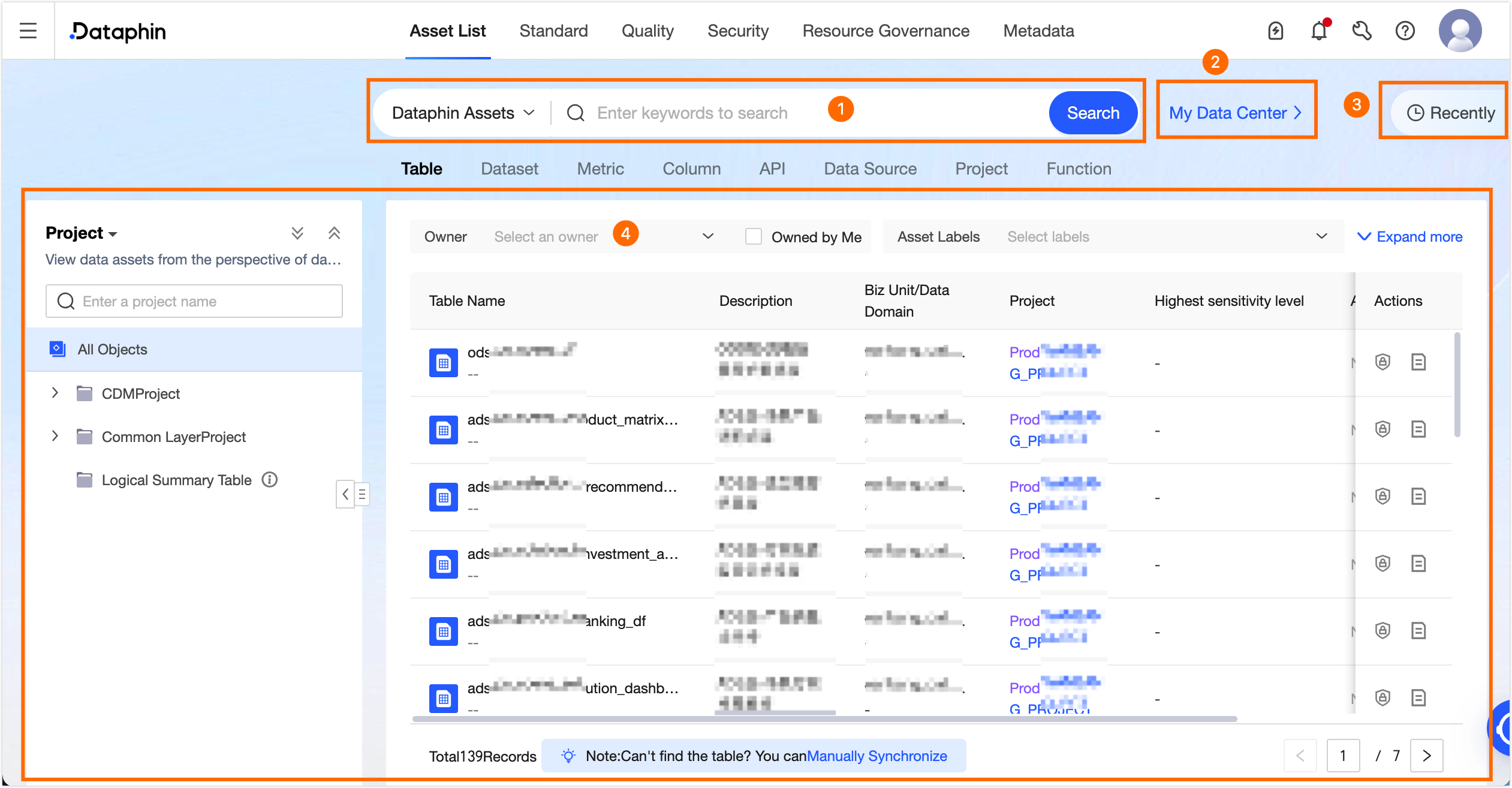
image

Area

Description

Asset Search area

Search for Dataphin assets or other system assets by name or description keywords. For more information, see Search For Data.

Personal data center

View assets that you are responsible for, have favorited, have subscribed to, and are available to you. For more information, see personal data center.

My history

  • Recently Viewed: Displays the 30 most recent assets you have viewed. This list updates in real time.

  • Recently Used: Displays your recently used assets. This list is updated in real time. If an asset has been deleted, you cannot view its details.

    Dataphin parses SQL to identify tables used in operations such as ad-hoc queries, analytics, and manual SQL tasks. This includes Data Definition Language (DDL), Data Manipulation Language (DML), and Data Query Language (DQL) operations. It displays a maximum of 30 records.

  • Recently Favorited: Displays the last 30 assets you have favorited. You can also unfavorite assets from this list. To view all your favorited assets, click personal data center at the bottom of the section. For more information, see View and manage my favorite assets.

Asset list

View the list pages for various asset types. For more information, see Dataphin asset list overview.

Search For Data

On the asset list page, search for various types of assets.

Area

Description

Dataphin asset search area

Search for assets by name or description keywords.

  • The search bar allows you to search all assets under the current tab.

  • If you have a search history, recent searches are displayed for quick reuse.

  • Clicking an asset in the drop-down list opens its details page. If you click the search icon or press Enter, the page displays a list of matching assets.

  • In some cases, such as when a data table was not created in Dataphin or is not yet found due to metadata collection delays, click Manual Synchronization. This action fetches and refreshes the latest metadata for the specified data table. For more information, see Refresh metadata.

Other system assets search area

When metadata collection and management is enabled for the current tenant, switch between Dataphin assets and other system assets to view details for each asset type.

  • Search for metadata objects by full name or description keywords.

  • The search bar allows you to search all assets.

  • If you have a search history, recent searches are displayed for quick reuse.

  • Clicking an asset in the drop-down list opens its details page. If you click the search icon or press Enter, the results page displays a list of assets from other systems that match your keyword.

Dataphin Asset List

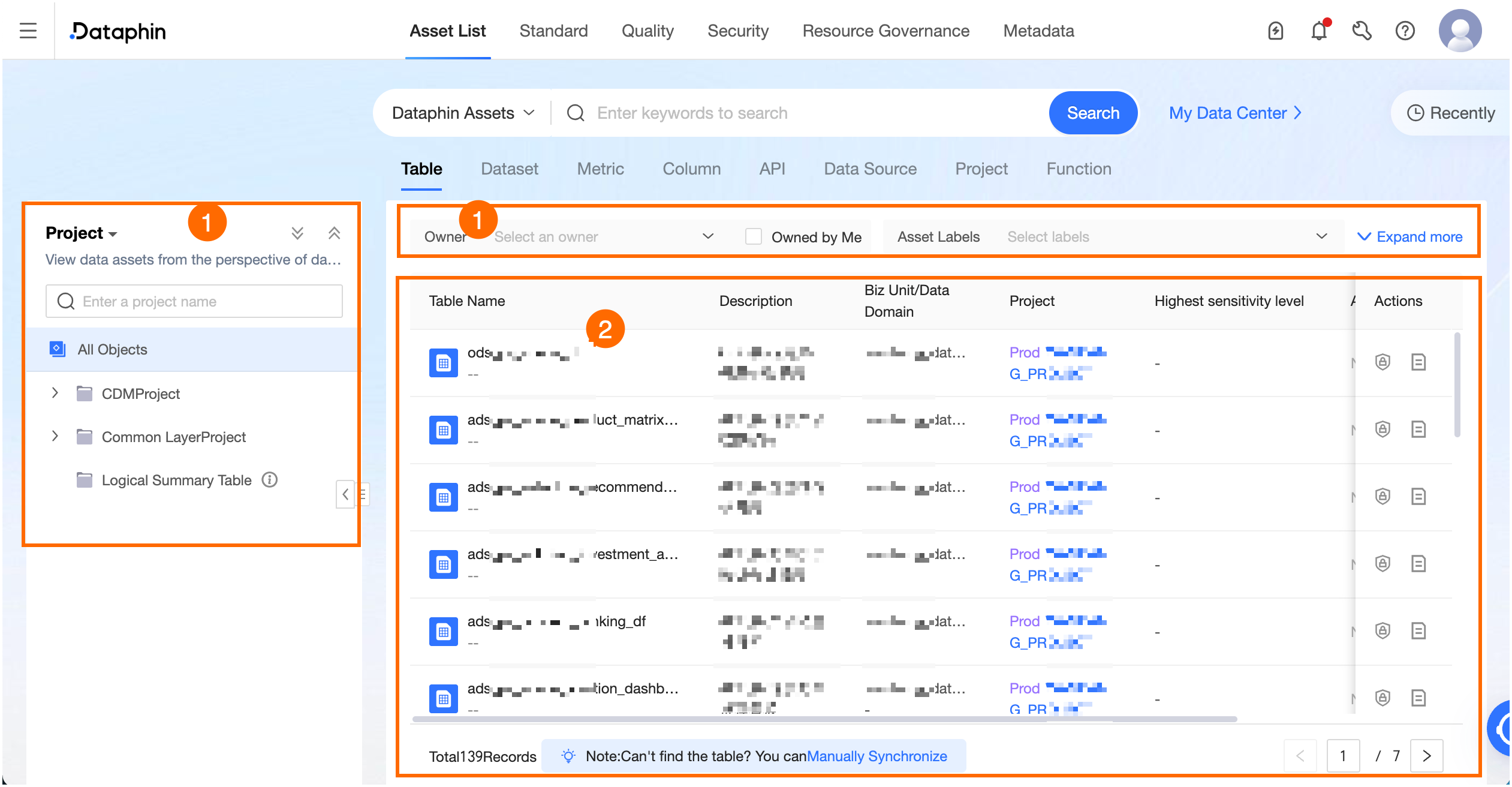
The Dataphin asset list displays information about various asset objects. The following image uses a data table as an example.
image

Number

Description

Data table

Filter area

  • The panel on the left allows you to browse assets from the data domain/subject domain view or the project view.

    • Data domain/subject domain view: Allows you to browse assets from a data layering and domain perspective. This view displays a tree of data domains and subject domains. The first level is the data domain, and levels two through five are the subject domains within it. When you select a directory, the list on the right automatically filters to show assets in that directory and its subdirectories.

    • Project view: Allows you to browse assets from a data development and storage perspective. This view displays a tree of workspace layers and projects. The first level is the workspace layer (including the ODS layer, intermediate layer, application layer, and common layer). The second level represents the projects within each layer. When you select a directory, the list on the right is filtered to show assets belonging to that directory.

      Note: A summary logical table does not belong to any project. You can click Summary logical table to view all summary logical tables directly.

  • All Objects: You can click All Objects to view all assets.

  • You can refine your search by filtering by owner or Owned by me, asset tag, project, environment, data domain, subject domain, Table Type, Storage Format, or Lakehouse Format.

Note

The data domain/subject domain view and related filters require the Intelligent R&D feature to be enabled. In the project view, the summary logical table directory is displayed only when the Intelligent R&D feature is enabled.

List area

Displays filtered results, including table name, description, data domain/subject domain (Intelligent R&D edition only), project (hidden when the summary logical table directory is selected), maximum sensitivity level (requires Asset Security), asset tags, and owner. You can also apply for permissions or view asset details.

  • Apply for Permissions: This action is not supported for analysis platform tables. Clicking this option opens the Management Center > Permission Management > Data Table Permissions page, where you can apply for read, write, and other permissions for the data table. For more information, see Apply for, renew, and release table permissions.

  • View Details: To view table details, hover over a table name or click the View Details image icon in the Actions column.

    • For a physical table, logical table, or materialized view, the details include its name, description, data domain, subject domain, project, total number of fields, table type, storage format, number of favorites, number of views, creation time, and data modification information.

    • For a physical view or mirrored table, the details include its name, description, data domain, subject domain, project, total number of fields, table type, number of favorites, number of views, and creation time.

    • For a meta table or logical view, the details include its name, description, data domain, subject domain, project, total number of fields, table type, storage format, number of favorites, number of views, and creation time.

Metric

Filter area

  • The panel on the left allows you to browse assets from the data domain/subject domain view or the project view. This works the same as for data table assets.

  • All Objects: You can click All Objects to view all assets.

  • You can refine your search by filtering by data domain, subject domain, project, environment, and business owner or Owned by me.

List area

Displays a filtered list of metrics, including metric name, statistical granularity, statistical period, parent summary table, parent project, data domain, environment, business owner, description, and update frequency. You can also view metric details.

View Details: Click a metric name or the View Details image icon in the Actions column to open the metric's details page.

Field

Filter area

  • The panel on the left allows you to browse assets from the data domain/subject domain view or the project view. This works the same as for data table assets.

  • All Objects: You can click All Objects to view all assets.

  • You can refine your search by filtering by project, Parent Table, owner, data domain, subject domain, Parent Table Type, and environment.

List area

Displays filtered fields, including field name/description, field type, data domain, environment, parent project, parent table, table type, and parent table owner. You can also view field details.

View Details: Click a field name or the View Details image icon in the Actions column to open the field details section of the table's page.

API

Filter area

You can refine your search by filtering by Service Project, API Type, and owner. You can also quickly filter for APIs that are Owned by me.

List area

Displays filtered APIs, including API name/ID, description, parent project, call mode, API type, operation type, data volume, data source, number of applications/calls, owner, last update time, and data update frequency. You can also view API details.

View Details: Click an API name or the View Details image icon in the Actions column to open the API's details page.

Data source

Filter area

You can refine your search by filtering by Type, Purpose, and environment.

List area

Displays filtered data sources, including data source name, description, environment, purpose, type, owner, and update time. You can also apply for permissions or view data source details.

  • Apply for Permissions: Clicking this option opens the Management Center > Permission Management > Data Source Permissions page, where you can apply for read, write, and other permissions for the data source. For more information, see Apply for, renew, and release table permissions.

  • View Details: Click a data source name or the View Details image icon in the Actions column to open the data source's details page.

Project

Filter area

You can refine your search by filtering by data domain, Project Mode, environment, and compute engine.

List area

Displays filtered projects, including project name, description, data domain, environment, project mode, and creator. You can also enter the workspace or view project details.

  • Enter Workspace: Click the image icon in the Actions column to enter the project's workspace.

  • View Details: Click a project name or the View Details image icon in the Actions column to open the project's details page.

Function

Filter area

You can refine your search by filtering by project, Type, Creator or Created by me, environment, Application Scenario, and Function Source.

List area

Displays filtered functions, including function name, description, environment, function type, function source, parent project, creator, and compute engine. You can also view function details.

View Details: Click a function name or the View Details image icon in the Actions column to open the function's details page.

Other system assets list

Note

The metadata collection and management feature must be enabled.

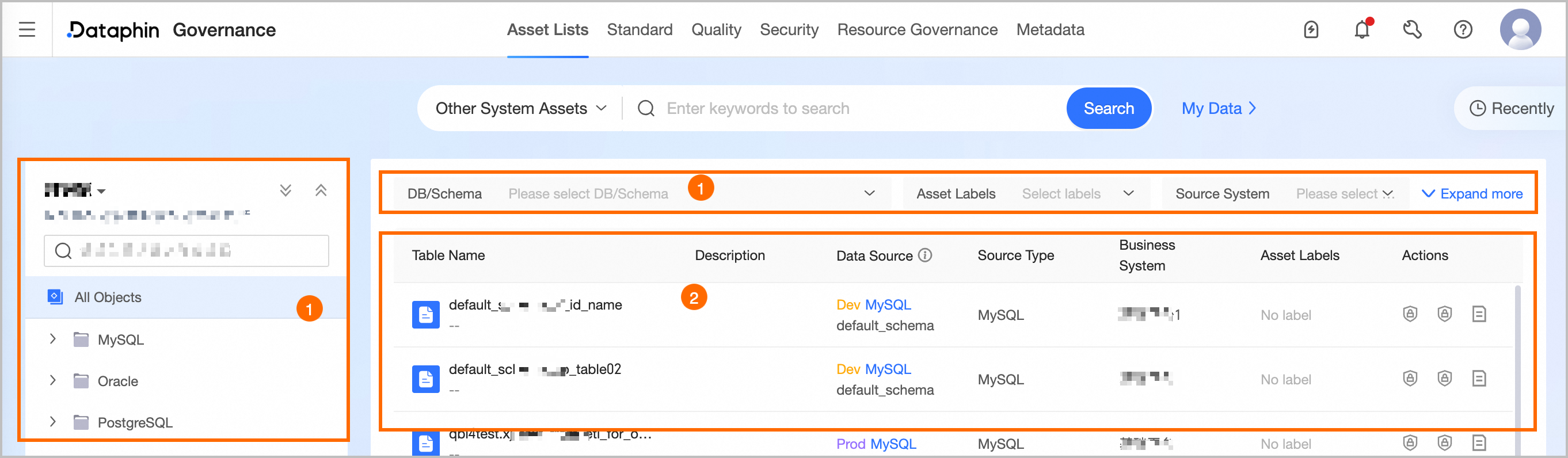
The other system assets list displays metadata collected from data sources.
image

Number

Description

Filter area

  • Use the directory tree on the left to switch between views for browsing and searching metadata objects.

    • Data source view: Allows you to browse assets from the perspective of their collection source. This view displays a directory tree of data source types and data sources. You can expand a data source type and select a directory, which automatically filters the metadata list on the right.

    • Source system view: Allows you to browse assets based on their source system. You can select a source system, which automatically filters the metadata list on the right to show assets from that system.

  • All Objects: You can click All Objects to view all metadata.

  • You can filter metadata from different views.

    • From the Data source view, you can filter by DB/Schema, asset tag, source system, Data Source Type, Lakehouse Format, data source, Table Type, and environment. You can also hide deleted tables.

    • From the Source system view, you can filter by data source, asset tag, DB/Schema, Source Data Source Type, source system, Table Type, and environment.

Metadata list

This list shows the filtered metadata, including table name, description, source data source, source data source type, source system, maximum sensitivity level (requires Data Security), and asset tags. You can also apply for data source permissions or view asset details.

  • Apply for Permissions: Clicking this option opens the Management Center > Permission Management > Data Table Permissions page where you can apply for read, write, and other permissions for the tables in the data source. For more information, see Apply for, renew, and release data source permissions.

  • Apply for Data Source Permissions: Clicking this option opens the Management Center > Permission Management > Data Source Permissions page where you can apply for read, write, and other permissions for the data source. For more information, see Apply for, renew, and release data source permissions.

  • View Details: Hover over the name of a metadata object to view its details, or click the View Details icon in the Actions column to open its details page.

  • If metadata has been deleted in the source system, its information is grayed out. You can click the image icon next to the name to go to the Metadata Inventory page and delete the metadata that is no longer in use.