You can request and return key permissions for personal or project tenant accounts.
Request key permissions
-
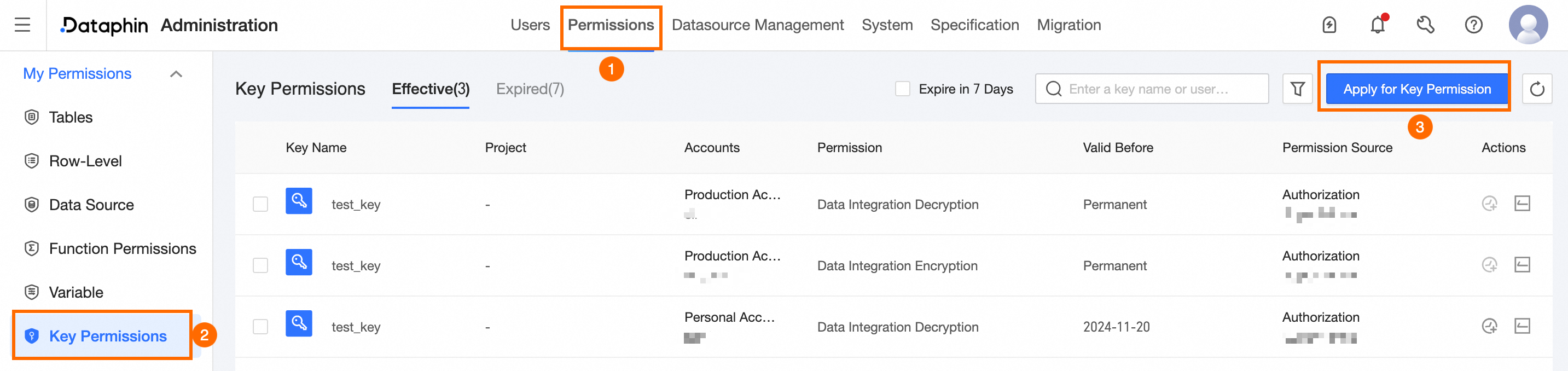
Navigate to the Dataphin home page and single click the Management Center in the top menu bar.
-
Refer to the image below to access the Request Key Permissions dialog box.
-
Within the Request Key Permissions dialog box, set the necessary parameters.
Parameter
Description
Request Key
Select the key that you want to request permissions for.
NoteThe Request Key lists all keys registered in the current environment. For key re-registration, see Register Key.
Permission Type
Key permissions include the following types:
-
View Key Value: View the key value.
-
Data Integration Encryption: Set up the data integration encryption transform widget. For configuration details, see Configure Encryption Transform Widget.
-
Data Integration Decryption: Set up the data integration decryption transform widget. For configuration details, see Configure Decryption Transform Widget.
Account Type
Request key permissions for either a User Account or a Project Tenant Account.
-
User Account: Permission validity periods include 30, 90, 180 days, or long-term. Custom validity periods can also be set.
-
Project Tenant Account: Specifies the account associated with the project tenant.
Reason For Request
Provide the reason for the request, which must:
-
Include the usage scenario, frequency, and other relevant details.
-
Be between 5 and 128 characters in length.
-
-
To finalize the request for key permissions, single click OK.
Key permissions list
The key permissions list shows both In Effect and Out Of Effect permissions. You can view key request records in the Task Center.
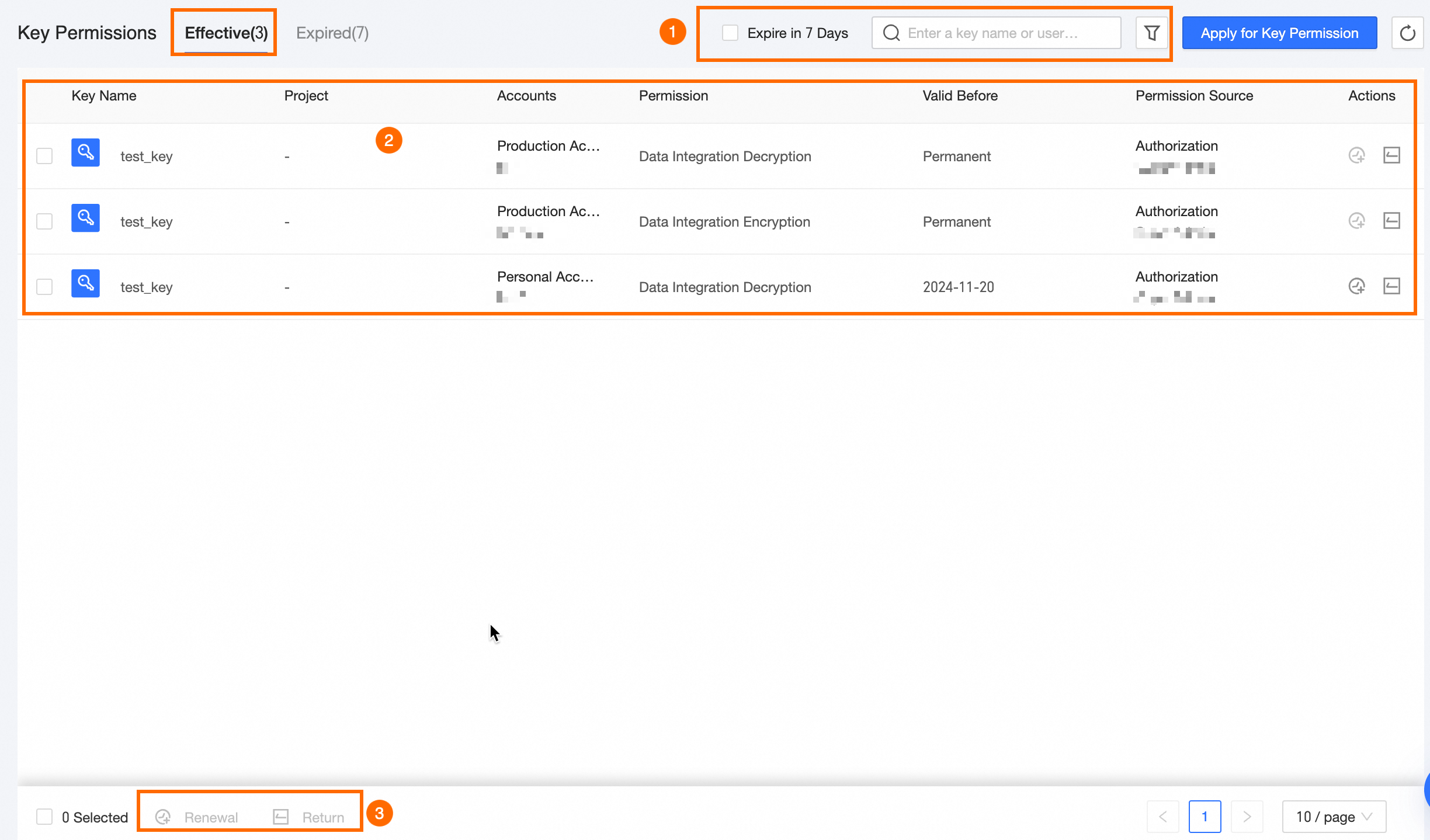
In effect list
|
Area |
Description |
|
①Filter and search area |
Search by key name keyword, or filter by Expiring Within Seven Days, Permission Type, and Permission Account. |
|
②List area |
Lists details such as Key Name, Environment, Project, Permission Account, Permission Type, Valid Until, and Permission Source. You can perform Renewal and Return operations in the Actions column.
|
|
③Batch operation area |
Perform batch Renewal and Return operations on multiple keys.
|
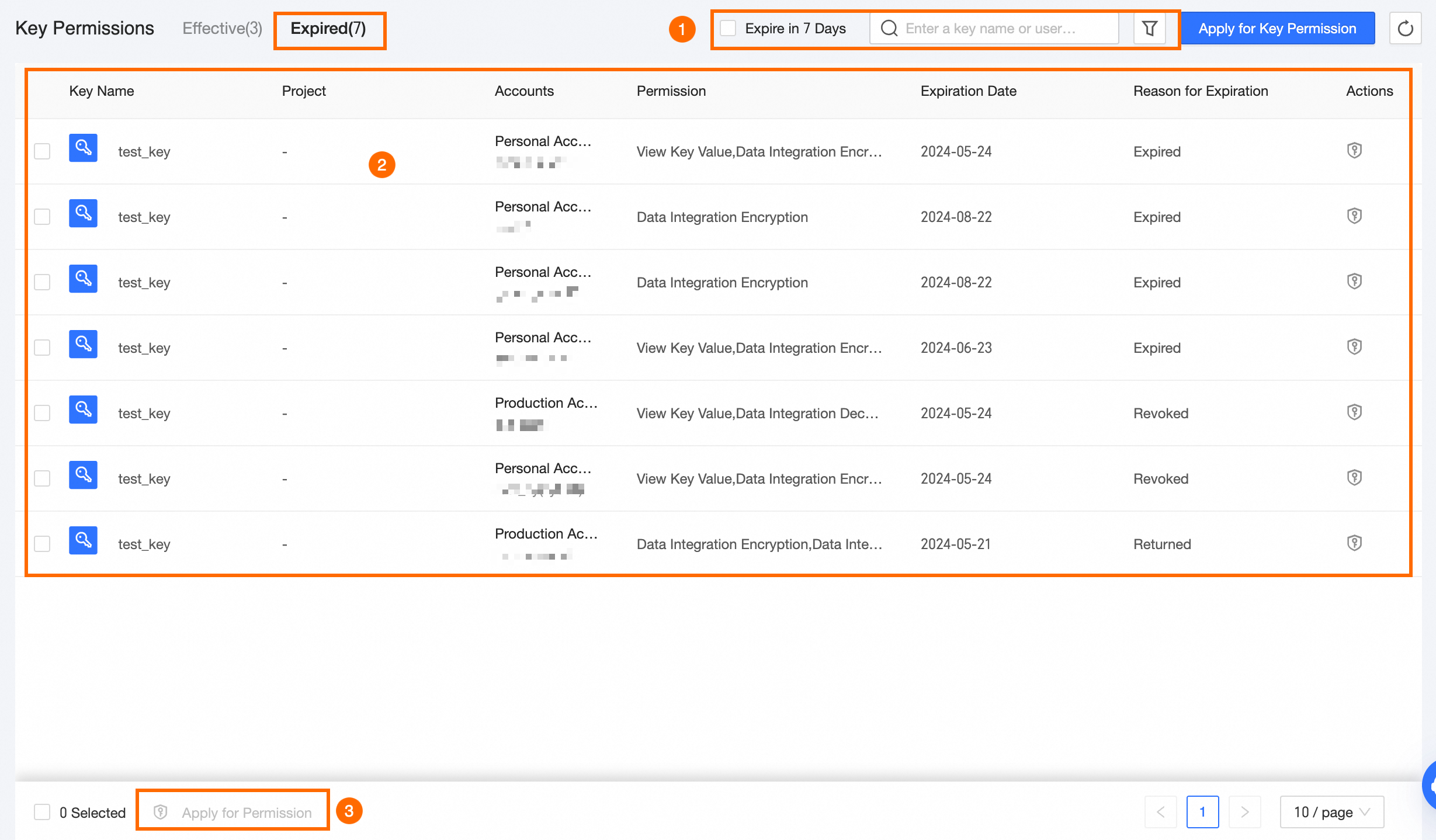
Out of effect list
|
Area |
Description |
|
①Filter and search area |
Search by key name keyword, or filter by Expiring Within Seven Days, Permission Type, Permission Account, and Reason For Expiry. |
|
②List area |
Lists details such as Key Name, Environment, Project, Permission Account, Permission Type, Expiry Date, and Reason For Expiry. You can initiate a Request operation in the Actions column. Request: Select the key for which you need to reapply for permissions. For more information, see Request Key Permissions. |
|
③Batch operation area |
Perform batch Request operations on multiple keys. Request: Choose the keys you wish to reapply permissions for. For detailed instructions, refer to Request Key Permissions. |