For large-scale traffic management scenarios in distributed systems or microservices applications, especially where Istio is used as the service mesh framework, you can switch to Alibaba Cloud Service Mesh (ASM) as the Knative gateway. ASM is compatible with open-source Istio and provides a fully managed control plane that simplifies service governance.
This guide explains how to select ASM as the Knative gateway and verify end-to-end access through the ASM ingress.
Prerequisites
Before you begin, ensure that you have:
-
An ASM instance at version 1.21.6.84 or later. See Create an ASM instance.
-
Your ACS cluster added to the ASM instance under Kubernetes Clusters during ASM instance creation.
Step 1: Select ASM as the Knative gateway
-
Log on to the ACS console. In the left navigation pane, click Clusters.
-
Click the ID of the cluster you want to manage. In the left navigation pane of the cluster details page, choose Applications > Knative.
-
On the Knative page, click the Components tab. Click Deploy Knative, select ASM in the Gateway section, and then click Deploy.
After deployment completes, ASM is active as the Knative gateway.
Step 2: Access a Knative service through the ASM ingress
This example creates a sample Knative Service named helloworld-go and verifies access through the ASM ingress.
-
Log on to the ACS console. In the left navigation pane, click Clusters.
-
Click the ID of the cluster you want to manage. In the left navigation pane of the cluster details page, choose Applications > Knative.
-
On the Knative page, click the Services tab. Set Namespace to default, then click Create from Template. Paste the following YAML and click Create.
ImportantReplace
{REGION-ID}with your cluster's region ID (for example,cn-beijing).apiVersion: serving.knative.dev/v1 kind: Service metadata: name: helloworld-go spec: template: spec: containers: - image: registry.{REGION-ID}.aliyuncs.com/knative-sample/helloworld-go:73fbdd56 # Replace {REGION-ID} with your cluster's region ID. env: - name: TARGET value: "Knative" -
On the Services page, find the
helloworld-goentry and note the gateway address in the Gateway column. -
Run the following command to send a request to the service. Replace
39.XX.XX.XXwith your gateway IP address.curl -H "host: helloworld-go.default.example.com" http://39.XX.XX.XXThe
-H host:flag sets theHostheader manually because no DNS record points to the gateway IP in this test setup. Knative routes requests based on this header. Expected output:Hello Knative!
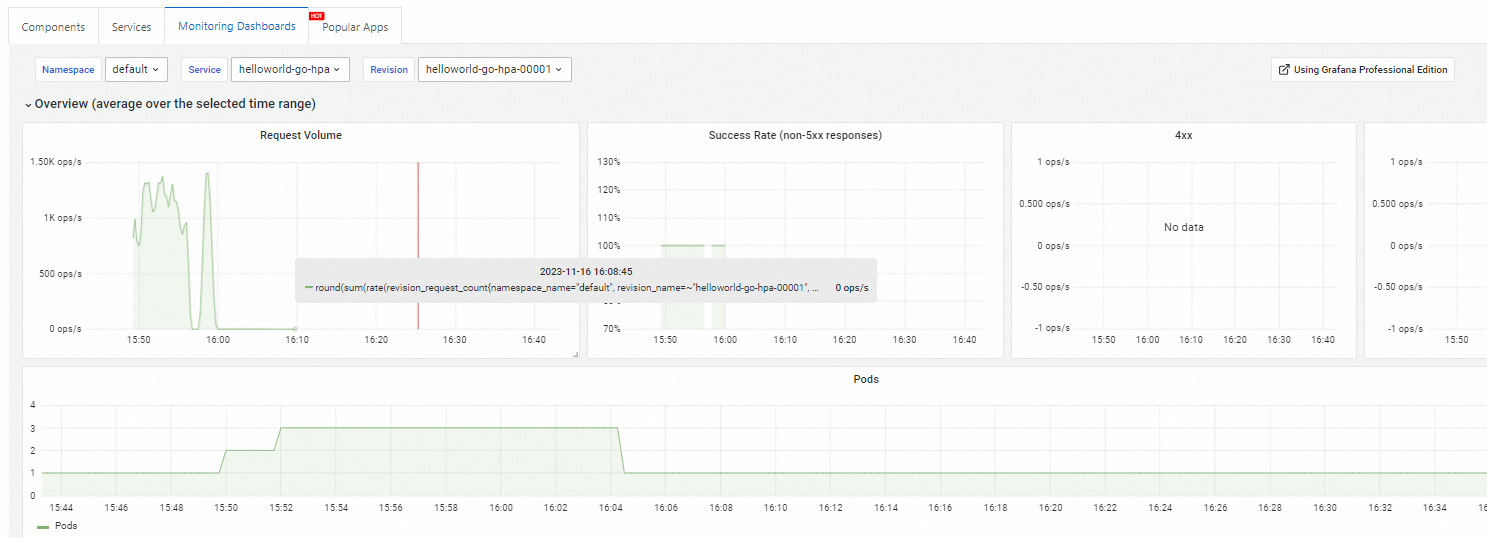
(Optional) Step 3: View the Knative monitoring dashboard
The Monitoring Dashboards tab on the Knative page provides out-of-the-box observability for your services. For details, see View the Knative dashboard.
What's next
-
Configure a custom domain name — map a custom domain to your Knative Services.
-
Configure a certificate to access services over HTTPS — enable HTTPS access with a certificate.
-
Deploy a gRPC service in Knative — improve network efficiency with gRPC.
-
Configure port probing in Knative — monitor the health status and availability of your services.