Knative Services are suited for hosted web services, serverless applications, AI jobs, and event-driven systems. They scale automatically based on incoming traffic—including down to zero pods when no requests arrive—so you pay only for what you use and can focus on your application logic instead of infrastructure. Knative Services also greatly simplify version management.
Prerequisites
Before you begin, ensure that you have:
-
Knative deployed in your ACS cluster. See Deploy Knative.
Deploy a Knative Service
-
Log on to the ACS console. In the left-side navigation pane, click Clusters.
-
On the Clusters page, click the ID of the cluster you want to manage. In the left-side navigation pane of the cluster details page, choose Applications > Knative.
-
Click the Services tab. In the top navigation bar, select the namespace for your Service.
-
Deploy the Service using the console wizard or the YAML editor.
Use the console
Click Create Service and complete the configuration.
| Parameter | Description |
|---|---|
| Service Name | Enter a name for the Service. |
| Image Name | Click Select Image. In the Select Image dialog box, choose an image. You can also enter a private image registry address in domainname/namespace/imagename:tag format. Example: registry.cn-hangzhou.aliyuncs.com/knative-sample/helloworld-go |
| Image Version | Click Select Image Version. Example version: 73fbdd56 |
| Access Protocol | Select HTTP or gRPC. |
| Container Port | The container port to expose. Valid values: 1–65535. |
Click Advanced to configure additional settings.
| Parameter | Description |
|---|---|
| Internal Access Only | If selected, the Service is not accessible over the Internet. |
| Maximum Concurrent Requests | Maximum concurrent requests the container handles. Default: 0 (unlimited). |
| Minimum Pods | Minimum pods to keep running when no requests arrive. Set to 0 to enable scale-to-zero. |
| Maximum Pods | Maximum pods allowed. |
| Resource Limit | Upper limits for CPU (cores), memory (bytes or mebibytes), and GPU resources. |
| Lifecycle | Specify Command and Parameter to override the image's default entrypoint. If only Parameter is set, the image's default command is used with the specified parameter. If both are set, both image defaults are overridden. |
| Environment Variables | Key-value pairs passed to the container. |
| Volume | Mount local storage or persistent volume claims (PVCs). For local storage, choose HostPath, ConfigMap, Secret, or EmptyDir. For PVCs, select Cloud Storage. |
Use the YAML editor
-
In the upper-right corner of the Services tab, click Create from Template.
-
Paste your YAML into the editor and click Create. The following example creates a Service named
helloworld-go:apiVersion: serving.knative.dev/v1 kind: Service metadata: name: helloworld-go # [1] spec: template: spec: containers: - image: registry-vpc.cn-beijing.aliyuncs.com/knative-sample/helloworld-go:73fbdd56 # [2] env: - name: TARGET # [3] value: "Knative"[1] The Service name. Used as part of the default domain name. [2] The container image, including the registry address and image version tag. [3] An environment variable passed to the application.
You can view, edit, or delete the Service at any time on the Services tab.
Access the Knative Service
To access the Service using its domain name, point the domain name to the gateway IP address.
-
On the Services tab, click the Service name.
-
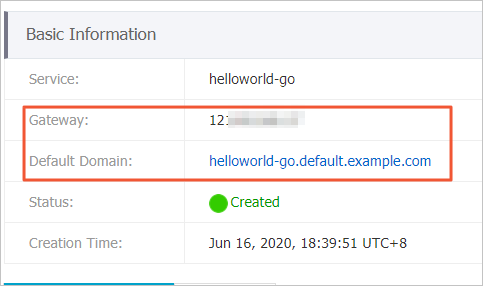
In the Basic Information section, note the gateway IP address and domain name.
-
Add an entry to your local hosts file to map the domain name to the gateway IP address:
121.xx.xxx.xx helloworld-go.default.example.com -
Use the domain name to access the Knative Service.

What's next
-
Configure a custom domain name — replace the default example.com domain with your own.
-
Configure a certificate to access Knative Services over HTTPS — enable TLS for secure access.
-
Create a revision — manage multiple versions of your Service and split traffic between them.
-
Configure auto scaling based on the number of requests — fine-tune scale-to-zero and concurrency settings.
-
Knative Eventing — connect your Service to event sources for event-driven architectures.