This topic describes how to create a service that contains a container application and an ApsaraDB RDS database in Compute Nest.
Prerequisites
A Container Service for Kubernetes (ACK) cluster is created. For more information, see Create an ACK managed cluster.
Procedure
In this example, a basic container image with a preset database initialization script is used. During service instance creation, the database is automatically initialized and then a data entry that contains "ComputeNest" is inserted into the database. After the service instance is created, call an API operation to query the database. Hello ComputeNest is returned. This procedure includes the following steps:
Step 1: Prepare a container image
Before you create a service, you must prepare a container image and upload the container image to the private image repository of Compute Nest in which service providers manage images.
Prepare a container image.
Prepare a local container image by using one of the following methods:
Use a container image provided by Alibaba Cloud.
docker pull compute-nest-registry.cn-hangzhou.cr.aliyuncs.com/bestpractice/springboot-demo:demoRewrite the source code to create a container image.
Obtain the image source code and rewrite the code based on your business requirements.
In the source code root directory, which is the directory where pom.xml is located, use Maven to package the program into a JAR package. The JAR package is automatically stored in the target directory.
mvn installBuild an image.
After the image is built, the image is automatically downloaded to your computer.
docker build --build-arg JAR_FILE=target/\*.jar -t <your-image-tag> .
Upload the container image to the Compute Nest image repository.
Obtain the docker commands that are used to log on to the image repository, add tags to the image, and push the image to the image repository.
Log on to the Compute Nest console.
In the left-side navigation pane, click Service Deployment Package. On the Packages tab, click Create Deployment Package.
On the Create Deployment Package page, set the Deployment Package Type parameter to Container Image and then click Obtain Access Credential. Copy the commands that are used to log on to the image repository, add tags to the image, and push the image to the image repository.
Run Docker and run the copied commands in your CLI terminal.
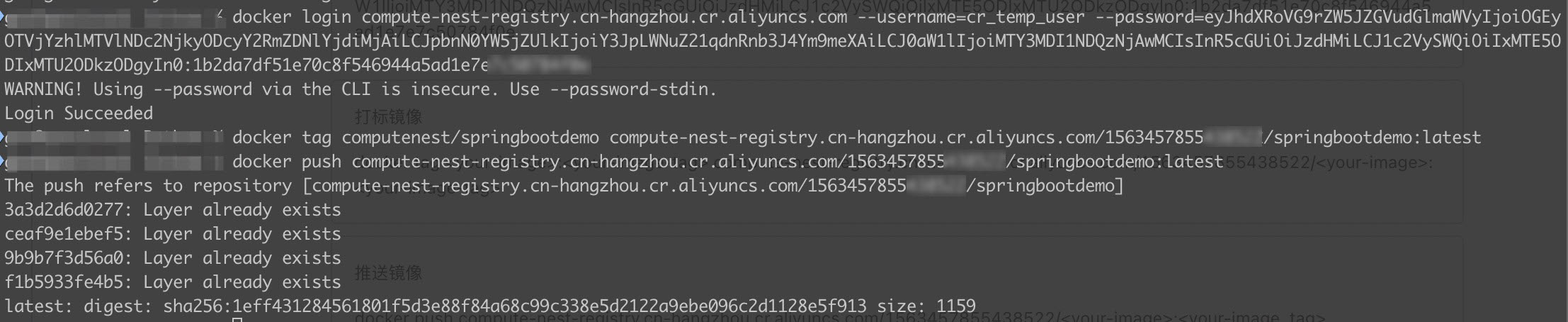
Step 2: Create a deployment package of the container image type
Before you create a service, you must create and distribute a deployment package of the container image type.
Log on to the Compute Nest console.
In the left-side navigation pane, click Service Deployment Package. On the Packages tab, click Create Deployment Package.
On the Create Deployment Package page, configure the parameters in the Basic Information, Deployment Package Content, and Distribution Settings sections.
Parameter
Example
Name
Spring Boot container deployment
Version Name
Spring Boot container deployment version 1
Description
Spring Boot deployment package of the container image type
Deployment Package Type
Container Image
Select Product
Select springbootdemo from the first drop-down list.
Select the latest version from the second drop-down list.
Click Publish Deployment Package.
After you click Publish Deployment Package, you can find the deployment package on the Packages tab. Click the deployment package to go to the details page and view the status of the deployment package.
If the deployment package enters the Available state, the deployment package is published.
Step 3: Create a service
Log on to the Compute Nest console.
In the left-side navigation pane, click My Services. On the Created Services tab of the My Services page, click Create Service.
On the Create Service page, configure the parameters based on your business requirements.
The following section describes only the parameters related to container image association. For more information, see Create a private service.
In the Template Content field, enter the template content. In the following template content, only the parameters related to container image association are described. For information about the complete sample code of a template, see the Sample template section of this topic.
When the container is deployed, the container image is pulled from the private image repository of Compute Nest. The ACK cluster must be able to access the private image repository of Compute Nest. Therefore, a Secret of the dockerconfigjson type is defined in the template, and the Compute Nest identifier {{ computenest::acr::dockerconfigjson }} is used.
ClusterApplication:
  DependsOn: Database
  Type: ALIYUN::CS::ClusterApplication
  Properties:
    ClusterId:
      Ref: ClusterId
    YamlContent:
      Fn::Sub:
        - |
        # Omitted content.
          apiVersion: v1
          data:
            .dockerconfigjson: {{ computenest::acr::dockerconfigjson }}
          kind: Secret
          metadata:
            name: computenestrepo
            namespace: ${NameSpace}
          type: kubernetes.io/dockerconfigjson
        # Omitted content.
In the template, use the {{ computenest:: acriimage::springbootdemo }} identifier to associate the image in the template with the deployment package that you created.
ClusterApplication:
  DependsOn: Database
  Type: ALIYUN::CS::ClusterApplication
  Properties:
    ClusterId:
      Ref: ClusterId
    YamlContent:
      Fn::Sub:
        - |
        # Omitted content.
          apiVersion: apps/v1
          kind: Deployment
          metadata:
            labels:
              app: springboot-demo-deployment
            name: springboot-demo-deployment
            namespace: ${NameSpace}
          spec:
            progressDeadlineSeconds: 600
            replicas: 2
            revisionHistoryLimit: 10
            selector:
              matchLabels:
                app: springboot-demo-pod
            template:
              metadata:
                labels:
                  app: springboot-demo-pod
              spec:
                containers:
                  - env:
                      - name: DB_HOST
                        value: ${RdsConnectString}
                      - name: DB_USER
                        value: ${DbUser}
                      - name: DB_PASSWORD
                        value: ${DbPassword}
                    image: {{ computenest::acrimage::springbootdemo }}
                    imagePullPolicy: Always
                    name: springboot-demo-container
                    ports:
                      - containerPort: 8080
                        protocol: TCP
                imagePullSecrets:
                  - name: computenestrepo
                restartPolicy: Always
        # Omitted content.
In the Set Container Image Association section of the Deployment Package Association section, select the deployment package of the container image type that you created and select a version.
Click Create Service.
Test the service.
After the service is created, you must test the service to ensure that it works properly. For more information, see Test a service.
Publish the service.
After the service test is passed, submit the service for review. After the review is passed, publish the service. For more information, see Publish a service.
Step 4: Create a service instance and query the database
You can create a service instance as a customer to check whether the container image configured for the service can be properly deployed.
Create a service instance.
For more information, see Create a private service instance.
If the service instance is successfully deployed, the deployment package of the container image type is successfully deployed in the service instance as well.
Query the database.
Use the kubectl CLI to query the LoadBalancer endpoint, use the obtained public IP address to access the application, and view the returned result.

Sample template
For information about the Resource Orchestration Service (ROS) resources and functions required in this scenario, see the following topics:
The following sample code shows the complete template content specific to this scenario.
ROSTemplateFormatVersion: '2015-09-01'
Description:
en: A simple demo that deploys a RDS instance and a container-base app into ack. The app use RDS instance as a persistence storage.
zh-cn: 新建一个RDS实例并向ACK中部署容器应用。 容器应用使用RDS实例作为数据库。
Parameters:
ZoneId:
Type: String
AssociationProperty: ALIYUN::ECS::Instance:ZoneId
Description:
en: Availability zone ID,<br><b>note: <font color='blue'>Before selecting, please confirm that the Availability Zone supports the specification of creating ECS resources</font></b>
zh-cn: 可用区ID
Label:
en: VSwitch Available Zone
zh-cn: 可用区
VpcId:
Type: String
AssociationProperty: ALIYUN::ECS::VPC::VPCId
VSwitchId:
Type: String
AssociationProperty: ALIYUN::ECS::VSwitch::VSwitchId
AssociationPropertyMetadata:
VpcId: ${VpcId}
ZoneId: ${ZoneId}
PayType:
AssociationProperty: ChargeType
Type: String
Label:
en: ECS Instance Charge Type
zh-cn: 付费类型
Default: PostPaid
AllowedValues:
- PostPaid
- PrePaid
PayPeriod:
Type: Number
Description:
en: The subscription period. Unit is months.
zh-cn: 购买时长,单位(月)
Label:
en: The subscription period. Unit is months.
zh-cn: 购买时长,单位(月)
Default: 1
AllowedValues:
- 1
- 2
- 3
- 4
- 5
- 6
- 7
- 8
- 9
- 12
- 24
- 36
AssociationPropertyMetadata:
Visible:
Condition:
Fn::Or:
- Fn::Equals:
- ${PayType}
- PrePaid
- Fn::Equals:
- ${PayType}
- undefined
RdsInstanceClass:
Label: MySQL 实例规格
Type: String
Description:
zh-cn: 根据数据库引擎的类型和可用的区域支持选择实例规格
en: 'Select the instance specification based on the type of database engine and the available area support'
Default: rds.mysql.s2.large
RdsInstanceStorage:
Label: 磁盘大小
Type: Number
Description:
zh-cn: RDS 实例大小,范围为 20 - 2000,每 5 个增量,单位为 GB
en: The size range of RDS instances is 20 - 2000, Incrementing in every 5, unit GB
MinValue: 20
MaxValue: 2000
ConstraintDescription: The size range of RDS instances is 20 - 2000, Incrementing in every 5, unit GB
Default: 30
RdsAccountName:
Type: String
Label:
zh-cn: 用户名称
en: Account Name
Description:
zh-cn: MySQL 管理员用户名称
en: Account Name
Default: db_root
RdsAccountPassword:
Type: String
NoEcho: true
Label:
zh-cn: 用户密码
en: DB Account Password
Description:
zh-cn: |-
长度为8~32个字符。 由大写英文字母、小写英文字母、数字、特殊字符中的任意三种组成。 支持的特殊字符如下:
!@#$&%^*()_+-= 。
en: |-
The length is 8 ~ 32 characters. It is composed of uppercase English letters, lowercase English letters, numbers and special characters. The special characters supported are as follows:
!@#$& amp;%^* ()_+-= .
ClusterId:
Type: String
Description:
en: >-
The ID of Kubernetes ClusterId in which application deployed.
zh-cn: >-
部署应用程序的K8s集群ID
AllowedPattern: '[0-9a-z]+$'
Label:
en: Kubernetes ClusterId
zh-cn: K8s集群ID
AssociationProperty: ALIYUN::CS::Cluster::ClusterId
ConstraintDescription:
en: >-
must be lowercase letters or numbers
zh-cn: '集群ID必须由小写字母或者数字组成'
NameSpace:
Type: String
Description:
en: >-
The NameSpace in which application deployed.
zh-cn: >-
部署应用程序的K8s命名空间
Resources:
EcsSecurityGroup:
Type: ALIYUN::ECS::SecurityGroup
Properties:
VpcId:
Ref: VpcId
SecurityGroupIngress:
- PortRange: '-1/-1'
Priority: 1
SourceCidrIp: 0.0.0.0/0
IpProtocol: all
NicType: intranet
SecurityGroupEgress:
- PortRange: '-1/-1'
Priority: 1
IpProtocol: all
DestCidrIp: 0.0.0.0/0
NicType: intranet
DBInstance:
Type: ALIYUN::RDS::DBInstance
Properties:
ZoneId:
Ref: ZoneId
VPCId:
Ref: VpcId
VSwitchId:
Ref: VSwitchId
Engine: MySQL
EngineVersion: "5.7"
DBInstanceClass:
Ref: RdsInstanceClass
DBInstanceStorage:
Ref: RdsInstanceStorage
PayType:
Ref: PayType
PeriodType: Month
Period:
Ref: PayPeriod
SecurityIPList: '0.0.0.0/0'
RdsAccount:
DependsOn: DBInstance
Type: ALIYUN::RDS::Account
Properties:
DBInstanceId:
Ref: DBInstance
AccountType: Super
AccountName:
Ref: RdsAccountName
AccountPassword:
Ref: RdsAccountPassword
RdsParameter:
Type: ALIYUN::RDS::DBInstanceParameterGroup
Properties:
DBInstanceId:
Ref: DBInstance
Parameters:
- Key: innodb_large_prefix
Value: 'ON'
- Key: innodb_adaptive_flushing_lwm
Value: '10'
Database:
Type: ALIYUN::RDS::Database
Properties:
CharacterSetName: UTF8
DBInstanceId:
Ref: DBInstance
DBName: springboot_demo
DependsOn:
- DBInstance
ClusterApplication:
DependsOn: Database
Type: ALIYUN::CS::ClusterApplication
Properties:
ClusterId:
Ref: ClusterId
YamlContent:
Fn::Sub:
- |
apiVersion: v1
kind: Namespace
metadata:
name: ${NameSpace}
---
apiVersion: v1
data:
.dockerconfigjson: {{ computenest::acr::dockerconfigjson }}
kind: Secret
metadata:
name: computenestrepo
namespace: ${NameSpace}
type: kubernetes.io/dockerconfigjson
---
apiVersion: apps/v1
kind: Deployment
metadata:
labels:
app: springboot-demo-deployment
name: springboot-demo-deployment
namespace: ${NameSpace}
spec:
progressDeadlineSeconds: 600
replicas: 2
revisionHistoryLimit: 10
selector:
matchLabels:
app: springboot-demo-pod
template:
metadata:
labels:
app: springboot-demo-pod
spec:
containers:
- env:
- name: DB_HOST
value: ${RdsConnectString}
- name: DB_USER
value: ${DbUser}
- name: DB_PASSWORD
value: ${DbPassword}
image: {{ computenest::acrimage::springbootdemo }}
imagePullPolicy: Always
name: springboot-demo-container
ports:
- containerPort: 8080
protocol: TCP
imagePullSecrets:
- name: computenestrepo
restartPolicy: Always
---
apiVersion: v1
kind: Service
metadata:
labels:
app: springboot-demo-svc
name: springboot-demo-svc
namespace: ${NameSpace}
spec:
ports:
- name: http
port: 80
protocol: TCP
targetPort: 8080
selector:
app: springboot-demo-pod
type: LoadBalancer
- NameSpace:
Ref: NameSpace
DbUser:
Ref: RdsAccountName
DbPassword:
Ref: RdsAccountPassword
RdsConnectString:
Fn::GetAtt:
- DBInstance
- InnerConnectionString
AppExternalIp:
Type: DATASOURCE::CS::ClusterApplicationResources
Properties:
Kind: Service
Name: springboot-demo-svc
ClusterId:
Ref: ClusterApplication
Namespace:
Ref: NameSpace
JsonPath: $.status.loadBalancer.ingress
FirstMatch: true
DependsOn: ClusterApplication
Outputs:
ExternalIp:
Value:
Ref: AppExternalIp
Metadata:
ALIYUN::ROS::Interface:
ParameterGroups:
- Parameters:
- VpcId
- ZoneId
- VSwitchId
Label:
en: Network Configuration
zh-cn: 网络参数配置
- Parameters:
- ClusterId
- NameSpace
Label:
en: ACK Configuration
zh-cn: ACK参数配置
- Parameters:
- RdsInstanceClass
- RdsInstanceStorage
- RdsAccountName
- RdsAccountPassword
Label:
en: Database Configuration
zh-cn: 数据库参数配置
- Parameters:
- PayType
- PayPeriod
Label:
en: Payment Configuration
zh-cn: 支付配置