Background information
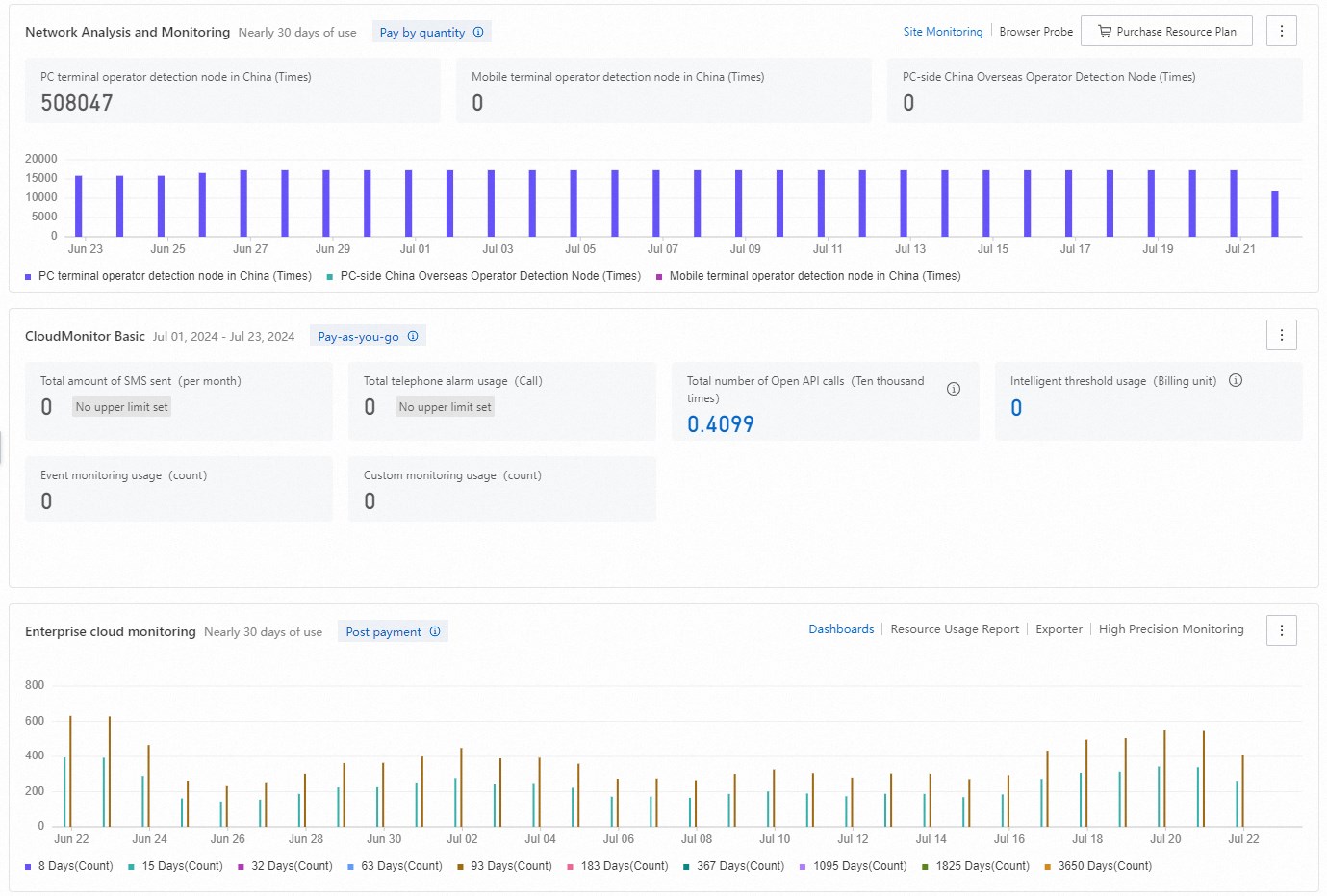
CloudMonitor offers three pay-as-you-go services: Network Analysis and Monitoring, CloudMonitor Basic, and Hybrid Cloud Monitoring. For billing details, see Billing overview.
View resource usage
|
Procedure
|
Screenshot
|
-
Log on to the Cloud Monitor console.
-
In the navigation pane, click Overview and then click the tab.
-
On the Resource Usage tab, you can view the resource usage of Network Analysis and Monitoring, CloudMonitor Basic, and Hybrid Cloud Monitoring.
|
|
Activate and deactivate services
Access
-
Log on to the Cloud Monitor console.
-
In the navigation pane, click Overview and then click the Resource Usage tab. You can activate or deactivate the following services:
-
Network Analysis and Monitoring. For more information about this paid service, see Pay-as-you-go.
-
CloudMonitor Basic. For more information about this paid service, see Pay-as-you-go.
-
Hybrid Cloud Monitoring. For more information about this paid service, see Hybrid Cloud Monitoring.
Network analysis and monitoring
|
Activation
|
Deactivation
|
-
In the console navigation bar, select Overview and click the Resource Usage tab. In the Network Analysis and Monitoring panel, click the Activate Now button on the right, and then click Activate Now again to agree to the Terms of Service.
-
After activation, you can view the pay-as-you-go billing details. Hover over the  icon next to pay-as-you-go and click View Billing Rules. icon next to pay-as-you-go and click View Billing Rules.
-
In the upper-right part of the Network Analysis and Monitoring section, click the Site Monitoring or Browser Tests tab to view the resource usage of each service over the last 30 days.
-
To save costs, you can purchase a resource plan. Click Purchase Resource Plan.
Note
For more information about the billing for resource plans for Network Analysis and Monitoring, see Resource Plan.
-
In the upper-right part of the Network Analysis and Monitoring section, hover over the  icon. From the menu that appears, click View Resource Plan Usage or View Bill Details. icon. From the menu that appears, click View Resource Plan Usage or View Bill Details.
|
|
CloudMonitor basic
|
Activation
|
Deactivation
|
-
Check whether the free quota meets your requirements.
-
In the console navigation bar, select Overview and click the Resource Usage tab. In the CloudMonitor Basic panel, hover the pointer over the Free Tier button icon  and click View Free Tier Details. and click View Free Tier Details.
-
If the free quota is insufficient, you can activate the pay-as-you-go service for CloudMonitor Basic. Click Activate Now.
-
You can set a quota for SMS messages and phone calls to manage your spending. In the Total SMS Usage or Total Phone Call Usage section, hover over No Upper Limit Set and click Set Quota. In the dialog box that appears, set the maximum quota for SMS messages or phone calls, and then click OK.
Note
-
Currently, you can set a quota only for CloudMonitor Basic.
-
You can also set the SMS and phone call quotas in Quota Center. For more information, see Request a quota increase.
-
SMS and phone call quotas are synchronized between CloudMonitor and Quota Center. A quota set in one service is automatically updated in the other.
-
To help you save costs, you can purchase resource plans for SMS messages and phone calls.
Note
For more information about the billing for resource plans for CloudMonitor Basic, see Resource Plan.
-
In the CloudMonitor Basic section, hover over Total SMS Usage or Total Phone Call Usage. In the panel that appears, click Purchase SMS Resource Plan or Purchase Phone Call Resource Plan. After the purchase is complete, click View Resource Plan Usage.
-
In the upper-right part of the CloudMonitor Basic section, hover over the icon. From the menu that appears, click View Bill Details to check your bills.
|
|
Hybrid cloud monitoring
|
Activation
|
Deactivation
|
-
In the console navigation bar, select Overview and click the Resource Usage tab. In the Hybrid Cloud Monitoring panel, click the Activate Now button on the right. Click Activate Now again to agree to the Terms of Service.
-
Hybrid Cloud Monitoring provides the following pay-as-you-go features: Dashboards, Resource Usage Report, High Precision Monitoring, and Exporter. To view billing details, hover over the icon next to pay-as-you-go and click View Billing Rules.
-
In the upper-right part of the Hybrid Cloud Monitoring section, click the Dashboards, Resource Usage Report, Exporter, or High Precision Monitoring tabs to view the resource usage for each feature over the last 30 days.
-
In the upper-right part of the section, hover over the icon. From the menu that appears, click View Bill Details.
|
Pay-as-you-go service:
-
In the console navigation bar, select Overview and click the Resource Usage tab. In the Hybrid Cloud Monitoring panel, click the icon in the upper-right corner and select Unsubscribe from the drop-down menu. In the pop-up window, select the I have read and understood the notice checkbox and click the Unsubscribe button.
-
After you deactivate the service, you cannot reactivate it on the same day.
|