This topic provides answers to some frequently asked questions (FAQ) about VMware backup.
How do I delete a backup point for VMware backup?
The VMware backup feature does not support deletion of a specific backup point. To delete a backup point, you must delete the entire backup vault. For more information, see How do I stop being billed for Cloud Backup?.
What do I do if a VMware VM has been restored or migrated to an ECS instance but the VMware VM fails to be started?
Issue
The following information appears on the command-line interface:

Cause
The first disk of the virtual machine (VM) may not be the system disk.
Solution
Adjust the disk sequence in the VMware environment to ensure that the first disk of the VM is the system disk (including the boot partition). Back up the VM again and then restore or migrate it to an ECS instance.
What do I do if the status of a backup gateway is abnormal?
Issue
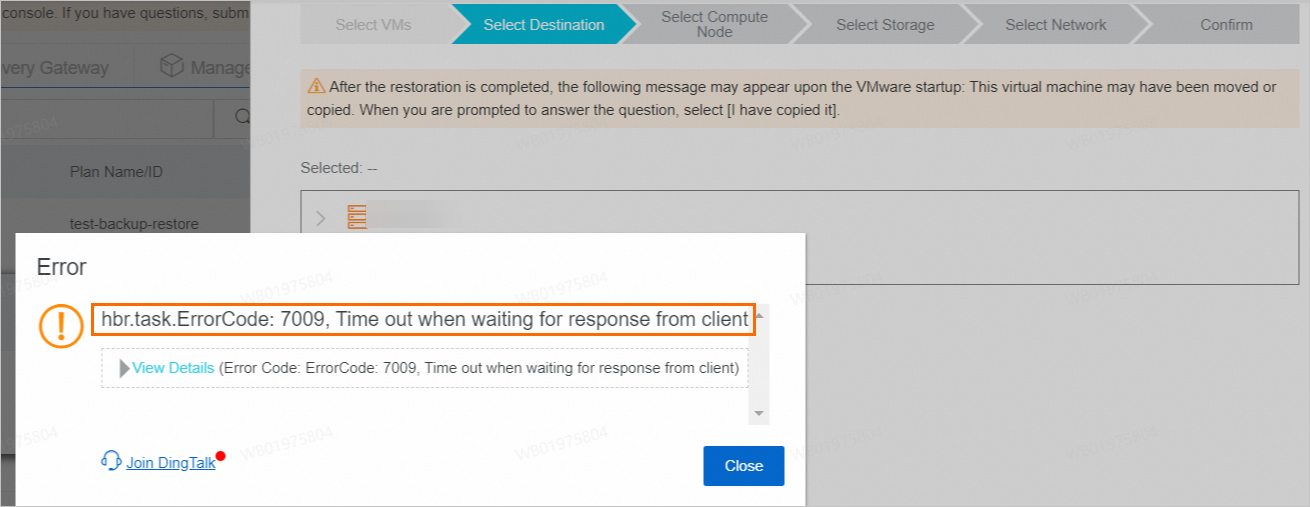
When you Create A Restore Job in the console, the following error message appears in the Select Destination step: ErrorCode: 7009, Time out when waiting for response from client.
A VMware backup job failed and the following error message appears: No response is received from the client. Check the network connection and ensure that the client is started.
Cause
The network connection of the backup gateway is abnormal. As a result, the backup or restoration requests sent from the console cannot be received.
Solution
Check the network connectivity by using the following methods: 1) Check the endpoints and ports provided by Cloud Backup and make sure that the backup gateway can access the endpoint of the related region. For more information, see What are the endpoints and ports that can be accessed by the Cloud Backup client? 2) Check the logs of the Cloud Backup client. For more information, see Collect logs and diagnose network issues. 3) Log on to the backup gateway and run the
telnetcommand to check the network connectivity.After you check that the network connection is normal and no backup job is running, log on to the backup gateway by using SSH and then run the
systemctl restart hbrcommand to restart the Cloud Backup backend service or restart the VM of the backup gateway.If the issue persists, log on to the backup gateway by using SSH. Check the
/opt/alibabacloud/hbr/logs/console.logfile and resolve the issue based on the error message in the file.If the issue still persists after you perform the preceding operations, join the technical support DingTalk group or contact service specialists (you can send logs over DingTalk).
Cloud Backup DingTalk Group
For more information about the consultation fees, features, and usage, click to join the DingTalk group. We recommend that you use Chrome. You can also enter group ID 88650005148 and click Search Public Groups to search for and join the DingTalk group.
Cloud Backup Expert Support
Obtain on-site technical support to quickly resolve your questions. Click to contact Cloud Backup technical support. We recommend that you use Chrome. You can also search for DingTalk account ID d37_g935gslgo to add the contact.
Common backup job failures and solutions
Issue
The VMware backup task execution failed on the console, displaying the message "Backup failed. This may be caused by network issues. Please check your network settings. (Error code VSPHERE_SNAPSHOT_TIMEOUT_7DAYS)".
The backup speed is excessively slow. If a backup job is not completed within seven days, the job is marked as timeout.
Solution
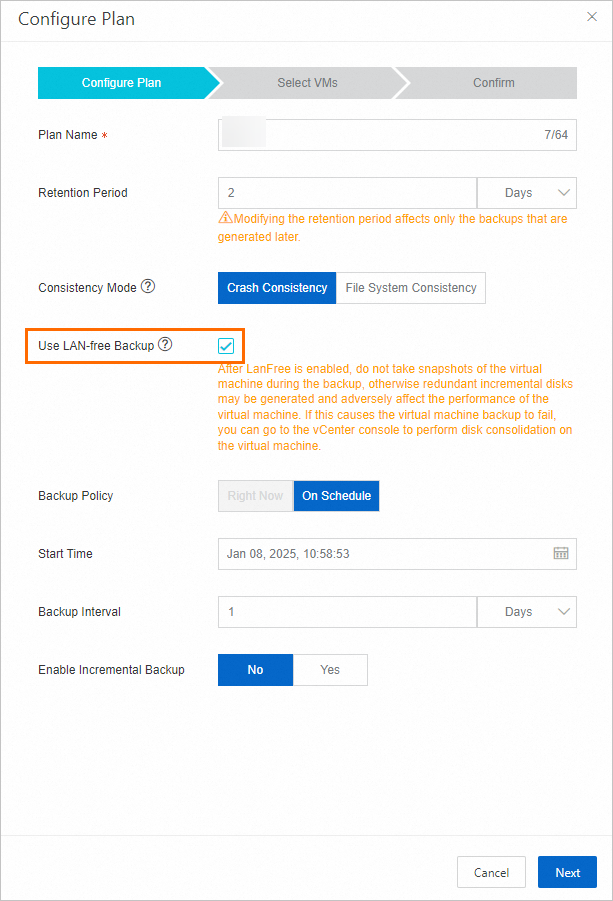
We recommend that you check whether the upstream bandwidth is sufficient. You can also select Use LAN-free Backup when you create or edit a backup plan to further improve the backup efficiency.
Issue
A VMware backup job failed and the following error message appears in the console: The vCenter address cannot be accessed. Check whether the vCenter address is correct and whether the network is connected.
Cause
When the gateway accesses the vCenter, the vCenter returns an access failure message. The following part describes the possible reasons:
Network requests from the gateway to the vCenter are blocked by the firewall or other network policies.
The vCenter service is in an abnormal state and cannot respond to external requests.
The maximum bandwidth of the gateway is reached, causing occasional failure to send some requests sent to the vCenter.
Solution
Log on to the backup gateway in SSH mode and connect to port 443 of the vCenter Server using the following Telnet command to verify network connectivity. If you encounter any issues, contact your local network administrator.
telnet [IP address of the vCenter server] 443If the network is connected properly, further check whether you can successfully log on to the vCenter by using the Web Client. If a logon issue occurs, contact the local virtualization environment administrator.
Check whether the performance bottleneck is caused by insufficient network bandwidth by checking the network monitoring data of the gateway. If yes, use the following methods to resolve the issue:
Increase the network bandwidth.
Deploy multiple gateways for load balancing.
Schedule the execution time of backup jobs to prevent peak concurrent jobs.
Configure the intervals for running full and incremental backup jobs based on your business requirements.
Issue
The VMware backup task execution failed on the console with the error message "Backup failed. This may be caused by network issues. Please check your network settings. (Fault code: TIMEOUT_AWAITING_RESPONSE)".
A VMware backup job failed and the following error message appears in the console: log file vsphere_xxxx-xx-xx_xx-xx-xx_xxxxx.log, level (2) Post https://x.x.x.x/sdk: net/http: TLS handshake timeout.
A VMware backup job failed and the following error message appears in the console: log file vsphere_xxxx-xx-xx_xx-xx-xx_xxxxx.log, level (2) failed to execute ids backup. err=exit status 1.
A VMware backup job failed and the following error message appears in the console: log file vsphere_xxxx-xx-xx_xx-xx-xx_xxxxx.log, level (2) failed to execute ids backup. err=exit status 99.
A VMware backup job failed and the following error message appears in the console: IDS_ERROR{"Code":"12","Message":"exit status 12"}.
Cause
The network request sent from the backup gateway to the corresponding endpoint is blocked by the firewall. For more information about the endpoints and ports that can be accessed by the Cloud Backup client for VMware backup and disaster recovery, see What are the endpoints and ports that can be accessed by the Cloud Backup client?
Solution
Log on to the gateway by using SSH. Make sure that you can access the corresponding endpoint and port on the backup gateway and then run the backup job again.
On the management plane, run the
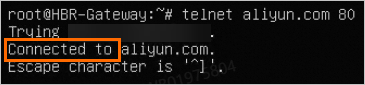
telnetcommand on the gateway to verify the network connectivity, for example: telnet [Endpoint] [Port number].If an output similar to the following example is returned, the network connection is normal.
If an output similar to the following example is returned, the network connection is abnormal.

On the data plane, use ossutil 2.0 to upload data to the Object Storage Service (OSS) bucket in the corresponding region to verify the network connectivity.
Issue
A VMware backup job failed and the following error message appears in the console: The username or password is incorrect. Add the VMware disaster recovery gateway again.

Cause
A username or password error occurs when the gateway attempts to access the vCenter. The following part describes the possible reasons:
The password in the vCenter has been changed, but this change is not synchronized to the Cloud Backup console.
According to the security policy settings of the vCenter, the current password has expired, causing the logon failure.
Solution
Log on to the vCenter by using the username and password added to the Cloud Backup console. If the logon fails, reset the password based on the vCenter security policy.
Log on to the Cloud Backup console.
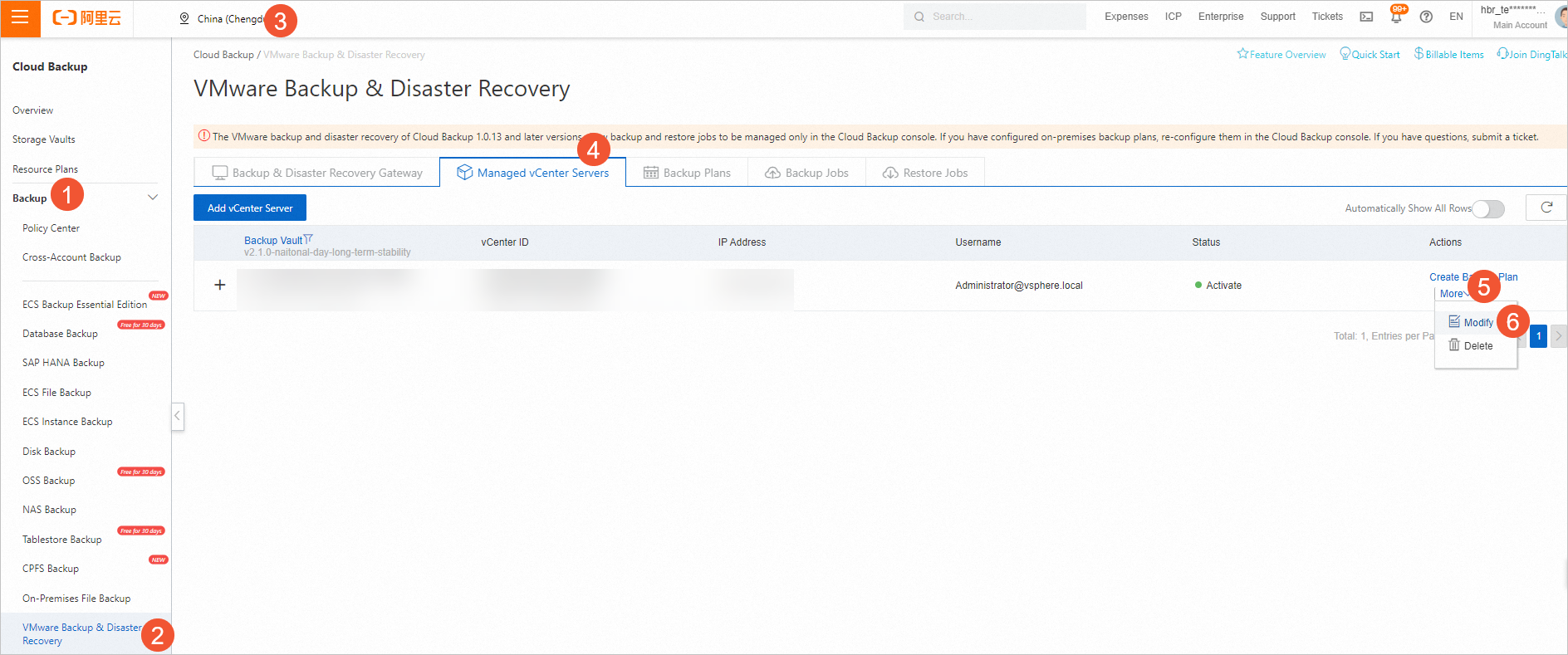
Choose . In the top navigation bar, select a region. Click the Managed VCenter Servers tab on the VMware Backup & Disaster Recovery page. Select the vCenter, and choose in the Actions column. Change the password to the new one. Then, you can use the new password to access the vCenter and successfully complete backup jobs.
Issue
A VMware backup job failed and the following error message appears in the console: hbr.snap.failed to save vm metadata(nvram or configInfo: save nvram. err=download nvram file. err=download nvram file.datastore=xxx_Datastore, filepath=vmName/vmName.nvram, err=download(https://[x.x.x.x]/folder/vmName/vmName.nvram?dcPath=%2FHangZhou&dsName=xxx_Datastore):500 Internal Server Error.
Cause
An internal exception occurs in the vCenter or certain vCenter configuration is modified. As a result, when the backup gateway calls an API operation of the vCenter to back up VM metadata, the vCenter returns the 500 Internal Server Error message.
Solution
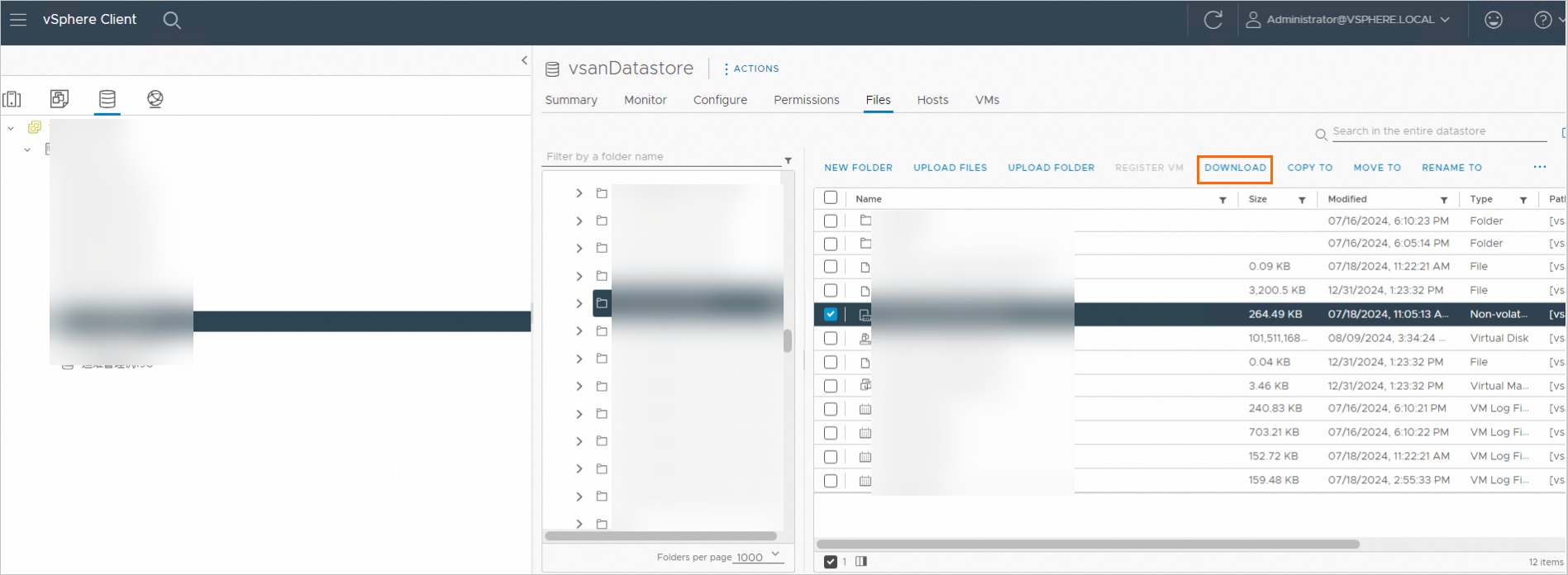
Make sure that the vCenter runs properly. Download the files of the corresponding VM by using the vSphere Web Client, and then run the backup job again.
Issue
A VMware backup job failed and the following error message appears in the console: hbr.snap.open disk. deviceKey=2000, diskPath=xxx.vmdk, err=VixDiskLib error.code=1.

A VMware backup job failed and the following error message appears in the console: An error occurred when the VMware VDDK is called. Make sure that the VMware Client is running as expected. (Error code: VDDK_1).
A VMware backup job failed and the following error message appears in the console: hbr.snap.log file vsphere_xxxx-xx-xx_xx-xx-xx_xxxxx.log, level(2)failed to execute vSphere read vmdk.err=read vmdk.err=Error vix code return by VDDK:14009.

Cause
An excessive number of concurrent backup operations are being performed.
Solution
Log on to the VM that hosts the backup gateway and switch to the /opt/alibabacloud/hbr/bin directory.
Find the run_vsphere.sh file. Find a command that starts with "exec" in the file.
Insert the following commands before the command that starts with "exec" to set the concurrency limits:
export vmdk_reader_concurrent="1"
export vix_disk_lib_read_concurrent="1"
Save the modifications of the run_vsphere.sh file. Then, run the backup job again based on the new concurrency settings.
Issue
A VMware backup job failed and the following error message appears in the console: hbr.snap.MqttDuplicateRequest.

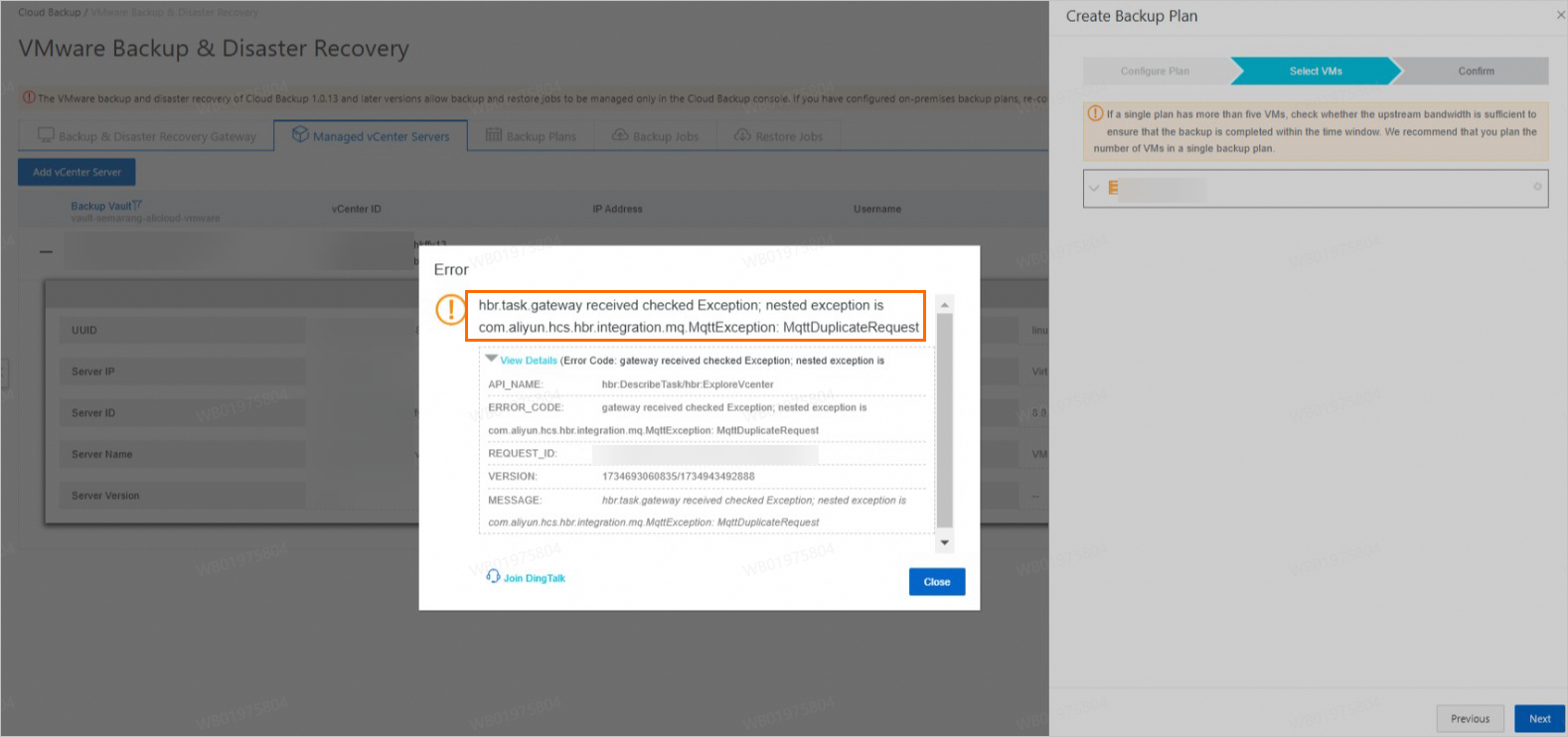
When you create a backup plan, the following error message appears in the step of selecting the VM to back up: hbr.task.gateway received checked Exception;nested exception is com.aliyun.hcs.hbr.integration.mq.MqttException:MqttDuplicateRequest.
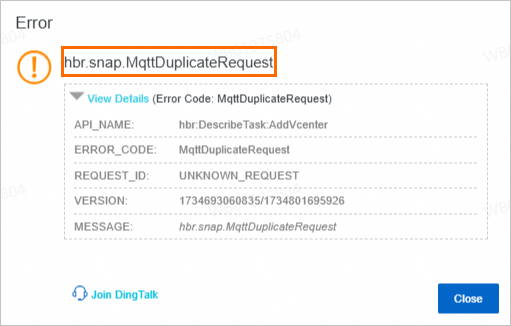
When you add a vCenter server or perform operations in the console, the following error message appears: hbr.snap.MqttDuplicateRequest.
Cause
One certificate is used to activate two or more gateways.
Solution
Make sure that each certificate is used to activate only one gateway. For more information, see How do I change the AccessKey pair of a gateway used for VMware backup and disaster recovery to reactivate the gateway? Reset the redundant gateways. Then, restart the gateway service or restart the server where the gateway resides for the gateway that needs to be retained.
Issue
A VMware backup job failed and the following error message appears in the console: hbr.snap.log file vsphere_xxxx-xx-xx_xx-xx-xx_xxxxx.log, level(2)failed to execute ids backup.err=exit status 1.

A VMware backup job failed and the following error message appears in the console: hbr.snap.log file vsphere_xxxx-xx-xx_xx-xx-xx_xxxxx.log, level(2)Error vix code return by VDDK:1.
Solution
Log on to the VM that hosts the backup gateway and switch to the /opt/alibabacloud/hbr/logs directory.
The error message contains the file name
vsphere_xxxx-xx-xx_xx-xx-xx_{PID}.log, where{PID}indicates the process ID of the backup job. Go to thevddkdirectory and fine the log namedvixDiskLib-{PID}.log.Filter all the log entries that contain "Er" in the log.
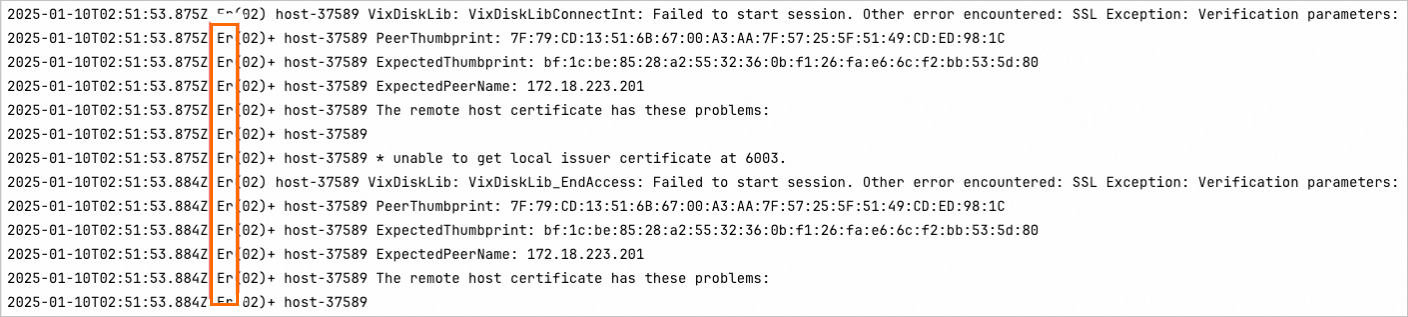
If a log entry contains "SSL Exception", the SSL certificate of the vCenter server has been changed. Perform the following steps to resolve the issue:
Log on to the Cloud Backup console.
On the Managed VCenter Servers tab, find the vCenter server and choose in the Actions column.

Add the vCenter server again. The SSL certificate information is updated during the addition.
Run the backup job again.
If a log entry contains "Insufficient permissions in the host operating system", you do not have the required permissions. We recommend that you check the vCenter permission configuration and make sure that the vSphere and ESXi versions are compatible with VDDK 8.0.
If the issue still persists after you perform the preceding operations, join the technical support DingTalk group or contact service specialists (you can send logs over DingTalk).
Cloud Backup DingTalk Group
For more information about the consultation fees, features, and usage, click to join the DingTalk group. We recommend that you use Chrome. You can also enter group ID 88650005148 and click Search Public Groups to search for and join the DingTalk group.
Cloud Backup Expert Support
Obtain on-site technical support to quickly resolve your questions. Click to contact Cloud Backup technical support. We recommend that you use Chrome. You can also search for DingTalk account ID d37_g935gslgo to add the contact.
Issue
A VMware backup job failed and the following error message appears in the console: hbr.snap.failed to save vm metadata(nvram or configInfo: save nvram. err=download nvram file. err=retrieve layoutEx.file properties. err=NotAuthenticated).
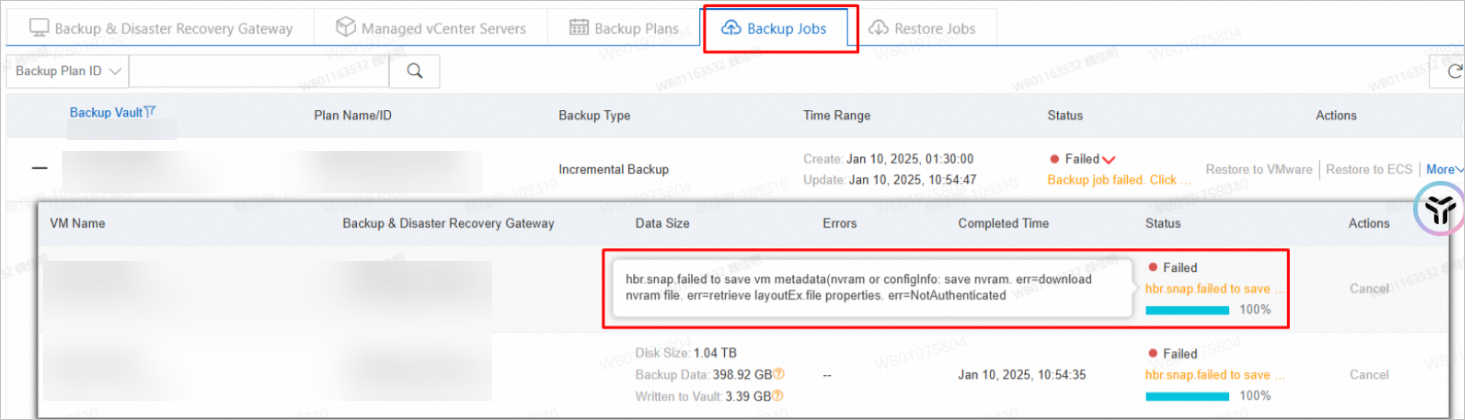
Cause
The backup gateway cannot obtain the data to be backed up due to changes in your network settings.
Solution
Focus on the cause of the error indicated by err={?} in the error message.
Perform the following steps to troubleshoot the issue:
Log on to the VM that hosts the backup gateway and switch to the /opt/alibabacloud/hbr/logs directory.
Go to the xxxx-xx-xx folder. The date is the creation date in the Time Range column corresponding to the error record in the console. If the creating data in the Time Range column is xxxx-xx-xx.
Find the log named
vsphere_xxxx-xx-xx_...{PID}.log, where{PID}indicates the process ID of the backup job. No exact match is required for the PID.If "Start reading VMDK data" exists in the log and many "Retry" errors appear in the log within 60 seconds, the backup job fails from the beginning, generally due to incorrect initial configuration. If the backup job fails during execution, the network settings may be modified during the backup.
If keywords such as "503", "ServerFaultCode", "Unavailable", and "5XX" exist and the keywords are confirmed as 5XX status codes, you may have modified the network settings at the corresponding point in time. As a result, the backup gateway cannot obtain the data to be backed up.
"NotAuthenticated" in the error message indicates that SSL verification fails after you modify the network settings. For more information, locate and analyze the error information in combination with the previous step.
Issue
A VMware backup job failed and the following error message appears in the console: hbr.snap.log file vsphere_xxxx-xx-xx_xx-xx-xx_xxxxx.log, level(2)unexpected end of JSON input.
A VMware backup job failed and the following error message appears in the console: hbr.snap.failed to execute ids backup. err=exit status 99.
Perform the following steps to view the log information and troubleshoot the issue:
Log on to the VM that hosts the backup gateway and switch to the /opt/alibabacloud/hbr/logs directory.
Go to the xxxx-xx-xx folder (the date is the creation date in the Time Range column corresponding to the error record in the console).
Check the vsphere_xxxx-xx-xx_xx-xx-xx_xxxxx.log file (the file name is contained in the error message for the failed job). If no error is found, obtain the string "s-xxxxx" after "jobid".
Locate and view the log prefixed with backup-s-xxxxx. The log entry contains the following error message: read: connection reset by peer.
Cause
An exception occurs on the network connection between the gateway for VMware backup and disaster recovery and the backup vault, or the request is blocked by the firewall, causing the failure to upload backup data.
Solution
Log on to the backup gateway in SSH mode and connect to the backup vault by using the following Telnet command to verify the network connectivity. Obtain the IP address and port number of the backup vault from the log of troubleshooting step IV.
telnet [IP address of the backup vault] [Port number]If an output similar to the following example is returned, the network connection is normal:
If an output similar to the following example is returned, the network connection is abnormal:
If the network connection is abnormal, contact your local network administrator. If the network connection is normal, we recommend that you join the technical support DingTalk group or contact service specialists (you can send logs over DingTalk).
Cloud Backup DingTalk Group
For more information about the consultation fees, features, and usage, click to join the DingTalk group. We recommend that you use Chrome. You can also enter group ID 88650005148 and click Search Public Groups to search for and join the DingTalk group.
Cloud Backup Expert Support
Obtain on-site technical support to quickly resolve your questions. Click to contact Cloud Backup technical support. We recommend that you use Chrome. You can also search for DingTalk account ID d37_g935gslgo to add the contact.
Issue
A VMware backup job failed and the following error message appears in the console: "hbr.snap.Failed due to service restart".
Cause
The backup gateway is restarted. As a result, the backup process and the backup job are interrupted.
Solution
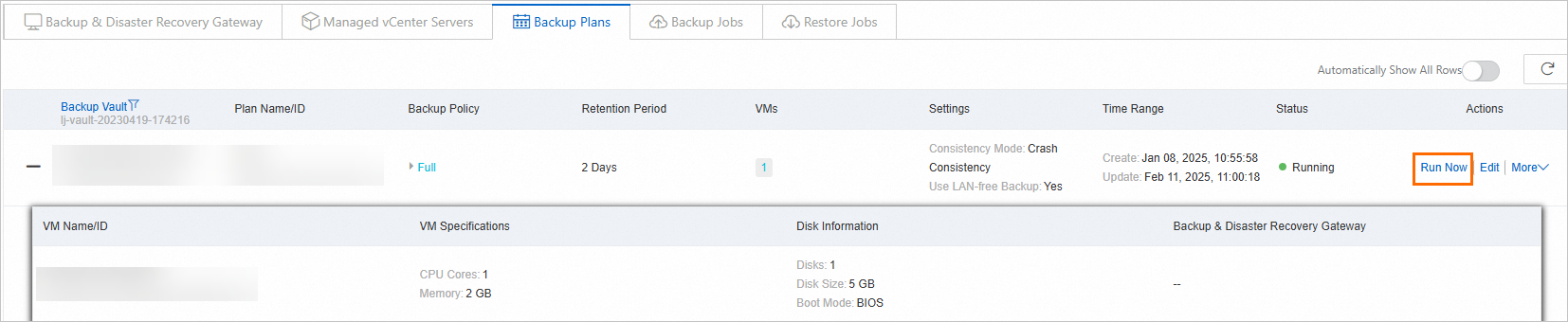
Manually run the backup job again on the Backup Plans tab. Alternatively, wait until the backup plan is automatically scheduled next time.
Issue
A VMware backup job failed and the following error message appears in the console: "hbr.snap.open disk. deviceKey=2000, diskPath=[vsanDatastore] xxx/xxx.vmdk, err=VixDiskLib error. code=13".

Cause
You do not have the required permissions to back up the vmdk file of the disk.
Solution
Create a backup account that has the required permissions. For more information, see Preparations (local VMware environment).
Issue
A VMware backup job failed and the following error message appears in the console: {"Code":"INTERNAL_ERROR_CREATE_SNAPSHOT","Message":"The operation is not allowed in the current state."}.
A VMware backup job failed and the following error message appears in the console: {"Code":"INTERNAL_ERROR_CREATE_SNAPSHOT","Message":"Unable to write VMX file: /vmfs/volumes/e0c68f5d-5c891cf6/KSNMSPrint02/KSNMSPrint02.vmx."}.
Cause
The error occurs because the VMware API fails to create a snapshot. This error is common for VMs that use PCI passthrough or vGPU (virtual GPU) features. These technologies do not support snapshot operations due to their underlying implementation mechanisms. For more information, see Service Support.
Solution
First, verify whether you can create a snapshot for the target VM through vCenter. If you still cannot create a snapshot in vCenter, contact VMware official technical support to submit a ticket for further assistance.
Issue
A VMware backup job failed and the following error message appears in the console: log file vsphere_xxxx-xx-xx_xx-xx-xx_xxxxx.log, level (2) download(https://x.x.x.x/folder/Dinas%20Sosial%20node1%20%28DINSOS%29/Dinas%20Sosial%20node1%20%28DINSOS%29.nvram?dcPath=%2FDC-SEMARANG-KOTA&dsName=QNAP-CL2-LUN): 501 Not Implemented.
Solution
We recommend that you join the technical support DingTalk group or contact service specialists (you can send logs over DingTalk).
Cloud Backup DingTalk Group
For more information about the consultation fees, features, and usage, click to join the DingTalk group. We recommend that you use Chrome. You can also enter group ID 88650005148 and click Search Public Groups to search for and join the DingTalk group.
Cloud Backup Expert Support
Obtain on-site technical support to quickly resolve your questions. Click to contact Cloud Backup technical support. We recommend that you use Chrome. You can also search for DingTalk account ID d37_g935gslgo to add the contact.
Issue
A VMware backup job failed and the following error message appears in the console: {"Code":"13","Message":"You do not have access rights to this file\n2025-05-14T17:01:17.014Z Wa(03) host-302190 VixDiskLib: VixDiskLibIsLegacyConnParams: the instance of VixDiskLibConnectParams is NOT allocated by VixDiskLib_AllocateConnectParams. The new features in 6.7 or later are not supported.\n2025-05-14T17:01:20.164Z Wa(03) host-302190 VDDK_PhoneHome: Unable to load configuration options from /opt/alibabacloud/hbr/logs/vddk/vacConfig.conf.\n2025-05-14T17:01:29.292Z Er(02) host-302190 VixDiskLib: VixDiskLib_PrepareForAccess: Deactivate Storage VMotion failed. Error 3014 (Insufficient permissions in the host operating system) (No permission to perform this action.) at 6191.".
Solution
We recommend that you refer to Create a backup account to verify whether the current account has the required permissions.
Check whether the gateway and DNS are configured correctly, and confirm that you can access the vCenter and ESXi hosts normally.
Issue
A VMware backup job failed and the following error message appears in the console: log file vsphere_xxxx-xx-xx_xx-xx-xx_xxxxx.log, level (2) Error vix code return by VDDK: 30201.
Solution
The network connection is abnormal. Try again later. If the issue persists, we recommend that you join the technical support DingTalk group or contact service specialists (you can send logs over DingTalk).
Cloud Backup DingTalk Group
For more information about the consultation fees, features, and usage, click to join the DingTalk group. We recommend that you use Chrome. You can also enter group ID 88650005148 and click Search Public Groups to search for and join the DingTalk group.
Cloud Backup Expert Support
Obtain on-site technical support to quickly resolve your questions. Click to contact Cloud Backup technical support. We recommend that you use Chrome. You can also search for DingTalk account ID d37_g935gslgo to add the contact.
Issue
A VMware backup job failed and the following error message appears in the console: generate snapshot. err=cerate non quiesce snapshot. name=HBR-Backup-2025-05-31 12:0:40, err=Unable to communicate with the remote host, since it is disconnected.
Cause
The network connection to the vCenter is abnormal, which prevents the snapshot creation operation from being completed.
Solution
Check whether the vCenter status is normal.
Confirm that the gateway can access the vCenter normally.
Verify whether you can create a snapshot for this VM in vCenter.
If the issue persists after confirming all the above steps are normal, we recommend that you join the technical support DingTalk group or contact service specialists (you can send logs over DingTalk).
Cloud Backup DingTalk Group
For more information about the consultation fees, features, and usage, click to join the DingTalk group. We recommend that you use Chrome. You can also enter group ID 88650005148 and click Search Public Groups to search for and join the DingTalk group.
Cloud Backup Expert Support
Obtain on-site technical support to quickly resolve your questions. Click to contact Cloud Backup technical support. We recommend that you use Chrome. You can also search for DingTalk account ID d37_g935gslgo to add the contact.
Issue
A VMware backup job failed and the following error message appears in the console: {"Code":"16007","Message":"You have requested access to an area of the virtual disk that is out of bounds\n2025-05-26T16:00:11.319Z Wa(03) host-6211 VixDiskLib: VixDiskLibIsLegacyConnParams: the instance of VixDiskLibConnectParams is NOT allocated by VixDiskLib_AllocateConnectParams. The new features in 6.7 or later are not supported.\n2025-05-26T16:00:11.524Z Er(02) host-6211 VixDiskLib: VixDiskLib_PrepareForAccess: Deactivate Storage VMotion failed. Error 3014 (Insufficient permissions in the host operating system) (No permission to perform this action.) at 6191.".
Cause
The disk may have been resized.
Solution
Confirm whether you have resized the disk. If the disk size has never been changed, submit a ticket for assistance.
If the disk size has been changed, we recommend that you perform a full backup again.
After the full backup is complete, continue to monitor whether the issue persists in subsequent backups. If the issue persists, submit a ticket for assistance.
Issue
A VMware backup job failed and the following error message appears in the console: IDS_ERROR{"Code":"-1","Message":"signal: killed"}.
Cause
The ids process was terminated during execution.
Solution
We recommend that you join the technical support DingTalk group or contact service specialists (you can send logs over DingTalk).
Cloud Backup DingTalk Group
For more information about the consultation fees, features, and usage, click to join the DingTalk group. We recommend that you use Chrome. You can also enter group ID 88650005148 and click Search Public Groups to search for and join the DingTalk group.
Cloud Backup Expert Support
Obtain on-site technical support to quickly resolve your questions. Click to contact Cloud Backup technical support. We recommend that you use Chrome. You can also search for DingTalk account ID d37_g935gslgo to add the contact.
Issue
A VMware backup job failed and the following error message appears in the console: FailedDueToClientRestart.
Cause
The gateway has been restarted.
Solution
The job will resume normal operation during the next execution.
Issue
A VMware backup job failed and the following error message appears in the console: VMUnavailable.
Cause
The virtual machine (VM) has been manually deleted in vCenter.
Solution
Log on to the Cloud Backup console. On the VMware Backup & Disaster Recovery page, click the Backup Plans tab, edit the corresponding backup plan, and in the Select VM step, reselect the VM to be backed up.
Issue
A VMware backup job failed and the following error message appears in the console: PrecheckFailedOnTooManyVmSnapshot.
Cause
The number of snapshots for the VM exceeds the limit (3), causing the backup job to fail.
Solution
Manually clean up some snapshots and then run the backup job again.
Issue
A VMware backup job failed and the following error message appears in the console: PrecheckFailedOnConsolidate.
Cause
The VM requires disk consolidation.
Solution
Log on to vCenter and perform disk consolidation for the VM.
Why is the operating system version of a VMware VM restored to an ECS instance different from that of the source VM?
During the restoration of a VMware VM to an ECS instance, the operating system version displayed in the ECS console is an intermediate version. After the VMware VM is restored, the operating system version of the source VM is displayed.
What do I do if the following message appears when I create a backup plan and select a VM to be backed up: The disk size is invalid. Resize the disk to an integral multiple of 1 MB?
Issue
When you create a backup plan and select a VM to be backed up, the following message appears: The disk size is invalid. Resize the disk to an integral multiple of 1 MB.
Cause
The size of a disk that supports backup must be an integral multiple of 1 MB.
Solution
Start the vSphere Web Client.
Use a browser to access your vSphere Web Client and log on to the vCenter Server.
Select a VM.
In the Hosts And Clusters view, select the VM for which you want to resize disks.
Stop the VM.
To modify the VM settings, make sure that the VM is stopped. Right-click the VM and choose .
Edit the VM settings.
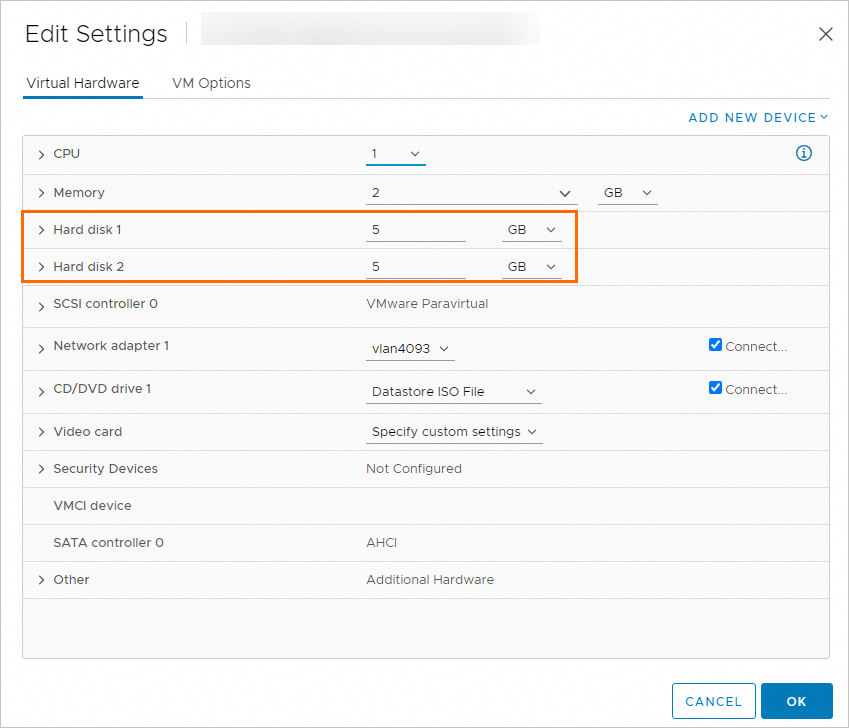
Right-click the VM and select Edit Settings. Resize the disk to an integral multiple of 1 MB.
What do I do if the following message appears when I create a backup plan and select a VM to be backed up: Changed Block Tracking (CBT) is disabled and full backup will be performed?
Resolve the issue by referring to Enable CBT.
How do I increase the VMware backup speed?
Enable CBT. For more information, see Enable CBT.
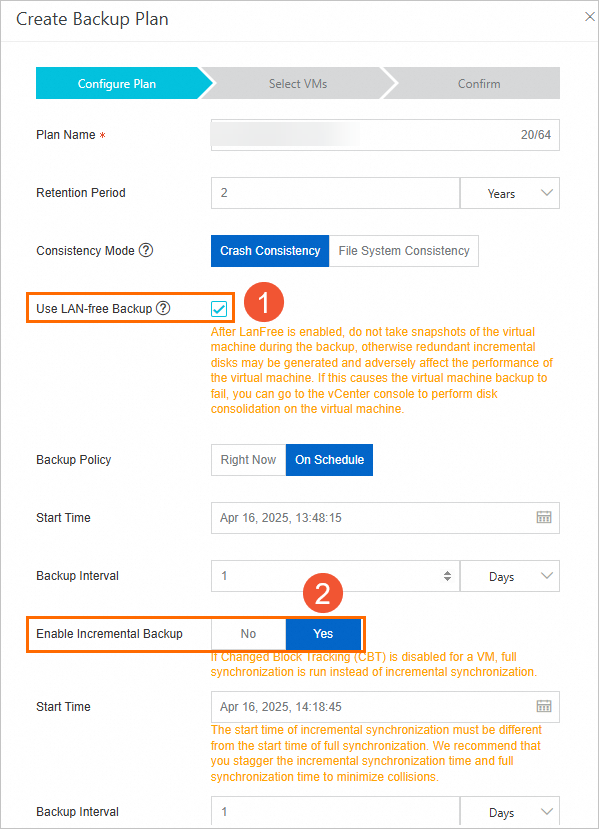
When you create or edit a backup plan, select Use LAN-free Backup and set Enable Incremental Backup to Yes to further increase backup efficiency.