After attaching network instances (VPCs, VBRs, CCN instances, or IPsec-VPN connections) to transit routers, create inter-region connections and allocate bandwidth for cross-region communication.
Background information
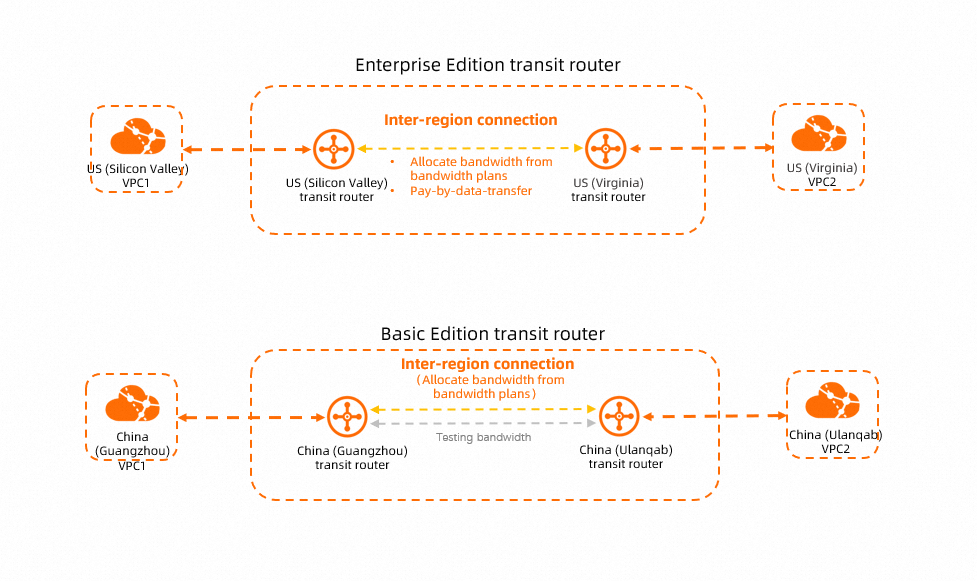
Bandwidth allocation modes
Inter-region connections support multiple bandwidth allocation modes. Supported modes differ between Basic Edition and Enterprise Edition transit routers.
The  icon indicates the mode is supported. The
  icon indicates the mode is not supported.
Bandwidth allocation mode | Basic edition | Enterprise edition | Description | Use cases | Supported line types |
allocate from bandwidth plan |
|
| Purchase a bandwidth plan and associate it with your CEN instance. Bandwidth is allocated from this plan when creating the inter-region connection. This mode incurs bandwidth plan fees. Billing. | Ideal for long-running services with stable peak traffic, such as file transfers, data migration, and data synchronization. | Gold |
pay-by-data-transfer |
|
| You are charged for actual data transferred. You can set a bandwidth limit to prevent excessive usage. This mode incurs data process fees, billed by Cloud Data Transfer (CDT). Cross-region data transfers in Cloud Data Transfer. Note After creating a pay-by-data-transfer inter-region connection, use the | Ideal for large, frequent, and unpredictable traffic patterns, such as temporary scaling, testing, video conferencing, and real-time gaming. |
For existing Pay-By-Data-Transfer inter-region connections, the default line type is Gold. You can change the line type. |
Use testing bandwidth |
|
| CEN provides 1 Kbps of free inter-region bandwidth for connectivity tests only, not for service testing or normal communication. With Basic Edition transit routers, you can test inter-region IPv4 connectivity without creating an inter-region connection. The system uses testing bandwidth by default. | For testing inter-region network connectivity only. This mode does not support service traffic. | Gold |
Line types
Line types determine the service quality for data transmission.
Limitations
When using a bandwidth plan, the total bandwidth of all associated inter-region connections cannot exceed the plan's bandwidth.
For example, if a bandwidth plan provides 20 Mbps between the Chinese mainland and North America, you can distribute it across connections from US (Silicon Valley) to China (Hangzhou), China (Shanghai), and China (Shenzhen). The total bandwidth of these connections cannot exceed 20 Mbps.
For inter-region connections that use the Pay-By-Data-Transfer bandwidth allocation mode, the default maximum inter-region bandwidth limits are as follows:
1,000 Mbps for connections between regions in the Chinese mainland.
100 Mbps for connections between a region in the Chinese mainland and a region outside the Chinese mainland, and for connections between regions outside the Chinese mainland.
To increase these limits, request a quota increase on the CEN Quota Management page or in Alibaba Cloud Quota Center. Increase CEN-related quotas.
Prerequisites
If you want to create an inter-region connection between a region in the Chinese mainland and a region outside the Chinese mainland, make sure that your account meets the following requirements:
Your account information is complete and your account type is Enterprise. For details, see Step 1: Register an Alibaba Cloud account.
Enterprise identity verification is completed, and you have selected that you plan to purchase cloud resources in the Chinese mainland. For details, see Enterprise identity verification.
A transit router is created in each region you intend to connect. For details, see Create a transit router.
To use the Allocate From Bandwidth Plan mode, purchase a bandwidth plan first. For details, see Use bandwidth packages.
Create an inter-region connection
Enterprise edition transit router
Log on to the CEN console.
On the CEN Instance page, click the ID of the CEN instance that you want to manage.
On the tab, find the transit router in one of the regions you want to connect, and choose Create Connection > Inter-region in the Actions column.
On the Create Inter-Region Connection page, configure the parameters for the inter-region connection and click OK.
Parameter
Description
Network Type
Select Inter-region Connection.
Region
Select one of the regions to connect.
Transit Router
Automatically displays the transit router ID in the selected region.
Name
Enter a name for the inter-region connection.
Peer Region
Select the peer region to connect.
ImportantFor cross-border connections, comply with applicable requirements and follow the instructions in the console.
Transit Router
Automatically displays the transit router ID in the peer region.
Tag
Add a tag to the inter-region connection.
Tag key: cannot be an empty string. The key can be up to 64 characters in length and cannot start with
aliyunoracs:. It cannot containhttp://orhttps://.Tag value: can be an empty string. The value can be up to 128 characters in length and cannot start with
aliyunoracs:. It cannot containhttp://orhttps://.
You can add multiple tags. Tags.
Bandwidth Allocation Mode
Select a bandwidth allocation mode. Enterprise Edition transit routers support:
Allocate From Bandwidth Plan: Allocate bandwidth from a purchased bandwidth plan.
Pay-By-Data-Transfer: You are charged based on the actual data transferred over the inter-region connection. Data process fees in this mode are billed by CDT.
Bandwidth Plan
Select a bandwidth plan that is associated with the CEN instance.
This parameter is required if you select the Allocate From Bandwidth Plan mode.
Bandwidth
Set the bandwidth for the inter-region connection, in Mbps.
If you select Allocate From Bandwidth Plan, this parameter specifies the peak bandwidth for the connection.
If you select Pay-By-Data-Transfer, this parameter specifies the bandwidth limit for the connection.
The default bandwidth for connections between regions in the Chinese mainland is 1,000 Mbps.
The default bandwidth is 100 Mbps for connections between a region in the Chinese mainland and a region outside the Chinese mainland, and for connections between two regions outside the Chinese mainland.
Default Line Type
Select a line type for the inter-region connection.
If you select the Allocate From Bandwidth Plan mode, only the Gold line type is supported.
If you select the Pay-By-Data-Transfer mode, both the Platinum and Gold line types are supported.
Advanced Settings
The following advanced features are enabled by default:
Associate with Default Route Table of Transit Router
Associates the inter-region connection with the system route tables of the transit routers in both regions. Inter-region traffic is forwarded based on these system route tables.
Propagate system routes to transit router route table
Establishes a route learning relationship between the inter-region connection and the system route tables of the transit routers in both regions.
Automatically Advertise Routes to Peer Region
Advertises routes from the local transit router's route table to the peer transit router's route table, enabling inter-region connectivity for network instances.
You can clear these options and customize connectivity later using route association and route learning. Route management.
After creation, view and manage the connection on the Inter-Region Connections tab of the Enterprise Edition transit router details page.
If cross-region communication fails, troubleshoot with Use the reachability analyzer or Diagnose a transit router instance.
Basic edition transit router
Log on to the CEN console.
On the CEN Instance page, click the ID of the CEN instance that you want to manage.
On the tab, find the transit router in the connection's region, and click Create Connection in the Actions column.
On the Create Inter-Region Connection page, configure the parameters for the inter-region connection and click OK.
Parameter
Description
Network Type
Select Inter-region Connection.
Region
Select one of the regions to connect.
Transit Router
Automatically displays the transit router ID in the selected region.
Peer Region
Select the peer region to connect.
Transit Router
Automatically displays the transit router ID in the peer region.
Bandwidth Plan
Select a bandwidth plan that is associated with the CEN instance.
Bandwidth
Set the bandwidth for the inter-region connection, in Mbps.
After creation, view and manage the connection on the Inter-Region Connections tab of the Basic Edition transit router details page.
After the inter-region connection is created, its status is Attached.
If cross-region communication fails, troubleshoot with Use path analysis.
Manage inter-region connections
Change bandwidth allocation mode
Change connection bandwidth
Change line type
Modify associated route table
Delete inter-region connection
API reference
Use tools such as the Alibaba Cloud SDK, Alibaba Cloud CLI, Terraform, and Resource Orchestration Service (ROS) to call the following API operations:
CreateTransitRouterPeerAttachment: Creates an inter-region connection for an Enterprise Edition transit router.
UpdateTransitRouterPeerAttachmentAttribute: Modifies the configurations of an inter-region connection on an Enterprise Edition transit router.
ListTransitRouterPeerAttachments: Queries the inter-region connections on an Enterprise Edition transit router.
DeleteTransitRouterPeerAttachment: Deletes an inter-region connection from an Enterprise Edition transit router.
SetCenInterRegionBandwidthLimit: Sets, modifies, or deletes an inter-region bandwidth limit for a Basic Edition transit router.
DescribeCenInterRegionBandwidthLimits: Queries the bandwidth limits of inter-region connections.
Related tutorials
These tutorials demonstrate how to enable cross-region VPC communication using inter-region connections: