Alibaba Cloud CLI is a management tool built on Alibaba Cloud OpenAPI that lets you call OpenAPI operations to manage Alibaba Cloud services. In this tutorial, you use Alibaba Cloud CLI to execute a rolling update task on the ECS instances in a scaling group. You also learn how to roll back a rolling update task when the update does not complete as expected.
Prerequisites
Alibaba Cloud CLI is installed. For more information, see the installation guide in Alibaba Cloud CLI documentation.
A scaling group is created and ECS instances are added to the scaling group.
(Applies only to updating instance images) The instance configuration source of the scaling group is a scaling configuration.
(Applies only to installing an OOS package) The OOS packages that you want to install on the ECS instances are created in OOS in advance. For more information, see Manage custom extensions in batches.
Background information
A rolling update updates the configurations of multiple ECS instances in batches. When you execute a rolling update task from Alibaba Cloud CLI, the task runs as an execution of an Operation Orchestration Service (OOS) public template. For more information, see Rolling updates.
Scenarios
This tutorial has three sequential milestones and one conditional rollback branch that you run only when needed. Each rolling update scenario runs as an execution of an OOS public template. For the parameters of the template that each scenario uses, see the following references:
Step 1: Create a RAM user and grant permissions
Log on to the Resource Access Management (RAM) console.
Create a RAM user.
This step uses a RAM user named example as the sample user. For more information, see Create a RAM user.
In the left-side navigation pane, choose IdentitiesUsers.
Click Create User.
On the Create User page, specify the user configurations, and then click OK.
The following table describes the sample configurations.
Configuration item
Sample configuration
Logon Name
example@sample.com
Display name
example
Access Mode
Select Using permanent AccessKey to access. An AccessKey pair is automatically generated for the RAM user, which allows you to access Alibaba Cloud by using APIs or other development tools.
On the User Information page, click Download CSV File.
NoteThe AccessKey secret is displayed only when it is created and cannot be queried. Keep it confidential. If an AccessKey pair is disclosed or lost, you must create a new AccessKey pair.
Grant the RAM user permissions to operate resources.
In the left-side navigation pane, choose IdentitiesUsers.
Find the RAM user example that you created. In the Actions column, click Add Permissions.
On the Add Permissions page, select the permissions that are required to execute rolling update tasks, and then click OK.
The following table describes the sample configurations.
Configuration item
Sample configuration
Resource Range
Keep the default value Account.
Principal
Keep the default value example@sample.com.
Policies
Select the following system policies:
AliyunECSFullAccess: the permissions to operate ECS resources, including ECS instances and other related resources.AliyunESSFullAccess: the permissions to operate Auto Scaling resources, including scaling groups and other related resources.AliyunOOSFullAccess: the permissions to operate CloudOps Orchestration Service resources, including executions and other related resources.AliyunOSSFullAccess: the permissions to operate Object Storage Service resources, including buckets and other related resources.
Step 2: Configure and verify Alibaba Cloud CLI
Open a terminal or command prompt on your local computer.
Configure Alibaba Cloud CLI.
Run the following command to open the configuration file:
aliyun configureEnter the AccessKey ID, AccessKey secret, default region, and other information as prompted.
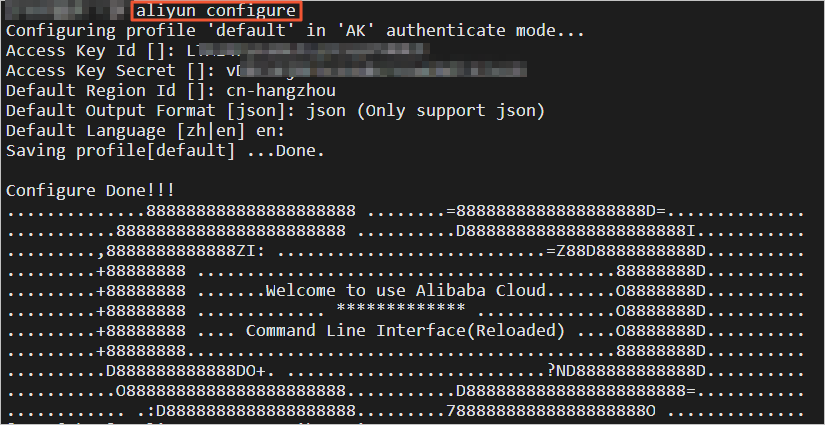
The sample commands in Step 3 do not include a region parameter. Make sure that the default region you configure is the region where your scaling group is located.
Run the following command to verify that Alibaba Cloud CLI is available:
aliyun ecs DescribeRegions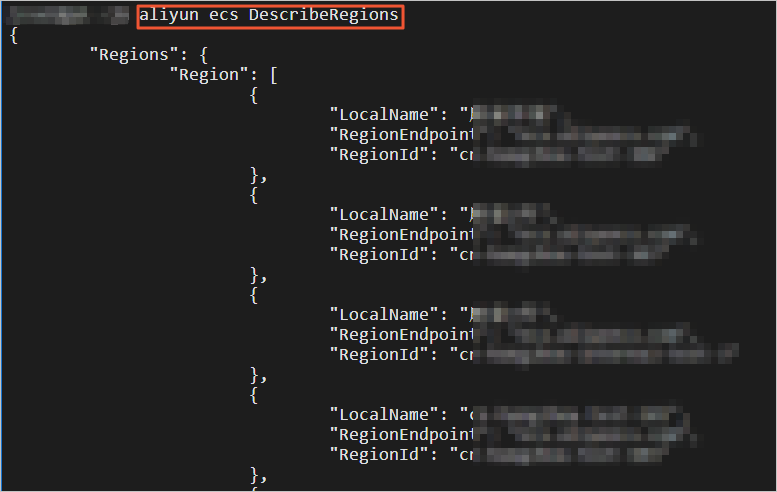
For more information about other configuration items, see the section about configuring Alibaba Cloud CLI in Alibaba Cloud CLI documentation.
Step 3: Execute a rolling update task by using Alibaba Cloud CLI
The sample commands use the quoting and line-continuation conventions of a POSIX shell, such as bash on Linux or macOS. If you use Windows PowerShell or Command Prompt, adjust the quotation marks and escape characters to match that shell.
All sample commands set batchPauseOption to Automatic, which runs every batch without pausing. To pause the task after the first batch is executed, set batchPauseOption to FirstBatchPause.
Enter an Alibaba Cloud CLI command to execute a rolling update task.
For descriptions of the OOS template parameters that are used in the sample code, see OOS rolling update template parameters.
The following sample command updates the images of ECS instances in the scaling group to Alibaba Cloud Linux 2.1903 LTS 64-bit:
aliyun oos StartExecution --TemplateName ACS-ESS-RollingUpdateByReplaceSystemDiskInScalingGroup --Parameters "{
        \"invokeType\": \"invoke\",
        \"scalingGroupId\": \"asg-bp18p2yfxow2dloq****\",
        \"scalingConfigurationId\": \"asc-bp1bx8mzur534edp****\",
        \"imageId\": \"aliyun_2_1903_x64_20G_alibase_20200529.vhd\",
        \"sourceImageId\": \"centos_7_8_x64_20G_alibase_20200717.vhd\",
        \"OOSAssumeRole\": \"\",
        \"enterProcess\": [
          \"ScaleIn\",
          \"ScaleOut\",
          \"HealthCheck\",
          \"AlarmNotification\",
          \"ScheduledAction\"
        ],
        \"exitProcess\":  [
          \"ScaleIn\",
          \"ScaleOut\",
          \"HealthCheck\",
          \"AlarmNotification\",
          \"ScheduledAction\"
        ],
        \"batchNumber\": 2,
        \"batchPauseOption\": \"Automatic\"
      }"
The example command for script execution is as follows, which runs the shell commands
df -handifconfigon the ECS instances in the scaling group to view the instances’ disk and network configuration information.aliyun oos StartExecution --TemplateName ACS-ESS-RollingUpdateByRunCommandInScalingGroup --Parameters "{ \"invokeType\": \"invoke\", \"scalingGroupId\": \"asg-bp18p2yfxow2dloq****\", \"commandType\": \"RunShellScript\", \"invokeScript\": \"df -h\nifconfig\", \"rollbackScript\": \"df -h\nifconfig\", \"OOSAssumeRole\": \"\", \"exitProcess\": [ \"ScaleIn\", \"ScaleOut\", \"HealthCheck\", \"AlarmNotification\", \"ScheduledAction\" ], \"enterProcess\": [ \"ScaleIn\", \"ScaleOut\", \"HealthCheck\", \"AlarmNotification\", \"ScheduledAction\" ], \"batchNumber\": 2, \"batchPauseOption\": \"Automatic\" }"The example command for installing the OOS package is as follows, which installs the WordPress package created in OOS uniformly on the ECS instances in the scaling group.
aliyun oos StartExecution --TemplateName ACS-ESS-RollingUpdateByConfigureOOSPackage --Parameters "{
        \"invokeType\": \"invoke\",
        \"scalingGroupId\": \"asg-bp18p2yfxow2dloq****\",
        \"packageName\": \"wordpress\",
        \"packageVersion\": \"v4\",
        \"action\": \"install\",
        \"OOSAssumeRole\": \"\",
        \"enterProcess\": [
          \"ScaleIn\",
          \"ScaleOut\",
          \"HealthCheck\",
          \"AlarmNotification\",
          \"ScheduledAction\"
        ],
        \"exitProcess\": [
          \"ScaleIn\",
          \"ScaleOut\",
          \"HealthCheck\",
          \"AlarmNotification\",
          \"ScheduledAction\"
        ],
        \"batchNumber\": 2,
        \"batchPauseOption\": \"Automatic\"
      }"
View the execution details to confirm the result of the rolling update task.
When you run the CLI command to execute a rolling update task, an execution is automatically created in OOS. You can use the returned execution ID to view the execution details, such as the execution result and output. The following example shows how to find the execution ID and view the execution details of a script execution.
Find the execution ID of the rolling update task in the information returned by the command.
A sample execution ID is shown in the following figure.
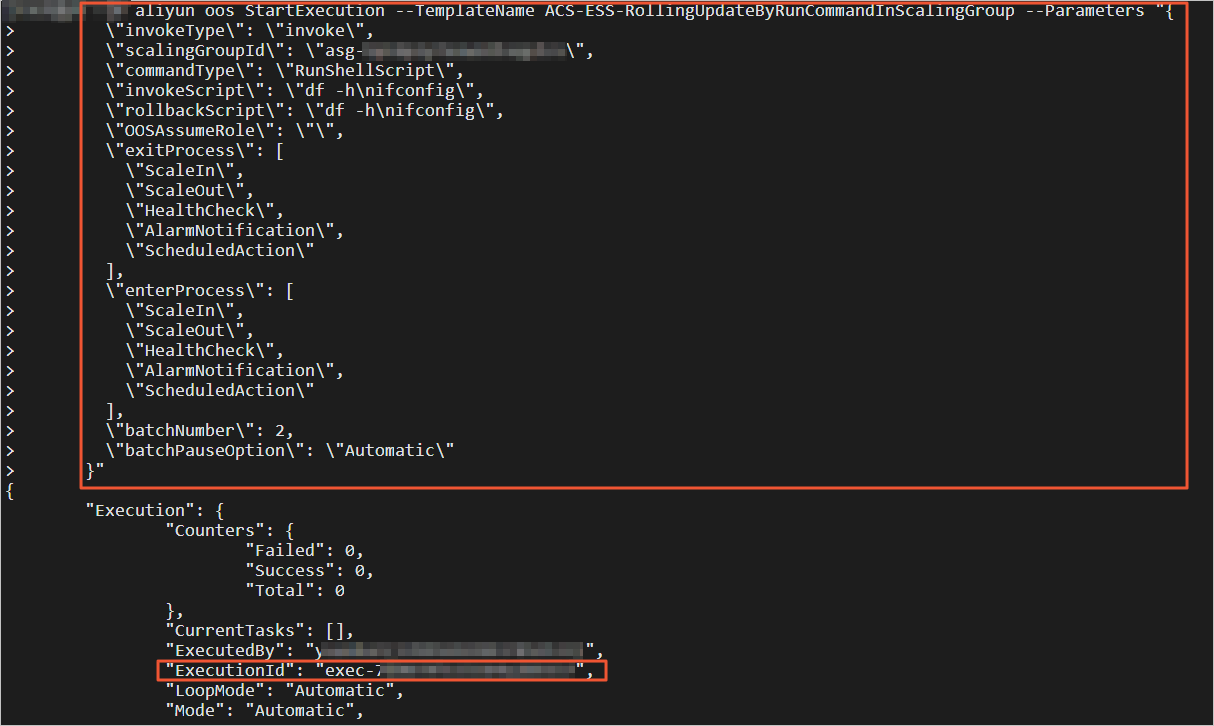
Replace the sample execution ID with your own, and then run the following Alibaba Cloud CLI command to view the execution details:
aliyun oos ListExecutions --ExecutionId exec-40e2e17ef7e04****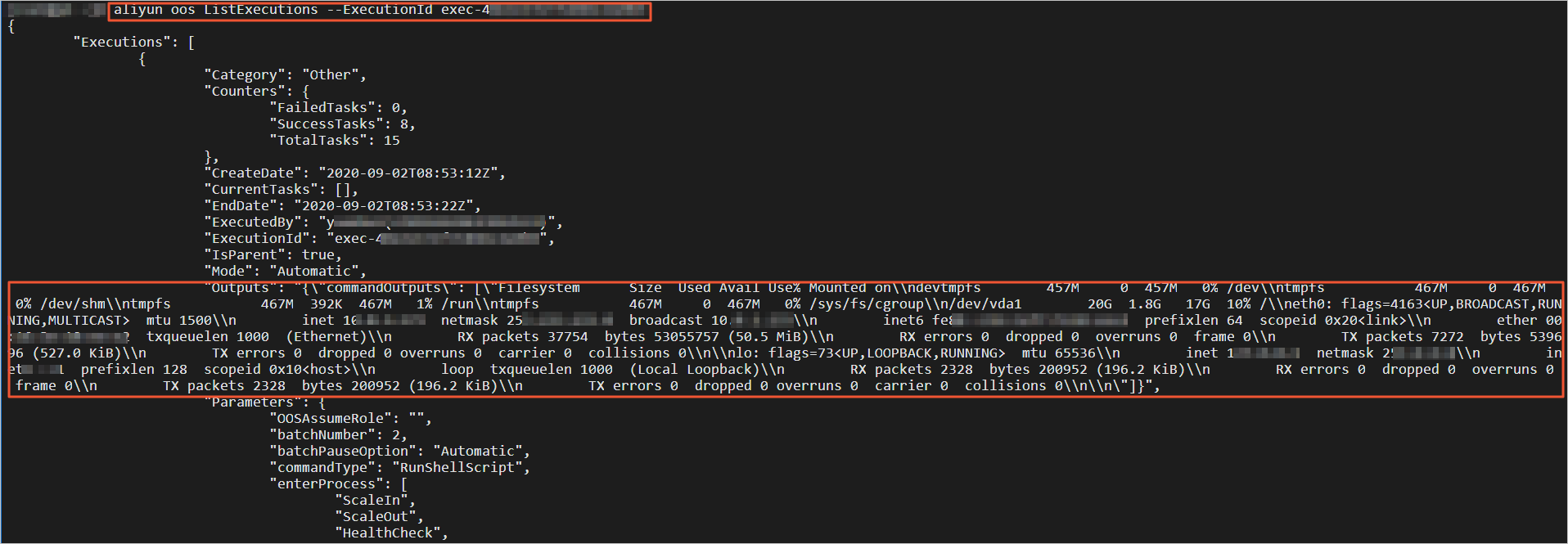
Roll back a rolling update task: Handling Abnormalities During Rolling Updates
If an exception occurs during the rolling update process, or if you need to use the previous configuration after the rolling update, you can run a rollback task to restore the configuration of the ECS instances in the scaling group. This step provides an example command that demonstrates how to roll back a rolling update task that has already been executed.
Find the execution ID of the rolling update task in the information returned by the command.
A sample execution ID is shown in the following figure.
Enter an Alibaba Cloud CLI command to execute a rollback task.
For descriptions of the OOS template parameters that are used in the sample code, see Reference: OOS template parameters.
NoteWhen you execute a rollback task, OOS automatically performs operations based on the rolling update task, such as filtering the ECS instances to roll back and suspending and resuming scaling processes. Therefore, you can skip specifying some parameters.
The following sample command rolls back the images of ECS instances to CentOS 7.8 64-bit:
aliyun oos StartExecution --TemplateName ACS-ESS-RollingUpdateByReplaceSystemDiskInScalingGroup --Parameters "{
        \"invokeType\": \"rollback\",
        \"scalingGroupId\": \"asg-bp18p2yfxow2dloq****\",
        \"scalingConfigurationId\": \"asc-bp1bx8mzur534edp****\",
        \"sourceImageId\": \"centos_7_8_x64_20G_alibase_20200717.vhd\",
        \"sourceExecutionId\": \"exec-83dba59be77d430****\",
        \"OOSAssumeRole\": \"\",
        \"batchNumber\": 2,
        \"batchPauseOption\": \"Automatic\"
      }"
The example command for rollback script execution is as follows, which runs the rollback script on the ECS instances. Here, the Shell commands
df -handifconfigare still used as examples, and you can replace the script as needed.aliyun oos StartExecution --TemplateName ACS-ESS-RollingUpdateByRunCommandInScalingGroup --Parameters "{ \"invokeType\": \"rollback\", \"commandType\": \"RunShellScript\", \"rollbackScript\": \"df -h\nifconfig\", \"scalingGroupId\": \"asg-bp18p2yfxow2dloq****\", \"sourceExecutionId\": \"exec-40e2e17ef7e046****\", \"OOSAssumeRole\": \"\", \"batchNumber\": 2, \"batchPauseOption\": \"Automatic\" }"The example command for rolling back the installation of the OOS package is as follows, which installs the historical version of the WordPress package created in OOS uniformly on the ECS instances.
aliyun oos StartExecution --TemplateName ACS-ESS-RollingUpdateByConfigureOOSPackage --Parameters "{
        \"invokeType\": \"rollback\",
        \"scalingGroupId\": \"asg-bp18p2yfxow2dloq****\",
        \"packageVersion\": \"v3\",
        \"packageName\": \"wordpress\",
        \"sourceExecutionId\": \"exec-f4e61f2f21fe490****\",
        \"OOSAssumeRole\": \"\",
        \"batchNumber\": 2,
        \"batchPauseOption\": \"Automatic\"
      }"
View the execution details to confirm the result of the rollback task.
When you run the CLI command to execute a rollback task, an execution is also automatically created in OOS. You can view the execution details, such as the execution result and output, by following steps in Step 3.
Reference: OOS template parameters
This section lists the parameters of the OOS public templates that are used in the sample commands.
ACS-ESS-RollingUpdateByReplaceSystemDiskInScalingGroup
Parameter | Description |
invokeType | The type of the task. Valid values:
|
scalingGroupId | The ID of the scaling group in which the task is executed. |
scalingConfigurationId | The ID of the scaling configuration that is in effect in the scaling group. |
imageId | The ID of the image that is used to replace the current image. |
sourceImageId | The ID of the image that is used for the rollback. |
OOSAssumeRole | The RAM role that is used to execute the task. Default value: OOSServiceRole. |
enterProcess | The scaling processes that are suspended when the task starts. |
exitProcess | The scaling processes that must be resumed when the task ends. |
batchNumber | The number of batches into which the ECS instances in the scaling group are divided when the task is executed. Each batch contains at least one ECS instance. |
batchPauseOption | The pause setting for task execution. Valid values:
|
sourceExecutionId | The execution ID of the source rolling update task when a rollback task is executed. |
You can also view more parameter descriptions in the OOS console. For example, for the China (Hangzhou) region, see ACS-ESS-RollingUpdateByReplaceSystemDiskInScalingGroup.
ACS-ESS-RollingUpdateByRunCommandInScalingGroup
Parameter | Description |
invokeType | The type of the task. Valid values:
|
scalingGroupId | The ID of the scaling group in which the task is executed. |
commandType | The type of the script to run. The value RunShellScript indicates a shell script. |
invokeScript | The script that is run on ECS instances when the rolling update task is executed. |
rollbackScript | The script that is run on ECS instances when the rollback task is executed. |
OOSAssumeRole | The RAM role that is used to execute the task. Default value: OOSServiceRole. |
enterProcess | The scaling processes that are suspended when the task starts. |
exitProcess | The scaling processes that must be resumed when the task ends. |
batchNumber | The number of batches into which the ECS instances in the scaling group are divided when the task is executed. Each batch contains at least one ECS instance. |
batchPauseOption | The pause setting for task execution. Valid values:
|
sourceExecutionId | The execution ID of the source rolling update task when a rollback task is executed. |
You can also view more parameter descriptions in the OOS console. For example, for the China (Hangzhou) region, see ACS-ESS-RollingUpdateByRunCommandInScalingGroup.
ACS-ESS-RollingUpdateByConfigureOOSPackage
Parameter | Description |
invokeType | The type of the task. Valid values:
|
scalingGroupId | The ID of the scaling group in which the task is executed. |
packageName | The name of the package. |
packageVersion | The version of the package. |
action | The method that is used to configure the package. Valid values:
Default value: install. |
OOSAssumeRole | The RAM role that is used to execute the task. Default value: OOSServiceRole. |
enterProcess | The scaling processes that are suspended when the task starts. |
exitProcess | The scaling processes that must be resumed when the task ends. |
batchNumber | The number of batches into which the ECS instances in the scaling group are divided when the task is executed. Each batch contains at least one ECS instance. |
batchPauseOption | The pause setting for task execution. Valid values:
|
sourceExecutionId | The execution ID of the source rolling update task when a rollback task is executed. |
You can also view more parameter descriptions in the OOS console. For example, for the China (Hangzhou) region, see ACS-ESS-RollingUpdateByConfigureOOSPackage.