A rolling update lets you update the configurations of multiple ECS or ECI instances in batches with a single task. You can use the rolling update feature of Auto Scaling to update images, run scripts, or install OOS packages for ECS or ECI instances that are in the In Service state within a scaling group.
Prerequisites
-
If you need to update images for ECS or ECI instances in a scaling group, prepare the required image.
-
Before running a script on ECS or ECI instances in a scaling group, prepare the script.
-
If you need to install OOS packages on ECS instances or ECI instances in a scaling group, you must create the packages in OOS in advance. For more information, see Manage my software in batches.
Supported task types
|
Task type |
Description |
|
Image Update |
Use this task to update the operating systems of ECS or ECI instances that are in the In Service state within a scaling group. Updating an image affects the source of instance configurations in the following ways:
Note
You can choose whether to update images by using a rolling update or by automatically updating the image in a scaling configuration. For more information, see Differences from automatically updating an image in a scaling configuration. |
|
Script Execution |
Suitable for performing one or more O&M operations. Examples:
|
|
Install OOS package |
Suitable for installing and uninstalling software in batches. |
Comparison with automatic image updates
-
Automatic image update in a scaling configuration: This method is suitable for scenarios with frequent application releases and applies only to ECS-based scaling groups. You only need to create an update task in the Auto Scaling console. When the task runs, the system automatically creates a custom image from a source ECS instance. This ensures that all new ECS instances created in the scaling group use the new image version. For more information, see Automatically update the image in a scaling configuration.
-
Rolling update: This feature is used to update the configurations of ECS or ECI instances in batches. It applies only to scaling groups in regions that support CloudOps Orchestration Service (OOS). You can use this feature to gradually upgrade the images of existing ECS or ECI instances that are in the In Service state within the scaling group to a new version.
Create and run a rolling update task
Before you create and run a rolling update task, note the following:
-
The rolling update feature is available only for scaling groups in a region that supports CloudOps Orchestration Service (OOS).
-
The scaling group must not have any ongoing scaling activities.
-
Only one rolling update task can run at a time in a scaling group.
-
Log on to the Auto Scaling console.
-
In the left-side navigation pane, click Scaling Groups.
-
In the top navigation bar, select a region.
-
Find the desired scaling group and use one of the following methods to open the scaling group details page.
-
Click the ID of the scaling group in the Scaling Group Name/ID column.
-
Click Details in the Actions column.
-
-
In the upper part of the details page, click the Instance Refresh tab and then find the Rolling Update list.
-
Click Create Execution Task.
-
In the Create Execution Task dialog box, configure the rolling update task and click Create Task.
The following table describes the parameters.
Parameter
Description
Task Description
Enter a description for the task to help you identify it later.
Task Type
-
Update Image: Replaces the current image of an ECS or ECI instance. You can select a public image, custom image, shared image, or marketplace image. The instance is restarted during this process. Specify the following parameters:
-
Image for Update: The image to use for the update task.
-
Image for Rollback: The default image to use for a rollback task.
NoteThis is the default image for a rollback task, but you can select a different one.
-
-
Script Execution: Runs a script by using Cloud Assistant. The ECS or ECI instance remains running during this process. Specify the following parameters:
-
Script Type. The following script types are supported:
-
Linux Shell: For example, use the
hostnamecommand to display the hostname, or theecho hellocommand to print "hello". -
Windows Bat: For example, use the
dir c:\command to list directory files. -
Windows PowerShell: For example, use the
Get-Servicescommand to display services.
-
-
Script for Execution: The script to run for the update task.
-
Script for Rollback: The default script to use for a rollback task.
NoteThis script is pre-filled when you create a rollback task, but you can edit it.
-
-
Install OOS Package: Select an OOS package name and version.
Execution Batch
The number of batches for the task. The scaling group divides the ECS or ECI instances into batches. Each batch must contain at least one instance. For example, if a scaling group has 10 ECS instances in the In Service state and the number of execution batches is 2, the instances are divided into two batches of five instances each.
Suspension Policy
-
Without Suspension: The task runs to completion without pausing.
-
Suspend First Batch: The task pauses after the first batch completes. You must then manually resume it. Subsequent batches do not pause.
-
Suspend Each Batch: The task pauses after each batch and must be resumed manually.
Advanced
Optional. If you set Task Type to Update Image, you can set the maximum number of errors that are allowed before the task stops. If you do not set this parameter, the default value 0 is used. This means the task fails if even one error occurs.
-
-
Review the impacts of the rolling update task and click OK.
The rolling update task starts automatically. The scaling group and its instances are affected as follows:
-
The scaling group suspends scaling processes and does not respond to scaling activities during the update. After the update is complete, the suspended processes resume. If the scaling processes were manually suspended before the update, they remain suspended to maintain a consistent state.
-
Instances are moved to the Standby state in batches. After the task is complete, they are returned to the In Service state.
ImportantIf the scaling group is associated with an SLB instance, the weight of an instance in the Standby state is set to zero, and it stops receiving traffic.
-
-
Take action based on the execution status of the rolling update task.
Task
Description
Procedure
Continue a rolling update task
If the suspension policy is Suspend First Batch or Suspend Each Batch, the task enters the Pending (Batch Suspension) state one or more times. If you confirm that the upgraded instances meet your expectations, continue the task.
-
In the Actions column, click Continue.
-
In the Continue Execution Task dialog box, click OK.
Complete a rolling update task
If a rolling update task fails, it enters the Pending (Failure Suspension) state. You must then select an action to complete the task.
-
In the Actions column, click Details.
-
Find the ECS or ECI instance that failed to update. In the Actions column, click Retry, Skip, or Cancel.
-
Click Retry to try the update operation on the instance again.
-
Click Skip to proceed to the next instance. The status of the current instance changes to Success.
ImportantYou must manually move the skipped instance out of the Standby state.
-
Click Cancel to proceed to the next instance. The status of the current instance remains Failed.
-
Cancel a rolling update task
You can cancel a rolling update task if it does not meet your business requirements.
In the Actions column, choose .
ImportantAfter you cancel a task, you must manually resume the suspended scaling group processes. You must also move instances from the current batch that are in progress or have failed out of the Standby state.
Roll back a rolling update task
You can roll back a task that is waiting (due to a batch or failure suspension) or the most recently executed task.
For more information, see Roll back a completed rolling update task.
-
Roll back a rolling update task
You can roll back a task that is in a waiting state (due to a batch or failure suspension) or the most recently executed task to restore the original instance configurations. If a rolling update task is in the Waiting state, the task is automatically canceled before the rollback begins. Then, the instances that were already updated are rolled back.
You can only roll back a rolling update task. You cannot roll back a rollback task.
-
On the execution task list page, find the task that you want to roll back and click Roll Back in the Actions column.
-
In the Create Rollback Task dialog box, configure the rollback task.
The following table describes the parameters.
Parameter
Description
Task Description
Enter a description for the rollback task to help you identify it later.
Task Type
The task type is the same as the original task type and cannot be edited.
-
If the task type is Image Update, the rollback image you specified for the rolling update task is automatically selected. You can select a different image.
-
If the task type is Script Execution, the rollback script you specified for the rolling update task is pre-filled. You can edit this script.
-
If the task type is Install OOS Package, the package version you specified for the rolling update task is automatically selected. You can select a different version but cannot select a different package.
Execution Batch
The number of batches for the task. The scaling group divides the instances into batches. Each batch must contain at least one instance. For example, if a scaling group has 10 instances in the In Service state and you set the number of batches to 2, the instances are divided into two batches of five instances each.
Suspension Policy
-
Without Suspension: The task runs to completion without pausing.
-
Suspend First Batch: The task pauses after the first batch completes. You must then manually resume it.
-
Suspend Each Batch: The task pauses after each batch completes. You must manually resume the task after each pause.
Advanced
Optional. If you set Task Type to Update Image, you can set the maximum number of errors that are allowed before the task stops.
-
-
Click Create Task.
-
Review the impacts of the rollback task and click OK.
The rollback task starts automatically.
View rolling update task details
You can view information about a rolling update task and perform actions on individual instances, such as retrying or skipping the operation.
-
On the execution task list page, find the task that you want to view and click Details in the Actions column.
-
View the basic information about the task.
Basic information includes the task status and task type. If the task type is Script Execution, click Script Details to view the script content.
-
View the list of instances in the task.
The instance list shows instances in various execution states.
-
If an instance has not completed the task, you can skip or cancel the operation for that instance.
-
If the operation fails for an instance, you can retry, skip, or cancel the operation in the Actions column.
-
If the task type is Script Execution, click View in the Result column to see the script output.
The differences between Retry, Skip, and Cancel are as follows:
-
Retry: Retries the update operation on the instance.
-
Skip: Proceeds to the next instance. The status of the current instance changes to Success.
ImportantYou must manually move the skipped instance out of the Standby state.
-
Cancel: Proceeds to the next instance. The status of the current instance remains Failed.
-
Configure monitoring for rolling updates
You can configure independent monitoring and alerts for rolling update tasks based on the needs of different scaling groups. This allows you to view alert details and promptly resolve issues with rolling updates.
-
Log on to the CloudMonitor console.
-
In the left-side navigation pane, choose .
-
On the System Event page, set the filter conditions and click Searches to query for rolling update failure events for a specific scaling group.
For example, set the event level to Critical and enter the following keywords:
(ACS-ESS-RollingUpdateByConfigureOOSPackage or ACS-ESS-RollingUpdateByReplaceSystemDiskInScalingGroup or ACS-ESS-RollingUpdateByRunCommandInScalingGroup or ACS-ESS-RollingUpdateByUpdateContainerGroup) and ${your_scaling_group_id}NoteReplace
${your_scaling_group_id}with the ID of your scaling group, for example,asg-bp180y8dj5eku2j4****.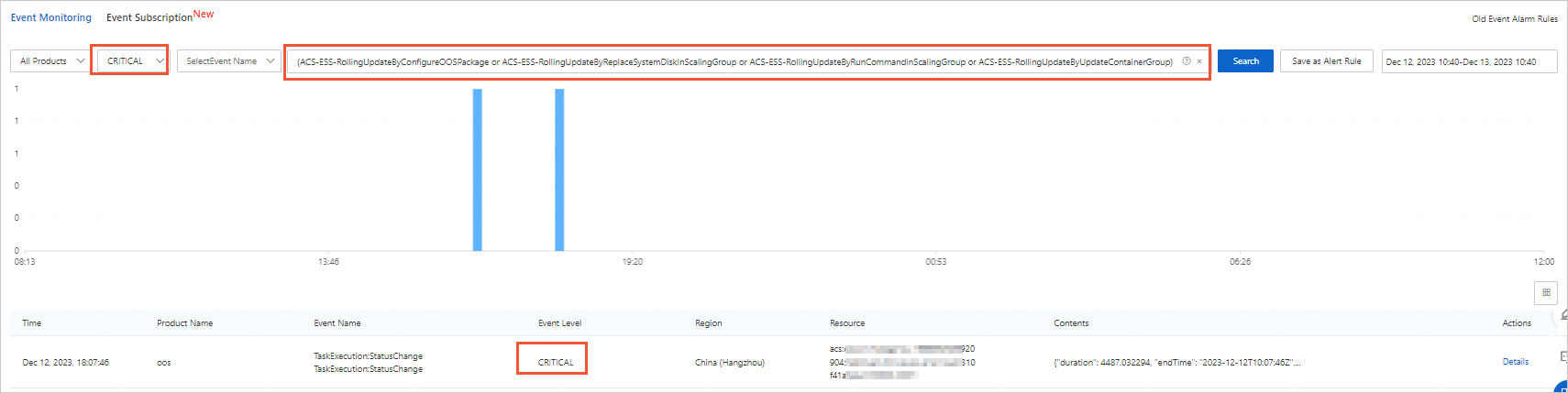
-
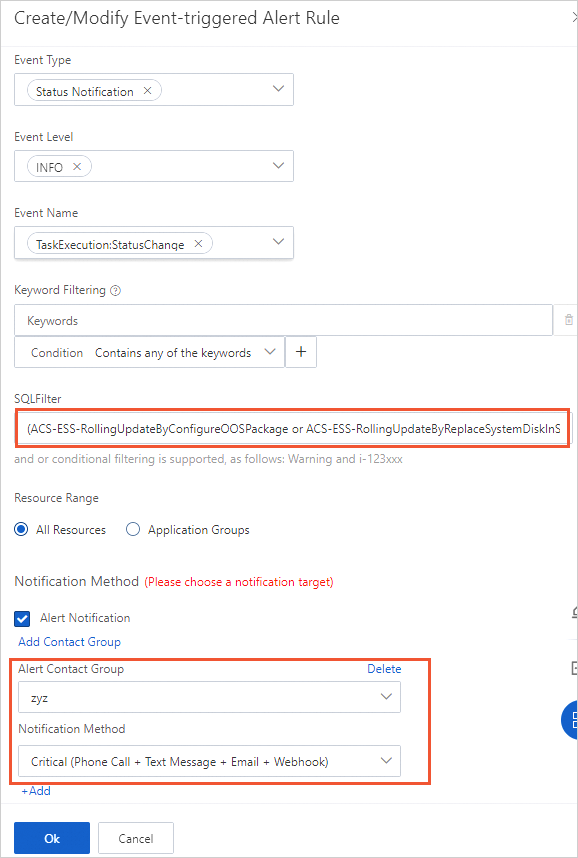
Click Save as Alert.
-
On the Create/Modify Event-triggered Alert Rule panel, configure the parameters and click OK.
-
In the left-side navigation pane, choose .
On the Alert History page, view the alert details.
