After you install a probe for your application, ARMS starts monitoring it. On the Application Overview page, you can view key metrics such as request count, error count, latency, and instance count.
Prerequisites
ARMS Application Monitoring provides a new monitoring details page for users who have enabled the new billing model. For details about the new billing model, see Product Billing (New).
If you haven’t enabled the new billing model but want to access the new monitoring details page, click Switch to New Version on the Application List page.
You have installed a probe for your application. For instructions, see Overview of Application Monitoring Integration.
View Application Overview
Log on to the ARMS console. In the left-side navigation pane, choose .
On the Application List page, select the region in the top navigation bar and then click the name of the application.
NoteIcons in the Language column have the following meanings:
 : a Java application connected to Application Monitoring.
 : a Golang application connected to Application Monitoring.
 : a Python application connected to Application Monitoring.
-: an application connected to Managed Service for OpenTelemetry.
-
In the top navigation bar, click Application Overview.
Dashboard Description
The Application Overview page automatically adapts its dashboard based on how your application is integrated. It displays CPU metrics differently for ECS and container environments.
In container scenarios, if you have integrated Managed Service for Prometheus, the dashboard prioritizes data from Managed Service for Prometheus to display container metrics. For instructions on integrating containers with Managed Service for Prometheus, see Container Observability.
If your container environment has not integrated Managed Service for Prometheus, ensure that your Application Monitoring probe version is 4.1.0 or later. This version displays basic container metrics. For details about the probe, see Probe (Java Agent) Version Guide.
ECS Environment
|
Panel |
Style |
Description |
|
Request Count |
Ticker board |
Total number of requests for the application during the specified time period. Day-over-day change: Percentage change in request count compared to the same time period on the previous day. |
|
Error Count |
Ticker board |
Total number of errors for the application during the specified time period. Day-over-day change: Percentage change in error count compared to the same time period on the previous day. |
|
Average Latency |
Ticker board |
Average latency for the application during the specified time period. Day-over-day change: Percentage change in average latency compared to the same time period on the previous day. |
|
Instance Count |
Ticker board |
Total number of instances for the application during the specified time period. Day-over-day change: Percentage change in instance count compared to the same time period on the previous day. |
|
Request Count |
Column chart |
Trend of request count over the specified time period, stacked by call type. |
|
Error Count |
Column chart / line chart |
Error count: Trend of error count over the specified time period, shown as a column chart with error count on the left y-axis. Error rate: Trend of error rate over the specified time period, shown with error rate on the right y-axis. |
|
Elapsed Time |
Line chart |
Trend of latency over the specified time period, showing average, P99, P90, and P75 values. |
|
Peak CPU Utilization |
Honeycomb chart |
Peak CPU utilization of the host running the application during the specified time period. The following statuses are available:
|
|
Top Services by Request Count |
TOP 5 |
Top 5 service interfaces by total request count during the specified time period. Supported call types include the following:
|
|
Top Services by Error Count |
TOP 5 |
Top 5 service interfaces by total error count during the specified time period. Supported call types include the following:
|
|
Top Services by Average Latency |
TOP 5 |
Top 5 service interfaces by average latency during the specified time period. Supported call types include the following:
|
|
Top Instances by Peak CPU Utilization |
TOP 5 |
Hosts with the highest CPU utilization during the specified time period. |
Container Environment (Prometheus Edition)
|
Panel |
Style |
Description |
|
Request Count |
ticker board |
Total number of requests for the application during the specified time period. Day-over-day change: Percentage change in request count compared to the same time period on the previous day. |
|
Error Count |
ticker board |
Total number of errors for the application during the specified time period. Day-over-day change: Percentage change in error count compared to the same time period on the previous day. |
|
Average Latency |
Ticker board |
Average latency for the application during the specified time period. Day-over-day change: Percentage change in average latency compared to the same time period on the previous day. |
|
Instance Count |
Ticker board |
Total number of instances for the application during the specified time period. Day-over-day change: Percentage change in instance count compared to the same time period on the previous day. |
|
Request Count |
Column chart |
Trend of request count over the specified time period, stacked by call type. |
|
Error Count |
Column chart / line chart |
Error count: Trend of error count over the specified time period, shown as a column chart with error count on the left y-axis. Error rate: Trend of error rate over the specified time period, shown with error rate on the right y-axis. |
|
Elapsed Time |
Line chart |
Trend of latency over the specified time period, showing average, P99, P90, and P75 values. |
|
CPU Usage |
Honeycomb chart |
CPU usage of the container during the specified time period. In multi-cluster scenarios, only the earliest reporting cluster is displayed. |
|
Top Services by Request Count |
TOP 5 |
Top 5 service interfaces by total request count during the specified time period. Supported call types include the following:
|
|
Top Services by Error Count |
TOP 5 |
Top 5 service interfaces by total error count during the specified time period. Supported call types include the following:
|
|
Top Services by Average Latency |
TOP 5 |
Top 5 service interfaces by average latency during the specified time period. Supported call types include the following:
|
|
CPU Usage Ranking |
TOP 5 |
Containers with the highest CPU usage during the specified time period. In multi-cluster scenarios, only the earliest reporting cluster is displayed. |
Container Environment (ARMS Self-Collection Edition)
|
Panel |
Style |
Description |
|
Request Count |
Ticker board |
Total number of requests for the application during the specified time period. Day-over-day change: Percentage change in request count compared to the same time period on the previous day. |
|
Error Count |
Ticker board |
Total number of errors for the application during the specified time period. Day-over-day change: Percentage change in error count compared to the same time period on the previous day. |
|
Average Latency |
Ticker board |
Average latency for the application during the specified time period. Day-over-day change: Percentage change in average latency compared to the same time period on the previous day. |
|
Instance Count |
ticker board |
Total number of instances for the application during the specified time period. Day-over-day change: Percentage change in instance count compared to the same time period on the previous day. |
|
Request Count |
Column chart |
Trend of request count over the specified time period, stacked by call type. |
|
Error Count |
Column chart / line chart |
Error count: Trend of error count over the specified time period, shown as a column chart with error count on the left y-axis. Error rate: Trend of error rate over the specified time period, shown with error rate on the right y-axis. |
|
Elapsed Time |
Line chart |
Trend of latency over the specified time period, showing average, P99, P90, and P75 values. |
|
CPU Usage |
Honeycomb chart |
CPU usage of the container during the specified time period. |
|
Top Services by Request Count |
TOP 5 |
Top 5 service interfaces by total request count during the specified time period. Supported call types include the following:
|
|
Top Services by Error Count |
TOP 5 |
Top 5 service interfaces by total error count during the specified time period. Supported call types include the following:
|
|
Top Services by Average Latency |
TOP 5 |
Top 5 service interfaces by average latency during the specified time period. Supported call types include the following:
|
|
Top Containers by CPU Usage |
TOP 5 |
Containers with the highest CPU usage during the specified time period. |
Panel Features
Action Points
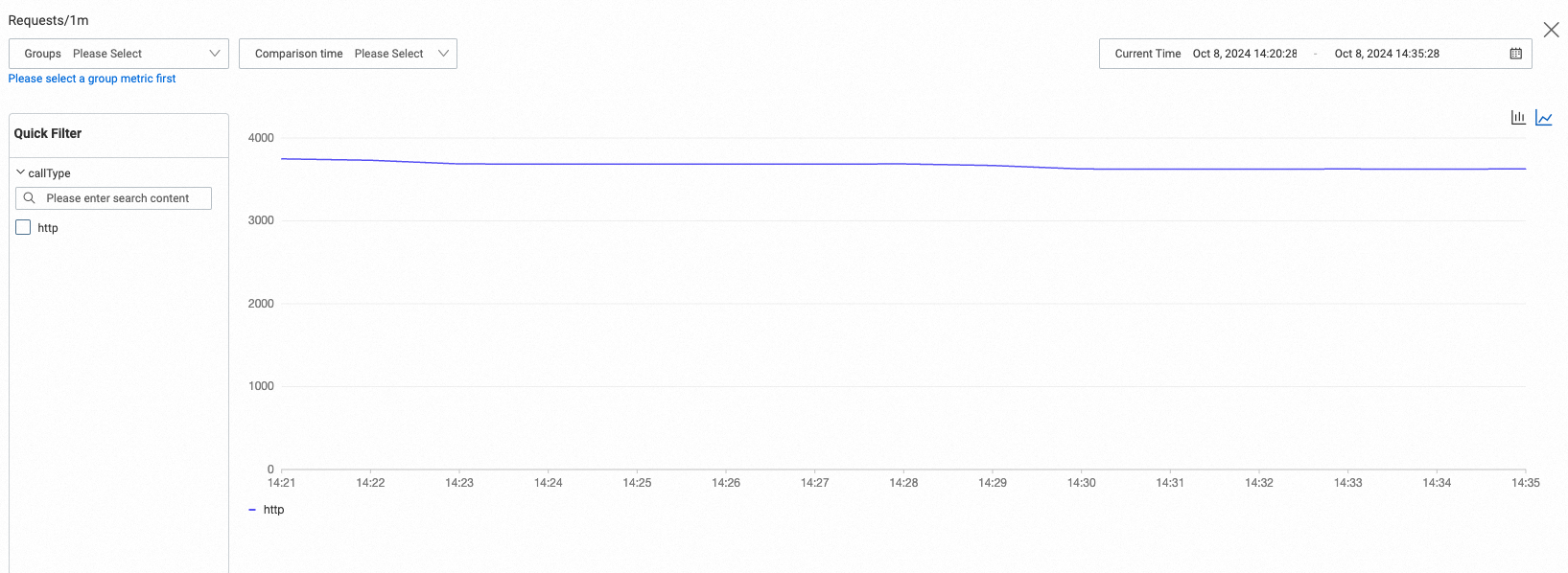
Click the  icon on a trend chart panel to view grouped comparisons and historical time comparisons.
-
Grouping options include basic fields and instance tags:
Basic fields include _traffic_mse_gray (grayscale). Default instance tags include app, workloadKind, app_kubernetes_io_managed_by, armsBPFCreateAppName, and other fields.
-
Basic fields: Common labels across all metrics. Currently, serverIp is exposed for grouping comparisons.
-
Instance tags: In addition to default instance tags, you can add custom instance tags to enable more grouping comparison capabilities. For instructions, see Add and Use Tags.
-
-
Comparison time: Select a comparison time range to compare with the current time range.
Query Statements
Click the  icon on a panel to view its corresponding PromQL. You can use this PromQL directly in Prometheus or Grafana for custom configurations.
For example, the query expression for the Request Count / 1m panel is sum by (callType,)(sum_over_time(arms_app_requests_count_...[1m])), which aggregates request counts per minute by the callType dimension. Click the copy icon next to the query input box to obtain the full PromQL.
-
Run PromQL queries to view related metrics on the Metric Explorer page in the Managed Service for Prometheus console. For instructions, see Metric Explorer.
-
When configuring dashboards in Grafana, you can directly use the corresponding PromQL for panels. For instructions on integrating data sources, see Cloud Service Integration.
FAQ
No Data for P99 Latency
Quantile metrics are disabled by default. To view quantile data, enable quantile statistics on the Custom Configuration page. For instructions, see Custom Configuration for Java Applications.
Total Request Volume on Legacy Console Application Overview Page Does Not Match Sum of Last Five Minutes
ARMS displays data for one minute longer than the selected time range. For example, "last 5 minutes" actually shows 6 minutes of data, and "last 30 minutes" shows 31 minutes of data.
Slow SQL Count on Legacy Console Application Overview Page Differs from POP API Query Results
POP API queries include slow requests from databases, NoSQL databases, and caches, while the console only includes database-related slow requests. This causes discrepancies.
To make POP query results match the console data, add an rpcType filter condition to your query.
Example:
QueryMetricByPageRequest.Filters filters2 = QueryMetricByPageRequest
.Filters
.builder()
.key("rpcType")
.value("60|62|63|65|66|67|68|69|58|59")
.build();
Instance Count Exceeds Actual Running Instances
If the query time range is too long, destroyed instances are also included in the instance count.
Total Request Count Mismatch Between New and Legacy Console Application Overview Pages
The Application Overview page in the new console displays data from the service-providing perspective and includes scheduled tasks. The Application Overview page in the legacy console does not include scheduled task data.