Data Transmission Service (DTS) supports full data migration from Amazon RDS for PostgreSQL to ApsaraDB RDS for PostgreSQL. This is an offline migration — incremental data migration is not supported. Stop all services on the source instance before you start.
In this tutorial, you will:
Add DTS server CIDR blocks to the Amazon RDS inbound rules
Create the destination database and schema on ApsaraDB RDS for PostgreSQL
Configure and run a DTS migration task (schema migration + full data migration)
Switch your workloads to the destination instance
How it works
To prevent dependency failures, DTS migrates objects in this order:
Migrate schemas of tables, views, sequences, functions, user-defined types, rules, domains, operations, and aggregates.
Migrate all existing data.
Migrate schemas of triggers and foreign keys.
Prerequisites
Before you begin, ensure that you have:
An Amazon RDS for PostgreSQL instance running version 9.4 or later, with Public accessibility set to Yes
An ApsaraDB RDS for PostgreSQL instance already created — use the same major version as the source when possible; to migrate across versions, test compatibility on a pay-as-you-go instance first (Create an instance)
Available storage on the destination instance that exceeds the total data size of the source instance
Database accounts with the required permissions on both instances (see Permissions required for database accounts)
Limitations
| Limitation | Details | Consequence if ignored |
|---|---|---|
| No incremental migration | Full data migration only. Stop all services on the source before starting. | Data written during migration is lost. |
| Single database per task | Each DTS task migrates one database. Create separate tasks for each database. | Additional databases are not migrated. |
| No C-language functions | DTS skips functions written in C. Migrate these manually after cutover if needed. | Functions are silently skipped; applications relying on them will fail post-cutover. |
| Primary key or unique constraint required | Tables without a PRIMARY KEY or UNIQUE constraint may result in duplicate records in the destination. | Duplicate rows in destination tables; no automatic deduplication. |
| Auto-resume on failure | If the task fails and resumes automatically, it overwrites destination data. Stop or release the task before switching workloads. | Source data overwrites destination data after the task resumes. |
| Resource impact | DTS consumes read and write resources on both databases. Run the migration during off-peak hours — ideally when CPU utilization on both databases is below 30%. | Performance degradation or service interruption on source or destination. |
Billing
| Migration type | Instance configuration fee | Internet traffic fee |
|---|---|---|
| Schema migration and full data migration | Free | Charged when data egresses from Alibaba Cloud over the Internet. See Billing overview. |
Permissions required for database accounts
| Database | Schema migration | Full data migration |
|---|---|---|
| Amazon RDS for PostgreSQL | USAGE on pg_catalog | SELECT on the objects to be migrated |
| ApsaraDB RDS for PostgreSQL | CREATE and USAGE on the objects to be migrated | Schema owner permissions |
Step 1: Add DTS CIDR blocks to the Amazon RDS inbound rules
DTS connects to the source Amazon RDS for PostgreSQL instance over the Internet. Add the DTS server CIDR blocks for the destination region to the instance's security group inbound rules.
Log on to the Amazon RDS Management console and go to the basic information page of the source instance.
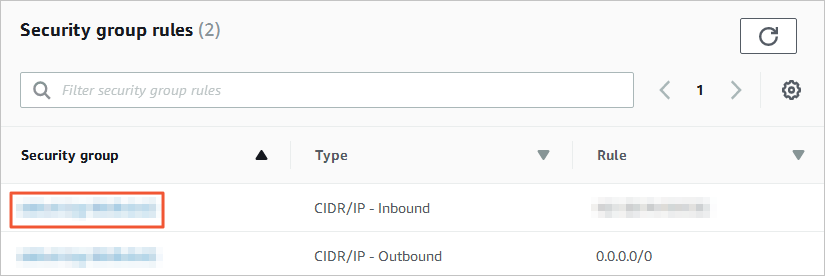
In the Security group rules section, click the name of the security group.
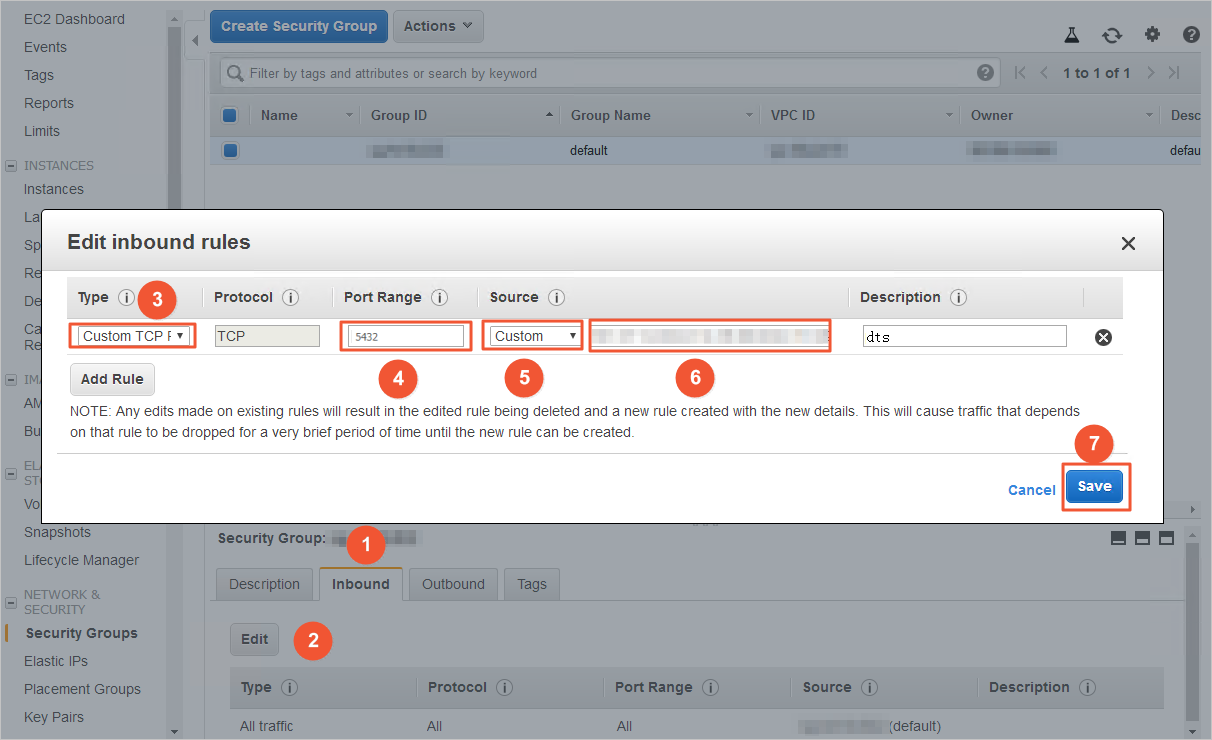
On the Security groups page, go to Inbound > Edit. In the Edit inbound rules dialog box, add the CIDR blocks for the destination database region.
Add only the CIDR blocks for the region where the destination database resides. For example, if the destination is in China (Hangzhou), add only the China (Hangzhou) CIDR blocks — even if the source is in a different region such as Singapore. You can add all required CIDR blocks in a single edit. For the full list of CIDR blocks, see Add the CIDR blocks of DTS servers.
Step 2: Create the destination database and schema
Create a database and schema in the destination ApsaraDB RDS for PostgreSQL instance. The schema name must match the source schema name exactly.
Step 3: Create a DTS migration task
Open the data migration page
Use either the DTS console or the DMS console to open the Data Migration page.
DTS console:
Log on to the DTS console.
In the left-side navigation pane, click Data Migration.
In the upper-left corner, select the region where the migration instance will reside.
DMS console:
The layout varies based on your DMS console mode. See Simple mode and Customize the layout and style of the DMS console.
Log on to the DMS console.
In the top navigation bar, go to Data + AI > DTS (DTS) > Data Migration.
From the drop-down list to the right of Data Migration Tasks, select the region.
Configure the source and destination databases
Click Create Task.
Configure the source database:
To use an existing DMS database instance, select it under Select a DMS database instance — DTS fills in the parameters automatically. To register a new instance, see Register an Alibaba Cloud database instance and Register a database hosted on a third-party cloud service or a self-managed database.
Parameter Value Database type PostgreSQL Access method Public IP Address Instance region The region of the Amazon RDS for PostgreSQL instance. If the exact region is not listed, select the geographically closest one. Domain name or IP The endpoint of the Amazon RDS for PostgreSQL instance (available on the instance's basic information page) Port number 5432 (default) Database name The name of the source database Database account The account with the required permissions (see Permissions required for database accounts) Database password The account password Encryption Select Non-encrypted or SSL-encrypted based on your requirements. For SSL, upload the CA Certificate, Client Certificate, and Private Key of Client Certificate as needed, then set the Private Key Password of Client Certificate. See SSL encryption. Configure the destination database:
WarningRead the Limits displayed at the top of the page after configuring the source and destination databases. Ignoring these may cause task failure or data inconsistency.
Parameter Value Database type PostgreSQL Access method Alibaba Cloud Instance Instance region The region of the destination ApsaraDB RDS for PostgreSQL instance Instance ID The ID of the destination instance Database name The name of the destination database (can differ from the source database name) Database account The account with the required permissions (see Permissions required for database accounts) Database password The account password Encryption Configure the same as the source if needed Click Test connectivity and proceed. In the CIDR blocks of DTS servers dialog box, click Test Connectivity.
DTS must be able to reach both databases. If connectivity fails, verify that the CIDR blocks from Step 1 are correctly added. For more information, see Add the CIDR blocks of DTS servers.
Select objects to migrate
On the Configure objects page:
| Parameter | Configuration |
|---|---|
| Migration types | Select Schema migration and Full data migration. Do not write to the source during migration. |
| Processing mode of conflicting tables | Precheck and report errors (recommended): fails the precheck if the destination has tables with identical names, preventing accidental overwrites. Ignore errors and proceed: skips the check and may cause data inconsistency — use with caution. |
| Capitalization of object names in destination instance | DTS default policy (default). Change if your application requires specific casing. See Specify the capitalization of object names in the destination instance. |
| Source objects | Select objects from Source objects and click  to move them to Selected objects. You can select columns, tables, or schemas. to move them to Selected objects. You can select columns, tables, or schemas. |
| Selected objects | Right-click an object to rename it, or click Batch edit to rename multiple objects. See Map object names. Renaming an object may cause dependent objects to fail migration. |
Click Next: Advanced settings.
Configure advanced settings
| Parameter | Description |
|---|---|
| Dedicated cluster for task scheduling | Leave as default (shared cluster) unless you have a dedicated cluster. See What is a DTS dedicated cluster? |
| Retry time for failed connections | How long DTS retries if it loses connection to a database. Range: 10–1,440 minutes. Default: 720. Set to greater than 30. If reconnected within this window, the task resumes automatically; otherwise it fails. |
| Retry time for other issues | How long DTS retries failed DDL or DML operations. Range: 1–1,440 minutes. Default: 10. Set to greater than 10. Must be less than Retry time for failed connections. |
| Enable throttling for full data migration | Limit DTS resource usage on the source and destination by setting QPS (queries per second), RPS of full data migration, and data migration speed (MB/s). |
| Configure ETL | Enable extract, transform, and load (ETL) processing if you need to transform data during migration. See Configure ETL in a data migration or data synchronization task. |
| Monitoring and alerting | Configure alert thresholds and notification contacts so you are notified if the task fails or latency exceeds the threshold. See Configure monitoring and alerting. |
Click Next step: Data verification if you want to configure data verification. See Configure a data verification task.
Run the precheck and purchase the instance
Click Next: Save task settings and precheck.
To preview the API parameters for this task, hover over the button and click Preview OpenAPI parameters before proceeding.
Review the precheck results. Fix any failed items and rerun the precheck.
For failed items, click View details to see the cause, resolve the issue, and click Precheck again.
For alert items that can be safely ignored, click Confirm alert details > Ignore > OK, then click Precheck again.
After Success rate reaches 100%, click Next: Purchase instance.
On the Purchase instance page, configure the instance class:
Parameter Description Resource group The resource group for the migration instance. Default: default resource group. See What is Resource Management? Instance class Controls migration speed. Select based on your data volume and timeline. See Instance classes of data migration instances. Read and accept Data Transmission Service (Pay-as-you-go) Service Terms, then click Buy and start > OK.
The task starts automatically. Track progress on the Data Migration page.
Step 4: Switch workloads to ApsaraDB RDS for PostgreSQL
After full data migration completes:
Stop all services on the source Amazon RDS for PostgreSQL instance.
Stop or release the DTS migration task to prevent it from resuming and overwriting data on the destination.
Update your application connection strings to point to the ApsaraDB RDS for PostgreSQL instance.
Appendix: Procedure in the old DTS console
If you are using the previous version of the DTS console, follow these steps.
If the DTS console redirects you to DMS, click theicon in the
to switch back to the old console.
Log on to the DTS console.
In the left-side navigation pane, click Data Migration.
At the top of the Migration Tasks page, select the region where the destination instance resides.
In the upper-right corner, click Create migration task.
Configure the source and destination databases:
Section Parameter Value N/A Task name An auto-generated name. Change it to something descriptive. Source database Instance type User-Created Database with Public IP Address Database type PostgreSQL Hostname or IP address The endpoint of the Amazon RDS for PostgreSQL instance (available on the instance's basic information page) 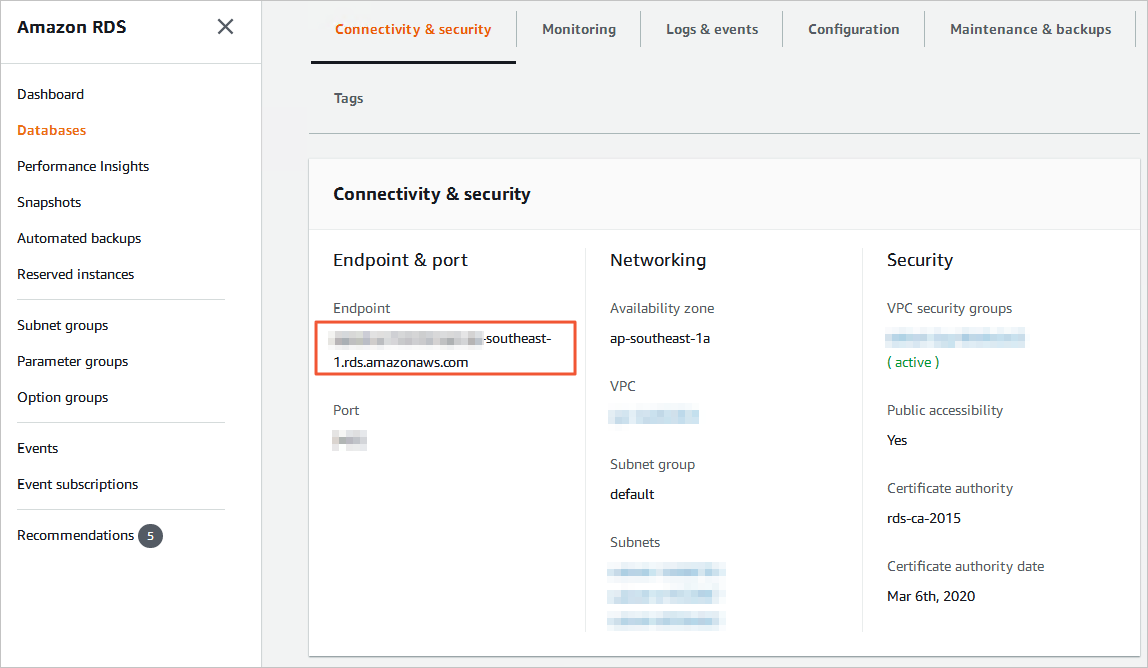
Port number 5432 (default) Database name The name of the source database Database account The account with the required permissions Database password The account password. Click Test connectivity next to the field to verify the connection. Destination database Instance type RDS Instance Instance region The region of the destination ApsaraDB RDS for PostgreSQL instance RDS instance ID The ID of the destination instance Database name The name of the destination database (can differ from the source) Database account The account with the required permissions Database password The account password. Click Test connectivity next to the field to verify the connection. 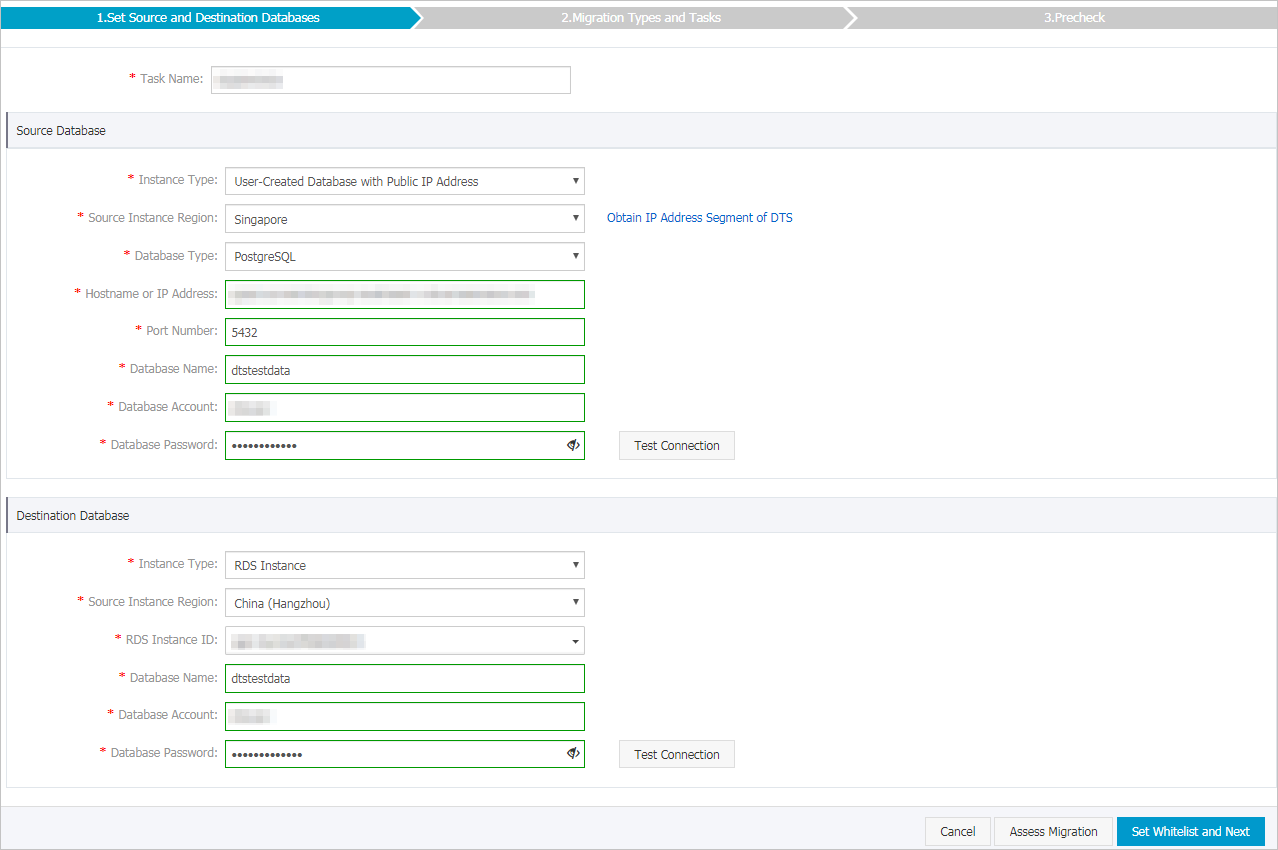
Click Set whitelist and next. DTS automatically adds its CIDR blocks to the whitelist of Alibaba Cloud database instances and to the security group rules of ECS-hosted databases. For third-party cloud databases, you must add the CIDR blocks manually.
WarningAdding DTS CIDR blocks to your whitelist or security group rules may expose your database to security risks. Take preventive measures such as enforcing strong credentials, restricting exposed ports, authenticating API calls, and auditing whitelist entries regularly. Alternatively, connect the database to DTS through Express Connect, VPN Gateway, or Smart Access Gateway.
Select the migration types and objects:
Setting Configuration Migration types Select Schema migration and Full data migration. Incremental data migration is not supported in this scenario. Do not write to the source during migration. Objects to migrate Select objects from Available and click to move them to Selected. You can select columns, tables, or databases.Object name mapping Right-click an object in Selected to rename it. See Object name mapping. Retry time for failed connections Default: 12 hours. Adjust based on your requirements. Click Precheck.
Fix any failed items and rerun the precheck.
Optionally ignore non-critical failed items and rerun.
After the precheck passes, click Next.
In the Confirm settings dialog box, select the Channel specification and accept Data Transmission Service (Pay-As-You-Go) Service Terms.
Click Buy and start.
Do not stop the task manually during full data migration — this leaves the destination data incomplete. Wait for the task to stop automatically.

After migration completes, switch your workloads to the ApsaraDB RDS for PostgreSQL instance.