Use Data Transmission Service (DTS) to synchronize data from a self-managed Oracle database to an AnalyticDB for PostgreSQL instance. DTS supports schema synchronization, full data synchronization, and incremental data synchronization, keeping your analytics workloads in sync with your operational Oracle database with minimal downtime.
Prerequisites
Before you begin, make sure you have:
-
An Oracle database running version 9i, 10g, 11g, 12c, 18c, or 19c
-
The Oracle database running in ARCHIVELOG mode, with archive logs accessible and a suitable retention period configured. For details, see Managing Archived Redo Log Files.
-
Supplemental logging enabled for the Oracle database, including SUPPLEMENTAL_LOG_DATA_PK and SUPPLEMENTAL_LOG_DATA_UI. For details, see Supplemental Logging.
-
A destination AnalyticDB for PostgreSQL instance created. For details, see Create an instance.
Billing
| Synchronization type | Cost |
|---|---|
| Schema synchronization and full data synchronization | Free |
| Incremental data synchronization | Charged. For details, see Billing overview. |
Supported synchronization topologies
-
One-way one-to-one synchronization
-
One-way one-to-many synchronization
-
One-way many-to-one synchronization
-
One-way cascade synchronization
For details, see Synchronization topologies.
SQL operations that can be synchronized
| Operation type | SQL statements |
|---|---|
| DML | INSERT, UPDATE, DELETE |
| DDL | ADD COLUMN |
Limitations
Source database limitations
-
Tables must have PRIMARY KEY or UNIQUE constraints with all fields unique. Otherwise, duplicate records may appear in the destination database.
-
For Oracle 12c and later, table names cannot exceed 30 bytes.
-
If you select tables as synchronization objects and want to rename tables or columns in the destination, a single task supports up to 1,000 tables. For more than 1,000 tables, configure multiple tasks or synchronize the entire database instead.
-
For Oracle Real Application Cluster (RAC) databases connected over Express Connect, specify a virtual IP address (VIP) when configuring the task. SCAN IP addresses are not supported, and node failover is not available after a VIP is set.
-
Archive logging and redo logging must be enabled. Log retention requirements: If logs are not retained long enough, DTS may fail to read them, causing task failure or data loss. After full data synchronization completes, you can shorten the retention period to 24 hours.
Synchronization type Minimum log retention period Incremental synchronization only 24 hours Full and incremental synchronization 7 days -
If a primary/secondary switchover occurs on the source database while a synchronization task is running, the task fails.
Other limitations
-
DTS supports initial schema synchronization for tables, indexes, constraints, functions, sequences, and views.
WarningOracle and AnalyticDB for PostgreSQL are heterogeneous databases. Schema synchronization does not guarantee identical schemas between source and destination. Evaluate the impact of data type conversion before synchronizing. For details, see Data type mappings for schema synchronization.
-
DTS is incompatible with database triggers. Delete triggers in the source database before synchronizing to prevent data inconsistency. For details, see Configure a data synchronization task for a source database that contains a trigger.
-
For partitioned tables, DTS discards partition definitions. Define partitions in the destination database manually.
-
During schema synchronization, DTS synchronizes foreign keys to the destination database. During full and incremental synchronization, DTS temporarily disables foreign key constraint checking and cascade operations at the session level. Cascade update and delete operations on the source database during synchronization may cause data inconsistency.
-
Run synchronization tasks during off-peak hours. Initial full data synchronization consumes read and write resources on both the source and destination databases.
-
During initial full data synchronization, concurrent INSERT operations cause table fragmentation in the destination database. The destination tablespace will be larger than the source tablespace after full synchronization completes.
-
DTS calculates synchronization latency based on the timestamp of the latest synchronized data in the destination versus the current timestamp in the source. Extended periods without DML operations may cause inaccurate latency readings. To update the latency, perform a DML operation on the source database. If you synchronize an entire database, consider creating a heartbeat table that receives data every second.
-
Write data to the destination database only through DTS during synchronization. Using other tools to write data—such as running online DDL operations through Data Management (DMS)—may cause data loss in the destination database.
Required database account permissions
| Database | Required permission | Reference |
|---|---|---|
| Self-managed Oracle database | DBA | CREATE USER and GRANT |
| AnalyticDB for PostgreSQL instance | Write permissions on the destination database | The initial account has the required permissions. For details, see Create a database account. An account with the RDS_SUPERUSER permission is also accepted. For details, see Manage users and permissions. |
Grant fine-grained permissions (alternative to DBA)
If you cannot grant DBA permission to the Oracle database account, enable archive logging and supplemental logging, then grant fine-grained permissions.
Step 1: Enable archive logging
shutdown immediate;
startup mount;
alter database archivelog;
alter database open;
archive log list;
Step 2: Enable supplemental logging
Enable supplemental logging at the database level or table level based on your requirements.
Database-level supplemental logging ensures DTS task stability. Table-level supplemental logging reduces disk usage on the source Oracle database.
Database-level supplemental logging:
-- Enable minimal supplemental logging
alter database add supplemental log data;

-- Enable primary key and unique key supplemental logging
alter database add supplemental log data (primary key, unique index) columns;
Table-level supplemental logging:
-- Enable minimal supplemental logging
alter database add supplemental log data;

-- Enable primary key supplemental logging for a specific table
alter table <table_name> add supplemental log data (primary key) columns;

-- Or enable supplemental logging for all columns of a specific table
alter table <table_name> add supplemental log data (all) columns;
Step 3: Grant fine-grained permissions
Select the script that matches your Oracle version and architecture.
Oracle 9i, 10g, and 11g
-- Create a database account named rdsdt_dtsacct and grant permissions
create user rdsdt_dtsacct IDENTIFIED BY rdsdt_dtsacct;
grant create session to rdsdt_dtsacct;
grant connect to rdsdt_dtsacct;
grant resource to rdsdt_dtsacct;
grant execute on sys.dbms_logmnr to rdsdt_dtsacct;
grant select on V_$LOGMNR_LOGS to rdsdt_dtsacct;
grant select on all_objects to rdsdt_dtsacct;
grant select on all_tab_cols to rdsdt_dtsacct;
grant select on dba_registry to rdsdt_dtsacct;
grant select any table to rdsdt_dtsacct;
grant select any transaction to rdsdt_dtsacct;
grant select on v_$log to rdsdt_dtsacct;
grant select on v_$logfile to rdsdt_dtsacct;
grant select on v_$archived_log to rdsdt_dtsacct;
grant select on v_$parameter to rdsdt_dtsacct;
grant select on v_$database to rdsdt_dtsacct;
grant select on v_$active_instances to rdsdt_dtsacct;
grant select on v_$instance to rdsdt_dtsacct;
grant select on v_$logmnr_contents to rdsdt_dtsacct;
grant select on sys.USER$ to rdsdt_dtsacct;
grant select on SYS.OBJ$ to rdsdt_dtsacct;
grant select on SYS.COL$ to rdsdt_dtsacct;
grant select on SYS.IND$ to rdsdt_dtsacct;
grant select on SYS.ICOL$ to rdsdt_dtsacct;
grant select on SYS.CDEF$ to rdsdt_dtsacct;
grant select on SYS.CCOL$ to rdsdt_dtsacct;
grant select on SYS.TABPART$ to rdsdt_dtsacct;
grant select on SYS.TABSUBPART$ to rdsdt_dtsacct;
grant select on SYS.TABCOMPART$ to rdsdt_dtsacct;
grant select on v$database to rdsdt_dtsacct;
grant select on dba_objects to rdsdt_dtsacct;
grant select on DBA_TAB_COMMENTS to rdsdt_dtsacct;
grant select on dba_tab_cols to rdsdt_dtsacct;
Oracle 12c to 19c — multitenant architecture
Run the following in the pluggable database (PDB) first, then in the container database (CDB).
-- Switch to the PDB and grant permissions
ALTER SESSION SET container = ORCLPDB1;
create user rdsdt_dtsacct IDENTIFIED BY rdsdt_dtsacct;
grant create session to rdsdt_dtsacct;
grant connect to rdsdt_dtsacct;
grant resource to rdsdt_dtsacct;
grant execute on sys.dbms_logmnr to rdsdt_dtsacct;
grant select on all_objects to rdsdt_dtsacct;
grant select on all_tab_cols to rdsdt_dtsacct;
grant select on dba_registry to rdsdt_dtsacct;
grant select any table to rdsdt_dtsacct;
grant select any transaction to rdsdt_dtsacct;
grant select on v_$log to rdsdt_dtsacct;
grant select on v_$logfile to rdsdt_dtsacct;
grant select on v_$archived_log to rdsdt_dtsacct;
grant select on v_$parameter to rdsdt_dtsacct;
grant select on v_$database to rdsdt_dtsacct;
grant select on v_$active_instances to rdsdt_dtsacct;
grant select on v_$instance to rdsdt_dtsacct;
grant select on v_$logmnr_contents to rdsdt_dtsacct;
grant select on sys.USER$ to rdsdt_dtsacct;
grant select on SYS.OBJ$ to rdsdt_dtsacct;
grant select on SYS.COL$ to rdsdt_dtsacct;
grant select on SYS.IND$ to rdsdt_dtsacct;
grant select on SYS.ICOL$ to rdsdt_dtsacct;
grant select on SYS.CDEF$ to rdsdt_dtsacct;
grant select on SYS.CCOL$ to rdsdt_dtsacct;
grant select on SYS.TABPART$ to rdsdt_dtsacct;
grant select on SYS.TABSUBPART$ to rdsdt_dtsacct;
grant select on SYS.TABCOMPART$ to rdsdt_dtsacct;
grant select on V_$PDBS to rdsdt_dtsacct;
grant select on v$database to rdsdt_dtsacct;
grant select on dba_objects to rdsdt_dtsacct;
grant select on DBA_TAB_COMMENTS to rdsdt_dtsacct;
grant select on dba_tab_cols to rdsdt_dtsacct;
grant select_catalog_role TO rdsdt_dtsacct;

-- Switch to the CDB and grant permissions
ALTER SESSION SET container = CDB$ROOT;
alter session set "_ORACLE_SCRIPT"=true;
create user rdsdt_dtsacct IDENTIFIED BY rdsdt_dtsacct;
grant create session to rdsdt_dtsacct;
grant connect to rdsdt_dtsacct;
grant select on v_$logmnr_contents to rdsdt_dtsacct;
grant LOGMINING TO rdsdt_dtsacct;
grant EXECUTE_CATALOG_ROLE to rdsdt_dtsacct;
grant execute on sys.dbms_logmnr to rdsdt_dtsacct;
grant select on v$database to rdsdt_dtsacct;
grant select on dba_objects to rdsdt_dtsacct;
grant select on DBA_TAB_COMMENTS to rdsdt_dtsacct;
grant select on dba_tab_cols to rdsdt_dtsacct;
Oracle 12c to 19c — non-multitenant architecture
-- Create a database account named rdsdt_dtsacct and grant permissions
create user rdsdt_dtsacct IDENTIFIED BY rdsdt_dtsacct;
grant create session to rdsdt_dtsacct;
grant connect to rdsdt_dtsacct;
grant resource to rdsdt_dtsacct;
grant select on V_$LOGMNR_LOGS to rdsdt_dtsacct;
grant select on all_objects to rdsdt_dtsacct;
grant select on all_tab_cols to rdsdt_dtsacct;
grant select on dba_registry to rdsdt_dtsacct;
grant select any table to rdsdt_dtsacct;
grant select any transaction to rdsdt_dtsacct;
grant select on v_$log to rdsdt_dtsacct;
grant select on v_$logfile to rdsdt_dtsacct;
grant select on v_$archived_log to rdsdt_dtsacct;
grant select on v_$parameter to rdsdt_dtsacct;
grant select on v_$database to rdsdt_dtsacct;
grant select on v_$active_instances to rdsdt_dtsacct;
grant select on v_$instance to rdsdt_dtsacct;
grant select on v_$logmnr_contents to rdsdt_dtsacct;
grant select on sys.USER$ to rdsdt_dtsacct;
grant select on SYS.OBJ$ to rdsdt_dtsacct;
grant select on SYS.COL$ to rdsdt_dtsacct;
grant select on SYS.IND$ to rdsdt_dtsacct;
grant select on SYS.ICOL$ to rdsdt_dtsacct;
grant select on SYS.CDEF$ to rdsdt_dtsacct;
grant select on SYS.CCOL$ to rdsdt_dtsacct;
grant select on SYS.TABPART$ to rdsdt_dtsacct;
grant select on SYS.TABSUBPART$ to rdsdt_dtsacct;
grant select on SYS.TABCOMPART$ to rdsdt_dtsacct;
grant LOGMINING TO rdsdt_dtsacct;
grant EXECUTE_CATALOG_ROLE to rdsdt_dtsacct;
grant execute on sys.dbms_logmnr to rdsdt_dtsacct;
grant select on v$database to rdsdt_dtsacct;
grant select on dba_objects to rdsdt_dtsacct;
grant select on DBA_TAB_COMMENTS to rdsdt_dtsacct;
grant select on dba_tab_cols to rdsdt_dtsacct;
Create a synchronization task
-
Go to the Data Synchronization page in the DTS console.
Alternatively, log on to the Data Management (DMS) console, click DTS in the top navigation bar, then choose DTS (DTS) > Data Synchronization in the left-side navigation pane.
-
In the upper-left corner, select the region where the synchronization instance will reside.
-
Click Create Task and configure the source and destination databases.
Section Parameter Description N/A Task Name DTS auto-generates a name. Specify a descriptive name that reflects your business requirements. Task names do not need to be unique. Source Database Database Type Select Oracle. Connection Type Select the access method of the source database. This example uses Self-managed Database on ECS. For other access methods, see Preparation overview. Instance Region The region where the self-managed Oracle database resides. ECS Instance ID The ID of the Elastic Compute Service (ECS) instance hosting the Oracle database. Port Number The service port of the Oracle database. Default: 1521. Oracle Type The architecture of the source Oracle database. Select Non-RAC Instance to specify a SID, or RAC or PDB Instance to specify a Service Name. This example uses Non-RAC Instance. Database Account The Oracle database account. For required permissions, see Required database account permissions. Database Password The password for the database account. Destination Database Database Type Select AnalyticDB for PostgreSQL. Connection Type Select Alibaba Cloud Instance. Instance Region The region where the destination AnalyticDB for PostgreSQL instance resides. Instance ID The ID of the destination AnalyticDB for PostgreSQL instance. Database Name The name of the destination database in the AnalyticDB for PostgreSQL instance. Database Account The database account for the destination instance. For required permissions, see Required database account permissions. Database Password The password for the database account. -
Click Test Connectivity and Proceed at the bottom of the page. DTS automatically adds its server CIDR blocks to the whitelist or security group rules of Alibaba Cloud database instances and ECS-hosted databases. For self-managed databases in data centers or third-party clouds, manually add the DTS server CIDR blocks. For details, see Add the CIDR blocks of DTS servers to the security settings of on-premises databases.
WarningAdding DTS server CIDR blocks to your database whitelist or ECS security group rules may introduce security risks. Before proceeding, take preventive measures such as strengthening your username and password, limiting exposed ports, authenticating API calls, and regularly auditing whitelist rules. Alternatively, connect the database to DTS using Express Connect, VPN Gateway, or Smart Access Gateway.
-
Configure synchronization objects and advanced settings. Basic settings Advanced settings
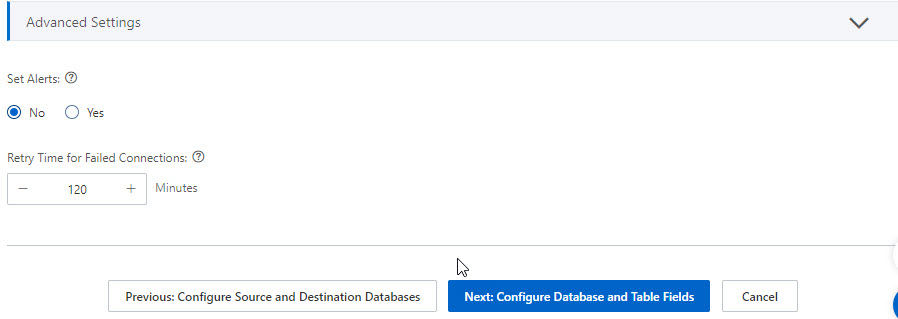
Parameter Description Synchronization Type Incremental Data Synchronization is selected by default. Also select Schema Synchronization and Full Data Synchronization. After the precheck completes, DTS synchronizes historical data to the destination as the basis for subsequent incremental synchronization. Processing Mode of Conflicting Tables Controls how DTS handles tables in the destination that share names with source tables. Precheck and Report Errors (recommended): the precheck fails if identical table names exist, and the task cannot start. Use the object name mapping feature to rename synchronized tables if needed. For details, see Map object names. Ignore Errors and Proceed: skips the name conflict check. If schemas match and a record has the same primary key as an existing destination record, the existing record is retained during full synchronization and overwritten during incremental synchronization. If schemas differ, initialization may fail or only some columns may be synchronized. Use with caution. Merge Tables Yes: merges multiple source tables with the same schema into a single destination table. Useful for OLAP scenarios where you want to consolidate sharded OLTP tables. DTS adds a __dts_data_sourcecolumn (TEXT type) to the destination table with the format<DTS instance ID>:<Database name>:<Schema name>:<Table name>. All selected source tables merge into the destination table; create a separate task for tables you do not want to merge. Do not perform DDL operations that change source schemas during synchronization. For details, see Enable the multi-table merging feature. No (default): does not merge tables.DDL and DML Operations to Be Synchronized The DDL and DML operations to synchronize. For supported operations, see SQL operations that can be synchronized. To select operations for a specific object, right-click it in the Selected Objects section. Select Objects Select objects in the Source Objects section and click the arrow icon to move them to Selected Objects. You can select columns, tables, or databases. If you select tables or columns, DTS does not synchronize views, triggers, or stored procedures. Rename Databases and Tables To rename a single object, right-click it in Selected Objects. For details, see Map the name of a single object. To rename multiple objects at once, click Batch Edit in the upper-right corner of Selected Objects. For details, see Map multiple object names at a time. Filter data Specify WHERE conditions to filter rows. For details, see Use SQL conditions to filter data. Parameter Description Set Alerts Configure alerting for the task. If the task fails or synchronization latency exceeds the threshold, alert contacts receive notifications. Select No to skip alerting, or Yes to configure the alert threshold and contacts. For details, see Configure monitoring and alerting when you create a DTS task. Retry Time for Failed Connection The time range during which DTS retries failed connections after the task starts. Valid values: 10 to 1440 minutes. Default: 720 minutes. Set a value greater than 30. If DTS reconnects within the retry window, the task resumes. Otherwise, the task fails. If multiple tasks share the same source or destination database, the shortest retry window takes precedence. DTS charges for the instance during retry attempts. Enclose Object Names in Quotation Marks Encloses object names in single or double quotation marks during schema synchronization and incremental synchronization when any of the following conditions apply: the source database is case-sensitive and object names contain both uppercase and lowercase letters; a source table name does not start with a letter or contains characters other than letters, digits, underscores (_), number signs (#), or dollar signs ($); schema, table, or column names are keywords, reserved keywords, or invalid characters in the destination database. After the task completes, specify object names in quotation marks when querying them. 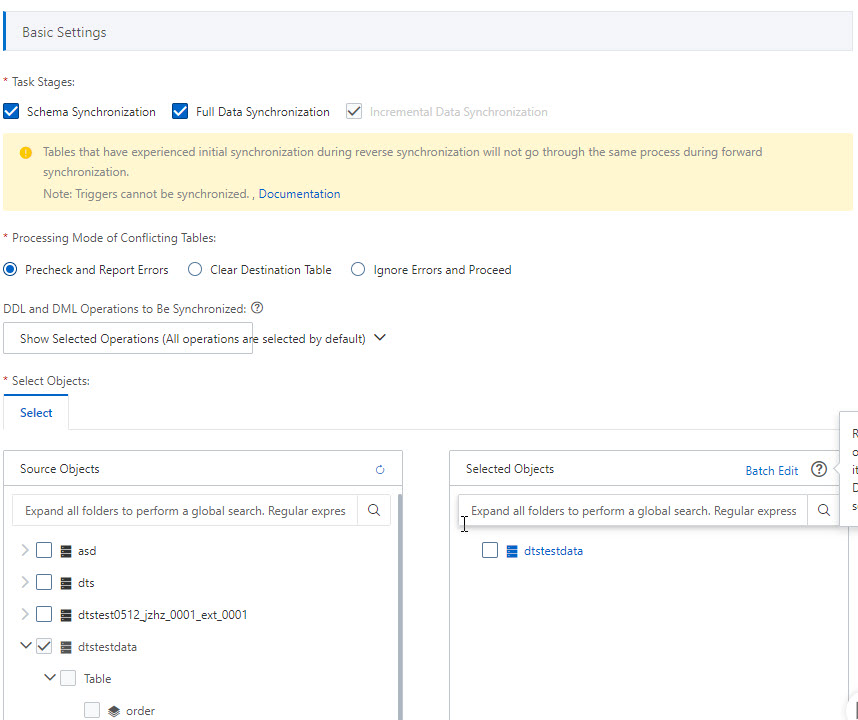
-
Click Next: Configure Database and Table Fields at the bottom of the page. Set the primary key columns and distribution key columns for the tables to synchronize to the AnalyticDB for PostgreSQL instance.

-
Click Next: Save Task Settings and Precheck at the bottom of the page.
- DTS runs a precheck before the task starts. The task can only start after passing the precheck. - If the precheck fails, click View Details next to each failed item, fix the issues, then run the precheck again. - If the precheck generates alerts: for alerts that cannot be ignored, click View Details and fix the issues before rechecking. For alerts that can be ignored, click Confirm Alert Details, click Ignore in the dialog box, click OK, then click Precheck Again. Ignoring alerts may cause data inconsistency.
-
Wait until the success rate reaches 100%, then click Next: Purchase Instance.
-
On the Purchase Instance page, configure the billing method and instance class.
Section Parameter Description New Instance Class Billing Method Subscription: pay upfront when creating the instance. More cost-effective for long-term use. Pay-as-you-go: charged hourly. Suitable for short-term use. Release the instance when it is no longer needed to avoid unnecessary charges. Instance Class Select an instance class based on your required synchronization speed. For a comparison of classes, see Specifications of data synchronization instances. Subscription Duration Available only for the subscription billing method. Set the duration (1–9 months, or 1–3 years) and the number of instances to create. -
Read and select the Data Transmission Service (Pay-as-you-go) Service Terms check box.
-
Click Buy and Start. Monitor task progress in the task list.
What's next
-
To monitor synchronization latency and task health, configure alerts as described in Configure monitoring and alerting when you create a DTS task.
-
To rename synchronized objects, see Map object names.
-
To merge multiple source tables into a single destination table, see Enable the multi-table merging feature.