This guide walks you through building a retrieval-augmented generation (RAG) application with AnalyticDB for PostgreSQL (ADBPG) using its OpenAPI and Python SDK. By the end, you will have a working pipeline that ingests documents, retrieves relevant chunks by vector or full-text search, and returns grounded answers through LangChain.
How it works
AnalyticDB for PostgreSQL uses its self-developed FastANN vector engine to power RAG workflows. Its OpenAPI encapsulates the full AI service stack:
-
Document processing: load, split, embed, and handle multi-modal content
-
Search: vector search, full-text index, and reranking
-
Multi-tenant management: isolate data by namespace
The RAG architecture connects an information retrieval system to a large language model (LLM), grounding model responses in your own documents.
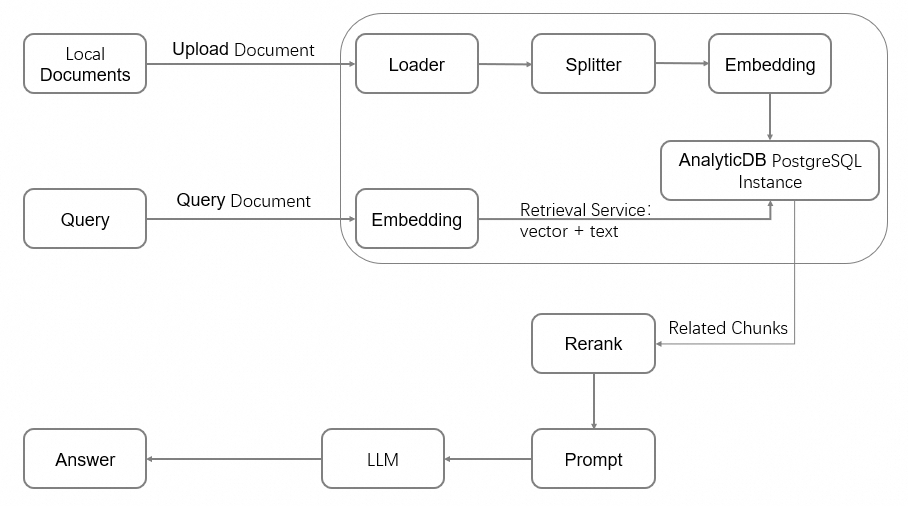
Workflow overview
This guide covers the following steps in order:
| Step | Task | Description |
|---|---|---|
| 1 | Create an instance | Provision an ADBPG instance with the vector engine enabled |
| 2 | Create an initial account | Set up a privileged database account |
| 3 | Set up the development environment | Install the Python SDK and configure environment variables |
| 4 | Prepare the database environment | Initialize the vector database, create a namespace, and create a document collection |
| 5 | Manage documents | Upload documents and monitor processing jobs |
| 6 | Retrieve content | Query the knowledge base by vector search or full-text index |
| 7 | Integrate LangChain | Connect the retrieval layer to an LLM for question answering |
Prerequisites
Before you begin, ensure that you have:
-
An Alibaba Cloud account (register at the Alibaba Cloud official website if you don't have one)
-
The AliyunGPDBFullAccess permission granted to your Alibaba Cloud account or RAM user
-
An AccessKey pair created
The first time you use AnalyticDB for PostgreSQL, you must authorize the creation of a service-linked role. Log on to the AnalyticDB for PostgreSQL console, click Create Instance in the upper-right corner, and click OK in the Create Service Linked Role dialog.
Billing
Creating an instance incurs charges for compute and storage resources. For pricing details, see Pricing.
Free trial: Alibaba Cloud offers a free trial for Storage-elastic Mode instances to new users. Visit Alibaba Cloud Free Trial to apply. If you are not eligible, follow the steps below to create a pay-as-you-go instance.
Step 1: Create an instance
-
Log on to the AnalyticDB for PostgreSQL console.
-
In the upper-right corner, click Create Instance to open the purchase page.
-
Configure the following parameters. Keep the default values for other parameters. For full parameter descriptions, see Create an instance.
| Parameter | Description | Example |
|---|---|---|
| Product type | Select Pay-as-you-go for short-term use (billed hourly). Select Subscription for long-term use (pay upfront at a discount). | Pay-as-you-go |
| Region and zone | The geographic location of the instance. Must match the region of any ECS instances you want to connect to over the internal network. Cannot be changed after creation. | China (Hangzhou): Zone J |
| Instance resource type | Elastic Storage Mode: supports independent disk scale-out. Serverless Pro: specify only compute resources without reserving storage. | Elastic Storage Mode |
| Database engine version | Select 7.0 Standard Edition for the richest feature set. 6.0 Standard Edition is also supported. | 7.0 Standard Edition |
| Instance edition | High-performance (Basic Edition): suitable for most business analytics. High-availability Edition: recommended for core business services. | High-performance (Basic Edition) |
| Vector engine optimization | Select Enable to activate the FastANN vector engine required for RAG workloads. | Enable |
| Virtual Private Cloud | Select the VPC ID. To connect to an ECS instance over the internal network, select the same VPC. | vpc-xxxx |
| vSwitch | Select a vSwitch in the VPC. If none are available in the current zone, switch zones or create a new vSwitch. | vsw-xxxx |
-
Click Buy Now, confirm the order, and click Activate Now.
-
After payment, click Management Console to view the instance list.
Instance initialization takes a few minutes. Wait for the instance status to change to Running before proceeding.
Step 2: Create an initial account
AnalyticDB for PostgreSQL has two user types:
-
Privileged user: the initial account with the
RDS_SUPERUSERrole, which grants full operational permissions on the database. -
Regular user: no permissions by default. A privileged user must explicitly grant permissions. See Create and manage users.
-
In the left navigation pane, click Account Management.
-
Click Create Account. In the Create Account window, configure the following parameters and click OK.
| Parameter | Requirements |
|---|---|
| Account | Lowercase letters, digits, and underscores (_). Must start with a lowercase letter and end with a lowercase letter or digit. Cannot start with gp. Length: 2–16 characters. |
| New password and Confirm password | At least three of: uppercase letters, lowercase letters, digits, and special characters (! @ # $ % ^ & * ( ) _ + - =). Length: 8–32 characters. |
Change your password regularly and avoid reusing old passwords.
Step 3: Set up the development environment
Check the Python environment
This guide uses Python 3. Run the following commands to verify that Python 3.9 or later and pip are installed.
python -V
pip --version
If Python is not installed or the version doesn't meet the requirements, install Python.
Install the SDK
Install the alibabacloud_gpdb20160503 and alibabacloud_tea_openapi packages:
pip install --upgrade alibabacloud_gpdb20160503 alibabacloud_tea_openapiConfigure environment variables
Store your credentials and instance details as environment variables to avoid hardcoding sensitive information.
Linux and macOS
-
Open
~/.bashrc(or~/.bash_profileon macOS):vim ~/.bashrc -
Add the following lines. Get your AccessKey ID and Secret from the RAM User List page. Get the instance ID and region from the AnalyticDB for PostgreSQL console.
export ALIBABA_CLOUD_ACCESS_KEY_ID="<your-access-key-id>" export ALIBABA_CLOUD_ACCESS_KEY_SECRET="<your-access-key-secret>" export ADBPG_INSTANCE_ID="<your-instance-id>" # e.g., gp-bp166cyrtr4p***** export ADBPG_INSTANCE_REGION="<your-region-id>" # e.g., cn-hangzhou -
Save and exit (press
Esc, then type:wq), then apply the changes:source ~/.bashrcOn macOS, run
source ~/.bash_profile.
Windows
Run the following commands in CMD to set environment variables for the current session:
set ALIBABA_CLOUD_ACCESS_KEY_ID=<your-access-key-id>
set ALIBABA_CLOUD_ACCESS_KEY_SECRET=<your-access-key-secret>
set ADBPG_INSTANCE_ID=<your-instance-id>
set ADBPG_INSTANCE_REGION=<your-region-id>
Step 4: Prepare the database environment
This step initializes the vector database, creates a namespace, and creates a document collection to store chunked text and vector data.
What this step does:
-
Build a client — authenticates with the ADBPG API
-
Initialize the vector database — creates the
knowledgebasedatabase, grants read/write permissions, and sets up Chinese tokenizer and full-text index features (run once per instance) -
Create a namespace — a logical tenant boundary for document libraries
-
Create a document collection — stores chunked text and vector data
Before running, replace account and account_password with your actual database account and password.
from alibabacloud_tea_openapi import models as open_api_models
from alibabacloud_gpdb20160503.client import Client
from alibabacloud_gpdb20160503 import models as gpdb_20160503_models
import os

# Read credentials and instance info from environment variables
ALIBABA_CLOUD_ACCESS_KEY_ID = os.environ['ALIBABA_CLOUD_ACCESS_KEY_ID']
ALIBABA_CLOUD_ACCESS_KEY_SECRET = os.environ['ALIBABA_CLOUD_ACCESS_KEY_SECRET']
ADBPG_INSTANCE_ID = os.environ['ADBPG_INSTANCE_ID']
ADBPG_INSTANCE_REGION = os.environ['ADBPG_INSTANCE_REGION']


def get_client():
    """Build and return an AnalyticDB for PostgreSQL API client."""
    config = open_api_models.Config(
        access_key_id=ALIBABA_CLOUD_ACCESS_KEY_ID,
        access_key_secret=ALIBABA_CLOUD_ACCESS_KEY_SECRET
    )
    config.region_id = ADBPG_INSTANCE_REGION
    # Shared endpoint for major Chinese mainland regions and Singapore
    if ADBPG_INSTANCE_REGION in ("cn-beijing", "cn-hangzhou", "cn-shanghai", "cn-shenzhen", "cn-hongkong",
                                 "ap-southeast-1"):
        config.endpoint = "gpdb.aliyuncs.com"
    else:
        config.endpoint = f'gpdb.{ADBPG_INSTANCE_REGION}.aliyuncs.com'
    return Client(config)


def init_vector_database(account, account_password):
    """Initialize the vector database. Run once per instance."""
    request = gpdb_20160503_models.InitVectorDatabaseRequest(
        region_id=ADBPG_INSTANCE_REGION,
        dbinstance_id=ADBPG_INSTANCE_ID,
        manager_account=account,
        manager_account_password=account_password
    )
    response = get_client().init_vector_database(request)
    print(f"init_vector_database response code: {response.status_code}, body:{response.body}")


def create_namespace(account, account_password, namespace, namespace_password):
    """Create a namespace (tenant boundary) for document libraries."""
    request = gpdb_20160503_models.CreateNamespaceRequest(
        region_id=ADBPG_INSTANCE_REGION,
        dbinstance_id=ADBPG_INSTANCE_ID,
        manager_account=account,
        manager_account_password=account_password,
        namespace=namespace,
        namespace_password=namespace_password
    )
    response = get_client().create_namespace(request)
    print(f"create_namespace response code: {response.status_code}, body:{response.body}")


def create_document_collection(account,
                               account_password,
                               namespace,
                               collection,
                               metadata: str = None,
                               full_text_retrieval_fields: str = None,
                               parser: str = None,
                               embedding_model: str = None,
                               metrics: str = None,
                               hnsw_m: int = None,
                               pq_enable: int = None,
                               external_storage: int = None):
    """Create a document collection to store chunked text and vector data."""
    request = gpdb_20160503_models.CreateDocumentCollectionRequest(
        region_id=ADBPG_INSTANCE_REGION,
        dbinstance_id=ADBPG_INSTANCE_ID,
        manager_account=account,
        manager_account_password=account_password,
        namespace=namespace,
        collection=collection,
        metadata=metadata,
        full_text_retrieval_fields=full_text_retrieval_fields,
        parser=parser,
        embedding_model=embedding_model,
        metrics=metrics,
        hnsw_m=hnsw_m,
        pq_enable=pq_enable,
        external_storage=external_storage
    )
    response = get_client().create_document_collection(request)
    print(f"create_document_collection response code: {response.status_code}, body:{response.body}")


if __name__ == '__main__':
    account = "testacc"                      # Initial database account
    account_password = "Test1234"            # Password for the initial account
    namespace = "ns1"                        # Namespace name
    namespace_password = "ns1password"       # Namespace password (used for data read/write operations)
    collection = "dc1"                       # Document collection name
    metadata = '{"title":"text", "page":"int"}'
    full_text_retrieval_fields = "title"
    embedding_model = "m3e-small"            # See Embedding models for supported options

    init_vector_database(account, account_password)
    create_namespace(account, account_password, namespace, namespace_password)
    create_document_collection(account, account_password, namespace, collection,
                               metadata=metadata,
                               full_text_retrieval_fields=full_text_retrieval_fields,
                               embedding_model=embedding_model)
Parameters
| Parameter | Description |
|---|---|
account |
The initial database account of the AnalyticDB for PostgreSQL instance. |
account_password |
The password for the initial account. |
namespace |
The name of the namespace to create. |
namespace_password |
The namespace password, used for subsequent data read and write operations. |
collection |
The name of the document collection to create. |
metadata |
Custom map-structured metadata. The key is the field name and the value is the field type. |
full_text_retrieval_fields |
Comma-separated fields for full-text indexing. Fields must be keys defined in metadata. |
parser |
Tokenizer for the full-text index. Default: zh_cn. |
embedding_model |
The embedding model. See Embedding models for supported options. |
metrics |
The vector index similarity algorithm. See Vector index for supported values. |
hnsw_m |
Maximum number of neighbors in the HNSW algorithm. Range: 1–1000. |
pq_enable |
Whether to enable product quantization (PQ) dimensionality reduction. 0: disabled. 1: enabled. |
external_storage |
Whether to use mmap to build the HNSW index. 0: segment-page storage (default). 1: mmap. Note
Supported in version 6.0 only; not supported in version 7.0. |
Verify the table schema
After the code runs successfully, verify the result by logging on to the database:
-
Go to the AnalyticDB for PostgreSQL console and open the target instance.
-
Click Log On to Database in the upper-right corner.
-
On the Log on to Instance page, enter your database account and password, then click Log on.
A new database named knowledgebase appears in the instance. Within it, a schema named ns1 is created, and a table named dc1 is created under that schema. The table has the following fields:
| Field | Type | Source | Description |
|---|---|---|---|
id |
text | Fixed | Primary key. The UUID of a single text chunk. |
vector |
real[] | Fixed | Vector data array. Length matches the dimensions of the selected embedding model. |
doc_name |
text | Fixed | Document name. |
content |
text | Fixed | A single text chunk produced by the document loader and splitter. |
loader_metadata |
json | Fixed | Metadata from the document loader. |
to_tsvector |
TSVECTOR | Fixed | Full-text index data. Sources: the content field and any fields specified in full_text_retrieval_fields. In this example, both content and title are indexed. |
title |
text | Metadata | User-defined. |
page |
int | Metadata | User-defined. |
Step 5: Manage documents
Upload a document
This example uploads a local document asynchronously. The upload job performs document loading, splitting, embedding, and storage.
import time
import io
from typing import Dict, List, Any
from alibabacloud_tea_util import models as util_models
from alibabacloud_gpdb20160503 import models as gpdb_20160503_models

def upload_document_async(
        namespace,
        namespace_password,
        collection,
        file_name,
        file_path,
        metadata: Dict[str, Any] = None,
        chunk_overlap: int = None,
        chunk_size: int = None,
        document_loader_name: str = None,
        text_splitter_name: str = None,
        dry_run: bool = None,
        zh_title_enhance: bool = None,
        separators: List[str] = None):
    with open(file_path, 'rb') as f:
        file_content_bytes = f.read()
    request = gpdb_20160503_models.UploadDocumentAsyncAdvanceRequest(
        region_id=ADBPG_INSTANCE_REGION,
        dbinstance_id=ADBPG_INSTANCE_ID,
        namespace=namespace,
        namespace_password=namespace_password,
        collection=collection,
        file_name=file_name,
        metadata=metadata,
        chunk_overlap=chunk_overlap,
        chunk_size=chunk_size,
        document_loader_name=document_loader_name,
        file_url_object=io.BytesIO(file_content_bytes),
        text_splitter_name=text_splitter_name,
        dry_run=dry_run,
        zh_title_enhance=zh_title_enhance,
        separators=separators,
    )
    response = get_client().upload_document_async_advance(request, util_models.RuntimeOptions())
    print(f"upload_document_async response code: {response.status_code}, body:{response.body}")
    return response.body.job_id


def wait_upload_document_job(namespace, namespace_password, collection, job_id):
    def job_ready():
        request = gpdb_20160503_models.GetUploadDocumentJobRequest(
            region_id=ADBPG_INSTANCE_REGION,
            dbinstance_id=ADBPG_INSTANCE_ID,
            namespace=namespace,
            namespace_password=namespace_password,
            collection=collection,
            job_id=job_id,
        )
        response = get_client().get_upload_document_job(request)
        print(f"get_upload_document_job response code: {response.status_code}, body:{response.body}")
        return response.body.job.completed
    while True:
        if job_ready():
            print("successfully load document")
            break
        time.sleep(2)


if __name__ == '__main__':
    job_id = upload_document_async("ns1", "Ns1password", "dc1",
                                   "test.pdf", "/root/test.pdf")
    wait_upload_document_job("ns1", "Ns1password", "dc1", job_id)
Parameters
| Parameter | Description |
|---|---|
namespace |
The name of the namespace where the document collection resides. |
namespace_password |
The namespace password. |
collection |
The document collection name. |
file_name |
The document name, including the file extension. |
file_path |
The local document path. Maximum file size: 200 MB. |
metadata |
Document metadata. Must match the metadata defined when creating the document collection. |
chunk_overlap |
The amount of overlapping data between consecutive chunks. Cannot exceed chunk_size. |
chunk_size |
The size of each chunk. Maximum: 2048. |
document_loader_name |
The document loader. Auto-selected from the file extension if not specified. See Document loaders. |
text_splitter_name |
The text splitter. See Document chunking. |
dry_run |
true: parse and split only, skip vectorization and storage. false (default): parse, split, vectorize, and store. |
zh_title_enhance |
true: enable Chinese title enhancement. false: disable. |
separators |
Custom separators for chunking. Leave blank in most cases. |
More document operations
List documents
def list_documents(namespace, namespace_password, collection):
    request = gpdb_20160503_models.ListDocumentsRequest(
        region_id=ADBPG_INSTANCE_REGION,
        dbinstance_id=ADBPG_INSTANCE_ID,
        namespace=namespace,
        namespace_password=namespace_password,
        collection=collection,
    )
    response = get_client().list_documents(request)
    print(f"list_documents response code: {response.status_code}, body:{response.body}")


if __name__ == '__main__':
    list_documents("ns1", "Ns1password", "dc1")
Get document details
def describe_document(namespace, namespace_password, collection, file_name):
    request = gpdb_20160503_models.DescribeDocumentRequest(
        region_id=ADBPG_INSTANCE_REGION,
        dbinstance_id=ADBPG_INSTANCE_ID,
        namespace=namespace,
        namespace_password=namespace_password,
        collection=collection,
        file_name=file_name
    )
    response = get_client().describe_document(request)
    print(f"describe_document response code: {response.status_code}, body:{response.body}")


if __name__ == '__main__':
    describe_document("ns1", "Ns1password", "dc1", "test.pdf")
The response includes the following fields:
| Field | Description |
|---|---|
DocsCount |
The number of chunks the document is split into. |
TextSplitter |
The text splitter used. |
DocumentLoader |
The document loader used. |
FileExt |
The file extension. |
FileMd5 |
The MD5 hash of the document. |
FileMtime |
The latest upload time. |
FileSize |
The file size in bytes. |
FileVersion |
The document version (integer). Increments each time the document is uploaded or updated. |
Delete a document
def delete_document(namespace, namespace_password, collection, file_name):
    request = gpdb_20160503_models.DeleteDocumentRequest(
        region_id=ADBPG_INSTANCE_REGION,
        dbinstance_id=ADBPG_INSTANCE_ID,
        namespace=namespace,
        namespace_password=namespace_password,
        collection=collection,
        file_name=file_name
    )
    response = get_client().delete_document(request)
    print(f"delete_document response code: {response.status_code}, body:{response.body}")


if __name__ == '__main__':
    delete_document("ns1", "Ns1password", "dc1", "test.pdf")
Step 6: Retrieve content
The following example queries the document collection using plain text. ADBPG automatically converts the query to a vector and searches for similar chunks.
To compare retrieval modes, the example below shows both vector-only and hybrid retrieval side by side:
def query_content(namespace, namespace_password, collection, top_k,
                  content,
                  filter_str: str = None,
                  metrics: str = None,
                  use_full_text_retrieval: bool = None):
    request = gpdb_20160503_models.QueryContentRequest(
        region_id=ADBPG_INSTANCE_REGION,
        dbinstance_id=ADBPG_INSTANCE_ID,
        namespace=namespace,
        namespace_password=namespace_password,
        collection=collection,
        content=content,
        filter=filter_str,
        top_k=top_k,
        metrics=metrics,
        use_full_text_retrieval=use_full_text_retrieval,
    )
    response = get_client().query_content(request)
    print(f"query_content response code: {response.status_code}, body:{response.body}")


if __name__ == '__main__':
    # Vector search only (default)
    query_content('ns1', 'Ns1password', 'dc1', 10, 'What is ADBPG?')

    # Hybrid retrieval: vector search + full-text index
    query_content('ns1', 'Ns1password', 'dc1', 10, 'What is ADBPG?',
                  use_full_text_retrieval=True)
Parameters
| Parameter | Description |
|---|---|
namespace |
The name of the namespace where the document collection resides. |
namespace_password |
The namespace password. |
collection |
The document collection name. |
top_k |
The number of top results to return. |
content |
The query text. |
filter_str |
A filter expression to apply before retrieval. |
metrics |
The vector distance algorithm. Leave blank to use the algorithm specified when the index was created. |
use_full_text_retrieval |
true: enable full-text index alongside vector search. false (default): vector search only. |
Response fields
| Field | Description |
|---|---|
Id |
The UUID of the matched chunk. |
FileName |
The source document name. |
Content |
The matched text chunk. |
LoaderMetadata |
Metadata generated during document upload. |
Metadata |
User-defined metadata. |
RetrievalSource |
The retrieval path that produced this result: 1 — vector search, 2 — full-text index, 3 — both. |
Score |
The similarity score based on the distance algorithm. |
Step 7: Integrate LangChain
LangChain is an open-source framework for building LLM-powered applications. This section shows how to wrap ADBPG's retrieval API as a LangChain retriever and build a question-answering chain.
Install dependencies
pip install --upgrade langchain openai tiktokenBuild a custom retriever
from langchain_core.retrievers import BaseRetriever
from langchain_core.callbacks import CallbackManagerForRetrieverRun
from langchain_core.documents import Document


class AdbpgRetriever(BaseRetriever):
    namespace: str = None
    namespace_password: str = None
    collection: str = None
    top_k: int = None
    use_full_text_retrieval: bool = None

    def query_content(self, content) -> List[gpdb_20160503_models.QueryContentResponseBodyMatchesMatchList]:
        request = gpdb_20160503_models.QueryContentRequest(
            region_id=ADBPG_INSTANCE_REGION,
            dbinstance_id=ADBPG_INSTANCE_ID,
            namespace=self.namespace,
            namespace_password=self.namespace_password,
            collection=self.collection,
            content=content,
            top_k=self.top_k,
            use_full_text_retrieval=self.use_full_text_retrieval,
        )
        response = get_client().query_content(request)
        return response.body.matches.match_list

    def _get_relevant_documents(
            self, query: str, *, run_manager: CallbackManagerForRetrieverRun
    ) -> List[Document]:
        match_list = self.query_content(query)
        return [Document(page_content=i.content) for i in match_list]
Build a Q&A chain
from langchain_openai import ChatOpenAI
from langchain_core.prompts import ChatPromptTemplate
from langchain.schema import StrOutputParser
from langchain_core.runnables import RunnablePassthrough

OPENAI_API_KEY = "YOUR_OPENAI_API_KEY"
os.environ["OPENAI_API_KEY"] = OPENAI_API_KEY

template = """Answer the question based only on the following context:

{context}

Question: {question}
"""
prompt = ChatPromptTemplate.from_template(template)
model = ChatOpenAI()


def format_docs(docs):
    return "\n\n".join([d.page_content for d in docs])


retriever = AdbpgRetriever(
    namespace='ns1',
    namespace_password='Ns1password',
    collection='dc1',
    top_k=10,
    use_full_text_retrieval=True
)
chain = (
    {"context": retriever | format_docs, "question": RunnablePassthrough()}
    | prompt
    | model
    | StrOutputParser()
)
Run a query
chain.invoke("What is AnalyticDB PostgreSQL?")

# Response:
# AnalyticDB PostgreSQL is a cloud-native Online Analytical Processing (OLAP) service provided by Alibaba Cloud. Based on the open-source PostgreSQL database extension, it delivers a high-performance, high-capacity data warehouse solution.
# It combines PostgreSQL's flexibility and compatibility with high concurrency and high-speed query capabilities for data analytics and reporting.
#
# AnalyticDB PostgreSQL is particularly well-suited for processing large-scale datasets, supporting real-time analytics and decision support. It serves as a powerful tool for enterprises to perform data mining, business intelligence (BI), reporting, and data visualization.
# As a managed service, it simplifies data warehouse management and operations and maintenance (O&M), enabling users to focus on data analytics rather than underlying infrastructure.
# Key features include the following:
#
# High-performance analytics — Uses columnar storage and Massively Parallel Processing (MPP) architecture to quickly query and analyze large volumes of data.
# Easy scalability — Resources can be easily scaled horizontally and vertically based on data volume and query performance requirements.
# PostgreSQL compatibility — Supports PostgreSQL SQL language and most tools in the PostgreSQL ecosystem, making it easy for existing PostgreSQL users to migrate and adapt.
# Security and reliability — Provides features such as data backup, recovery, and encryption to ensure data security and reliability.
# Cloud-native integration — Tightly integrated with other Alibaba Cloud services such as data integration and data visualization tools.
# In summary, AnalyticDB PostgreSQL is a high-performance, scalable cloud data warehouse service that enables enterprises to perform complex data analytics and reporting in cloud environments.
Appendix
Full-text index
AnalyticDB for PostgreSQL supports full-text search in addition to vector similarity. Both can run together in a dual-path retrieval workflow to improve accuracy.
Define full-text index fields
Specify which fields serve as full-text index sources when creating the document collection. The content field is indexed by default. Specify additional custom metadata fields in full_text_retrieval_fields.
Tokenization
Set the parser parameter when creating the document collection. The default tokenizer is zh_cn (Chinese). For custom tokenization requirements, contact Alibaba Cloud technical support.
When a document is inserted, the tokenizer splits the specified full-text fields by delimiter and stores the result in to_tsvector for subsequent full-text queries.
Embedding models
AnalyticDB for PostgreSQL supports the following embedding models:
embedding_model |
Dimensions | Description |
|---|---|---|
m3e-small |
512 | From moka-ai/m3e-small. Supports Chinese only, not English. |
m3e-base |
768 | From moka-ai/m3e-base. Supports Chinese and English. |
text2vec |
1024 | From GanymedeNil/text2vec-large-chinese. Supports Chinese and English. |
text-embedding-v1 |
1536 | Alibaba Cloud Model Studio general text embedding. Supports Chinese and English. |
text-embedding-v2 |
1536 | Upgraded version of text-embedding-v1. |
clip-vit-b-32 (multimodal) |
512 | Open-source multimodal model with image support. |
Custom embedding models are not supported yet. For a full list of supported models, see Create a document collection.
Vector index
| Parameter | Description |
|---|---|
metrics |
The similarity distance algorithm. l2: Euclidean distance, typically used for image similarity. ip: inverse inner product, used as a substitute for cosine similarity after vector normalization. cosine: cosine distance, typically used for text similarity. |
hnsw_m |
The maximum number of neighbors in the HNSW algorithm. The API sets this automatically based on vector dimensions. |
pq_enable |
Whether to enable product quantization (PQ) dimensionality reduction. 0: disabled. 1: enabled. PQ training requires at least 500,000 existing vectors; do not enable it before reaching this threshold. |
external_storage |
Whether to use mmap to build the HNSW index. 0 (default): segment-page storage, supports shared_buffer caching, deletion, and updates. 1: mmap storage, does not support deletion or updates. Note
Supported in version 6.0 only; not supported in version 7.0. |
Document loaders
AnalyticDB for PostgreSQL automatically selects a loader based on the file extension. For document types with multiple supported loaders (such as PDF), specify one explicitly using document_loader_name.
| Loader | Supported formats |
|---|---|
UnstructuredHTMLLoader |
.html |
UnstructuredMarkdownLoader |
.md |
PyMuPDFLoader |
.pdf |
PyPDFLoader |
.pdf |
RapidOCRPDFLoader |
.pdf |
JSONLoader |
.json |
CSVLoader |
.csv |
RapidOCRLoader |
.png, .jpg, .jpeg, .bmp |
UnstructuredFileLoader |
.eml, .msg, .rst, .txt, .xml, .docx, .epub, .odt, .pptx, .tsv |
Document chunking
Chunking behavior is controlled by chunk_overlap, chunk_size, text_splitter_name, and separators. The following text splitters are supported:
| Text splitter | Description |
|---|---|
ChineseRecursiveTextSplitter |
Inherits from RecursiveCharacterTextSplitter. Uses ["\n\n", "\n", "。|!|?", "\.\s|\!\s|\?\s", ";|;\s", ",|,\s"] as default delimiters with regex matching. Performs better than RecursiveCharacterTextSplitter for Chinese text. |
SpacyTextSplitter |
Uses ["\n\n", "\n", " ", ""] as default separators. Supports chunking for C++, Go, Java, JavaScript, PHP, Proto, Python, RST, Ruby, Rust, Scala, Swift, Markdown, LaTeX, HTML, Solidity, and C#. |
RecursiveCharacterTextSplitter |
Uses \n\n as the default delimiter. Uses the en_core_web_sm model from Spacy for splitting. Works well for English text. |
MarkdownHeaderTextSplitter |
Splits Markdown files by header level: # (head1), ## (head2), ### (head3), #### (head4). |