This document describes how to upload the original email data back to Alibaba Mail account by IMAP protocol on the Outlook for some enterprise users.
Order:

Procedure:
1. Most versions of Outlook no longer support configuring multiple accounts with the same address at the same time, even if the server addresses are different. You can set an alias for Alibaba Mail account and configure the alias in Outlook. Then, select the original email account configured in Outlook, copy and paste all emails in the corresponding folder to the new mailbox. You can also export the PST file of the original mailbox in Outlook, delete the original account, then configure the Alibaba Mail account, and then import PST. This article mainly introduces this method.
2. The Outlook does not support configuring the email account with MX resolution not confirmed to the corresponding email service.
3. The MX resolution of the Alibaba Mail account that used to receive the migration data has been switched to Alibaba Mail (Please contact the administrator of your email to confirm).
4. The IMAP service of related Alibaba Mail account has been activated. For more information, please check How to Turn-off /Open the POP3 or IMAP Protocol for Accounts?.
1. Configure the original email account to Outlook using the IMAP protocol (you can skip this step if you have already done it) and wait for the Outlook to download all emails.
2. Confirm that the data of the original email account has been collected to the local PST file through Outlook.
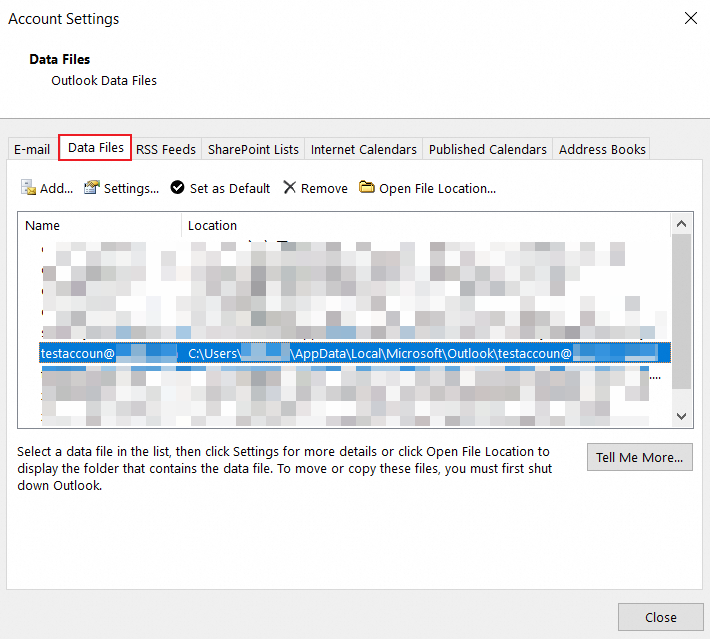
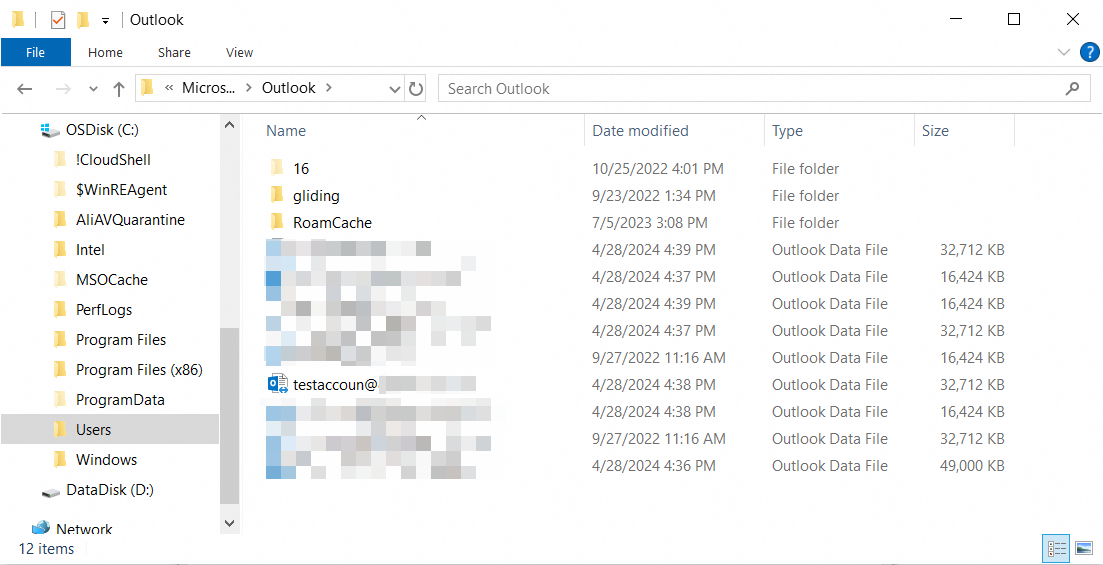
3. Configure the Alibaba Mail account to the Outlook using the IMAP protocol. The configuration steps are detailed in the Alibaba Mail Account Configuration in Outlook.
4. Upload the local PST file back to the Alibaba Mail.
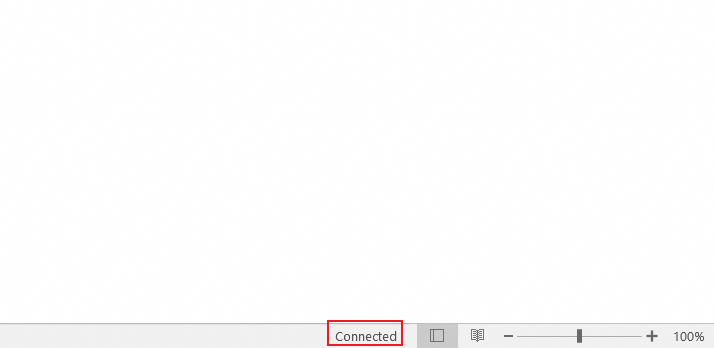
a. Open the configured Alibaba Mail account in Outlook and confirm that you are connected to the server at the bottom of Outlook.
b. Confirm that the original mailbox PST data has been successfully loaded and can be displayed in Outlook.
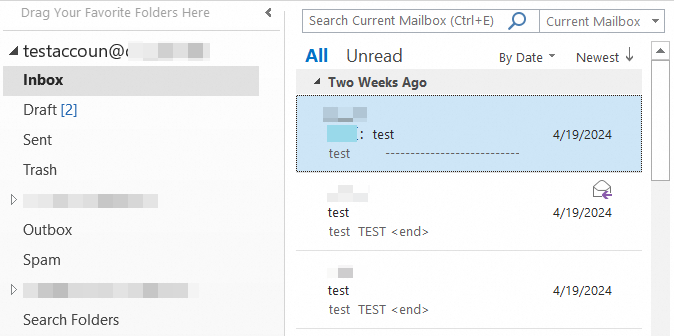
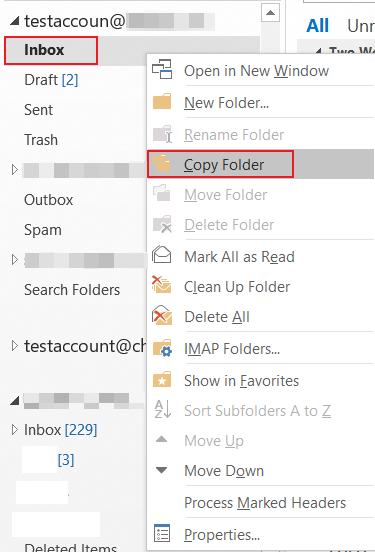
c. Copying the folder of original email account that needs to be migrated to the Alibaba Mail account folder (such as Inbox).
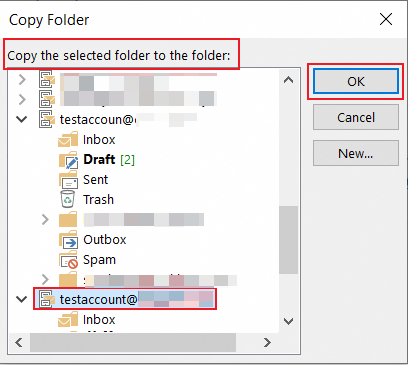
d. Copy the folder to the folder of Alibaba Mail account and click OK.
e. Wait for data to be synchronized to the Alibaba server. If the amount of email data is large, wait patiently.
Upload data back to Alibaba Mail is a continuous uploading process of the client network, and the Outlook client cannot be closed. If the email data is large, please wait patiently. During the uploading process, ensure that the computer network connection is normal.
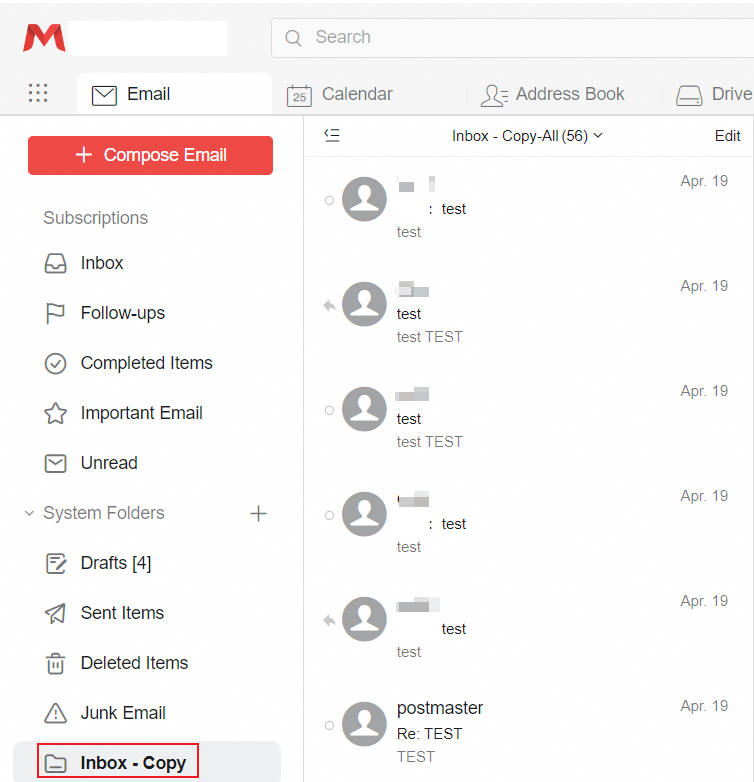
5. Log on to the Alibaba Mail to confirm that email data synchronization is complete.