Configure your Alibaba Mail Enterprise account in Outlook for Windows using IMAP or POP3. Other Outlook versions can follow the same general steps.
Step 1: Start Outlook 2021. Go to File > Info > Add Account.
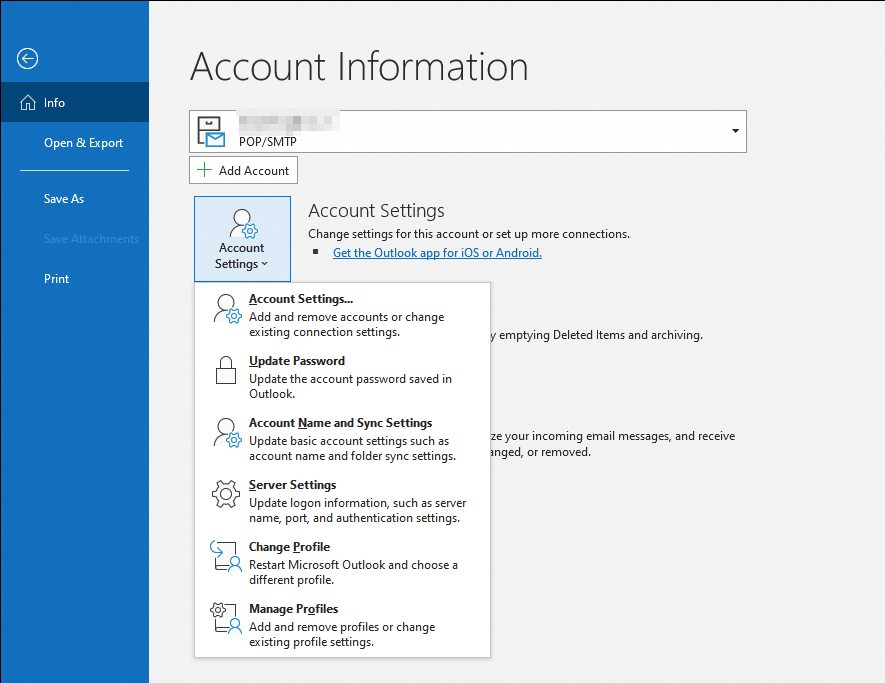
Step 2: Select Email Account and click New.
Step 3: Select Manual setup or additional server types and click Next.
Step 4: Select POP or IMAP and click Next.
Step 5: Enter your account information. The following example uses the POP3 protocol.
POP3 protocol settings
Incoming mail server: pop.sg.aliyun.com or pop3.yourdomain.com
Outgoing mail server: smtp.sg.aliyun.com or smtp.yourdomain.com
IMAP protocol settings
Incoming mail server: imap.sg.aliyun.com or imap.yourdomain.com
Outgoing mail server: smtp.sg.aliyun.com or smtp.yourdomain.com
Note: In the User Name field under Logon Information, enter your full email address, such as a***@example.net.
Step 6: Click More Settings and go to the Outgoing Server tab. Select My outgoing server (SMTP) requires authentication, and then select Use same settings as my incoming mail server.
Step 7: Go to the Advanced tab.
For enhanced security, use an SSL-encrypted connection. Ensure that ports 465, 995, and 993 are open on your local computer and network.
Post Office Protocol 3 (POP3):
Incoming server (POP3) port: 110 or 995 (encrypted)
Outgoing server (SMTP) port: 25 or 465 (encrypted)
IMAP protocol:
Incoming server (IMAP) port: 143 or 993 (encrypted)
Outgoing server (SMTP) port: 25 or 465 (encrypted)
Step 8: Click Next. The system tests your account settings.
If the tests pass and the status shows Completed, your account is ready. You can now send and receive emails in Outlook.
FAQ
What is the difference between Install for me only and Install for anyone who uses this computer when I install the Alibaba Mail client?
If you are the only person who uses the computer, select Install for me only. If the computer is shared and your colleagues also need to sign in to and use the client, select Install for anyone who uses this computer.