Arena is a CLI tool for managing machine learning workloads on Kubernetes. This guide shows you how to submit a standalone PyTorch training job on a Container Service for Kubernetes (ACK) cluster — using either a single GPU or multiple GPUs on one node — and visualize training progress with TensorBoard.
By the end of this guide, you will have:
Verified GPU availability in your cluster
Submitted a PyTorch training job using
arena submit pytorchMonitored job status and GPU usage
Accessed TensorBoard to visualize training results
Viewed training logs
Prerequisites
Before you begin, ensure that you have:
An ACK cluster with GPU-accelerated nodes. For setup instructions, see Create an ACK cluster that contains GPU-accelerated nodes
Internet access enabled for cluster nodes. See Enable an existing ACK cluster to access the Internet
The Arena component installed and configured. See Configure the Arena client
A persistent volume claim (PVC) named
training-datawith the MNIST dataset stored at/pytorch_data. See Configure a shared NAS volume
How torchrun and git-sync work in this guide
This guide uses torchrun, PyTorch's built-in launcher for single-node training. It manages process spawning and distributed initialization, giving you the same workflow whether you run on one GPU or multiple GPUs on the same node.
Training code is pulled from a remote Git repository using git-sync. Training data is read from a shared File Storage NAS (NAS) volume mounted via a persistent volume (PV) and PVC. The example uses main.py from the Arena repository.
Single GPU vs. multiple GPUs: Use a single GPU for standard model sizes that fit in one GPU's memory. Use multiple GPUs on one node when your model or batch size exceeds single-GPU memory, or when you want to speed up training with data parallelism. Switch between the two by adjusting --gpus and --nproc-per-node.
Step 1: Check GPU availability
Run the following command to see how many GPUs are available in the cluster:
arena top nodeExpected output:
NAME                        IPADDRESS        ROLE    STATUS  GPU(Total)  GPU(Allocated)
cn-beijing.192.168.xxx.xxx  192.168.xxx.xxx  <none>  Ready   0           0
cn-beijing.192.168.xxx.xxx  192.168.xxx.xxx  <none>  Ready   0           0
cn-beijing.192.168.xxx.xxx  192.168.xxx.xxx  <none>  Ready   2           0
cn-beijing.192.168.xxx.xxx  192.168.xxx.xxx  <none>  Ready   2           0
---------------------------------------------------------------------------------------------------
Allocated/Total GPUs In Cluster:
0/4 (0.0%)
The output shows two GPU-accelerated nodes, each with two idle GPUs — four GPUs total are available for training.
Step 2: Submit a PyTorch training job
Single-GPU job
Run the following command to submit a standalone PyTorch training job using one GPU:
arena submit pytorch \
    --name=pytorch-mnist \
    --namespace=default \
    --workers=1 \
    --gpus=1 \
    --working-dir=/root \
    --image=kube-ai-registry.cn-shanghai.cr.aliyuncs.com/kube-ai/pytorch-with-tensorboard:2.5.1-cuda12.4-cudnn9-runtime \
    --sync-mode=git \
    --sync-source=https://github.com/kubeflow/arena.git \
    --env=GIT_SYNC_BRANCH=v0.13.1 \
    --data=training-data:/mnt \
    --tensorboard \
    --logdir=/mnt/pytorch_data/logs \
    "torchrun /root/code/arena/examples/pytorch/mnist/main.py --epochs 10 --backend nccl --data /mnt/pytorch_data --dir /mnt/pytorch_data/logs"
Expected output:
service/pytorch-mnist-tensorboard created
deployment.apps/pytorch-mnist-tensorboard created
pytorchjob.kubeflow.org/pytorch-mnist created
INFO[0002] The Job pytorch-mnist has been submitted successfully
INFO[0002] You can run `arena get pytorch-mnist --type pytorchjob -n default` to check the job status
Multi-GPU job
To use two GPUs on the same node, set --gpus=2 and --nproc-per-node=2. torchrun launches two training processes, one per GPU:
arena submit pytorch \
    --name=pytorch-mnist \
    --namespace=default \
    --workers=1 \
    --gpus=2 \
    --nproc-per-node=2 \
    --working-dir=/root \
    --image=kube-ai-registry.cn-shanghai.cr.aliyuncs.com/kube-ai/pytorch-with-tensorboard:2.5.1-cuda12.4-cudnn9-runtime \
    --sync-mode=git \
    --sync-source=https://github.com/kubeflow/arena.git \
    --env=GIT_SYNC_BRANCH=v0.13.1 \
    --data=training-data:/mnt \
    --tensorboard \
    --logdir=/mnt/pytorch_data/logs \
    "torchrun /root/code/arena/examples/pytorch/mnist/main.py --epochs 10 --backend nccl --data /mnt/pytorch_data --dir /mnt/pytorch_data/logs"
Parameters
| Parameter | Required | Description | Default |
|---|---|---|---|
--name | Yes | Job name. Must be unique in the cluster. | N/A |
--namespace | No | Kubernetes namespace | default |
--workers | No | Number of worker nodes. The master node is included — a value of 1 means the job runs on the master node only. | 1 |
--gpus | No | Number of GPUs allocated to each worker node | 0 |
--nproc-per-node | No | Number of training processes per node. Set equal to --gpus for one process per GPU. | N/A |
--working-dir | No | Directory where the training command runs | /root |
--image | Yes | Container image used to run the training job | N/A |
--sync-mode | No | Source code synchronization mode. Valid values: git, rsync. | N/A |
--sync-source | No | Repository URL for source code synchronization. Used with --sync-mode. Code is downloaded to the code/ directory under --working-dir. | N/A |
--data | No | Mounts a PVC into the training container. Format: <pvc-name>:<mount-path>. Run arena data list to see available PVCs. | N/A |
--tensorboard | No | Enables TensorBoard for visualizing training results. Requires --logdir. | N/A |
--logdir | No | Path where TensorBoard reads event files. | /training_logs |
Using a private Git repository
If your repository requires authentication, pass credentials via git-sync environment variables:
arena submit pytorch \
    ...
    --sync-mode=git \
    --sync-source=https://github.com/kubeflow/arena.git \
    --env=GIT_SYNC_BRANCH=v0.13.1 \
    --env=GIT_SYNC_USERNAME=<username> \
    --env=GIT_SYNC_PASSWORD=<password> \
    "torchrun /root/code/arena/examples/pytorch/mnist/main.py --epochs 10 --backend nccl --data /mnt/pytorch_data --dir /mnt/pytorch_data/logs"
All environment variables supported by git-sync can be passed this way. See the git-sync documentation for the full list.
If the GitHub repository is unreachable
If the code cannot be pulled from GitHub due to network issues, manually download the code to your NAS volume at /code/github.com/kubeflow/arena. Then submit the job without --sync-mode:
arena submit pytorch \
    --name=pytorch-mnist \
    --namespace=default \
    --workers=1 \
    --gpus=1 \
    --working-dir=/root \
    --image=kube-ai-registry.cn-shanghai.cr.aliyuncs.com/kube-ai/pytorch-with-tensorboard:2.5.1-cuda12.4-cudnn9-runtime \
    --data=training-data:/mnt \
    --tensorboard \
    --logdir=/mnt/pytorch_data/logs \
    "torchrun /mnt/code/github.com/kubeflow/arena/examples/pytorch/mnist/main.py --epochs 10 --backend nccl --data /mnt/pytorch_data --dir /mnt/pytorch_data/logs"
Step 3: Monitor the training job
List jobs
Run the following command to list all Arena jobs in the namespace:
arena list -n defaultExpected output:
NAME           STATUS   TRAINER     DURATION  GPU(Requested)  GPU(Allocated)  NODE
pytorch-mnist  RUNNING  PYTORCHJOB  11s       1               1               192.168.xxx.xxx
Check GPU usage
Run the following command to see GPU allocation for running jobs:
arena top job -n defaultExpected output:
NAME           STATUS   TRAINER     AGE  GPU(Requested)  GPU(Allocated)  NODE
pytorch-mnist  RUNNING  PYTORCHJOB  18s  1               1               192.168.xxx.xxx

Total Allocated/Requested GPUs of Training Jobs: 1/1
Run the following command to see GPU usage across all cluster nodes:
arena top nodeExpected output:
NAME                        IPADDRESS        ROLE    STATUS  GPU(Total)  GPU(Allocated)
cn-beijing.192.168.xxx.xxx  192.168.xxx.xxx  <none>  Ready   0           0
cn-beijing.192.168.xxx.xxx  192.168.xxx.xxx  <none>  Ready   0           0
cn-beijing.192.168.xxx.xxx  192.168.xxx.xxx  <none>  Ready   2           1
cn-beijing.192.168.xxx.xxx  192.168.xxx.xxx  <none>  Ready   2           0
---------------------------------------------------------------------------------------------------
Allocated/Total GPUs In Cluster:
1/4 (25.0%)
One GPU is now allocated.
View job details
Run the following command to view full job details, including the TensorBoard URL:
arena get pytorch-mnist -n defaultExpected output:
Name:        pytorch-mnist
Status:      RUNNING
Namespace:   default
Priority:    N/A
Trainer:     PYTORCHJOB
Duration:    45s
CreateTime:  2025-02-12 11:20:10
EndTime:

Instances:
  NAME                    STATUS   AGE  IS_CHIEF  GPU(Requested)  NODE
  ----                    ------   ---  --------  --------------  ----
  pytorch-mnist-master-0  Running  45s  true      1               cn-beijing.192.168.xxx.xxx

Tensorboard:
  Your tensorboard will be available on:
http://192.168.xxx.xxx:31949The TensorBoard URL appears in job details only if --tensorboard was specified when submitting the job.
Step 4: Access TensorBoard
On your local machine, forward port 6006 of the TensorBoard service to local port 9090:
Importantkubectl port-forwardis intended for development and debugging only. It is not reliable, secure, or scalable for production use. For production networking solutions in ACK clusters, see Ingress management.kubectl port-forward -n default svc/pytorch-mnist-tensorboard 9090:6006Open <http://127.0.0.1:9090> in a web browser to access TensorBoard.
NoteThe training code writes results to event files every 10 epochs. If you change
--epochs, set it to a multiple of 10 — otherwise TensorBoard will not display any training results.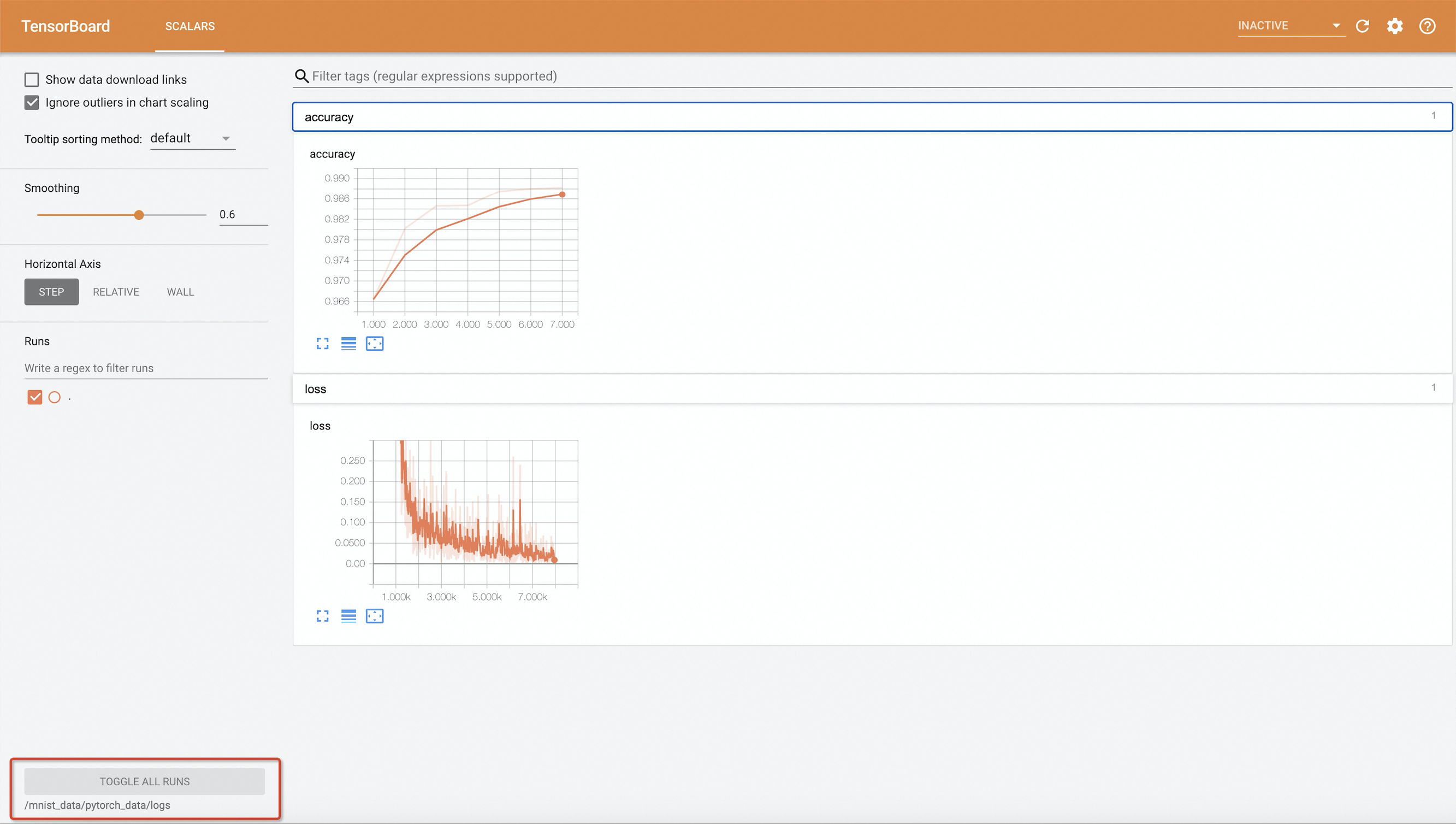
Step 5: View training logs
Run the following command to view the training logs:
arena logs pytorch-mnist -n defaultExpected output:
Train Epoch: 10 [55680/60000 (93%)]     Loss: 0.025778
Train Epoch: 10 [56320/60000 (94%)]     Loss: 0.086488
Train Epoch: 10 [56960/60000 (95%)]     Loss: 0.003240
Train Epoch: 10 [57600/60000 (96%)]     Loss: 0.046731
Train Epoch: 10 [58240/60000 (97%)]     Loss: 0.010752
Train Epoch: 10 [58880/60000 (98%)]     Loss: 0.010934
Train Epoch: 10 [59520/60000 (99%)]     Loss: 0.065813

Accuracy: 9921/10000 (99.21%)
To stream logs in real time, add -f. To view only the last N lines, add -t N or --tail N. For all options, run arena logs --help.
(Optional) Step 6: Clean up
To delete the training job and free GPU resources:
arena delete pytorch-mnist -n defaultExpected output:
INFO[0001] The training job pytorch-mnist has been deleted successfully